


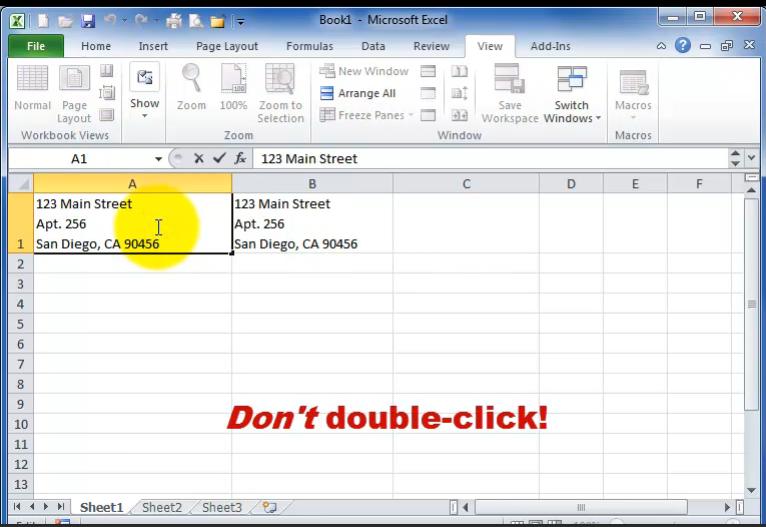
Excel Tips: Learn How to Insert a Line Break Within a Single Cell
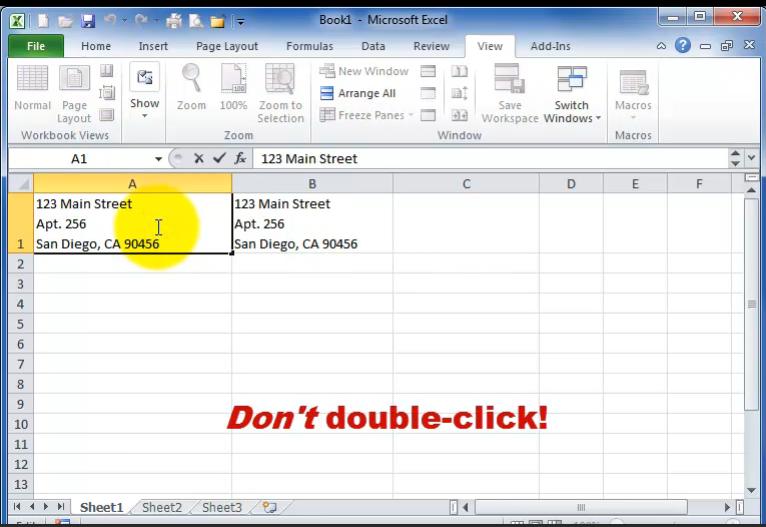
Excel is a powerful tool for organizing and analyzing data, but sometimes you need to fit more text into a single cell than it seems to allow. Adding a new line within a cell can make your data more readable, organized, and visually appealing. This guide will walk you through several simple methods to achieve this.
Why Add a New Line in an Excel Cell?
- Improved Readability: Breaking up long text into multiple lines makes it easier to read and digest.
- Better Organization: You can separate different pieces of information within a cell, such as addresses or lists.
- Visual Appeal: Multi-line text can make your spreadsheets look more polished and professional.
Method 1: Using the Keyboard Shortcut (Alt + Enter)

The quickest and easiest way to add a new line in an Excel cell is with a simple keyboard shortcut:
- Click the cell where you want to insert a new line.
- Type your text.
- Press Alt + Enter where you want to start a new line.
Method 2: Using the “Wrap Text” Feature

The Wrap Text feature automatically adjusts the height of a cell to fit multiple lines of text:
- Select the cell(s) you want to wrap text in.
- Go to the Home tab in the Excel ribbon.
- Click the “Wrap Text” button in the Alignment group.
Method 3: Using the “Format Cells” Dialog Box
The Format Cells dialog box gives you more control over text wrapping and alignment:
- Right-click the cell and select “Format Cells.”
- Go to the Alignment tab.
- Check the “Wrap text” box.
- Adjust text alignment options as desired.
Method 4: Using CHAR(10) Function (Advanced)
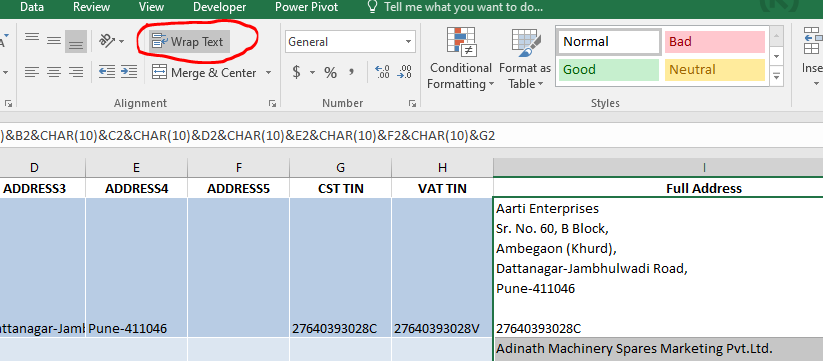
For more advanced users, the CHAR(10) function can be used within formulas to insert line breaks:
- In the cell, enter your text.
- Where you want a new line, insert the following formula:
&CHAR(10)& - Continue typing your text.
Example:
="This is the first line" &CHAR(10)& "This is the second line"
Tips and Considerations
- Adjust Row Height: After adding new lines, you may need to adjust the row height to fully display the text.
- Font Size: Smaller font sizes may fit more lines in a cell, but ensure the text remains readable.
- Cell Width: If your text is too wide for the cell, it may wrap automatically even without the Wrap Text feature enabled.
Conclusion
Adding new lines within a single Excel cell is a simple yet powerful technique that can greatly improve the readability and organization of your spreadsheets. Whether you prefer keyboard shortcuts, the Wrap Text feature, or advanced formulas, there’s a method that suits your needs and skill level. Experiment with these techniques to find the one that works best for you and elevate your Excel mastery!