


Arrow Keys Not Responding in Excel? Solutions to Fix It
Microsoft Excel is an essential tool for data management, analysis, and reporting. However, even experienced users sometimes encounter frustrating issues that interrupt their workflow. One common problem is when the arrow keys stop working as expected. Instead of moving between cells, the worksheet may scroll, or nothing may happen at all.
If you’re facing this issue, don’t worry. This guide will walk you through the most common causes and practical solutions to fix arrow keys not working in Excel.
Understanding the Problem
Before jumping into solutions, it’s important to understand what “arrow keys not working” actually means in Excel. Typically, users expect arrow keys to move the cursor from one cell to another. When this doesn’t happen, you might experience:
- The worksheet scrolling instead of moving between cells
- No response when pressing arrow keys
- Unexpected navigation behavior
These symptoms usually point to a setting or minor glitch rather than a serious problem.
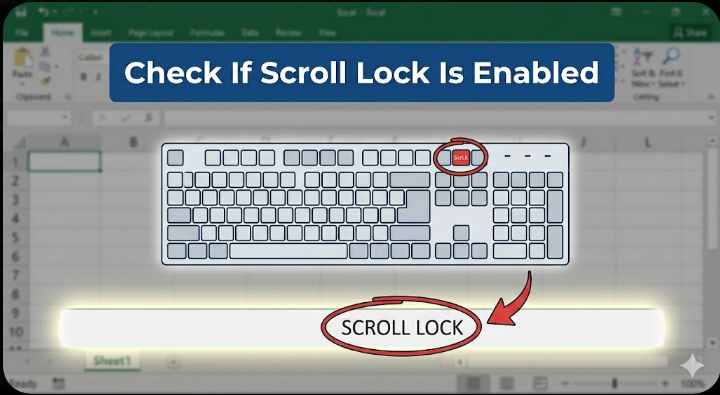
Check If Scroll Lock Is Enabled
What Is Scroll Lock?
Scroll Lock is one of the most common reasons arrow keys don’t work properly in Excel. When enabled, arrow keys scroll the entire worksheet instead of moving the active cell.
How to Fix It
- Look at the status bar at the bottom of Excel. If you see “Scroll Lock”, it is enabled.
- Press the Scroll Lock (ScrLk) key on your keyboard to turn it off.
If Your Keyboard Doesn’t Have a Scroll Lock Key
Some modern keyboards, especially laptops, don’t include a Scroll Lock key. In that case:
- Open the On-Screen Keyboard:
- Press
Windows + Ctrl + O
- Press
- Click the ScrLk button to disable it
Once Scroll Lock is turned off, your arrow keys should work normally again.
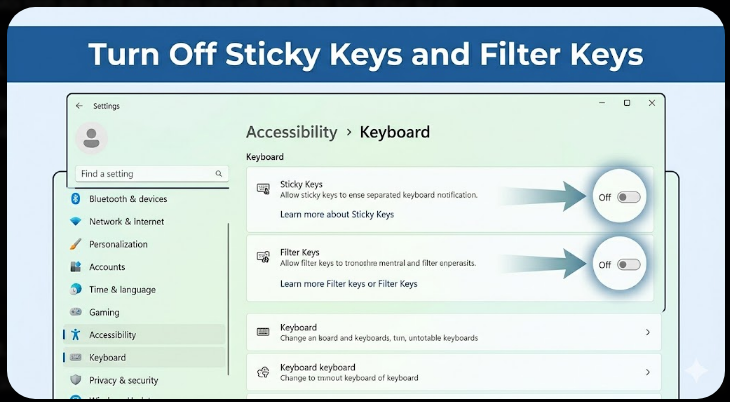
Turn Off Sticky Keys and Filter Keys
Why This Matters
Windows accessibility features like Sticky Keys or Filter Keys can sometimes interfere with normal keyboard behavior, including arrow keys.
Steps to Disable
- Go to Settings
- Navigate to Accessibility
- Select Keyboard
- Turn off:
- Sticky Keys
- Filter Keys
After disabling these features, test your arrow keys again in Excel.
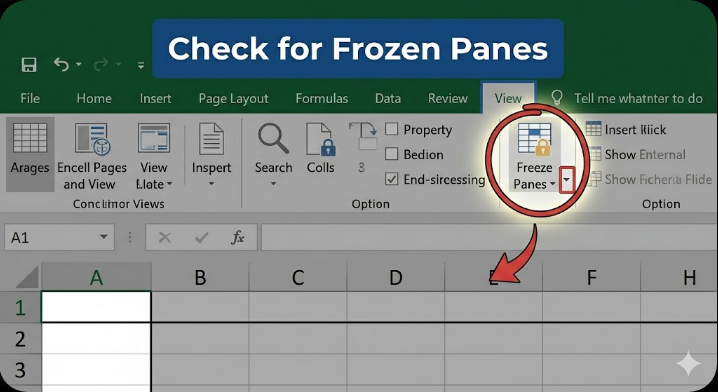
Check for Frozen Panes
What Are Frozen Panes?
Frozen panes lock certain rows or columns in place. While this feature is useful, it can sometimes make navigation feel unusual or restricted.
How to Fix
- Go to the View tab in Excel
- Click Freeze Panes
- Select Unfreeze Panes
Now try using the arrow keys again to see if the issue is resolved.
Disable Add-Ins That May Cause Conflicts
Why Add-Ins Can Be a Problem
Excel add-ins enhance functionality, but sometimes they interfere with normal operations, including keyboard input.
How to Disable Add-Ins
- Click File → Options
- Select Add-ins
- At the bottom, choose Excel Add-ins and click Go
- Uncheck all add-ins and click OK
Restart Excel and check if the arrow keys work. If they do, re-enable add-ins one by one to find the culprit.
Check for Formula Editing Mode
What Happens in Edit Mode
When you’re editing a cell (for example, after pressing F2), arrow keys move within the formula instead of navigating between cells.
Solution
- Press Enter or Esc to exit edit mode
- Then try using the arrow keys again
This is a simple fix but often overlooked.
Inspect Keyboard Hardware Issues
Possible Hardware Problems
Sometimes the issue isn’t Excel—it’s your keyboard. Dust, wear and tear, or hardware failure can cause keys to stop working.
How to Test
- Try using arrow keys in another application (like Notepad or a browser)
- Connect an external keyboard if you’re using a laptop
If the keys don’t work elsewhere, you may need to clean or replace your keyboard.
Update or Repair Microsoft Excel
Why Updates Matter
Outdated or corrupted Excel installations can lead to unexpected issues, including keyboard problems.
Update Excel
- Go to File → Account
- Click Update Options
- Select Update Now
Repair Excel
- Open Control Panel
- Go to Programs and Features
- Find Microsoft Office
- Click Change → Quick Repair or Online Repair
After the repair process, reopen Excel and test the arrow keys.
Check for Conflicting Shortcut Settings
Custom Shortcuts and Macros
If you’ve customized keyboard shortcuts or installed macros, they might override default arrow key behavior.
Fix
- Review any macros in your workbook
- Disable or remove suspicious scripts
- Reset custom shortcuts if necessary
Restart Your Computer
Why This Works
Sometimes, temporary system glitches affect keyboard input. A simple restart can clear these issues.
Steps
- Save your work
- Restart your computer
- Open Excel and test again
This basic step often resolves problems without further troubleshooting.
When to Seek Further Help
If none of the above solutions work, you might be dealing with a more complex issue such as:
- Corrupted Excel files
- Operating system conflicts
- Driver-related problems
In such cases, consider:
- Reinstalling Microsoft Office
- Updating keyboard drivers
- Contacting Microsoft Support
Final Thoughts
Arrow keys not working in Excel can be frustrating, especially when you rely on quick navigation for productivity. Fortunately, the issue is usually caused by simple factors like Scroll Lock, settings conflicts, or minor glitches.
By systematically checking each possible cause—from keyboard settings to Excel configurations—you can quickly restore normal functionality. Most fixes take only a few minutes, and once resolved, you can get back to working efficiently in Excel.
Related articles
Fixing the “Kernel Security Check Failure” Error on Windows 10