


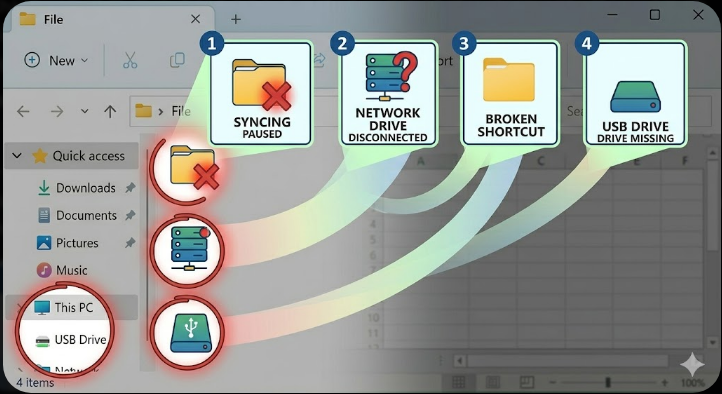
Seeing a Red X on Windows Folders? Here’s What It Indicates
If you’ve ever opened File Explorer and noticed a red “X” icon on your folders, you’re not alone. This symbol can be confusing, especially if you’re unsure whether it indicates a serious issue or just a minor sync problem. Many Windows users encounter this icon when working with cloud storage services or network drives, and understanding what it means can help you avoid data loss or access issues.
In this guide, you’ll learn what the red “X” sign on Windows folders means, why it appears, and how to fix it effectively.
What Does the Red “X” Icon Mean?
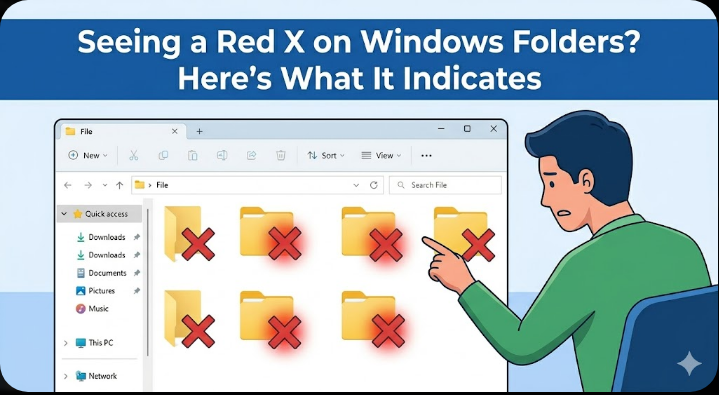
The red “X” overlay on a folder in Windows usually indicates that something is wrong with that folder’s connection, availability, or synchronization status. It is not a random symbol—it’s a warning that Windows or a related service cannot properly access or sync the folder.
Depending on the situation, the red “X” may mean:
- The folder is not syncing with a cloud service like OneDrive
- The folder is located on a disconnected network drive
- The file path is broken or no longer exists
- There are permission or access issues
- The storage service is paused or experiencing errors
Understanding the exact cause is key to resolving the issue quickly.
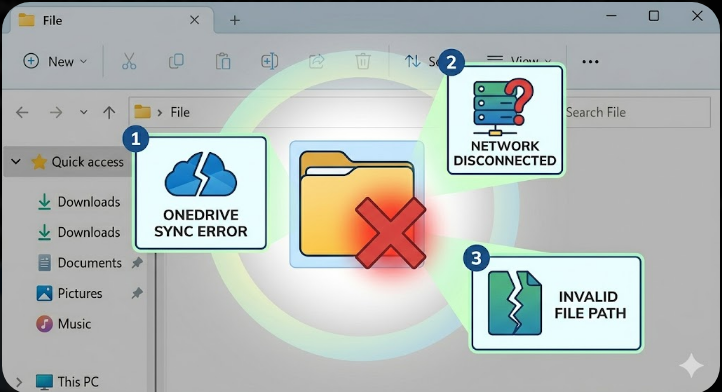
Common Causes of the Red “X” on Folders
1. OneDrive or Cloud Sync Problems
One of the most common reasons for the red “X” icon is a synchronization issue with OneDrive or another cloud storage service.
When files fail to sync, Windows displays a red “X” to alert you that the folder is not up to date. This can happen due to:
- Internet connectivity problems
- Storage limits being exceeded
- Conflicting files
- Paused syncing
2. Disconnected Network Drives
If your folder is stored on a network drive and that drive becomes unavailable, Windows may show a red “X” icon.
This often happens when:
- You are not connected to the company network or VPN
- The server is offline
- The mapped drive has been removed or changed
3. Broken Shortcuts or Invalid Paths
A folder shortcut pointing to a location that no longer exists can also display a red “X.” This typically occurs when:
- The original folder has been deleted or moved
- The storage device has been disconnected
- The path has changed
4. Permission or Access Issues
Sometimes, the red “X” indicates that you don’t have permission to access the folder. This can occur in shared environments or after system changes.
5. External Drive Issues
If the folder is located on an external hard drive or USB device that is no longer connected, Windows may mark it with a red “X.”
How to Fix the Red “X” on Windows Folders
Check Your Internet Connection
If the issue is related to cloud storage, start by ensuring your internet connection is stable.
- Open a browser and test a website
- Reconnect to Wi-Fi if necessary
- Restart your router if the connection is unstable
Once your connection is restored, the folder may sync automatically.
Resume or Restart OneDrive Sync
If you’re using OneDrive:
- Click the OneDrive icon in the system tray
- Check if syncing is paused
- Click Resume Syncing if needed
You can also restart OneDrive:
- Close the app and reopen it
- Or restart your computer
This often resolves temporary sync issues.
Check OneDrive Storage Space
If your cloud storage is full, syncing will stop.
- Open OneDrive settings
- Check your available storage
- Delete unnecessary files or upgrade your plan
After freeing up space, syncing should resume and remove the red “X.”
Reconnect Network Drives
For network-related issues:
- Open File Explorer
- Go to This PC
- Locate the network drive with the red “X”
- Right-click and select Reconnect
If needed, reconnect to your VPN or network first.
Fix Broken Shortcuts
If the folder is a shortcut:
- Right-click the folder
- Select Properties
- Check the target path
If the path is invalid, update it or recreate the shortcut.
Check Permissions
To verify access rights:
- Right-click the folder
- Select Properties
- Go to the Security tab
- Ensure your user account has proper permissions
If not, contact the administrator or adjust permissions if you have access.
Reconnect External Devices
If your folder is on an external drive:
- Make sure the device is plugged in properly
- Try a different USB port
- Restart your computer
Once the device is recognized, the red “X” should disappear.
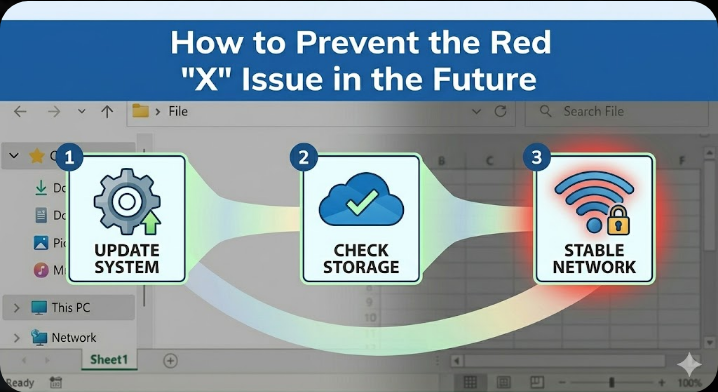
How to Prevent the Red “X” Issue in the Future
While this issue is usually easy to fix, preventing it can save you time and frustration.
Keep Your System Updated
Regular updates ensure that Windows and cloud services run smoothly without bugs or compatibility issues.
Monitor Cloud Storage Usage
Avoid running out of space by regularly checking your storage and removing unnecessary files.
Maintain Stable Network Connections
If you rely on network drives or cloud storage, a stable internet or VPN connection is essential.
Avoid Moving Synced Folders Manually
Moving or renaming folders outside of the cloud service interface can break sync paths and cause errors.
Safely Remove External Devices
Always eject USB drives and external storage devices properly to prevent file path issues.
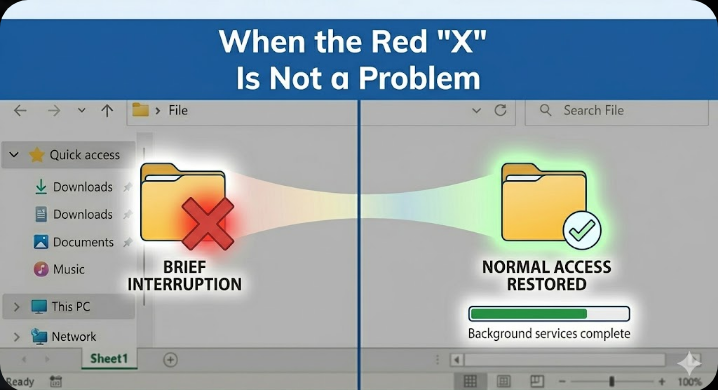
When the Red “X” Is Not a Problem
In some cases, the red “X” might not indicate a serious issue. For example:
- Temporary network interruptions
- Brief syncing delays
- Background service restarts
If the icon disappears after a short time, no action is needed.
Final Thoughts
The red “X” sign on Windows folders is a helpful indicator that something needs your attention. While it may seem alarming at first, it usually points to common issues like syncing errors, disconnected drives, or broken paths.
By identifying the root cause and applying the appropriate fix, you can quickly restore normal access to your files. Whether it’s reconnecting a network drive, resuming OneDrive syncing, or fixing a shortcut, most solutions are straightforward and take only a few minutes.
Related articles
Fixing the “Kernel Security Check Failure” Error on Windows 10