


Ways to Fix File System Error -805305975 in Windows 10/11
Encountering a file system error on Windows can be frustrating, especially when it prevents you from opening files, launching apps, or accessing important data. One specific issue that users often report is File System Error (-805305975). This error typically appears when trying to open images, videos, or applications and may indicate underlying problems with system files, storage, or permissions.
If you’re dealing with this error on Windows 11 or Windows 10, this guide will help you understand the causes and walk you through effective solutions to fix it.
What Is File System Error (-805305975)?
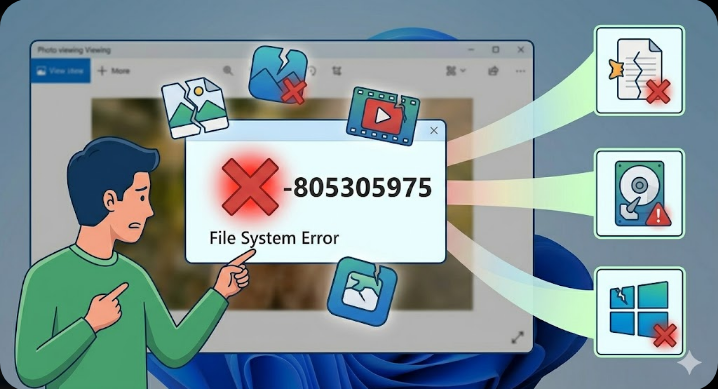
File System Error (-805305975) is a Windows-related issue that usually occurs when the operating system fails to properly access or read a file. It is often associated with the Photos app, corrupted files, or disk-related problems.
You may encounter this error when:
- Opening image files using the Photos app
- Accessing certain files or folders
- Launching applications
- Viewing media content
This error can disrupt normal usage, but in most cases, it can be resolved with a few troubleshooting steps.
Common Causes of File System Error (-805305975)
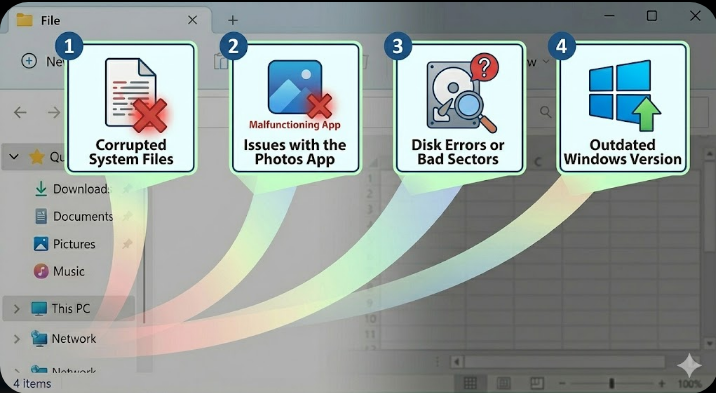
Understanding the root cause can make it easier to fix the issue. Some of the most common reasons include:
Corrupted System Files
Damaged or missing system files can interfere with how Windows handles file operations, leading to errors like this one.
Issues with the Photos App
Since this error often appears when opening images, the built-in Photos app may be corrupted or malfunctioning.
Disk Errors or Bad Sectors
Problems on your hard drive or SSD—such as bad sectors—can prevent files from being accessed properly.
Outdated Windows Version
Running an outdated version of Windows can cause compatibility issues and bugs that trigger file system errors.
Permission Problems
Incorrect file or folder permissions may block access, resulting in this error message.
How To Fix File System Error (-805305975)
Below are several proven methods to resolve this issue. You can try them one by one until the error is fixed.
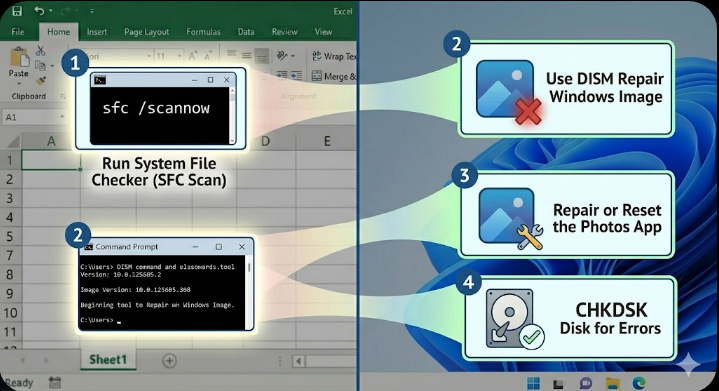
Run System File Checker (SFC Scan)
System File Checker is a built-in Windows tool that scans and repairs corrupted system files.
Steps to Run SFC
- Type cmd in the Windows search bar
- Right-click Command Prompt and select Run as administrator
-
Enter the following command:
sfc /scannow - Press Enter and wait for the process to complete
Once the scan finishes, restart your computer and check if the issue is resolved.
Use DISM Tool to Repair Windows Image
If the SFC scan doesn’t fix the problem, you can use the DISM tool to repair the Windows system image.
Steps to Run DISM
- Open Command Prompt as administrator
-
Run the following commands one by one:
DISM /Online /Cleanup-Image /CheckHealth
DISM /Online /Cleanup-Image /ScanHealth
DISM /Online /Cleanup-Image /RestoreHealth - Wait for each command to complete before running the next
After finishing, restart your PC.
Repair or Reset the Photos App
If the error appears when opening images, the Photos app might be the cause.
Steps to Repair the App
- Go to Settings
- Click Apps → Installed Apps
- Find Microsoft Photos
- Click Advanced Options
- Select Repair
If that doesn’t work, try Reset. This will reinstall the app’s default settings.
Check Your Disk for Errors
Disk issues can lead to file system errors, so it’s important to scan your drive.
Steps to Run CHKDSK
- Open Command Prompt as administrator
-
Type the command:
chkdsk C: /f /r - Press Enter
- Type Y to schedule the scan on restart
- Restart your computer
The system will check for and fix disk errors automatically.
Update Windows to the Latest Version
Keeping your system updated can resolve bugs and compatibility issues.
Steps to Update Windows
- Open Settings
- Go to Windows Update
- Click Check for updates
- Install any available updates
After updating, restart your system and test again.
Check File Permissions
Sometimes, incorrect permissions prevent access to files.
How to Adjust Permissions
- Right-click the affected file or folder
- Select Properties
- Go to the Security tab
- Click Edit
- Ensure your account has Full Control
Apply the changes and try opening the file again.
Perform a Clean Boot
A clean boot helps identify if third-party software is causing the issue.
Steps to Perform Clean Boot
- Press
Windows + R, type msconfig, and press Enter - Go to the Services tab
- Check Hide all Microsoft services
- Click Disable all
- Go to the Startup tab and open Task Manager
- Disable all startup items
- Restart your computer
If the error disappears, a third-party program was likely the cause.
Reinstall Problematic Applications
If the error occurs with a specific app, reinstalling it may help.
Steps
- Uninstall the application from Settings → Apps
- Restart your computer
- Download and reinstall the latest version
Create a New User Account
User profile corruption can sometimes trigger file system errors.
Steps to Create a New Account
- Go to Settings
- Select Accounts → Other users
- Click Add account
- Follow the prompts
Log into the new account and check if the issue persists.
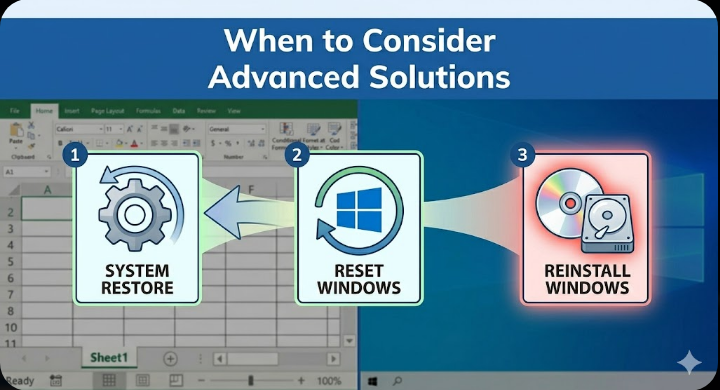
When to Consider Advanced Solutions
If none of the above methods work, you may need to consider more advanced fixes such as:
- Performing a System Restore to revert to a previous state
- Resetting Windows while keeping your files
- Reinstalling Windows بالكامل (completely)
These options should be used as a last resort.
Final Thoughts
File System Error (-805305975) in Windows 11/10 can be disruptive, but it is usually fixable with the right approach. Whether the issue stems from corrupted system files, disk errors, or app-related problems, the solutions outlined above cover the most effective ways to resolve it.
Start with simple fixes like restarting your system or repairing the Photos app, then move on to more advanced tools like SFC, DISM, and CHKDSK if needed. By following these steps, you can restore normal functionality and ensure your files are accessible again.
Related articles
How to Fix Wi-Fi Disconnecting Issues on Windows 10