


Windows 10 Ethernet Invalid IP Configuration? Here’s How to Fix It
The error message “Ethernet doesn’t have a valid IP configuration” is a common network problem in Windows 10. When this issue occurs, your computer may connect physically to the network through an Ethernet cable, but internet access will not work properly.
Users often see a yellow warning icon on the network symbol, and Windows Troubleshooter may report that the Ethernet adapter does not have a valid IP configuration. As a result, websites fail to load, online applications stop working, and network communication becomes unavailable.
Fortunately, this issue is usually caused by incorrect network settings, router problems, corrupted drivers, or Windows network configuration errors — all of which can often be fixed without replacing hardware.
In this guide, you’ll learn what causes the error and how to restore your Ethernet connection on Windows 10.
What Does “Ethernet Doesn’t Have a Valid IP Configuration” Mean?
Every device connected to a network requires a valid IP address to communicate with routers and the internet. Normally, your router automatically assigns an IP address through DHCP.
When Windows cannot obtain or maintain a proper IP address, the Ethernet adapter becomes unable to communicate correctly, resulting in this error.
Common Symptoms
You may notice:
- No internet access
- Ethernet connected but not working
- “Unidentified Network” message
- Yellow warning icon on network icon
- Limited connectivity
- Network troubleshooting errors
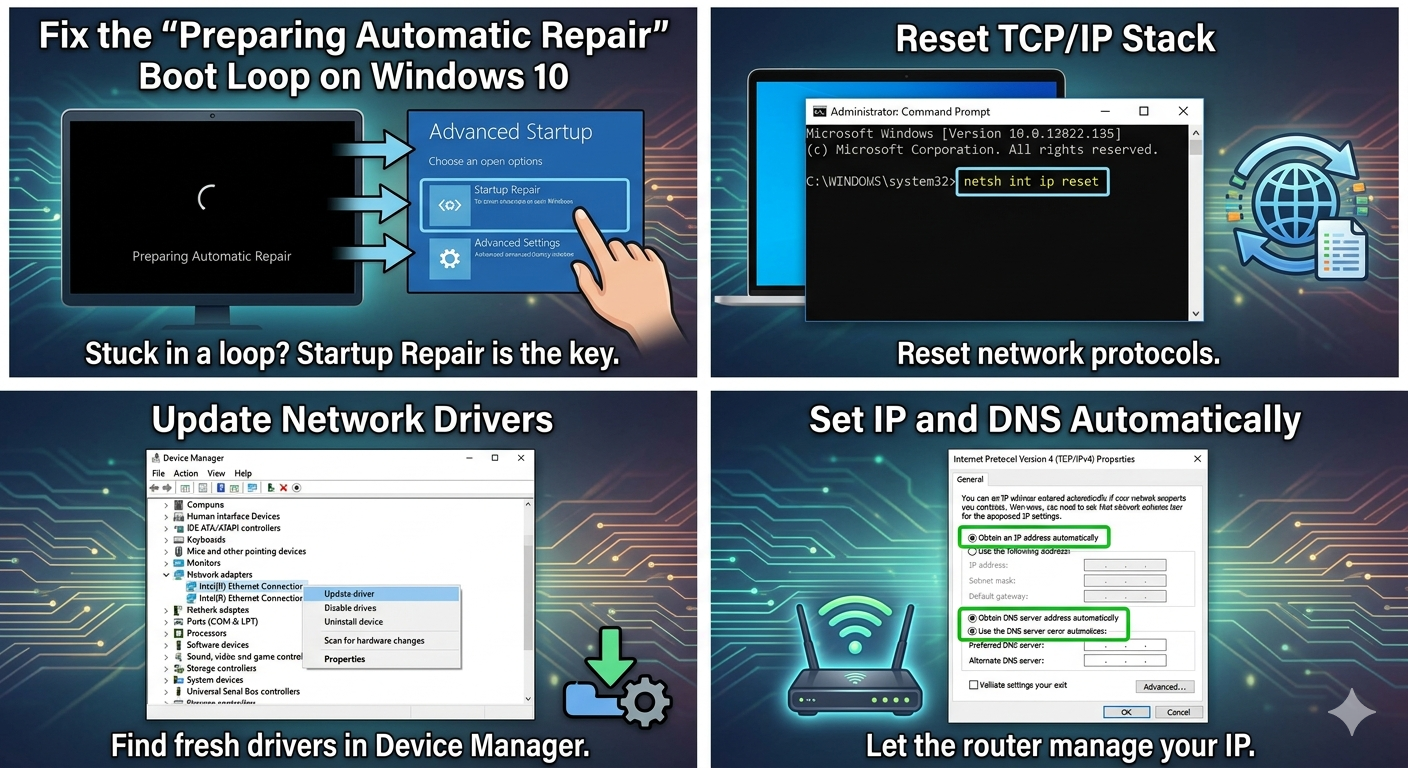
Common Causes of the Problem
Router or Modem Issues
The router may fail to assign IP addresses correctly.
Corrupted Network Drivers
Damaged Ethernet drivers may interfere with communication.
Incorrect TCP/IP Settings
Manual IP settings may conflict with the network.
Faulty Network Configuration
Corrupted Winsock or TCP/IP stacks can break connectivity.
Fast Startup Issues
Windows Fast Startup may interfere with networking.
Antivirus or VPN Conflicts
Security software may block network communication.
How To Fix Ethernet Doesn’t Have a Valid IP Configuration
Try the following solutions one by one.
Restart Your Computer and Router
Temporary network glitches are very common.
Steps
- Shut down your PC
- Restart the modem/router
- Wait 1–2 minutes
- Turn the computer back on
Reconnect the Ethernet Cable
Loose or damaged cables may interrupt communication.
Try
- Disconnecting and reconnecting the cable
- Using another Ethernet port
- Testing a different cable
Run Windows Network Troubleshooter
Windows may automatically repair network settings.
Steps
- Open Settings
- Go to Update & Security → Troubleshoot
- Select:
- Internet Connections
or: - Network Adapter
- Internet Connections
Run the troubleshooter.
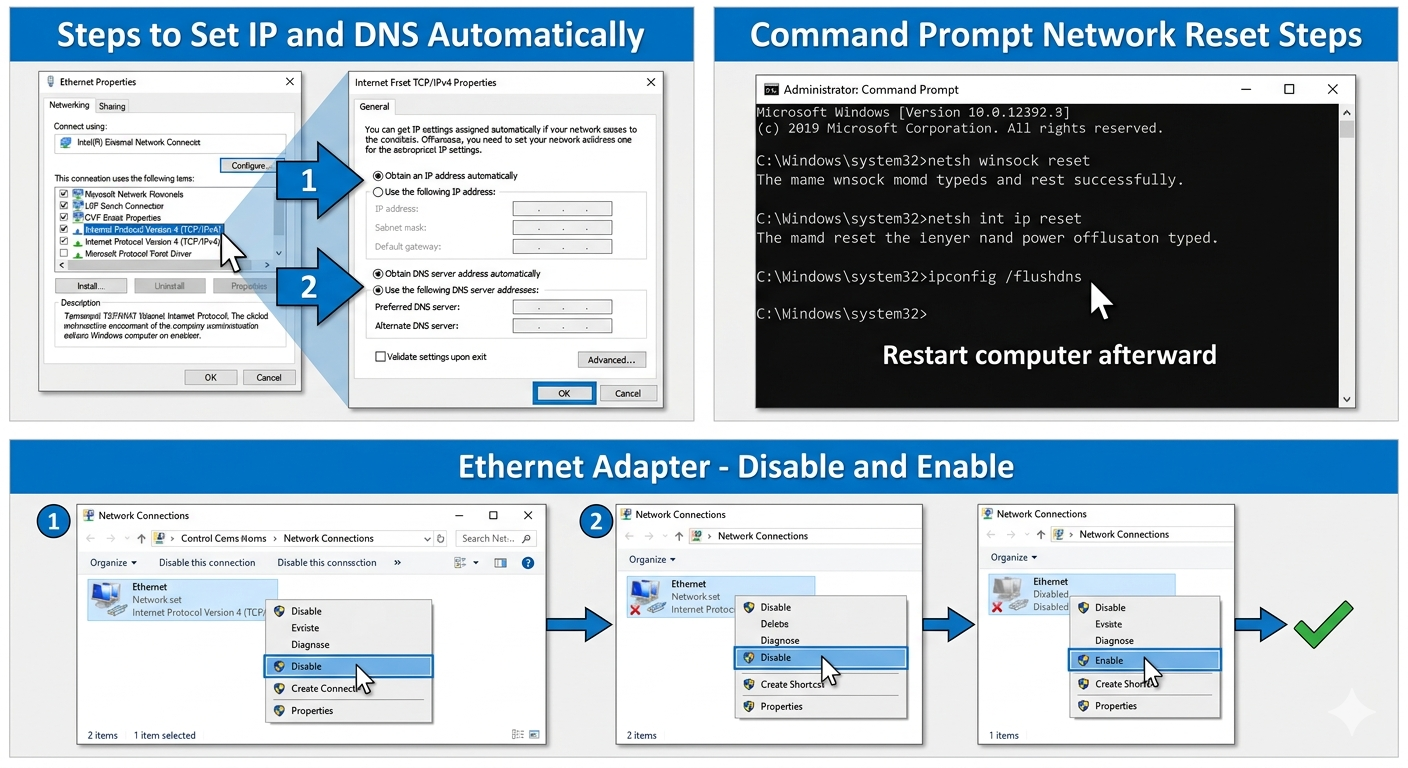
Restart the Network Adapter
Refreshing the adapter may restore connectivity.
Steps
- Press
Windows + R - Type:
ncpa.cpl- Right-click the Ethernet adapter
- Select:
- Disable
- Wait a few seconds
- Enable it again
Set IP and DNS Automatically
Incorrect manual settings often cause the issue.
Steps
- Open:
- Network Connections
- Right-click Ethernet
- Select Properties
- Double-click:
Internet Protocol Version 4 (TCP/IPv4)- Enable:
- Obtain an IP address automatically
- Obtain DNS server address automatically
Reset TCP/IP Stack
Corrupted TCP/IP settings can break networking.
Steps
Open Command Prompt as administrator and run:
netsh int ip resetRestart afterward.
Reset Winsock
Winsock corruption can interfere with internet access.
Steps
Run:
netsh winsock resetRestart the PC.
Release and Renew IP Address
Refreshing the IP lease may resolve conflicts.
Steps
Run these commands:
ipconfig /release
ipconfig /renew
Flush DNS Cache
DNS problems can affect connectivity.
Steps
Run:
ipconfig /flushdnsUpdate Network Drivers
Outdated drivers commonly cause Ethernet issues.
Steps
- Right-click Start
- Open Device Manager
- Expand:
- Network adapters
- Right-click the Ethernet adapter
- Select:
- Update driver
Restart afterward.
Reinstall Ethernet Drivers
Driver corruption may require reinstallation.
Steps
- Open Device Manager
- Right-click the Ethernet adapter
- Select:
- Uninstall device
- Restart the computer
Windows will reinstall the driver automatically.
Disable Fast Startup
Fast Startup may interfere with network initialization.
Steps
- Open Control Panel → Power Options
- Select:
- Choose what the power buttons do
- Disable:
Turn on fast startupRestart the PC.
Disable Antivirus or VPN Temporarily
Security software can sometimes block IP assignment.
Try
- Disabling VPN software
- Temporarily turning off antivirus
- Testing internet access again
Check DHCP Service
The DHCP service must be running properly.
Steps
- Press
Windows + R - Type:
services.msc- Find:
- DHCP Client
- Ensure:
- Running
- Startup Type set to Automatic
Reset Network Settings
Windows can completely rebuild network configuration.
Steps
- Open Settings → Network & Internet
- Select:
- Network reset
- Restart the PC afterward
Run System File Checker (SFC)
Corrupted system files may affect networking.
Steps
Run:
sfc /scannowUse DISM Tool
Repair deeper Windows system corruption.
Steps
Run:
DISM /Online /Cleanup-Image /RestoreHealthCheck Router DHCP Settings
The router may not assign IP addresses correctly.
Try
- Restarting DHCP on the router
- Resetting router settings
- Updating router firmware
Test Another Device
This helps determine whether the issue is PC-related or router-related.
Check
- Another computer
- Gaming console
- Smart TV
If all devices fail, the router or ISP may be responsible.
Perform a Clean Boot
Background software may interfere with networking.
Steps
- Press
Windows + R - Type:
msconfig- Hide Microsoft services
- Disable unnecessary services
- Disable startup apps
- Restart the PC
When the Problem Keeps Returning
Repeated IP configuration problems may indicate:
- Faulty network adapter
- Router instability
- Corrupted Windows installation
- Defective Ethernet cable
Further hardware testing may be needed.
Tips to Prevent Ethernet IP Problems
To reduce future network issues:
- Keep network drivers updated
- Restart routers occasionally
- Avoid conflicting VPN software
- Maintain Windows updates
- Use quality Ethernet cables
When to Seek Professional Help
Consider advanced troubleshooting if:
- Multiple devices lose connectivity
- Ethernet adapter disappears entirely
- Router constantly fails DHCP assignment
- Hardware failure is suspected
Final Thoughts
The “Ethernet doesn’t have a valid IP configuration” error in Windows 10 is usually caused by network configuration problems, corrupted drivers, router issues, or TCP/IP corruption. Although the problem prevents internet access, it can often be fixed quickly using built-in Windows networking tools.
By resetting network settings, renewing the IP address, updating drivers, restarting services, and checking router configuration, most users can restore stable Ethernet connectivity successfully.
Related articles
Fixing the “Kernel Security Check Failure” Error on Windows 10
How to Fix Mobile Hotspot Not Working in Windows 10
Solved: “Object Reference Not Set to an Instance of an Object” Error in Windows