


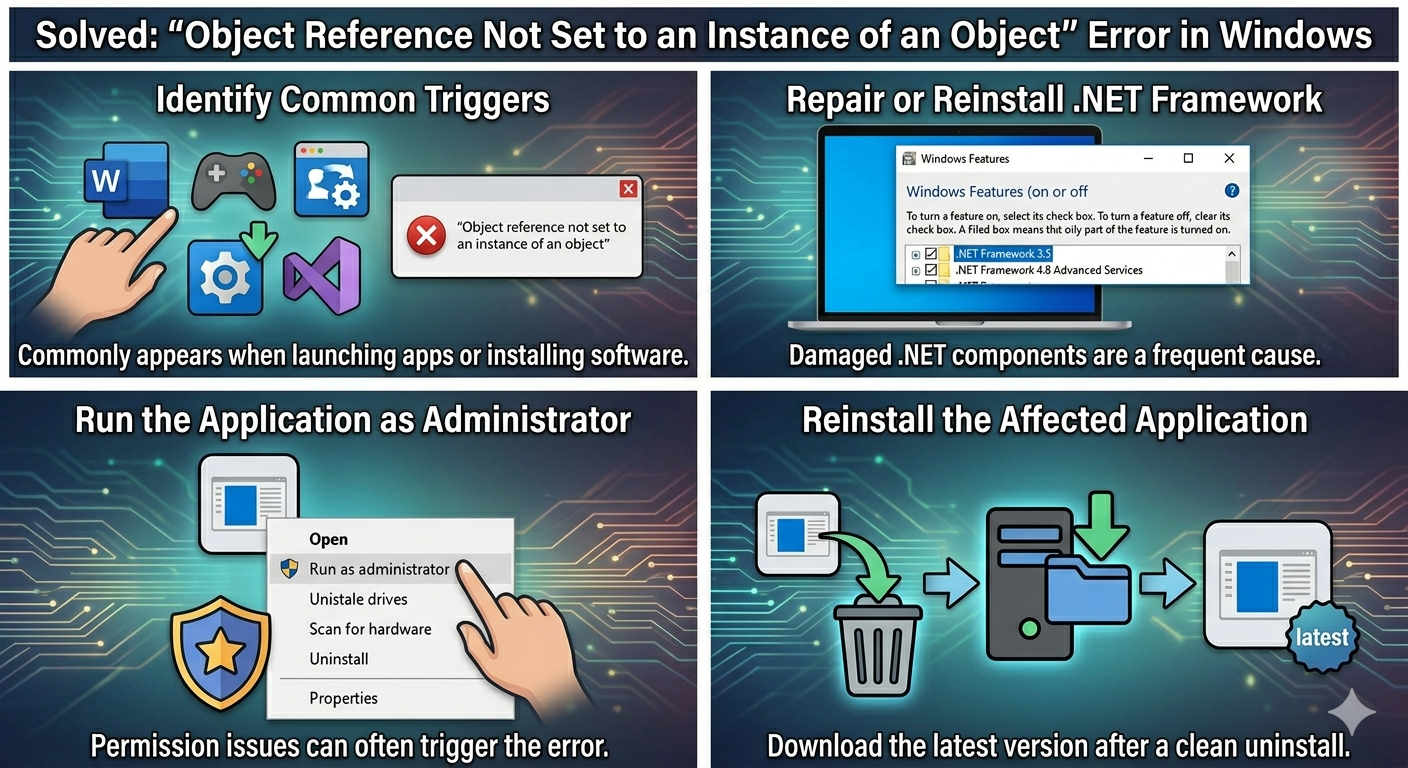
Solved: “Object Reference Not Set to an Instance of an Object” Error in Windows
The error message “Object reference not set to an instance of an object” is a common Windows and .NET Framework-related error that can appear while opening applications, installing software, launching games, or performing system tasks.
For many users, the error appears suddenly without a clear explanation. Some programs may crash immediately, while others refuse to launch entirely. In certain cases, the issue may also affect Windows tools, installers, or development applications.
This error is usually related to corrupted application files, damaged .NET Framework components, missing permissions, software bugs, or system file corruption. Fortunately, there are several effective ways to troubleshoot and fix the problem.
In this guide, you’ll learn what causes the “Object reference not set to an instance of an object” error and how to resolve it on Windows 10 and Windows 11.
What Does “Object Reference Not Set to an Instance of an Object” Mean?
This error originates from Microsoft’s .NET Framework programming environment.
It occurs when a program attempts to use an object that has not been properly initialized or assigned. In simpler terms, the application tries to access something that does not currently exist or is unavailable.
Although the technical cause is programming-related, users can often fix the issue through system repairs or application troubleshooting.
Common Situations Where the Error Appears
The error may occur when:
- Launching applications
- Installing software
- Running games
- Opening Visual Studio projects
- Using Windows utilities
- Accessing cloud or database applications
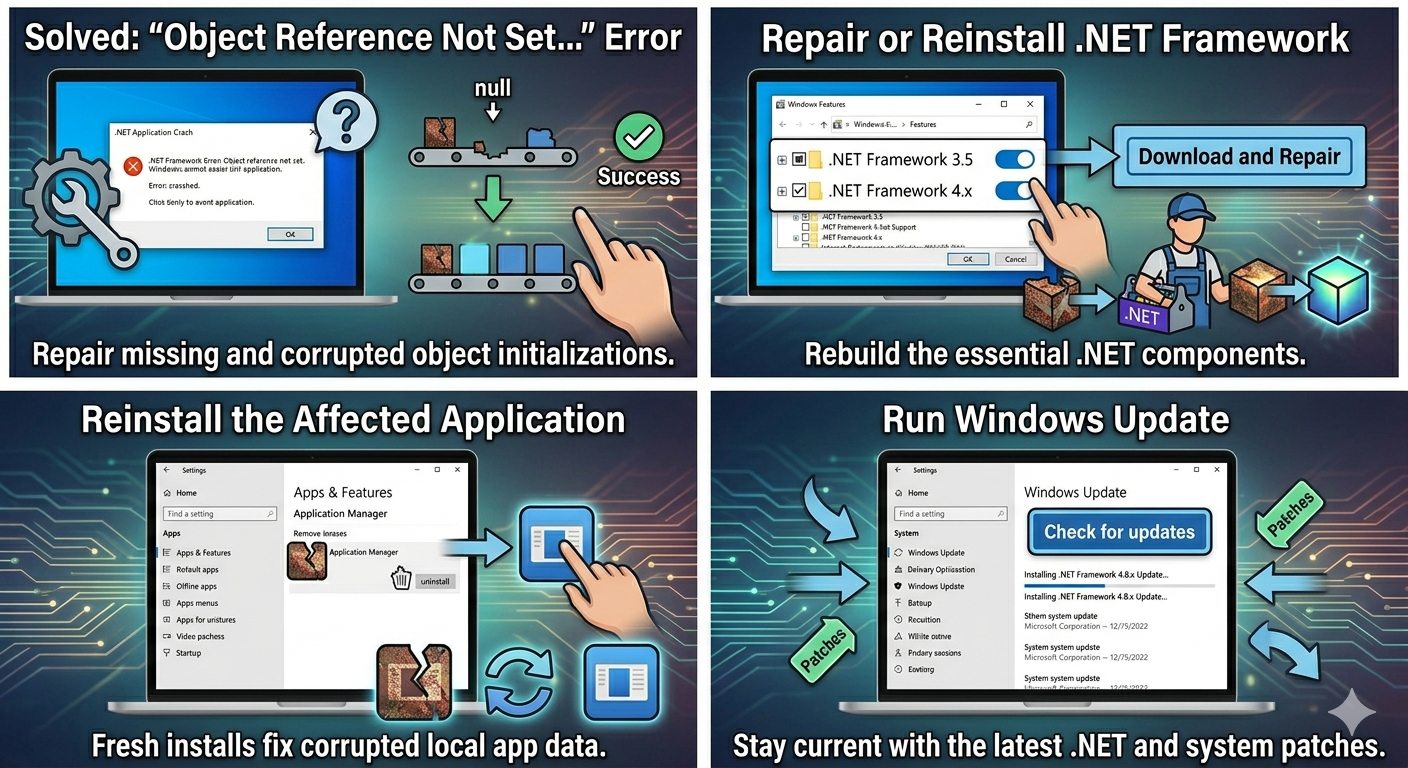
Common Causes of the Error
Corrupted .NET Framework
Damaged .NET components are one of the most common causes.
Corrupted Application Files
The affected program itself may be damaged or incomplete.
Missing Permissions
Insufficient administrator privileges can trigger the error.
Corrupted System Files
Damaged Windows files may interfere with applications.
Software Compatibility Problems
Older software may not work properly with modern Windows versions.
Faulty Application Settings
Corrupted configuration files may cause crashes during startup.
How To Fix “Object Reference Not Set to an Instance of an Object”
Try the following methods carefully.
Restart Your Computer
Temporary software glitches may disappear after rebooting.
Why It Helps
Restarting refreshes memory, services, and application states.
Run the Application as Administrator
Permission issues often trigger application errors.
Steps
- Right-click the application
- Select:
Run as administrator- Check whether the error disappears
Update Windows
Missing updates may affect .NET Framework functionality.
Steps
- Open Settings → Windows Update
- Install all available updates
- Restart the PC
Repair or Reinstall .NET Framework
This is one of the most effective fixes.
Enable .NET Features
- Press
Windows + R - Type:
optionalfeatures- Press Enter
- Ensure:
- .NET Framework 3.5
- .NET Framework 4.x
are enabled.
Reinstall .NET Framework
If necessary:
- Disable the framework temporarily
- Restart Windows
- Re-enable it afterward
Run System File Checker (SFC)
Corrupted system files can trigger application errors.
Steps
Open Command Prompt as administrator and run:
sfc /scannowRestart after completion.
Use DISM Tool
Repair deeper Windows image corruption.
Steps
Run:
DISM /Online /Cleanup-Image /RestoreHealthReinstall the Affected Application
Corrupted installation files commonly cause this error.
Steps
- Uninstall the application
- Restart the PC
- Download the latest version
- Reinstall the software
Delete Corrupted Configuration Files
Some applications store damaged settings files.
Try
- Resetting app preferences
- Removing local config files
- Creating fresh application settings
Check Compatibility Mode
Older programs may require compatibility settings.
Steps
- Right-click the program
- Open:
- Properties → Compatibility
- Enable:
- Run this program in compatibility mode
Choose an earlier Windows version if needed.
Perform a Clean Boot
Background software may conflict with the application.
Steps
- Press
Windows + R - Type:
msconfig- Hide Microsoft services
- Disable unnecessary services
- Disable startup apps
- Restart the PC
Check Event Viewer for More Details
Windows logs may reveal the exact source of the problem.
Steps
- Search for:
- Event Viewer
- Open:
- Windows Logs → Application
Look for related error messages.
Scan for Malware
Malicious software can corrupt application components.
Steps
- Open Windows Security
- Run a:
- Full Scan
Remove any detected threats.
Update Device Drivers
Outdated drivers may affect certain applications.
Focus On
- Graphics drivers
- Audio drivers
- Storage drivers
Clear Temporary Files
Corrupted temporary files may interfere with installations.
Steps
- Press
Windows + R - Type:
temp- Delete unnecessary temporary files
Create a New User Account
Corrupted user profiles can trigger software errors.
Steps
- Open Settings → Accounts
- Add a new local user
- Log into the new profile
- Test the application again
Use System Restore
If the error started recently:
Steps
- Search:
- Create a restore point
- Open System Restore
- Select a restore point before the issue began
Check Visual C++ Redistributables
Many programs depend on Microsoft Visual C++ packages.
Try
- Repairing installed redistributables
- Reinstalling missing versions
When the Error Appears in Visual Studio
Developers commonly encounter this error in coding environments.
Possible Causes
- Null variables
- Missing references
- Incorrect project settings
- Plugin conflicts
Cleaning and rebuilding the project may help.
When the Error Appears During Installation
Installation-related causes may include:
- Missing permissions
- Antivirus interference
- Corrupted setup files
- Incomplete downloads
Downloading a fresh installer often helps.
Tips to Prevent This Error
To reduce future software issues:
- Keep Windows updated
- Maintain .NET Framework updates
- Avoid forced shutdowns during installs
- Use trusted software sources
- Regularly scan for malware
When to Seek Additional Help
Consider advanced troubleshooting if:
- Multiple applications display the error
- System-wide crashes continue
- .NET repairs fail repeatedly
- Windows becomes unstable overall
Final Thoughts
The “Object reference not set to an instance of an object” error on Windows is usually related to .NET Framework problems, corrupted applications, missing permissions, or damaged system files. Although the message may look technical, many cases can be resolved with straightforward troubleshooting steps.
By repairing .NET Framework, reinstalling affected applications, updating Windows, repairing system files, and checking compatibility settings, most users can eliminate the error successfully.
Related articles
Fixing the “Kernel Security Check Failure” Error on Windows 10