


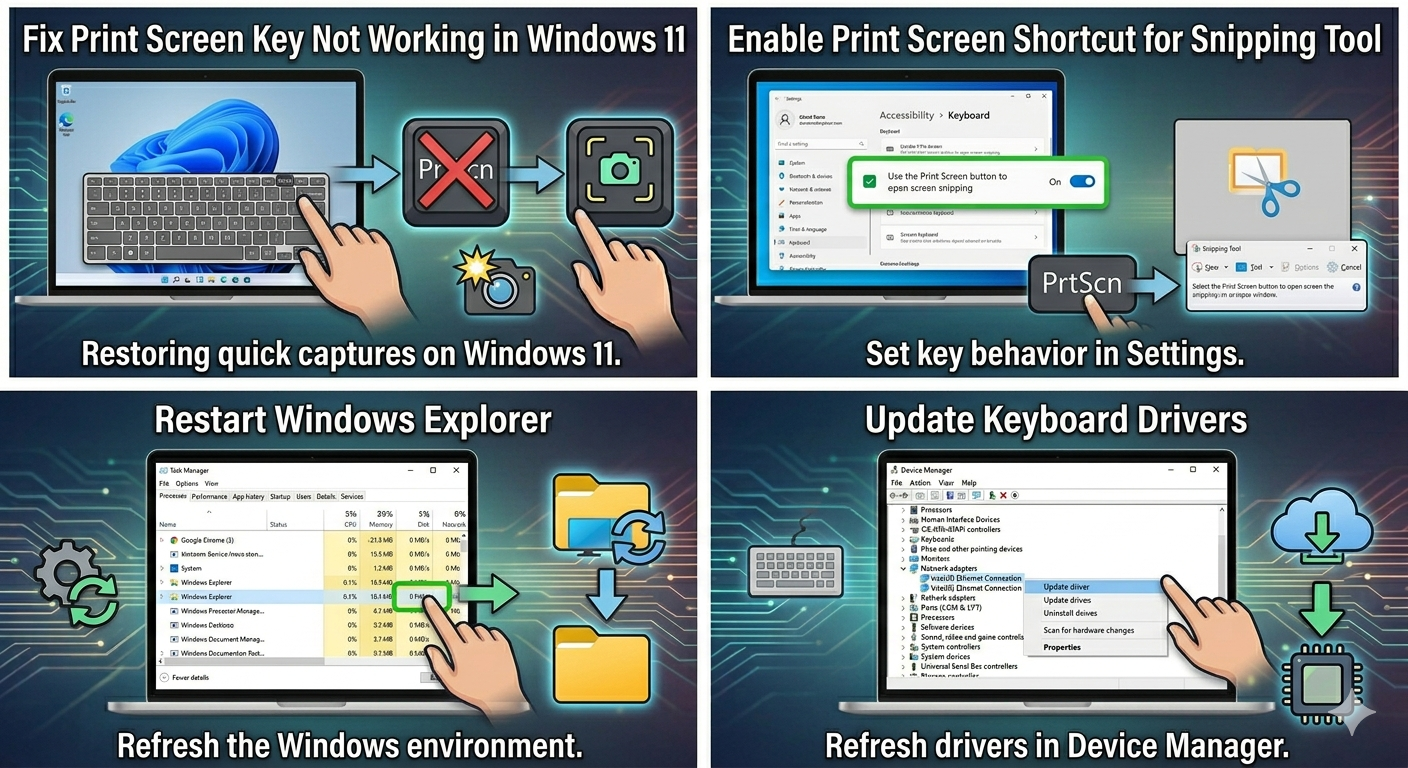
Solved: Print Screen Key Not Working in Windows 11
The Print Screen key is one of the most useful shortcuts in Windows. It allows users to quickly capture screenshots for work, gaming, troubleshooting, tutorials, or sharing information. However, many Windows 11 users report that the Print Screen button suddenly stops working properly.
In some cases, pressing the key does nothing at all. In others, screenshots may not save correctly, the screen may dim without creating an image, or clipboard captures may fail entirely.
This issue can happen because of keyboard settings, Windows updates, background applications, shortcut conflicts, driver problems, or disabled screenshot features. Fortunately, most Print Screen problems can be fixed with simple troubleshooting steps.
In this guide, you’ll learn why the Print Screen key stops working on Windows 11 and how to restore screenshot functionality.
What Does the Print Screen Key Do?
The Print Screen key captures screenshots in several different ways depending on the shortcut used.
Common Screenshot Shortcuts
PrtScn→ Copies the full screen to clipboardWindows + PrtScn→ Saves screenshot automaticallyAlt + PrtScn→ Captures active window onlyWindows + Shift + S→ Opens Snipping Tool
If these shortcuts stop functioning, Windows may not capture screenshots correctly.
Common Symptoms
You may notice:
- Print Screen key does nothing
- Screenshots not saving
- Clipboard screenshots missing
- Black screenshots
- Snipping Tool not opening
- Screenshot shortcuts freezing
Common Causes of Print Screen Problems
Disabled Screenshot Settings
Windows may disable screenshot shortcuts automatically.
Keyboard Hardware Issues
The Print Screen key itself may be faulty.
Conflicting Background Applications
Programs like OneDrive or gaming overlays may interfere.
Outdated Keyboard Drivers
Corrupted drivers can prevent keyboard shortcuts from working.
Clipboard Problems
Windows clipboard failures may block screenshot captures.
Snipping Tool Errors
Screenshot utilities may become corrupted.
How To Fix Print Screen Not Working on Windows 11
Follow these troubleshooting methods carefully.
Restart Your Computer
Temporary Windows glitches may affect screenshot functions.
Why It Helps
Restarting refreshes keyboard services and clipboard processes.
Check the Print Screen Key
Some keyboards require additional key combinations.
Try These Shortcuts
Fn + PrtScnWindows + PrtScnAlt + PrtScn
Laptop keyboards often combine Print Screen with function keys.
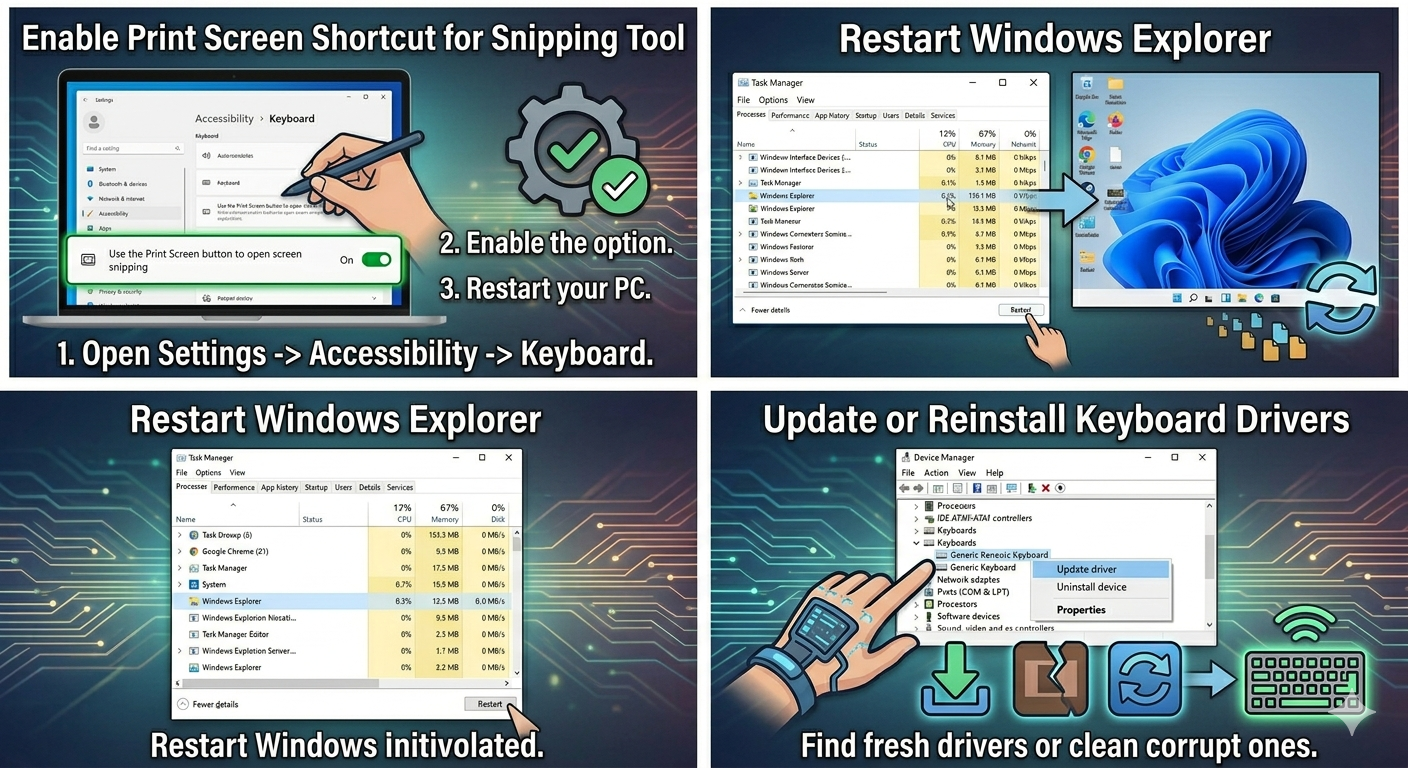
Enable Print Screen Shortcut for Snipping Tool
Windows 11 allows the Print Screen key to open Snipping Tool.
Steps
- Open Settings
- Go to:
Accessibility → Keyboard- Enable:
Use the Print Screen button to open screen snippingRestart the PC afterward.
Test the Clipboard
The screenshot may copy correctly even if it is not visible.
Steps
- Press:
PrtScn
- Open:
- Paint
- Word
- Photoshop
- Press:
Ctrl + VIf the screenshot appears, the Print Screen key is functioning.
Restart Windows Explorer
Explorer controls many desktop and screenshot functions.
Steps
- Press:
Ctrl + Shift + Esc- Open Task Manager
- Find:
- Windows Explorer
- Right-click it
- Select:
- Restart
Update Keyboard Drivers
Outdated keyboard drivers may break shortcuts.
Steps
- Right-click Start
- Open Device Manager
- Expand:
- Keyboards
- Right-click your keyboard device
- Select:
- Update driver
Restart afterward.
Reinstall Keyboard Drivers
Corrupted drivers may require reinstallation.
Steps
- Open Device Manager
- Right-click the keyboard
- Select:
- Uninstall device
- Restart the PC
Windows will reinstall the driver automatically.
Run Keyboard Troubleshooter
Windows may detect keyboard-related problems automatically.
Steps
- Open Settings → Troubleshoot
- Go to:
- Other troubleshooters
- Run:
- Keyboard troubleshooter
Disable Background Screenshot Tools
Some applications override screenshot shortcuts.
Possible Conflicting Apps
- OneDrive
- Dropbox
- NVIDIA GeForce Experience
- Xbox Game Bar
- Third-party screenshot software
Temporarily disable these apps and test again.
Check OneDrive Screenshot Settings
OneDrive may change screenshot behavior.
Steps
- Open OneDrive settings
- Go to:
- Sync and Backup
- Disable or enable screenshot saving options
Clear Clipboard History
Clipboard corruption can interfere with screenshots.
Steps
- Open:
- Settings → System → Clipboard
- Select:
- Clear clipboard data
Run System File Checker (SFC)
Corrupted Windows files may affect screenshot features.
Steps
Open Command Prompt as administrator and run:
sfc /scannowRestart after completion.
Use DISM Tool
Repair deeper Windows image corruption.
Steps
Run:
DISM /Online /Cleanup-Image /RestoreHealthUpdate Windows 11
Microsoft often fixes keyboard and screenshot bugs through updates.
Steps
- Open:
- Settings → Windows Update
- Install available updates
- Restart the computer
Reset or Repair Snipping Tool
If Snipping Tool fails:
Steps
- Open:
- Settings → Apps → Installed Apps
- Find:
- Snipping Tool
- Select:
- Advanced Options
- Try:
- Repair
or: - Reset
- Repair
Use On-Screen Keyboard
This helps determine whether the physical keyboard is faulty.
Steps
- Search:
- On-Screen Keyboard
- Open it
- Click:
- PrtScn
If screenshots work, the hardware keyboard may be damaged.
Perform a Clean Boot
Background software may interfere with screenshot shortcuts.
Steps
- Press
Windows + R - Type:
msconfig- Hide Microsoft services
- Disable unnecessary startup services
- Restart the PC
Check Gaming Keyboard Software
Gaming keyboards sometimes override shortcut behavior.
Examples
- Razer Synapse
- Logitech G Hub
- Corsair iCUE
Update or reset the keyboard software if needed.
Create a New User Profile
Corrupted user settings may affect screenshot features.
Steps
- Open:
- Settings → Accounts
- Add a new user account
- Test Print Screen functionality there
Use Alternative Screenshot Methods
If the Print Screen key still fails:
Alternative Tools
- Snipping Tool
- Xbox Game Bar (
Windows + G) - Third-party screenshot apps
When the Print Screen Key Is Physically Broken
Hardware failure may require:
- Keyboard replacement
- External USB keyboard
- Laptop keyboard repair
Tips to Prevent Screenshot Problems
To avoid future issues:
- Keep Windows updated
- Update keyboard drivers regularly
- Avoid conflicting screenshot apps
- Maintain clipboard stability
- Restart Windows occasionally
When to Seek Additional Help
Consider advanced troubleshooting if:
- Multiple keyboard shortcuts fail
- Keyboard hardware stops responding
- Screenshot tools crash repeatedly
- Windows becomes unstable overall
Final Thoughts
The Print Screen not working problem in Windows 11 is usually caused by keyboard shortcut conflicts, disabled settings, clipboard issues, corrupted drivers, or software interference. Although the issue can interrupt productivity, it is often easy to fix using built-in Windows troubleshooting tools.
By enabling screenshot shortcuts, restarting Explorer, updating drivers, repairing system files, and checking background applications, most users can restore screenshot functionality successfully.
Related articles
Fix Outlook Password Prompt Issue in Office 365