


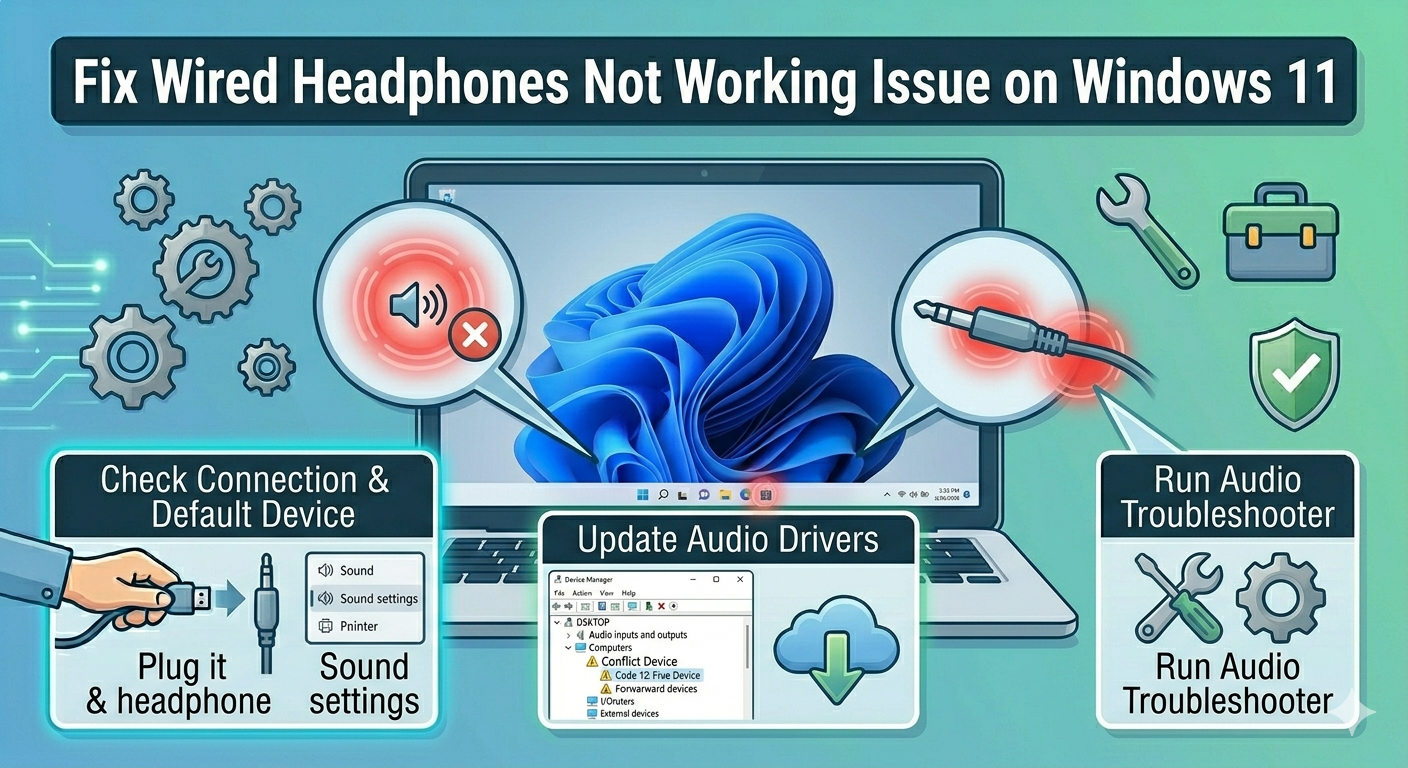
Fix Wired Headphones Not Working Issue on Windows 11
If your Windows 11 computer won’t recognize wired headphones, it can be frustrating—especially when you rely on them for music, gaming, or online meetings. You might plug in your headphones and notice that no sound plays, or the system continues to use the speakers instead.
This issue is quite common and is usually caused by incorrect audio settings, outdated drivers, hardware issues, or system glitches. Fortunately, most of these problems can be fixed with a few simple troubleshooting steps.
In this guide, you’ll learn the causes and effective solutions to fix the wired headphones not recognized in Windows 11 problem.
Common Causes of the Issue
Before applying fixes, it’s helpful to understand what might be causing the problem.
Some common reasons include:
- Incorrect default audio device
- Outdated or corrupted audio drivers
- Disabled audio ports
- Faulty headphone jack or cable
- Windows update issues
- Audio service problems
Identifying the cause can help you resolve the issue faster.
Check the Headphone Connection
Start with the basics by ensuring your headphones are properly connected.
You should:
- Plug the headphones firmly into the audio jack
- Try a different port if available
- Test the headphones on another device
- Check for any visible damage
If the headphones work on another device, the issue is likely with your PC.
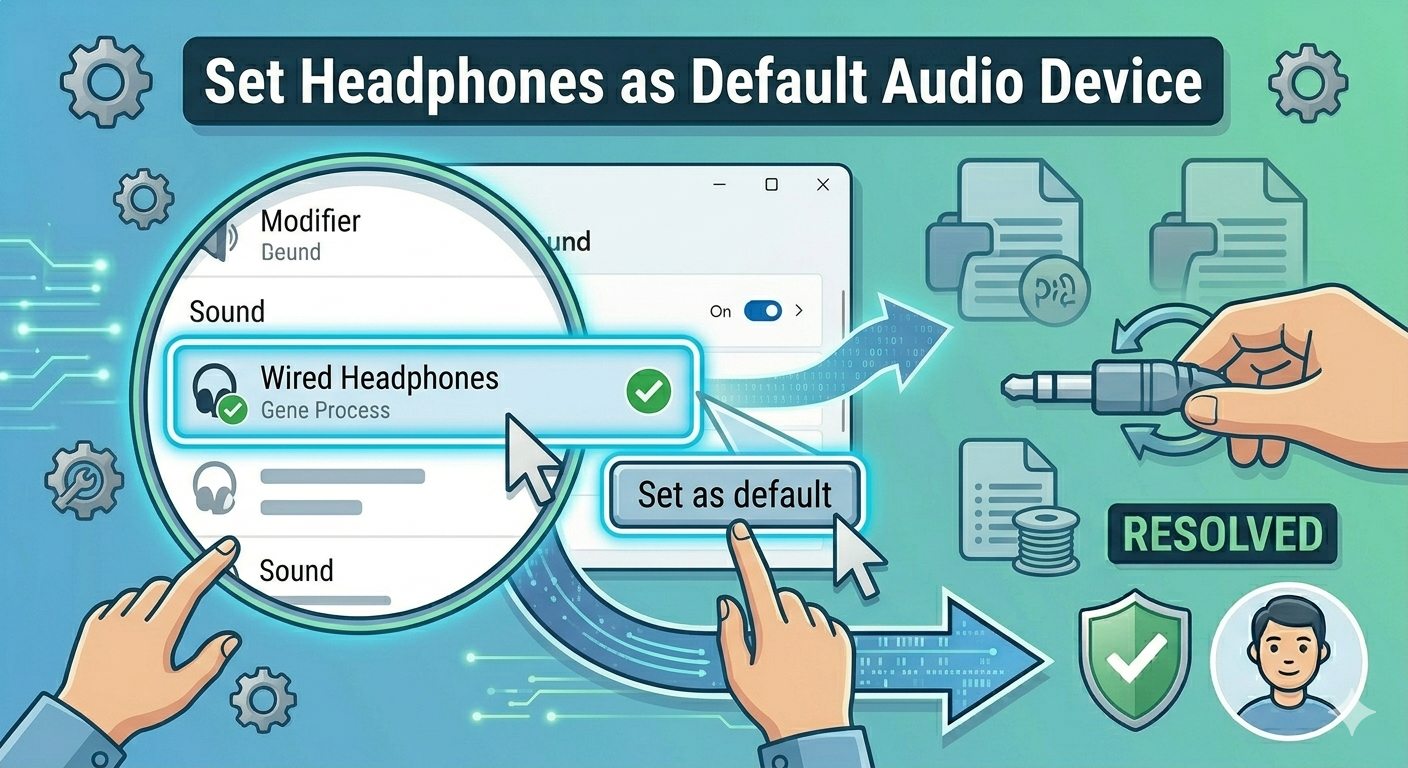
Set Headphones as Default Audio Device
Sometimes Windows does not automatically switch to headphones.
To set them as default:
- Right-click the sound icon in the taskbar.
- Select Sound settings.
- Under Output, choose your headphones.
- Click Set as default.
Check if audio plays through the headphones.
Run the Audio Troubleshooter
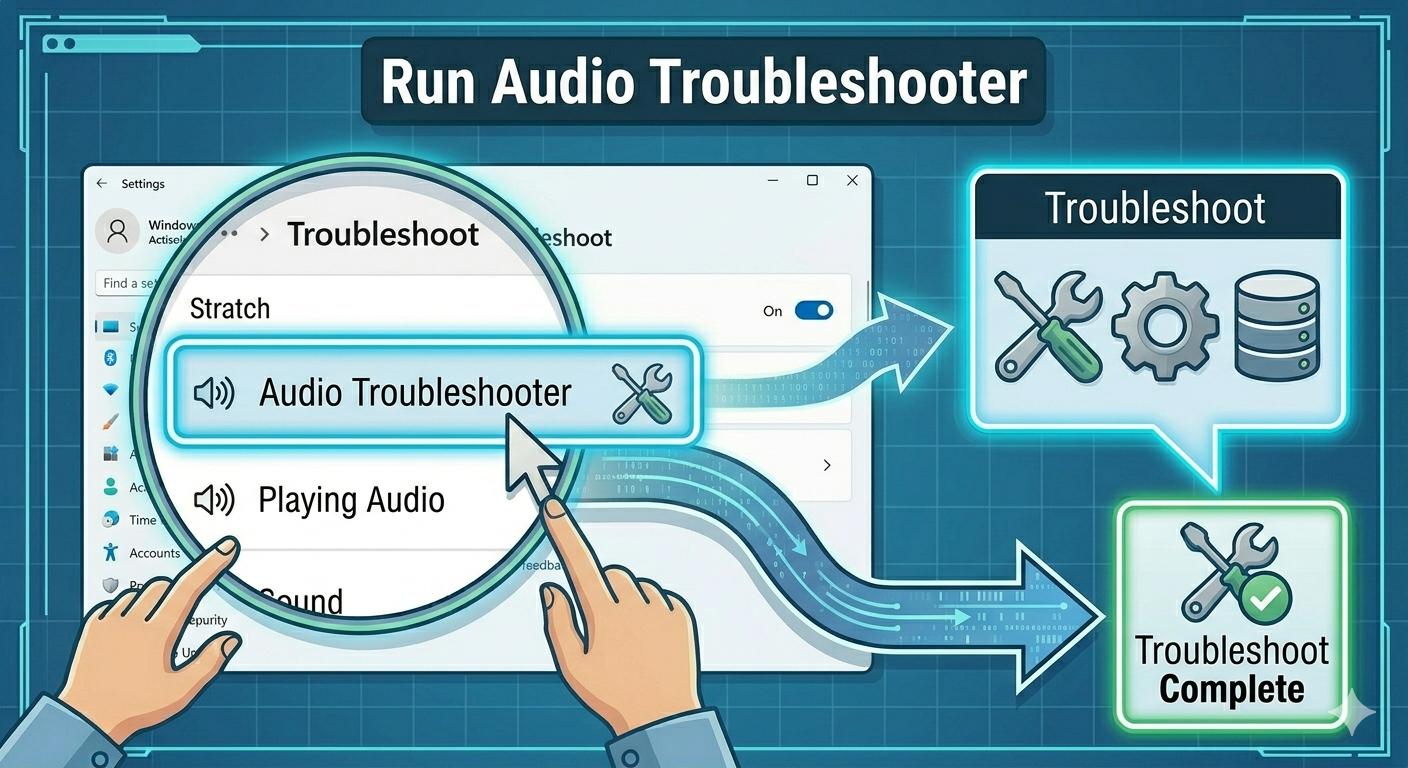
Windows includes built-in tools to fix sound issues.
To run the troubleshooter:
- Open Settings.
- Go to System > Troubleshoot.
- Click Other troubleshooters.
- Run the Playing Audio troubleshooter.
Follow the instructions to complete the process.
Update Audio Drivers
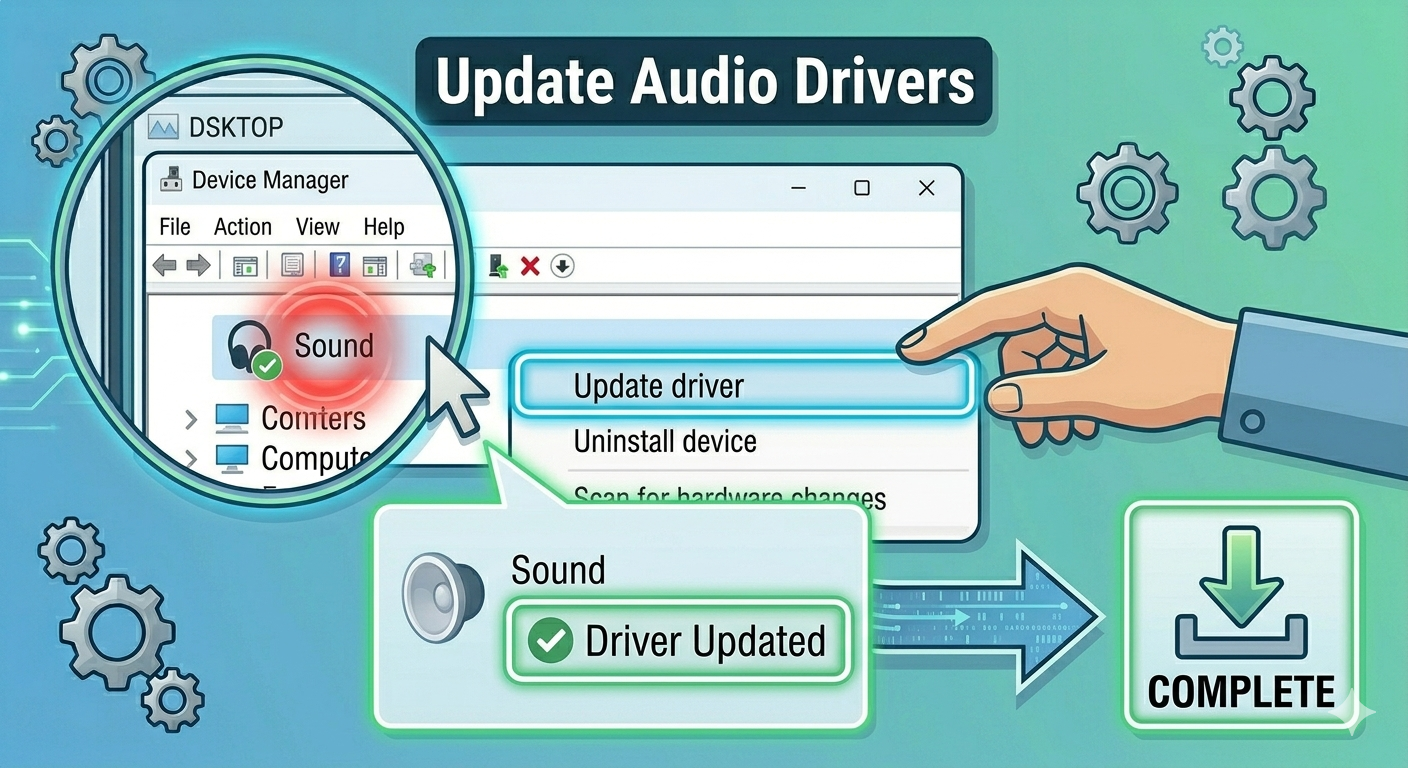
Outdated drivers are one of the most common causes.
To update audio drivers:
- Right-click the Start Menu.
- Select Device Manager.
- Expand Sound, video and game controllers.
- Right-click your audio device.
- Select Update driver.
- Choose Search automatically for drivers.
Restart your computer after updating.
Reinstall Audio Drivers
If updating doesn’t work, reinstalling the driver can fix corruption issues.
Steps:
- Open Device Manager.
- Right-click your audio device.
- Select Uninstall device.
- Confirm the action.
- Restart your computer.
Windows will reinstall the driver automatically.
Enable Disabled Audio Devices
Your headphones may be disabled in the system.
To enable them:
- Right-click the sound icon.
- Select Sounds.
- Go to the Playback tab.
- Right-click and select Show Disabled Devices.
- Enable your headphones if listed.
Check Audio Jack Settings
Some systems require manual configuration when plugging in headphones.
If you see a prompt when plugging in:
- Select Headphones as the device type
If no prompt appears, check your audio software (such as Realtek Audio Console) to configure the jack.
Restart Windows Audio Services
Audio services may not be running correctly.
To restart them:
- Press Windows + R.
- Type services.msc and press Enter.
- Locate Windows Audio.
- Right-click and select Restart.
Also restart Windows Audio Endpoint Builder.
Disable Audio Enhancements
Audio enhancements can sometimes interfere with headphone detection.
To disable them:
- Open Sound settings.
- Select your output device.
- Click Properties.
- Turn off Audio enhancements.
Test your headphones again.
Update Windows
Outdated system versions can cause compatibility issues.
To update Windows:
- Press Windows + I.
- Go to Windows Update.
- Click Check for updates.
- Install available updates.
Restart your system afterward.
Check for Hardware Issues
If none of the software fixes work, the problem may be hardware-related.
You should:
- Test with different headphones
- Try a USB audio adapter
- Check if the audio jack is damaged
If the port is faulty, you may need professional repair.
Use Device Manager to Scan for Hardware Changes
Sometimes Windows needs to refresh hardware detection.
Steps:
- Open Device Manager.
- Click Action in the top menu.
- Select Scan for hardware changes.
This may detect your headphones.
Perform a System Restore
If the issue started recently, restoring your system may help.
Steps:
- Search for Create a restore point.
- Open System Restore.
- Choose a restore point before the issue occurred.
- Follow the instructions.
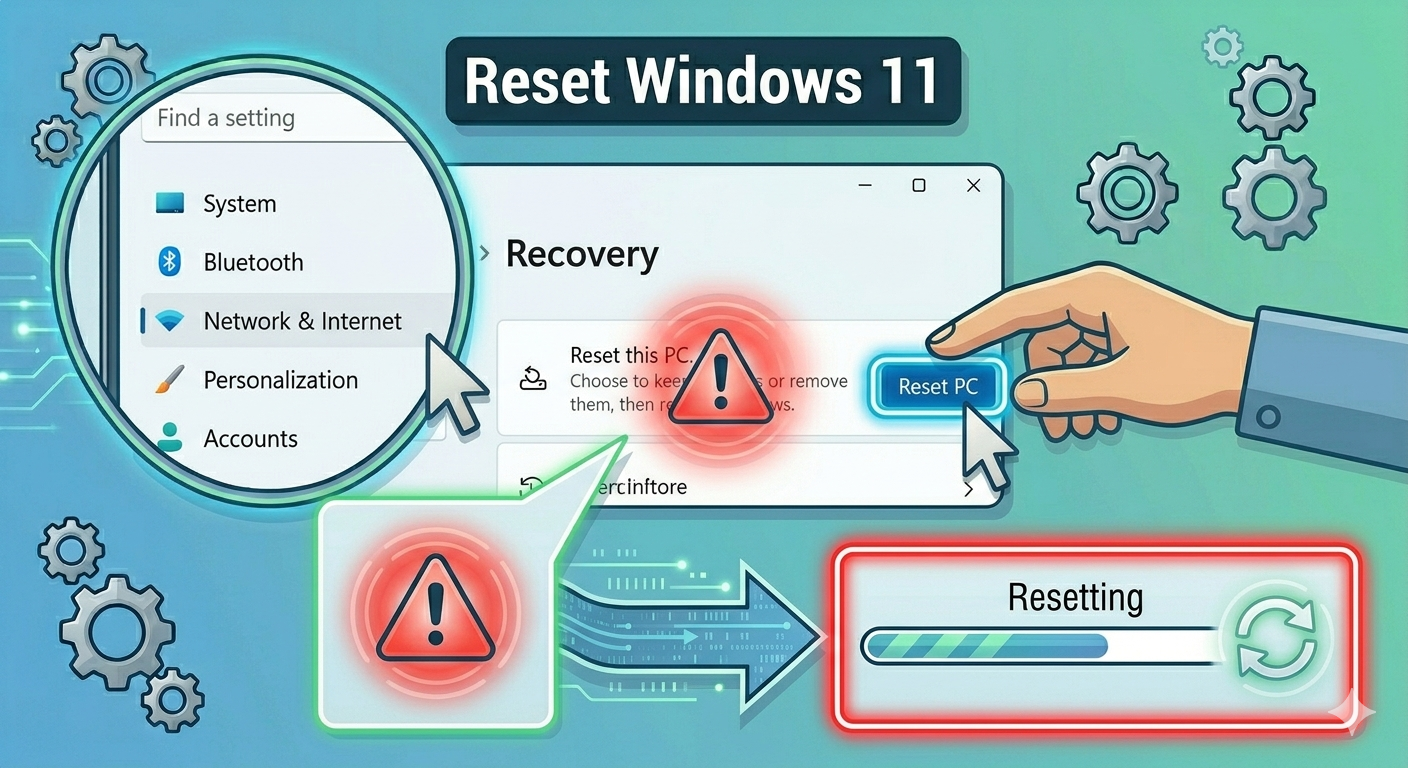
Reset Windows 11
If all else fails, resetting Windows can resolve deep system issues.
To reset:
- Open Settings.
- Go to System > Recovery.
- Click Reset this PC.
- Choose whether to keep your files or remove everything.
- Follow the instructions.
Final Thoughts
The Windows 11 won’t recognize wired headphones issue can be inconvenient, but it is usually caused by simple problems such as incorrect settings, outdated drivers, or minor hardware faults.
Most users can fix the issue by setting the correct audio device, updating drivers, or running the built-in troubleshooter. In more complex cases, checking hardware or resetting the system may be necessary.
Related articles
Fixing the “Kernel Security Check Failure” Error on Windows 10