


How to Resolve the “Hardware Problems Were Detected” Message in Windows Memory Diagnostic

The “Hardware problems were detected” error in the Windows Memory Diagnostic tool usually signals a deeper issue with your computer’s RAM. If you’ve recently run a memory test and received this message, it’s time to act. Ignoring it may lead to system instability, crashes, or data loss. This guide will walk you through the most effective methods to identify the root cause and resolve the error.
WHAT IS THE WINDOWS MEMORY DIAGNOSTIC TOOL?
Windows Memory Diagnostic is a built-in utility in Windows that checks your computer’s RAM for errors. It performs a comprehensive test during startup and reports if any issues are found. If you see the message “Hardware problems were detected,” it means one or more of your RAM modules could be faulty.

SYMPTOMS OF FAULTY RAM
Before jumping into solutions, here are common signs that your RAM may be malfunctioning:
- Frequent system crashes or blue screens (BSOD)
- Programs freezing or not responding
- System restarting unexpectedly
- Files becoming corrupted without reason
STEP 1: RESEAT YOUR RAM MODULES
Loose or improperly seated RAM can cause errors. Here’s how to reseat them:
- Shut down your computer and unplug all cables.
- Open the case (for desktops) or access the RAM compartment (for laptops).
- Carefully remove the RAM sticks.
- Clean the contacts with a dry microfiber cloth.
- Reinsert them firmly into their slots.
- Reboot the computer and run Windows Memory Diagnostic again.
STEP 2: TEST EACH RAM STICK INDIVIDUALLY
To isolate the faulty module:
- Remove all RAM sticks except one.
- Boot your computer and run the memory test.
- Repeat the process with each stick in each slot.
- Note any that consistently trigger the error.
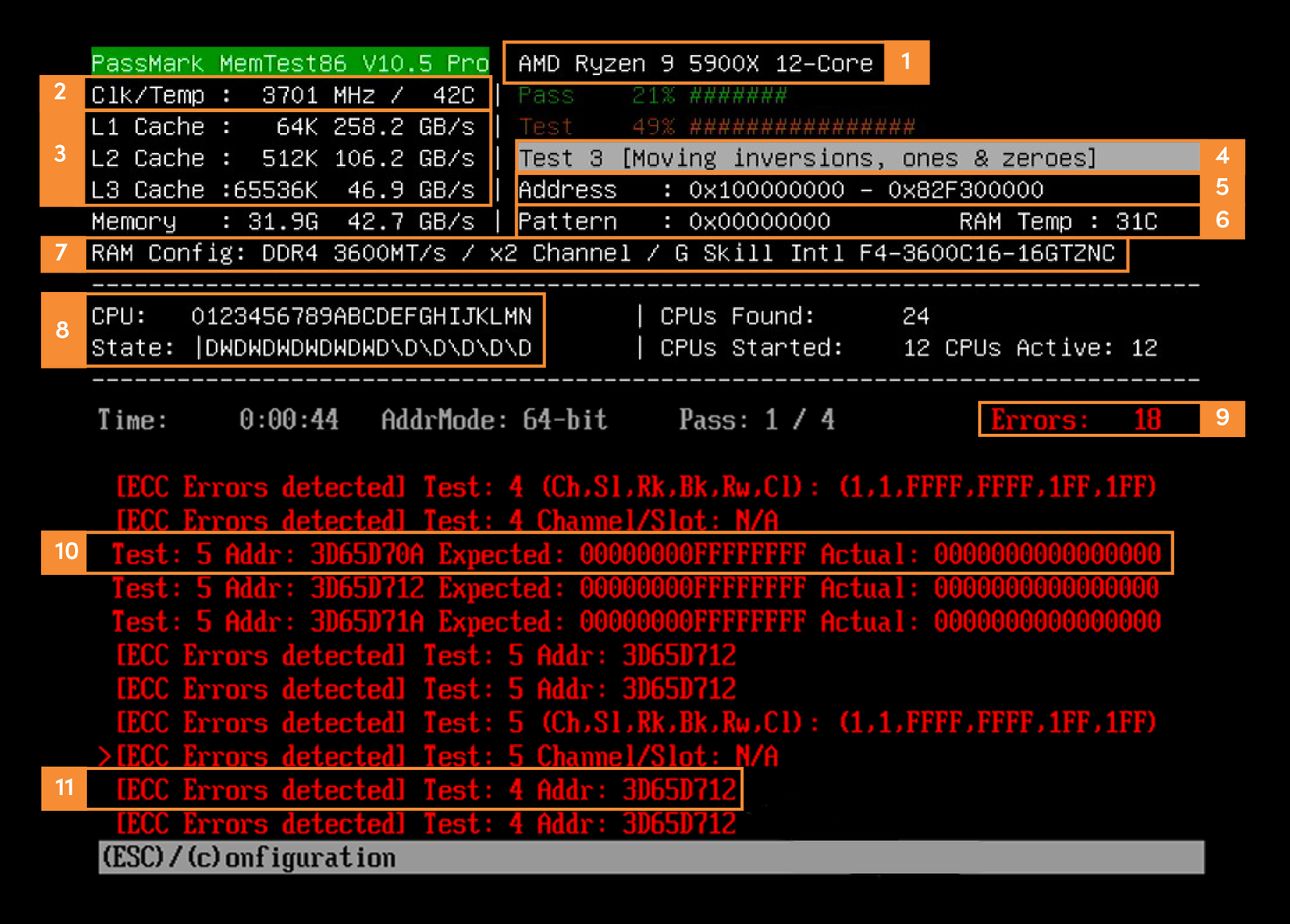
STEP 3: RUN MEMTEST86 FOR DEEPER ANALYSIS
MemTest86 is a third-party tool that offers more in-depth testing than Windows Memory Diagnostic.
- Download MemTest86 from the official website.
- Create a bootable USB drive using their utility.
- Boot from the USB and allow the tests to run (this may take hours).
- Note any errors reported, especially which memory address is affected.
STEP 4: UPDATE BIOS AND CHIPSET DRIVERS
Sometimes BIOS or chipset issues can cause false positives in memory tests.
- Go to your motherboard or system manufacturer’s website.
- Download and install the latest BIOS and chipset drivers.
- Restart your computer and rerun the memory diagnostic.

STEP 5: CHECK FOR SOFTWARE CONFLICTS
Software issues, like third-party antivirus programs or overclocking tools, may trigger memory errors:
- Disable any overclocking software.
- Temporarily uninstall third-party antivirus or monitoring tools.
- Run the memory diagnostic again.

STEP 6: REPLACE THE FAULTY RAM
If one or more modules consistently fail tests, it’s best to replace them. Make sure to:
- Buy RAM that is compatible with your motherboard.
- Match the speed and capacity with your existing modules if you’re not replacing all of them.
STEP 7: CHECK MOTHERBOARD AND MEMORY SLOTS
If all RAM modules pass tests individually but issues persist:
- Inspect the motherboard for damage, such as burnt spots or bulging capacitors.
- Use different memory slots to rule out slot-specific issues.
STEP 8: CONTACT TECHNICAL SUPPORT OR A PROFESSIONAL
If you’ve tried all steps and still encounter issues, it’s wise to seek professional help:
- Contact your computer’s manufacturer if under warranty.
- Visit a certified technician who can perform hardware-level diagnostics.
FINAL THOUGHTS
The “Hardware problems were detected” error is not something to ignore. By following the steps above, you can identify the root cause—be it faulty RAM, motherboard issues, or software conflicts—and restore your system’s reliability. Always ensure you back up your important data before performing any hardware changes or tests.