



Microsoft Word Freezes on Windows 10 – 10 Solutions to Fix It

Microsoft Word is an essential tool for work, school, and personal projects. However, it can be incredibly frustrating when it keeps freezing or not responding on Windows 10. If you’re facing this issue, don’t worry—there are several solutions to get Word running smoothly again. In this guide, we’ll explore 10 ways to fix Microsoft Word freezing problems in Windows 10.
1. RESTART YOUR COMPUTER
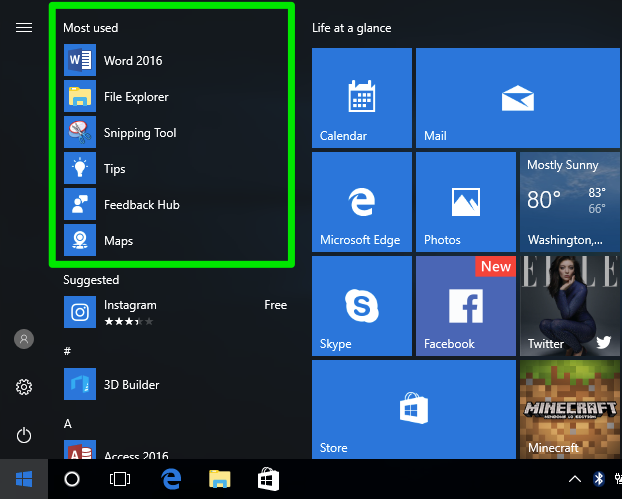
Before diving into complex troubleshooting, try restarting your computer. A simple reboot can clear temporary glitches and free up system resources, potentially resolving Word’s freezing issue.
Steps to Restart:
- Click the Start menu.
- Select Power > Restart.
- Wait for your computer to reboot and then try opening Microsoft Word again.
2. UPDATE MICROSOFT WORD
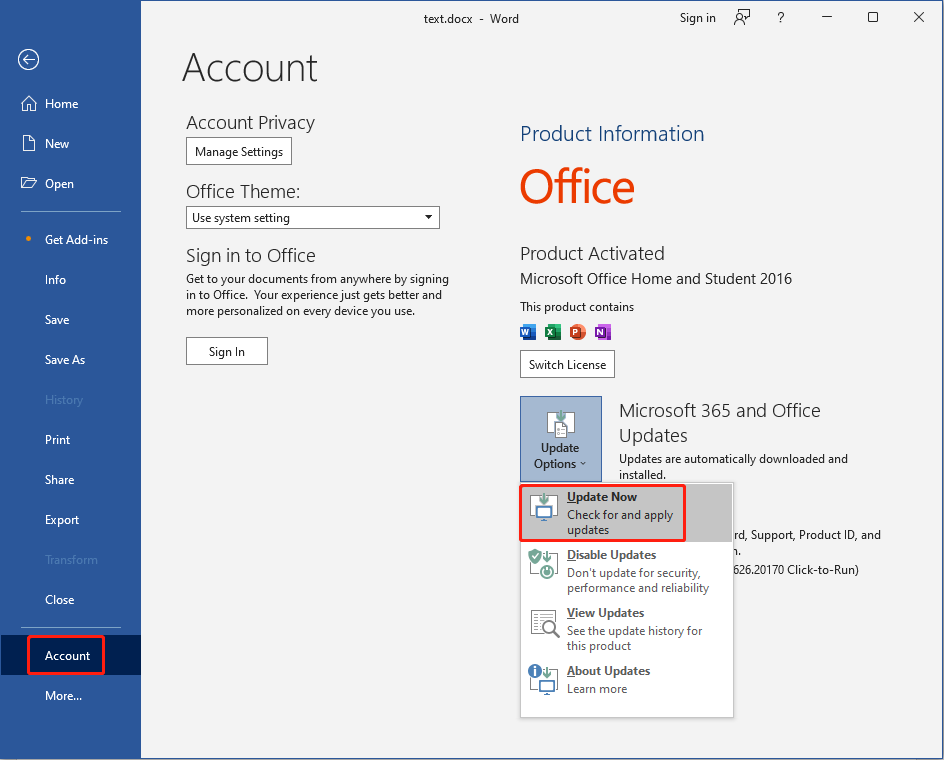
Outdated software can cause freezing issues. Ensure you have the latest version of Microsoft Word installed.
Steps to Update Word:
- Open Microsoft Word.
- Click File > Account.
- Under Product Information, click Update Options.
- Select Update Now and let Word check for updates.
- Restart Word after the update.
3. DISABLE ADD-INS
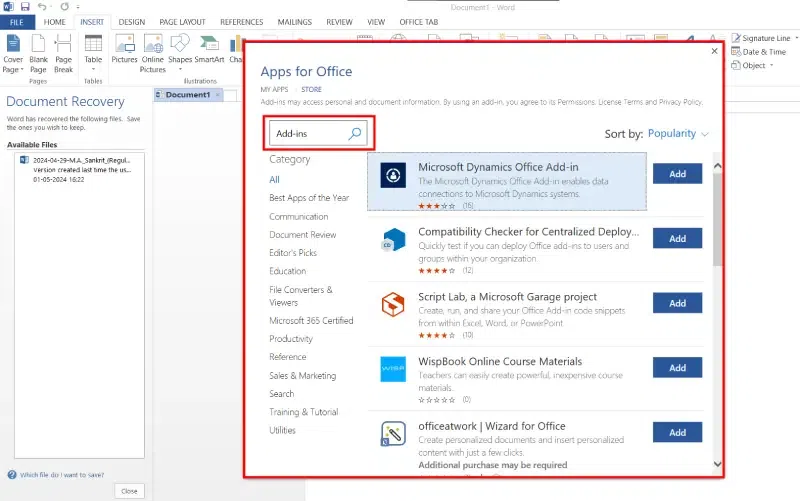
Corrupt or incompatible add-ins can cause Word to freeze. Try disabling them to see if the problem is resolved.
Steps to Disable Add-ins:
- Open Microsoft Word in Safe Mode by pressing
Windows + R, typingwinword /safe, and hitting Enter. - Click File > Options.
- Select Add-ins.
- Choose COM Add-ins and click Go.
- Uncheck all add-ins and click OK.
- Restart Word and check if the issue persists.
4. REPAIR MICROSOFT OFFICE
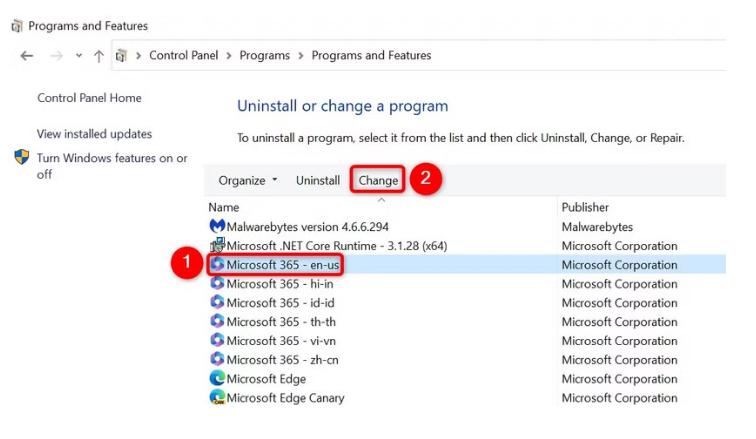
If Word keeps freezing, repairing the Office installation may help.
Steps to Repair Office:
- Press Windows + R, type
appwiz.cpl, and hit Enter. - Locate Microsoft Office in the list.
- Right-click and select Change.
- Choose Quick Repair and click Repair.
- If the issue persists, repeat the steps but choose Online Repair instead.
5. DELETE TEMPORARY FILES
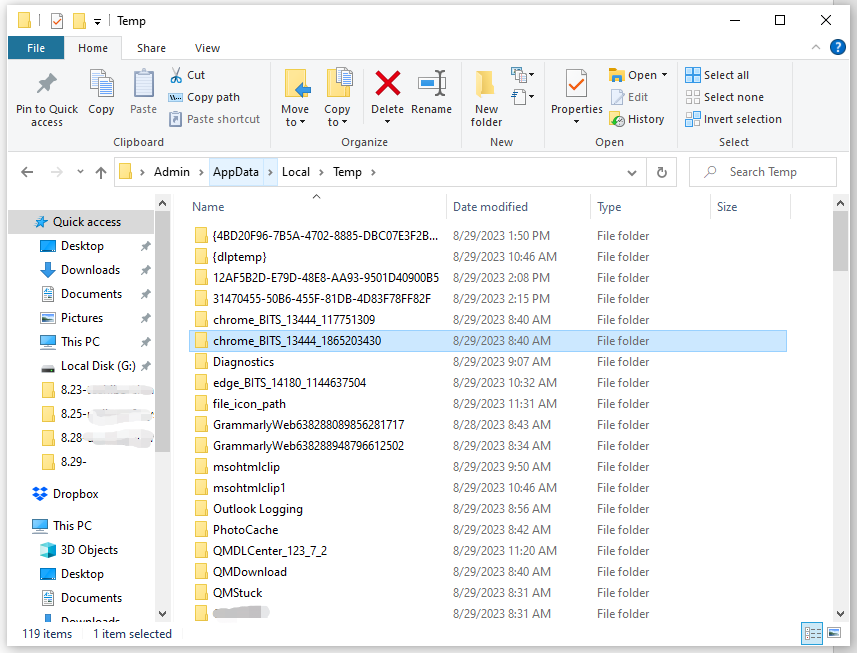
Accumulated temporary files can slow down Word and cause freezing.
Steps to Delete Temp Files:
- Press Windows + R, type
%temp%, and hit Enter. - Select all files (
Ctrl + A) and press Delete. - Restart your computer and open Word again.
6. DISABLE HARDWARE GRAPHICS ACCELERATION
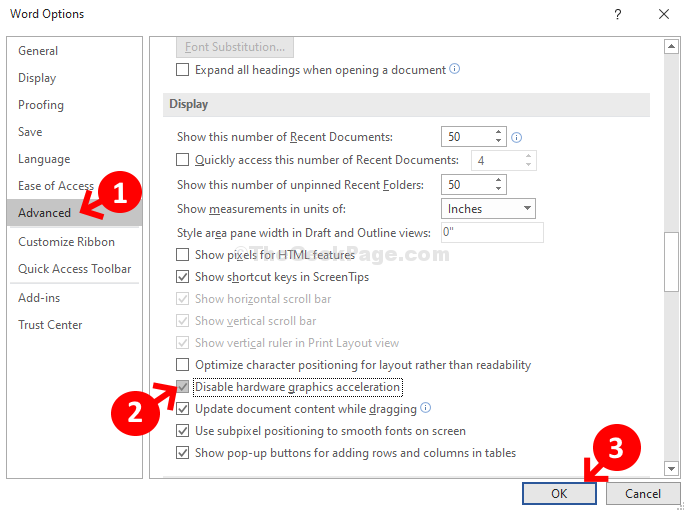
Disabling hardware acceleration can improve stability.
Steps to Disable Hardware Acceleration:
- Open Microsoft Word.
- Click File > Options.
- Go to the Advanced tab.
- Scroll down to Display.
- Check Disable hardware graphics acceleration.
- Click OK and restart Word.
7. CHECK FOR WINDOWS UPDATES
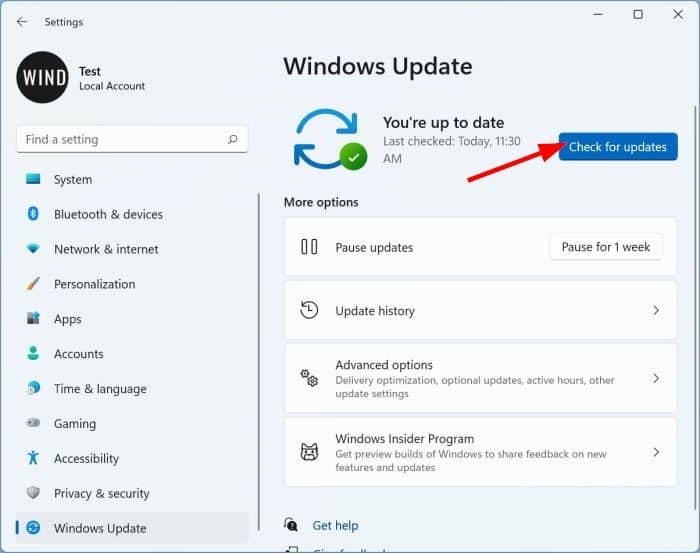
Running an outdated version of Windows may cause compatibility issues with Microsoft Word.
Steps to Update Windows:
- Press Windows + I to open Settings.
- Click Update & Security.
- Select Windows Update and click Check for updates.
- Install any available updates and restart your computer.
8. RUN WORD IN COMPATIBILITY MODE
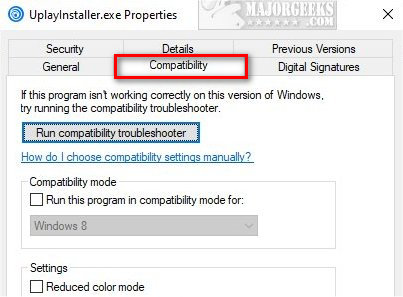
Running Word in compatibility mode can help fix freezing issues.
Steps to Enable Compatibility Mode:
- Right-click on the Microsoft Word shortcut.
- Select Properties.
- Go to the Compatibility tab.
- Check Run this program in compatibility mode for: and choose an earlier Windows version.
- Click Apply > OK.
9. CREATE A NEW USER PROFILE
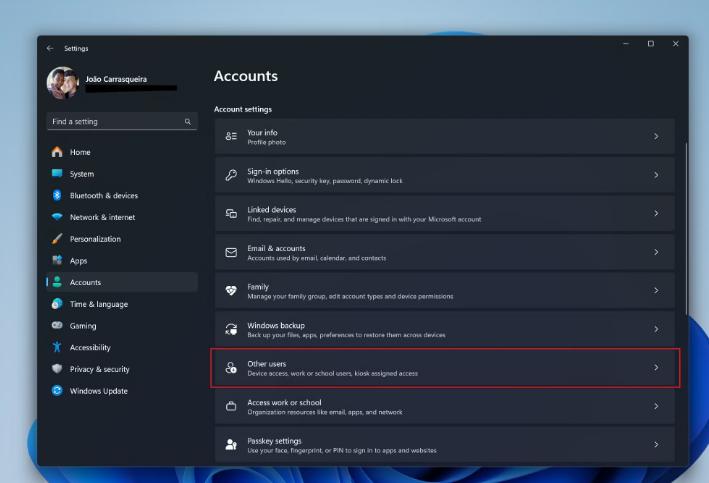
A corrupted Windows user profile can cause Word to freeze. Try creating a new user account.
Steps to Create a New User Profile:
- Press Windows + I to open Settings.
- Click Accounts > Family & other users.
- Click Add someone else to this PC.
- Follow the instructions to create a new account.
- Log in to the new account and open Word to check if the issue persists.
10. REINSTALL MICROSOFT OFFICE
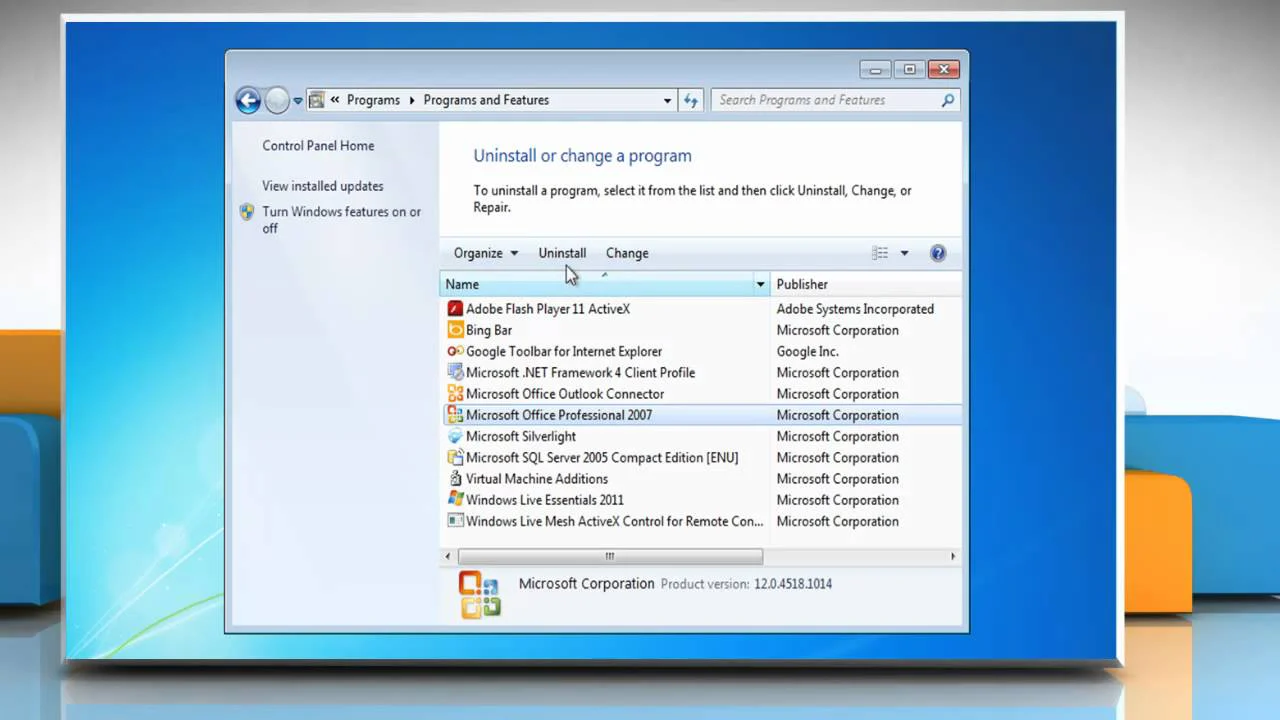
If all else fails, reinstalling Microsoft Office can fix the problem.
Steps to Reinstall Office:
- Press Windows + R, type
appwiz.cpl, and hit Enter. - Find Microsoft Office, right-click it, and select Uninstall.
- Download and install Office from the official Microsoft website.
- Activate Office using your product key and check if Word works properly.
FINAL THOUGHTS
Microsoft Word freezing in Windows 10 can be a major inconvenience, but with these 10 troubleshooting methods, you can resolve the issue and get back to work smoothly. Whether it’s updating the software, disabling add-ins, or repairing Office, one of these solutions should help you fix Word’s freezing problem for good.