


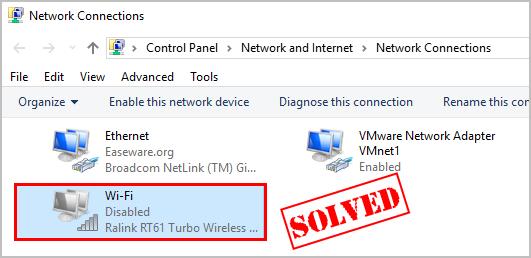
How to Resolve the “Wi-Fi Doesn’t Have a Valid IP Configuration” Issue
Encountering the dreaded “Wi-Fi doesn’t have a valid IP configuration” error can be frustrating, especially when you need a stable internet connection. This issue prevents your device from connecting to the internet, making it impossible to browse, stream, or work online. Fortunately, there are several ways to fix this problem. In this guide, we’ll explore the possible causes and step-by-step solutions to restore your Wi-Fi connection.
WHAT CAUSES THE “WI-FI DOESN’T HAVE A VALID IP CONFIGURATION” ERROR?
This error typically occurs when your computer fails to obtain a valid IP address from the router. Some common causes include:
- Incorrect network settings – Misconfigured network settings can prevent your device from receiving an IP address.
- Router issues – A malfunctioning or outdated router firmware can cause connectivity problems.
- IP address conflicts – Another device on the network might be using the same IP address.
- Corrupt network drivers – Damaged or outdated drivers can prevent proper network communication.
- Faulty DHCP service – If the Dynamic Host Configuration Protocol (DHCP) isn’t working correctly, your device won’t receive an IP address.
Now, let’s go through different methods to fix this issue.
METHOD 1: RESTART YOUR ROUTER AND COMPUTER
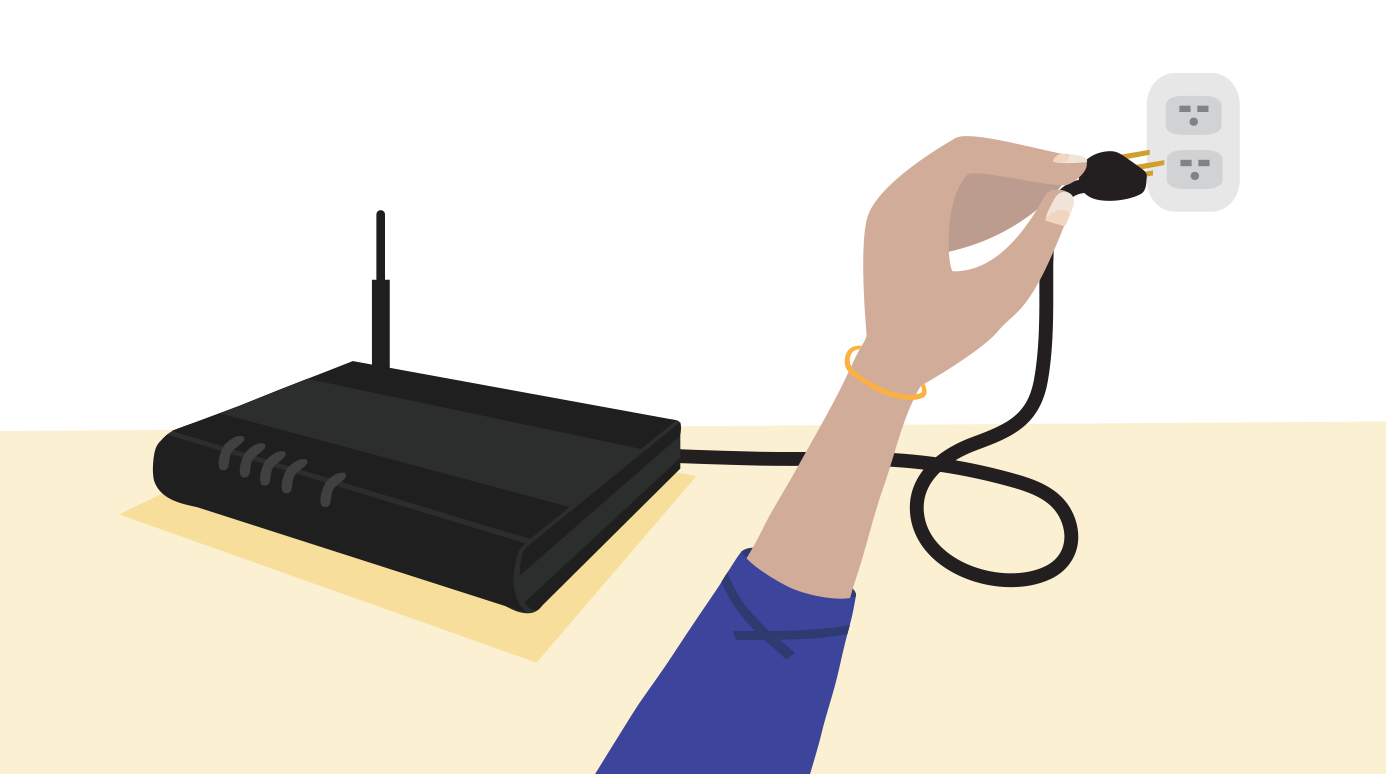
Before diving into complex solutions, try restarting your router and computer. This simple step can resolve temporary network glitches.
Steps to restart your router:
- Unplug your router from the power source.
- Wait for about 5 minutes.
- Plug it back in and wait for it to fully reboot.
Steps to restart your computer:
- Click on the Start menu and select Restart.
- Wait for the system to reboot and check if the issue persists.
If this doesn’t resolve the problem, move on to the next method.
METHOD 2: RELEASE AND RENEW YOUR IP CONFIGURATION
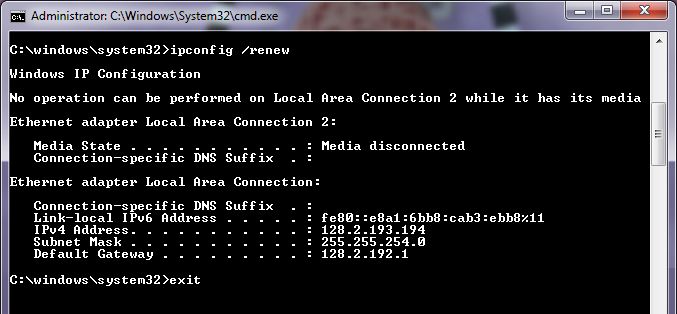
Refreshing your IP configuration can often fix the issue by forcing your computer to request a new IP address from the router.
Steps to release and renew IP:
- Press Windows + R to open the Run dialog box.
- Type
cmdand press Enter to open Command Prompt. - Type the following commands one by one, pressing Enter after each:
ipconfig /release ipconfig /renew - Close the Command Prompt and check if the issue is resolved.
METHOD 3: RESET THE TCP/IP STACK
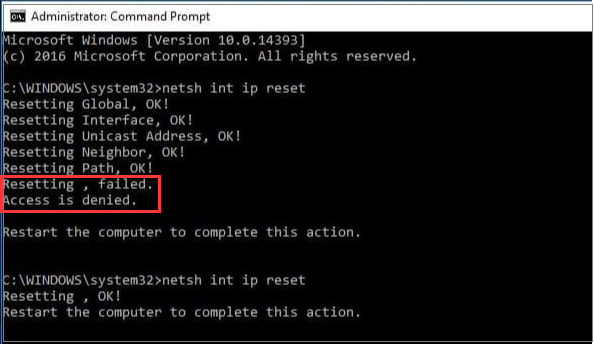
Resetting the TCP/IP stack can resolve deeper network issues.
Steps to reset TCP/IP:
- Open Command Prompt as an administrator.
- Enter the following commands, pressing Enter after each:
netsh winsock reset netsh int ip reset - Restart your computer and check if the error is gone.
METHOD 4: SET A STATIC IP ADDRESS
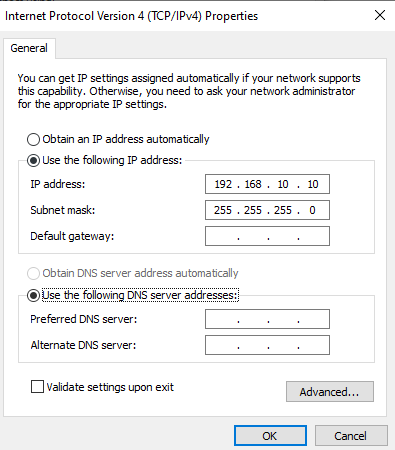
If your computer is failing to obtain an IP address automatically, manually assigning one can help.
Steps to set a static IP:
- Press Windows + R, type
ncpa.cpl, and hit Enter. - Right-click on your Wi-Fi network and select Properties.
- Select Internet Protocol Version 4 (TCP/IPv4) and click Properties.
- Choose Use the following IP address and enter the following values:
- IP Address:
192.168.1.100 - Subnet Mask:
255.255.255.0 - Default Gateway:
192.168.1.1
- IP Address:
- Click OK, then restart your Wi-Fi connection.
METHOD 5: UPDATE OR REINSTALL NETWORK DRIVERS
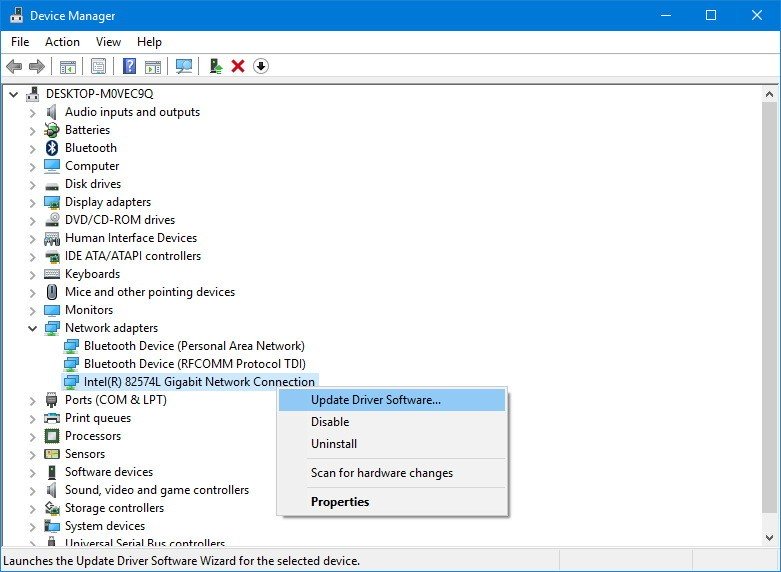
Outdated or corrupt network drivers can lead to connection issues.
Steps to update network drivers:
- Press Windows + X and select Device Manager.
- Expand Network adapters.
- Right-click your Wi-Fi adapter and choose Update driver.
- Select Search automatically for updated driver software.
- Restart your computer.
If updating doesn’t work, try uninstalling the driver:
- Follow steps 1-3 above.
- Click Uninstall device.
- Restart your PC, and Windows will reinstall the default driver automatically.
METHOD 6: CHECK DHCP SERVICE STATUS
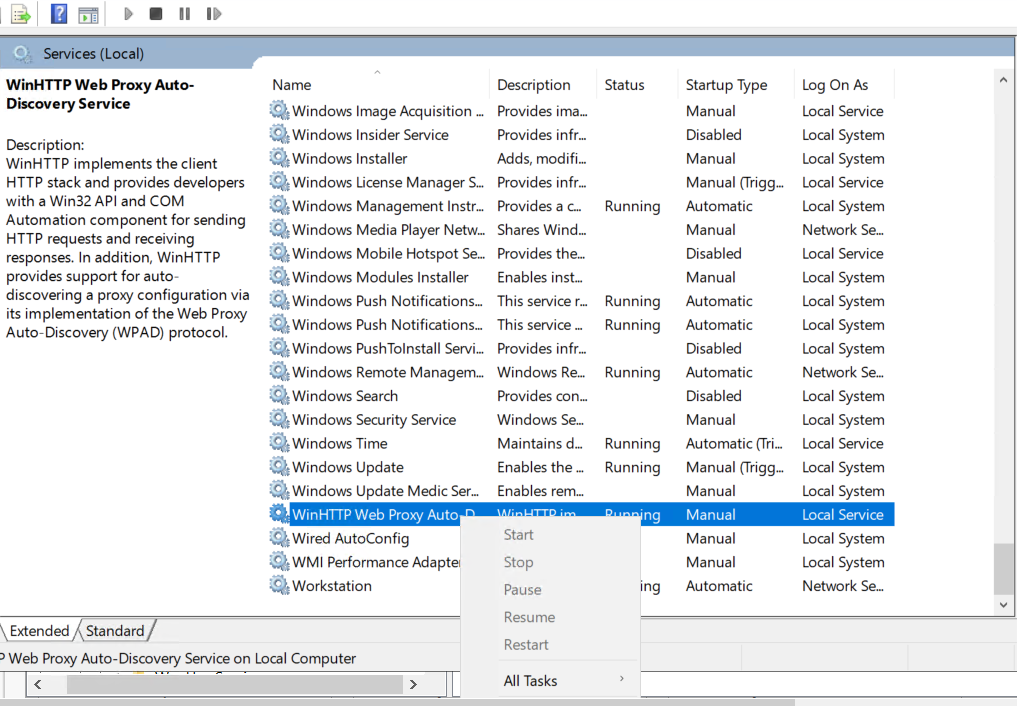
If your computer isn’t receiving an IP address, the DHCP service might be disabled.
Steps to check DHCP service:
- Press Windows + R, type
services.msc, and hit Enter. - Scroll down and find DHCP Client.
- Right-click it and select Properties.
- Make sure the Startup type is set to Automatic.
- Click Start if the service isn’t running.
- Click OK and restart your computer.
METHOD 7: DISABLE AND ENABLE YOUR WI-FI ADAPTER
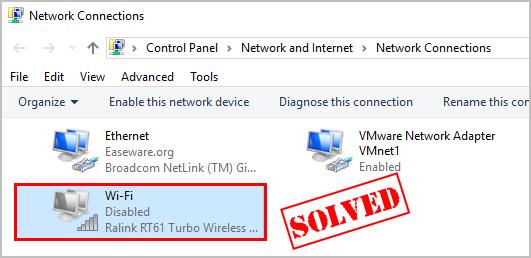
Disabling and re-enabling your network adapter can force Windows to re-establish the connection.
Steps to disable and enable Wi-Fi adapter:
- Press Windows + R, type
ncpa.cpl, and press Enter. - Right-click on your Wi-Fi connection and select Disable.
- Wait a few seconds, then right-click again and select Enable.
- Check if the internet connection is restored.
METHOD 8: RESET NETWORK SETTINGS
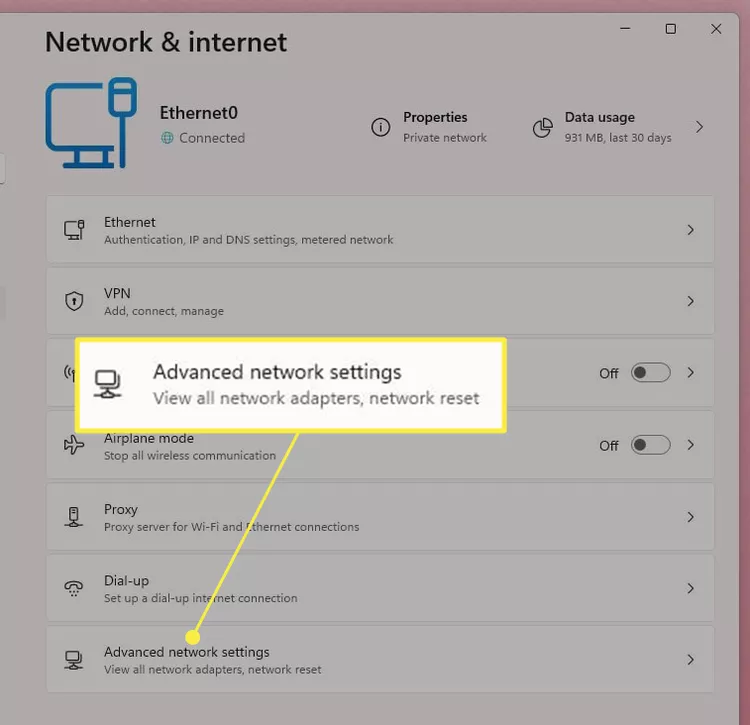
If nothing else works, resetting network settings may resolve the issue.
Steps to reset network settings:
- Press Windows + I to open Settings.
- Go to Network & Internet > Status.
- Scroll down and click Network reset.
- Click Reset now and confirm.
- Restart your computer.
FINAL THOUGHTS
The “Wi-Fi doesn’t have a valid IP configuration” error can be annoying, but with the right troubleshooting steps, you can get back online quickly. Whether it’s restarting your router, renewing your IP address, updating network drivers, or resetting network settings, one of these solutions should work for you. If the problem persists, consider contacting your internet service provider for further assistance.