


Why Is My Keyboard Typing Backwards? Here’s How to Fix It
Few keyboard issues are as confusing as when your computer suddenly starts typing backward. Instead of text appearing normally from left to right, characters may move in reverse order, the cursor may jump unexpectedly, or words may appear from right to left while typing.
This strange issue can happen on both Windows 10 and Windows 11, and it is usually related to keyboard shortcuts, language settings, accessibility features, corrupted drivers, or application-specific problems.
Fortunately, the problem is often easy to fix once you identify the cause. In this guide, you’ll learn why your keyboard may be typing backward and how to restore normal typing behavior.
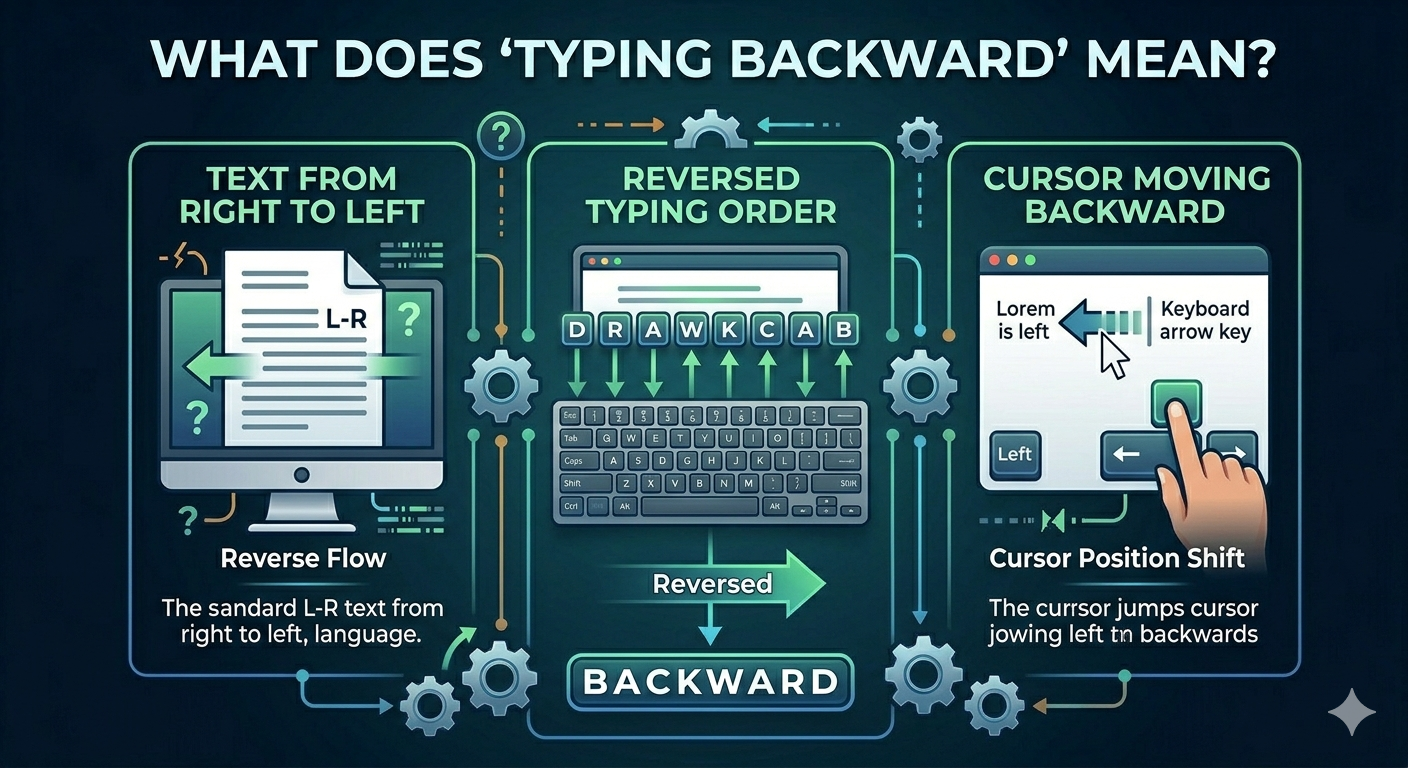
What Does “Typing Backward” Mean?
The issue may appear in several different ways, including:
- Text appearing from right to left
- Cursor moving backward while typing
- Reversed typing order
- Numbers or symbols behaving incorrectly
- Backward text in browsers or documents
Sometimes the issue affects the entire system, while in other cases it only occurs in specific applications such as Word, browsers, or chat apps.
Common Symptoms
You may notice:
- Words appearing backward
- Cursor jumping to the left unexpectedly
- Right-to-left typing enabled accidentally
- Keyboard shortcuts behaving strangely
- Only one application affected
- Language settings changing automatically
Common Causes of Keyboard Typing Backward
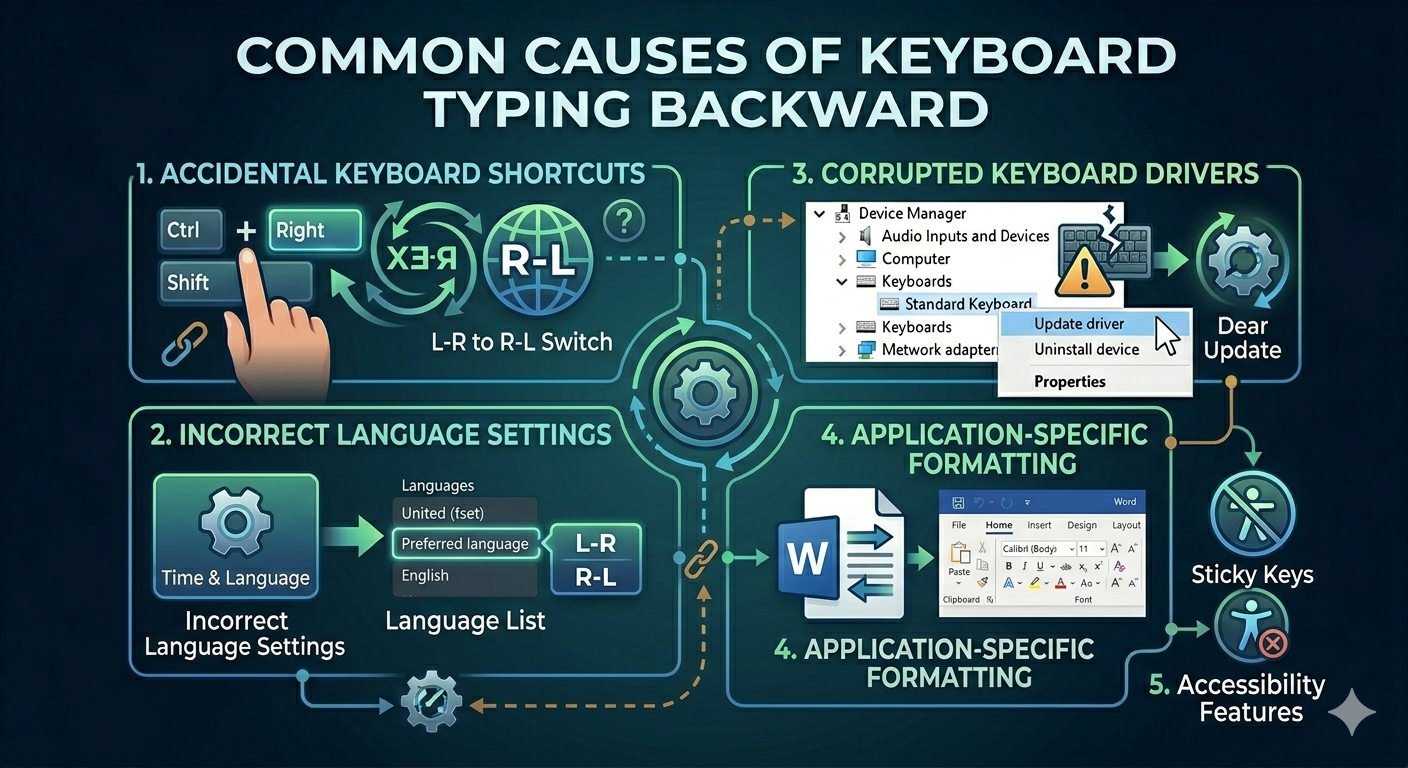
Right-to-Left Typing Enabled
Windows and some apps support right-to-left languages such as Arabic or Hebrew.
Accidental Keyboard Shortcuts
Certain shortcuts can switch typing direction instantly.
Incorrect Keyboard Language Settings
Wrong input language configurations may affect typing behavior.
Corrupted Keyboard Drivers
Damaged drivers can cause abnormal keyboard input.
Application-Specific Formatting
Programs like Microsoft Word may apply reversed text formatting.
Sticky Keys or Accessibility Features
Accessibility options may interfere with normal typing.
How To Fix Keyboard Typing Backward on Windows
Follow these troubleshooting methods carefully.
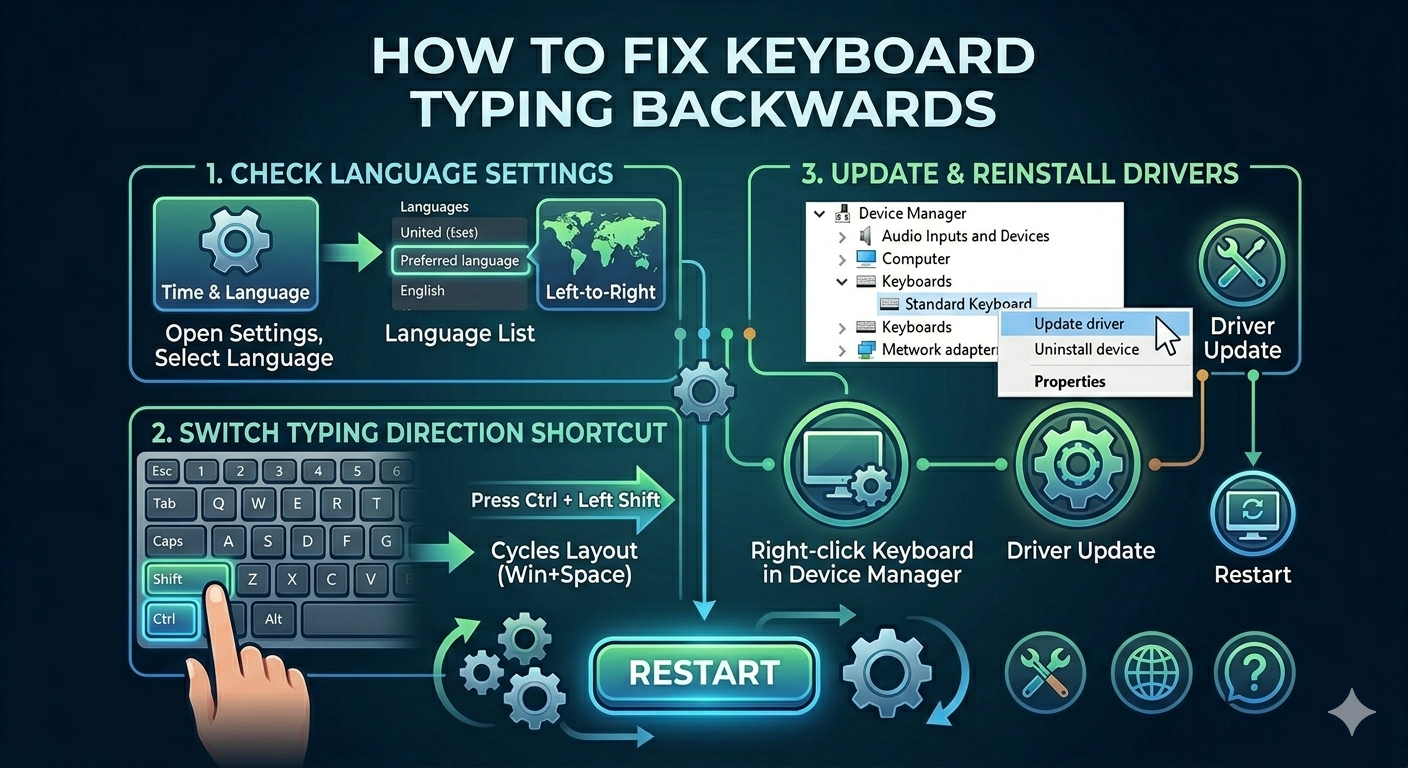
Use Keyboard Shortcut to Reset Typing Direction
Typing direction can often be switched accidentally.
Try These Shortcuts
Press:
Ctrl + Left Shiftor:
Ctrl + Right ShiftThese shortcuts switch between left-to-right and right-to-left typing modes.
Restart Your Computer
Temporary keyboard glitches may disappear after rebooting.
Why It Helps
Keyboard services and input settings refresh during startup.
Check Keyboard Language Settings
Incorrect language settings commonly cause reversed typing.
Steps
- Open Settings
- Go to Time & Language → Language & Region
- Check installed keyboard languages
- Remove unused layouts if necessary
Ensure your preferred language is set as default.
Switch Keyboard Input Language
You may have accidentally switched layouts.
Shortcut
Press:
Windows + SpaceThis cycles through available keyboard layouts.
Disable Right-to-Left Formatting in Word
Microsoft Word may enable reverse typing formatting.
Steps
- Open Word
- Go to the Home tab
- Look for paragraph direction controls
- Select:
- Left-to-right text direction
Check Browser Extensions
Some browser extensions may affect text input.
Try
- Disabling extensions temporarily
- Testing another browser
- Clearing browser cache
Turn Off Sticky Keys
Accessibility features may interfere with typing.
Steps
- Open Settings → Accessibility → Keyboard
- Disable:
- Sticky Keys
- Filter Keys
- Toggle Keys
Update Keyboard Drivers
Driver corruption can cause input issues.
Steps
- Right-click Start
- Open Device Manager
- Expand Keyboards
- Right-click your keyboard device
- Select Update driver
Restart after updating.
Reinstall Keyboard Drivers
Reinstalling may fix corrupted input configurations.
Steps
- Open Device Manager
- Right-click the keyboard device
- Select Uninstall device
- Restart your PC
Windows will reinstall the driver automatically.
Test Another Keyboard
This helps determine whether the issue is hardware-related.
Try
- USB keyboard
- Wireless keyboard
- Laptop built-in keyboard
If another keyboard works normally, the original device may be faulty.
Check Num Lock and Function Keys
Some laptops behave differently depending on keyboard modes.
Try
- Pressing
Fn + Num Lock - Disabling function lock modes
Run Keyboard Troubleshooter
Windows may detect keyboard issues automatically.
Steps
- Open Settings → Troubleshoot
- Select Other troubleshooters
- Run the keyboard troubleshooter if available
Run System File Checker (SFC)
Corrupted Windows files may affect keyboard behavior.
Steps
Open Command Prompt as administrator and run:
sfc /scannowRestart after completion.
Use DISM Tool
Repair deeper Windows image corruption.
Steps
Run:
DISM /Online /Cleanup-Image /RestoreHealthCheck for Malware
Malicious software can interfere with keyboard input.
Steps
- Open Windows Security
- Run a Full Scan
- Remove detected threats
Perform a Clean Boot
Background software may conflict with keyboard input.
Steps
- Press
Windows + R - Type:
msconfig- Hide Microsoft services
- Disable unnecessary services
- Disable startup apps
- Restart the PC
Create a New User Profile
Corrupted user profiles may affect keyboard settings.
Steps
- Open Settings → Accounts
- Add a new user account
- Log into the new account
- Test typing behavior
Check Remote Desktop or Virtual Machine Settings
Remote sessions sometimes alter keyboard layouts automatically.
Try
- Reconnecting the session
- Matching keyboard layouts on both systems
When the Problem Happens Only in Specific Apps
If backward typing occurs only in one application:
Possible Causes
- App formatting settings
- Language configuration
- Corrupted preferences
- Extensions or plugins
Resetting app settings may help.
Tips to Prevent Keyboard Input Problems
To avoid future issues:
- Keep drivers updated
- Avoid pressing unknown keyboard shortcuts
- Remove unused language packs
- Keep Windows updated
- Scan for malware regularly
When to Seek Additional Help
Consider advanced troubleshooting if:
- Multiple keyboards show the same issue
- Keyboard input becomes completely unusable
- System-wide typing problems continue
- Hardware damage is suspected
Final Thoughts
Keyboard typing backward on Windows 10 and Windows 11 is usually caused by right-to-left typing settings, accidental shortcuts, language configuration problems, or keyboard driver issues. Although the problem can seem strange at first, it is often easy to fix with a few adjustments.
By resetting typing direction, checking language settings, disabling accessibility features, and updating drivers, most users can restore normal keyboard behavior quickly.
Related articles
Fix Outlook Password Prompt Issue in Office 365
How to Fix Mobile Hotspot Not Working in Windows 10
Fix the “Preparing Automatic Repair” Boot Loop on Windows 10