


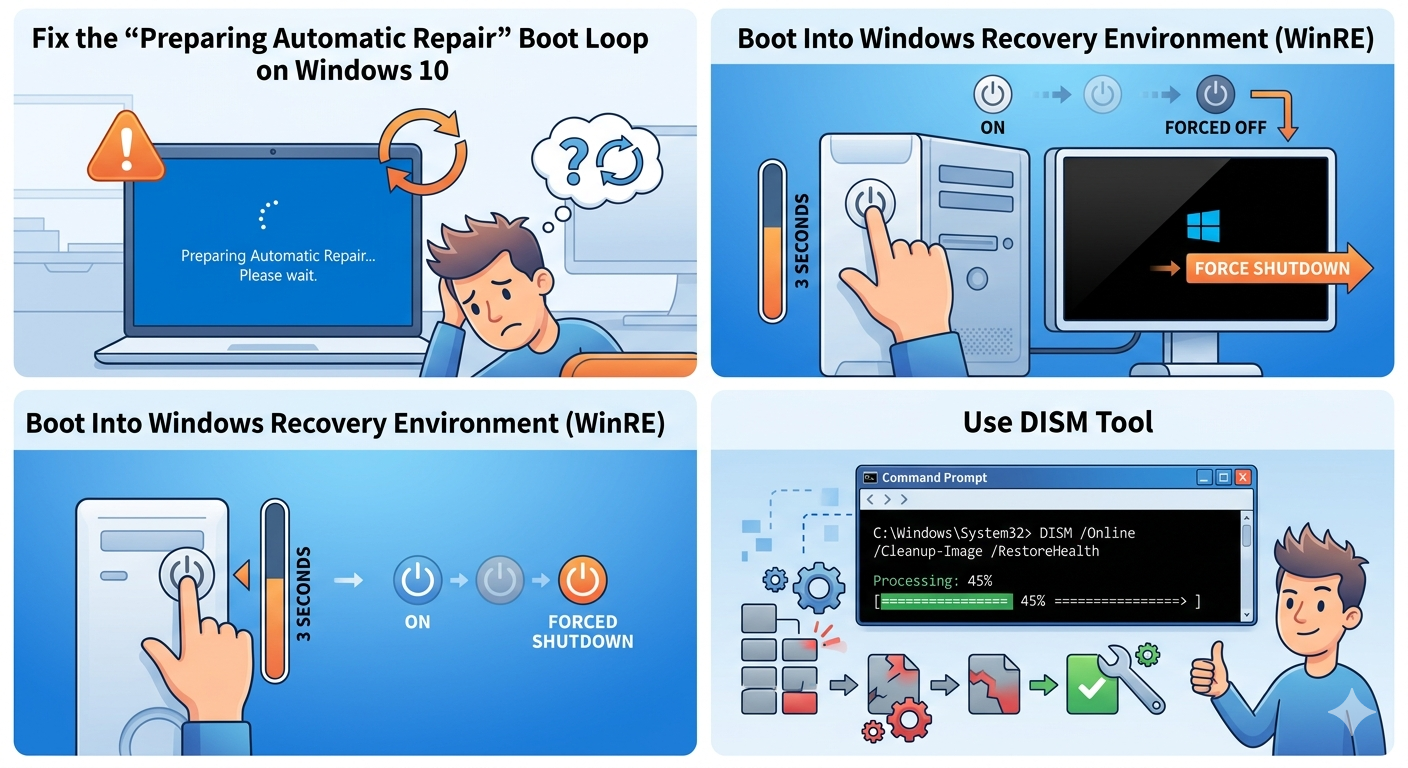
Fix the “Preparing Automatic Repair” Boot Loop on Windows 10
The “Preparing Automatic Repair” loop is one of the most frustrating startup problems in Windows 10. Instead of loading normally, the computer repeatedly shows the Automatic Repair screen, restarts, and then returns to the same message again and again.
When this issue occurs, users may be unable to access the desktop, open files, or use the system at all. In some cases, Windows may display a black screen, blue screen, or endless spinning dots during startup.
This problem is usually caused by corrupted system files, damaged boot records, failed updates, hardware issues, or startup configuration errors. Fortunately, there are several effective ways to fix the automatic repair loop and restore normal Windows startup.
In this guide, you’ll learn why Windows gets stuck in the “Preparing Automatic Repair” loop and how to fix it step by step.
What Causes the “Preparing Automatic Repair” Loop?
Windows Automatic Repair is designed to fix startup issues automatically. However, if Windows cannot repair itself successfully, it may repeatedly restart and enter the repair process again.
Common Causes Include
- Corrupted system files
- Damaged boot configuration data (BCD)
- Failed Windows updates
- Corrupted registry entries
- Hard drive errors
- Faulty RAM
- Driver conflicts
- Malware infections
Common Symptoms
You may notice:
- Endless “Preparing Automatic Repair” screen
- Repeated restarts
- Black screen after startup
- Blue screen errors
- Windows never reaching the login screen
- Startup Repair failing repeatedly
How To Fix Windows 10 Stuck in Automatic Repair Loop
Follow these methods carefully.
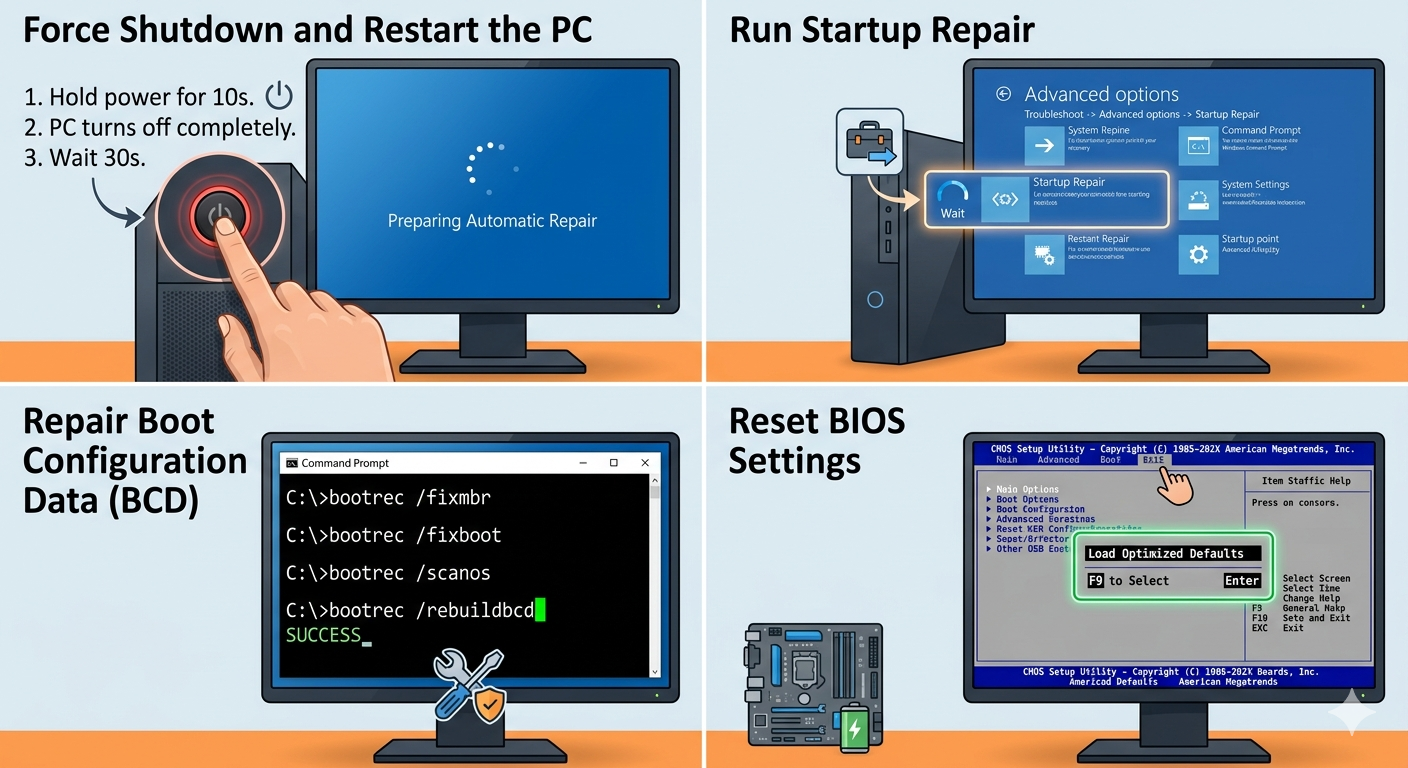
Force Shutdown and Restart the PC
Temporary startup glitches may resolve after a hard reboot.
Steps
- Hold the power button for 10 seconds
- Turn the PC off completely
- Wait 30 seconds
- Power it back on
If the loop continues, proceed to the next method.
Disconnect External Devices
External hardware may interfere with startup.
Disconnect
- USB drives
- External hard disks
- Printers
- Game controllers
- Docking stations
Then restart the PC.
Boot Into Windows Recovery Environment (WinRE)
Most repair options require entering recovery mode.
How To Enter WinRE
- Turn the PC on
- Force shutdown during boot
- Repeat this process 2–3 times
Windows should eventually enter Advanced Startup Options automatically.
Run Startup Repair
Startup Repair can fix boot-related issues automatically.
Steps
- Open Advanced Options
- Select:
Troubleshoot → Advanced options → Startup Repair- Choose your Windows account
- Wait for the repair process to finish
Restart the computer afterward.
Boot Into Safe Mode
Safe Mode loads only essential drivers and services.
Steps
- Open Advanced Options
- Select:
Startup Settings- Restart the PC
- Press:
4for Safe Mode5for Safe Mode with Networking
If Windows starts in Safe Mode, recent drivers or updates may be causing the issue.
Run System File Checker (SFC)
Corrupted system files commonly trigger repair loops.
Steps
- Open Command Prompt from Advanced Options
- Run:
sfc /scannowWait for the scan to complete.
Use DISM Tool
DISM repairs damaged Windows images.
Steps
Run:
DISM /Online /Cleanup-Image /RestoreHealthRepair Boot Configuration Data (BCD)
Corrupted boot records often cause startup loops.
Steps
Open Command Prompt and run:
bootrec /fixmbr
bootrec /fixboot
bootrec /scanos
bootrec /rebuildbcd
Restart afterward.
Run CHKDSK to Check Disk Errors
Hard drive corruption may prevent Windows from starting.
Steps
Run:
chkdsk /f /r C:Replace C: if Windows is installed on another drive.
Disable Automatic Repair Temporarily
Sometimes disabling the repair feature helps bypass the loop.
Steps
Open Command Prompt and run:
bcdedit /set recoveryenabled noRestart the computer.
Uninstall Recent Windows Updates
Failed updates can break startup.
Steps
- Open:
Advanced Options → Uninstall Updates- Remove:
- Latest quality update
or: - Latest feature update
- Latest quality update
Restart afterward.
Restore the Registry
Corrupted registry files may cause boot loops.
Steps
In Command Prompt, navigate to:
C:\Windows\System32\configThen restore backup registry files if available.
Perform System Restore
System Restore can undo recent changes.
Steps
- Open:
Troubleshoot → Advanced Options → System Restore- Choose a restore point
- Follow the instructions
Check RAM for Errors
Faulty memory can prevent successful startup.
Try
- Reseating RAM modules
- Testing one RAM stick at a time
- Running memory diagnostics
Check Hard Drive Health
Failing drives often trigger repair loops.
Warning Signs
- Clicking noises
- Slow boot times
- Frequent freezes
- Read/write errors
Backup important files immediately if drive failure is suspected.
Disconnect Battery and Power (Laptops)
Temporary hardware states may cause startup issues.
Steps
- Power off the laptop
- Disconnect charger
- Remove battery if removable
- Hold power button for 20 seconds
- Reconnect power and restart
Reset BIOS Settings
Incorrect BIOS settings may affect boot configuration.
Try
- Load BIOS default settings
- Check boot order
- Disable overclocking if enabled
Reinstall Windows 10
If all repair methods fail, reinstalling Windows may be necessary.
Important
Back up files first if possible.
Options
- Reset this PC
- Clean installation using installation media
Tips to Prevent Automatic Repair Loops
To reduce future startup problems:
- Keep Windows updated
- Avoid forced shutdowns
- Maintain healthy storage drives
- Use reliable antivirus protection
- Create restore points regularly
When to Seek Professional Help
Consider professional assistance if:
- The PC cannot access recovery mode
- Hard drive failure is suspected
- Startup errors continue after reinstalling Windows
- Hardware damage is possible
Final Thoughts
The “Preparing Automatic Repair” loop in Windows 10 is usually caused by corrupted system files, damaged boot records, failed updates, or hardware-related issues. Although the problem can prevent access to Windows entirely, it is often repairable using built-in recovery tools.
By running Startup Repair, rebuilding boot records, checking disk health, uninstalling problematic updates, and repairing system files, many users can successfully restore normal startup functionality.
Related articles
Fixing the “Kernel Security Check Failure” Error on Windows 10