


NVIDIA Control Panel Not Showing Up on Windows 10? Here’s What to Do
The NVIDIA Control Panel is an essential tool for customizing graphics settings, optimizing performance, and configuring display properties on systems using NVIDIA GPUs. However, many users encounter a frustrating issue where the NVIDIA Control Panel goes missing on Windows 10, either from the desktop context menu, the system tray, or even the Control Panel itself.
If you’re facing this issue, don’t worry—it’s a common problem and can usually be resolved with a few simple steps. This guide will walk you through all possible reasons for the issue and how to restore the NVIDIA Control Panel quickly.
What Causes the NVIDIA Control Panel to Go Missing?
There are several reasons why the NVIDIA Control Panel might not show up in Windows 10:
-
The NVIDIA Control Panel service is not running
-
Corrupted or outdated NVIDIA graphics drivers
-
Windows updates causing compatibility issues
-
NVIDIA Control Panel was uninstalled or not properly installed
-
GPU is not detected or recognized correctly
-
Software conflicts or missing system components
Now let’s explore how to fix the issue step-by-step.
Fix 1: Restart NVIDIA Services
The NVIDIA Control Panel depends on background services that must be running for it to appear.
Steps to restart the services:
-
Press Windows + R, type
services.msc, and press Enter -
Look for the following services:
-
NVIDIA Display Container LS
-
NVIDIA LocalSystem Container
-
-
Right-click each one and click Restart
-
Set their Startup type to Automatic if not already set
-
Close the Services window and check if the Control Panel appears
If these services aren’t running, the NVIDIA Control Panel won’t load in the background.
Fix 2: Reinstall the NVIDIA Control Panel App from Microsoft Store
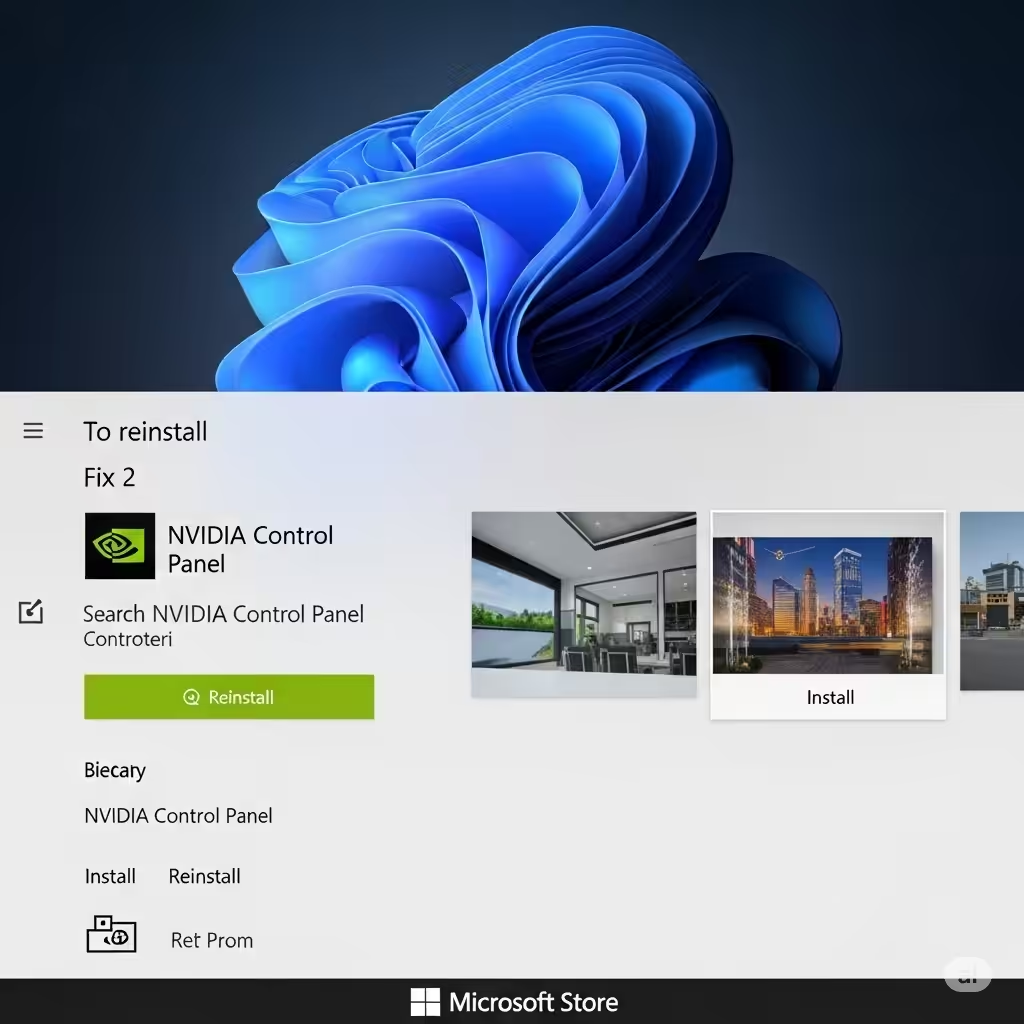
Since Windows 10, NVIDIA has offered the Control Panel as a standalone app available from the Microsoft Store.
To reinstall:
-
Open the Microsoft Store
-
Search for NVIDIA Control Panel
-
Click Install (or Get if it’s already owned)
-
Once installed, restart your computer
After installation, it should appear in the Start menu or by right-clicking the desktop.
Fix 3: Manually Launch the NVIDIA Control Panel
Sometimes the Control Panel is still installed but doesn’t show in menus or tray icons.
How to manually open it:
-
Press Windows + R, type
control, and press Enter -
In the classic Control Panel, change View by to Large icons
-
Look for NVIDIA Control Panel
-
Open it and pin it to the Start menu or taskbar for easier access
Alternatively, navigate to this path:
Double-clicking nvcplui.exe launches the Control Panel directly.
Fix 4: Reinstall or Update NVIDIA Graphics Drivers
If your GPU drivers are outdated or corrupted, the Control Panel may not load properly.
How to reinstall drivers:
-
Press Windows + X and choose Device Manager
-
Expand Display adapters, right-click your NVIDIA GPU, and select Uninstall device
-
Check Delete the driver software for this device and click Uninstall
-
Restart your computer
Then reinstall the latest driver:
-
Visit the NVIDIA Driver Download Page
-
Enter your GPU details and download the latest Game Ready or Studio driver
-
Install the driver using Custom Installation and check Perform a clean install
-
Reboot your PC and check if the Control Panel appears
Fix 5: Enable NVIDIA Control Panel at Startup
Sometimes the Control Panel is installed but not configured to start with Windows.
Steps:
-
Press Windows + R, type
taskschd.msc, and press Enter -
In the Task Scheduler, navigate to:
-
Look for a task like NvCpLauncher
-
If it’s disabled, right-click it and select Enable
-
Restart your system
This ensures the Control Panel loads every time you boot your computer.
Fix 6: Check System Tray Settings
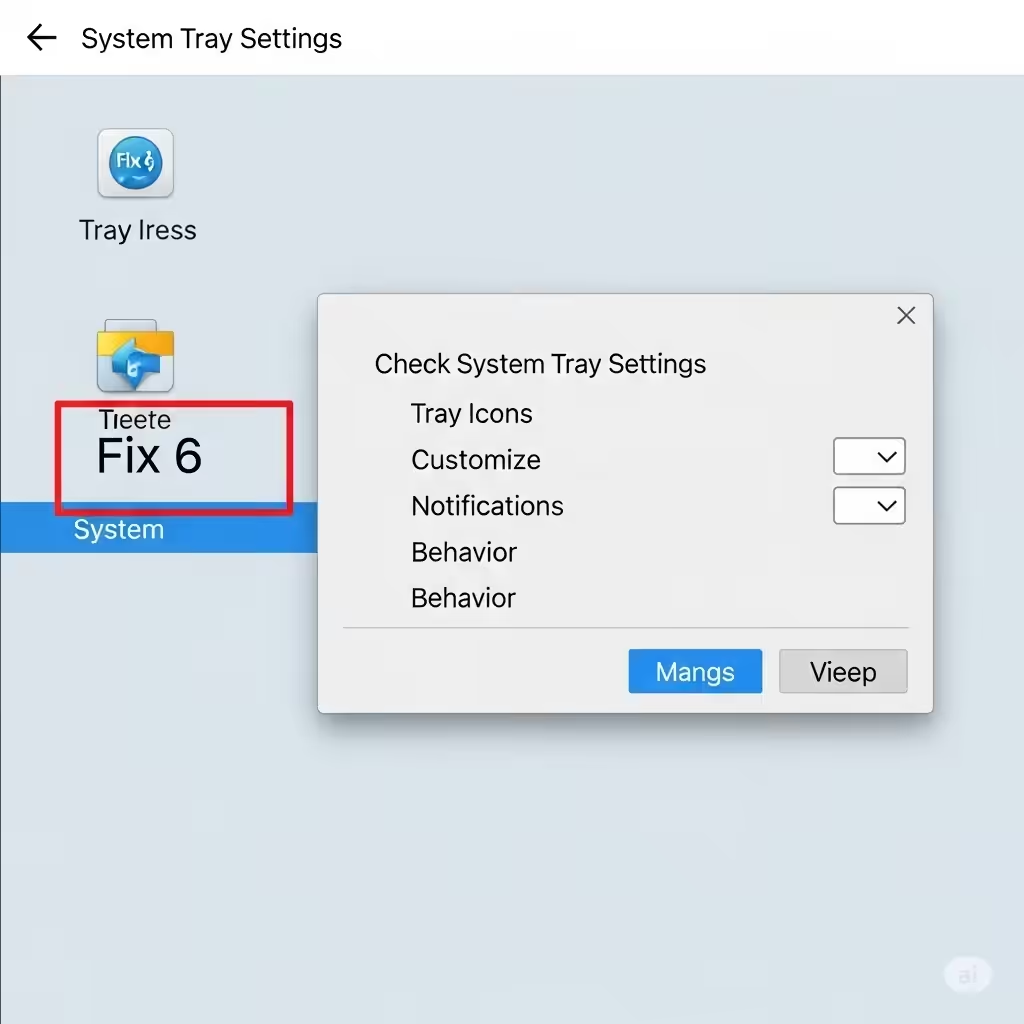
If the NVIDIA icon is missing only from the system tray, it might be hidden.
To reveal it:
-
Right-click an empty area on the taskbar and select Taskbar settings
-
Scroll to Notification area and click Select which icons appear on the taskbar
-
Find NVIDIA Control Panel and turn it On
Alternatively, click the up arrow (^) on the taskbar to check hidden icons.
Fix 7: Run System File Checker
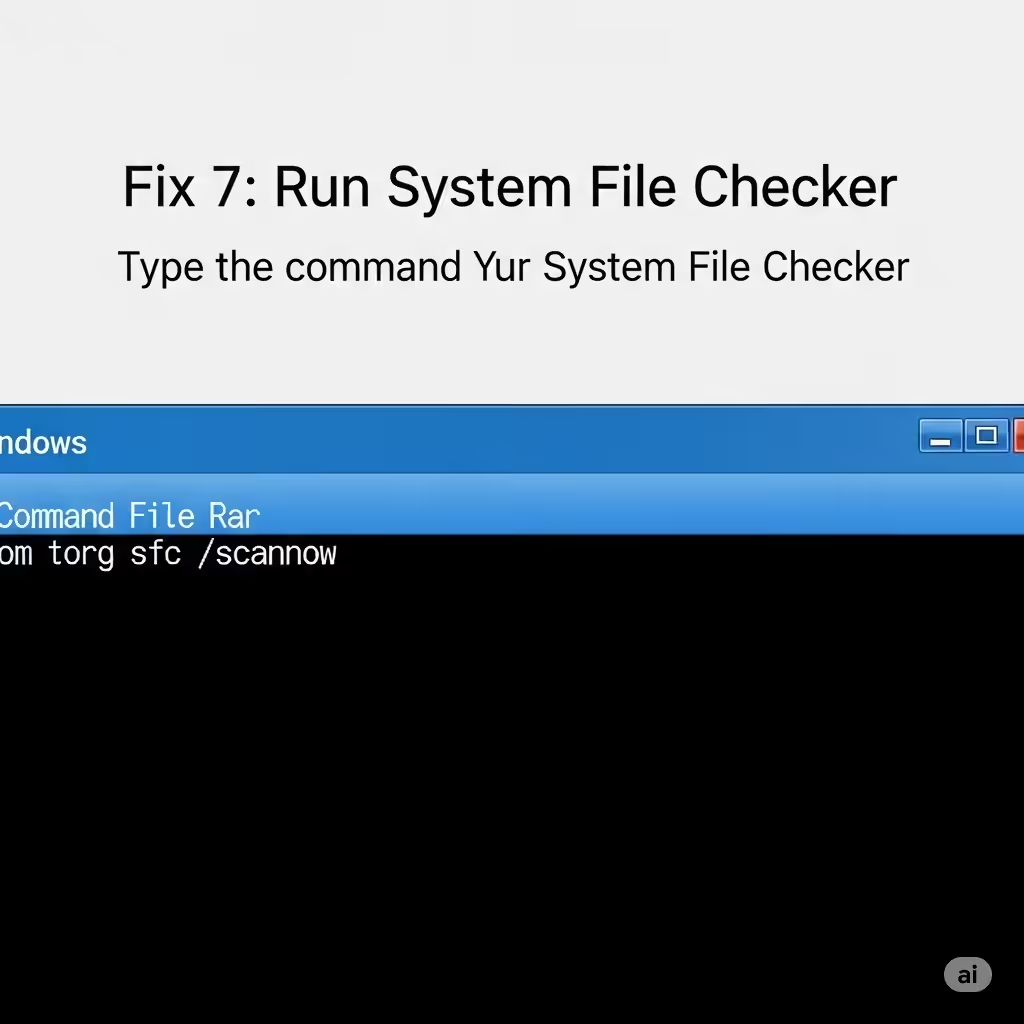
If a recent Windows update caused the issue, system file corruption might be to blame.
To repair system files:
-
Press Windows + X and choose Windows Terminal (Admin) or Command Prompt (Admin)
-
Type the following command and press Enter:
-
Let the process complete, then restart your PC
This scan will detect and fix any corrupted Windows files that might be preventing NVIDIA services from working.
Fix 8: Perform a Clean Installation of NVIDIA Drivers (Optional)
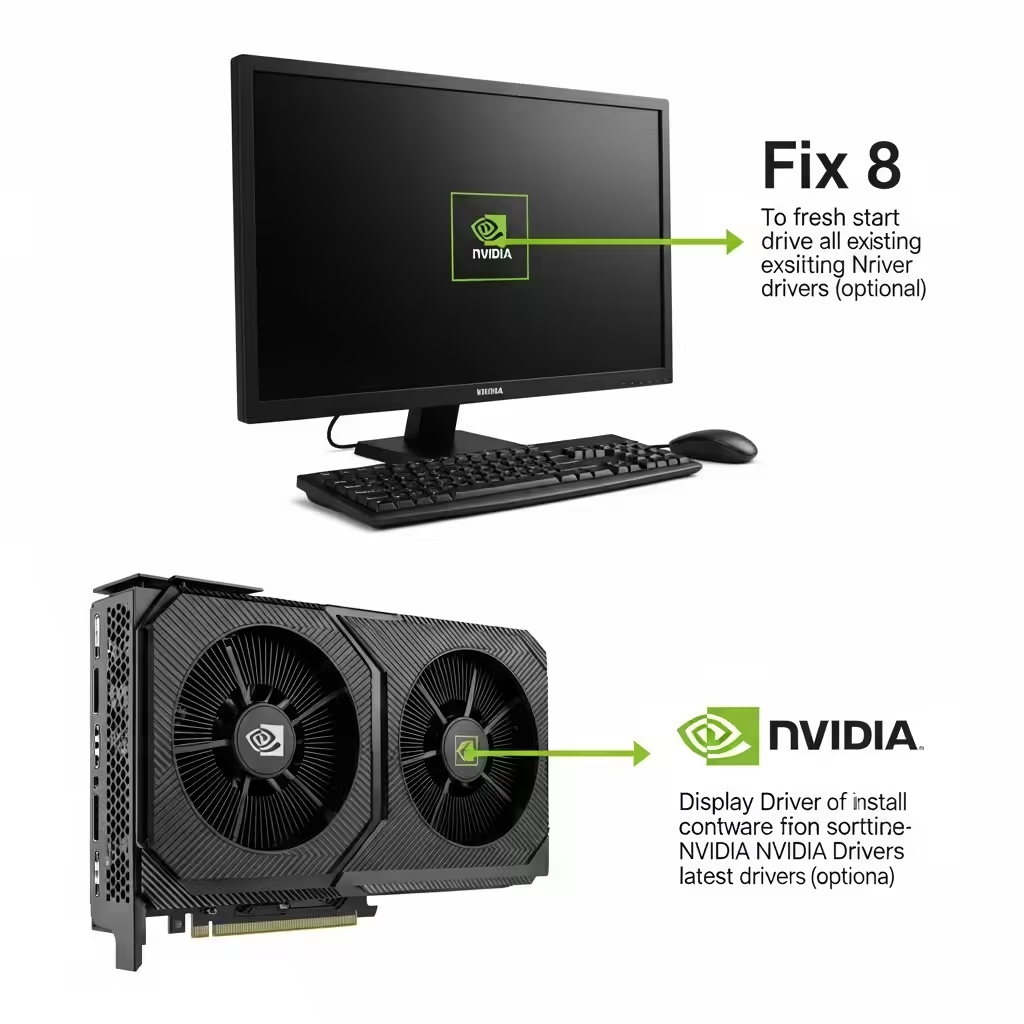
If the above steps don’t work, performing a full clean installation using Display Driver Uninstaller (DDU) can resolve deeper conflicts.
Steps:
-
Download DDU from the official site (Guru3D)
-
Boot your system into Safe Mode
-
Run DDU and select Clean and restart
-
After restart, install the latest NVIDIA drivers from the official site
This process ensures no remnants of old drivers interfere with the current version.
Conclusion
The NVIDIA Control Panel missing issue on Windows 10 can be frustrating, especially if you rely on it for gaming, display management, or custom GPU settings. Fortunately, the problem is usually caused by driver conflicts, service issues, or simple configuration errors.
Summary of Fixes:
-
Restart NVIDIA services
-
Reinstall the NVIDIA Control Panel from the Microsoft Store
-
Update or reinstall graphics drivers
-
Launch the Control Panel manually from its install directory
-
Enable auto-start via Task Scheduler
-
Repair system files if needed
With these steps, you should be able to restore full access to the NVIDIA Control Panel and regain control over your GPU settings.