


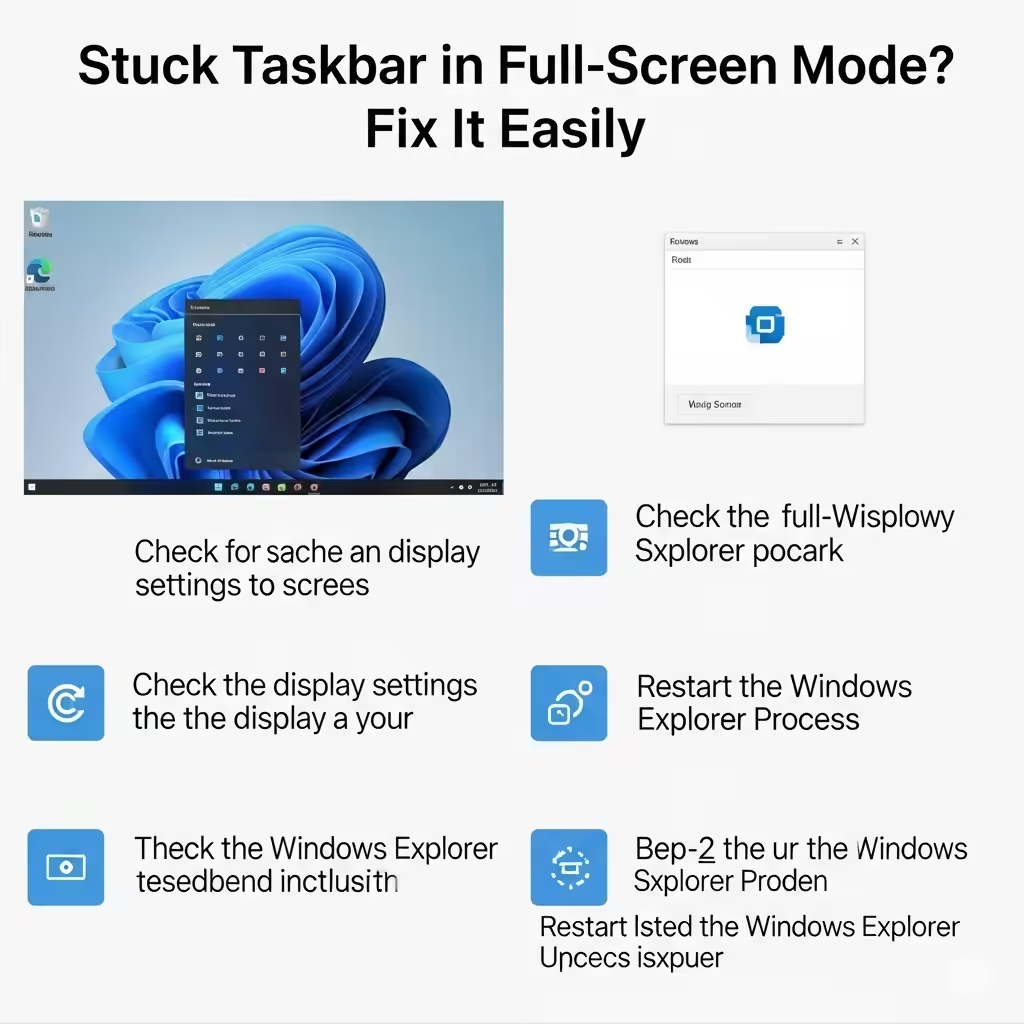
Stuck Taskbar in Full-Screen Mode? Fix It Easily
The Windows taskbar is designed to stay out of the way when you’re watching videos, playing games, or running applications in full-screen mode. But sometimes, it stubbornly remains visible—even when it shouldn’t. If you’re seeing the taskbar showing in full-screen, you’re not alone.
This common annoyance can break immersion during games, disrupt media playback, or interfere with productivity. Fortunately, the problem is usually easy to fix once you identify the cause. In this article, we’ll walk through the most common reasons for the issue and show you step-by-step how to resolve it.
What Causes the Taskbar to Appear in Full-Screen Mode?
Normally, applications like YouTube (in browsers), media players, or games can force the taskbar to hide automatically. However, the taskbar may still remain visible due to one of the following:
-
Misconfigured taskbar settings
-
Glitched Windows Explorer process
-
A background notification or pop-up
-
Misbehaving browser or app (especially with Chrome or Edge)
-
System updates or bugs in Windows 10/11
-
Auto-hide feature not working properly
Now, let’s explore how to fix each of these problems.
Fix 1: Restart Windows Explorer
Windows Explorer is responsible for rendering the taskbar, desktop, and file navigation windows. If it’s not functioning correctly, restarting it can refresh the taskbar.
Steps:
-
Press Ctrl + Shift + Esc to open Task Manager
-
Scroll down and find Windows Explorer in the list
-
Right-click it and select Restart
Your screen may briefly go black, and the taskbar will reload. This simple reset often resolves the full-screen taskbar bug.
Fix 2: Enable Auto-Hide for the Taskbar
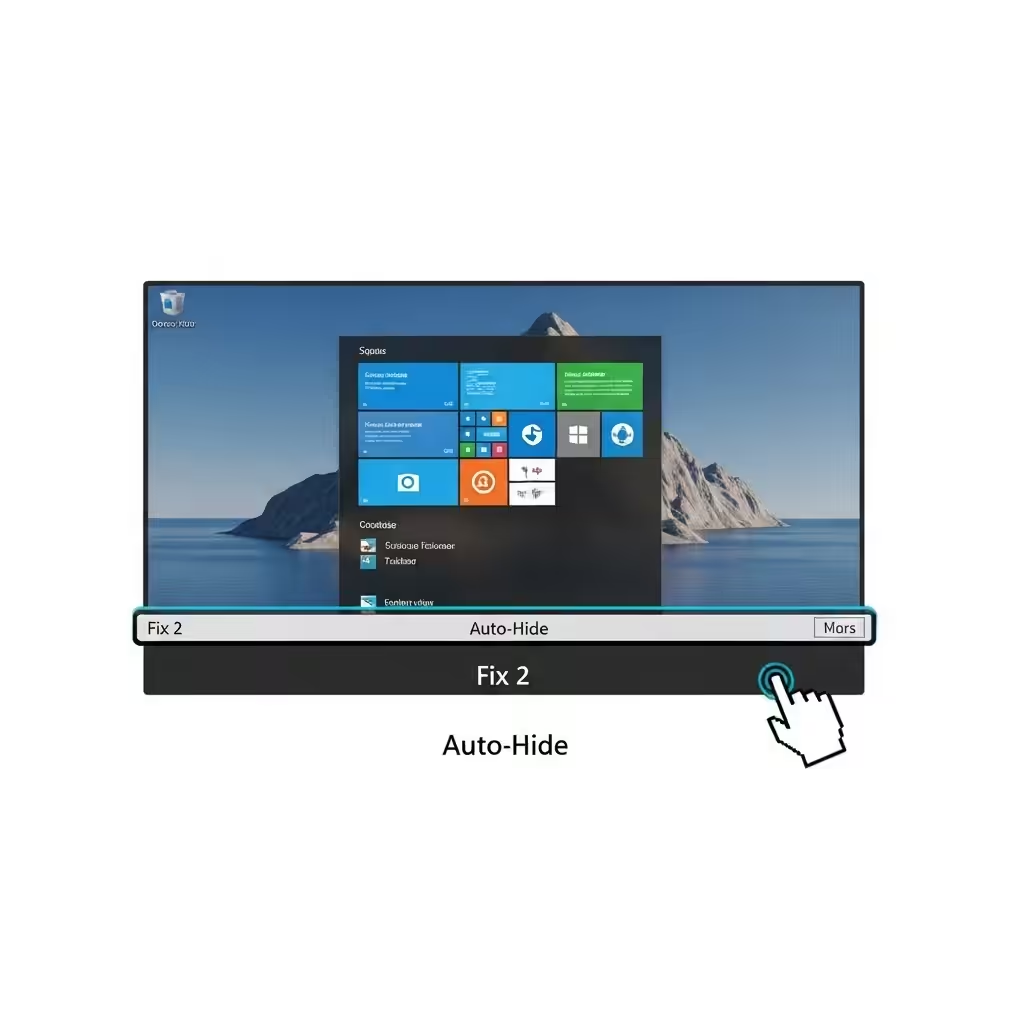
If the taskbar stays visible during full-screen playback, setting it to auto-hide might help.
On Windows 10:
-
Right-click the taskbar and choose Taskbar settings
-
Toggle on Automatically hide the taskbar in desktop mode
-
Close the settings window and test full-screen again
On Windows 11:
-
Right-click the taskbar and click Taskbar settings
-
Scroll down and click Taskbar behaviors
-
Check the box for Automatically hide the taskbar
Auto-hide forces the taskbar to stay hidden unless you move your mouse to the bottom of the screen.
Fix 3: Close or Dismiss Notifications
Active background notifications or apps can “pin” the taskbar, making it stay visible even in full-screen mode. These could be:
-
Microsoft Teams messages
-
Windows Security alerts
-
Outlook notifications
-
Background apps requesting your attention
How to check:
-
Look for any highlighted icons on the taskbar
-
Right-click the icon and dismiss or close the app
-
Try switching back to full-screen mode
Once the notification is handled, the taskbar should hide as expected.
Fix 4: Update or Reinstall Your Browser
If the problem only occurs while watching full-screen videos in a browser, the issue could lie with the browser itself—especially Chrome or Edge.
Steps:
-
Open your browser
-
Go to Settings > About to check for updates
-
Install updates and restart the browser
-
Test a full-screen video on YouTube or Netflix
If updating doesn’t work, uninstall and reinstall the browser from the official site.
Fix 5: Use F11 for True Full-Screen Mode
Some apps and browsers simulate full-screen but don’t use “true” full-screen mode. Pressing F11 puts the app into full-screen mode that hides the taskbar more reliably.
In Chrome, Edge, or Firefox:
-
Press F11 to enter true full-screen
-
Press F11 again to exit
This method works well when auto-hide settings or app configurations fail.
Fix 6: Check for Windows Updates
Sometimes, bugs in Windows updates can cause the taskbar to behave improperly. Ensure your system is up to date, as newer patches may fix known issues.
How to check for updates:
-
Go to Settings > Update & Security > Windows Update
-
Click Check for updates
-
Install any available updates
-
Restart your computer
Keeping Windows updated improves overall system stability and fixes UI glitches like this one.
Fix 7: Change Visual Effects Settings
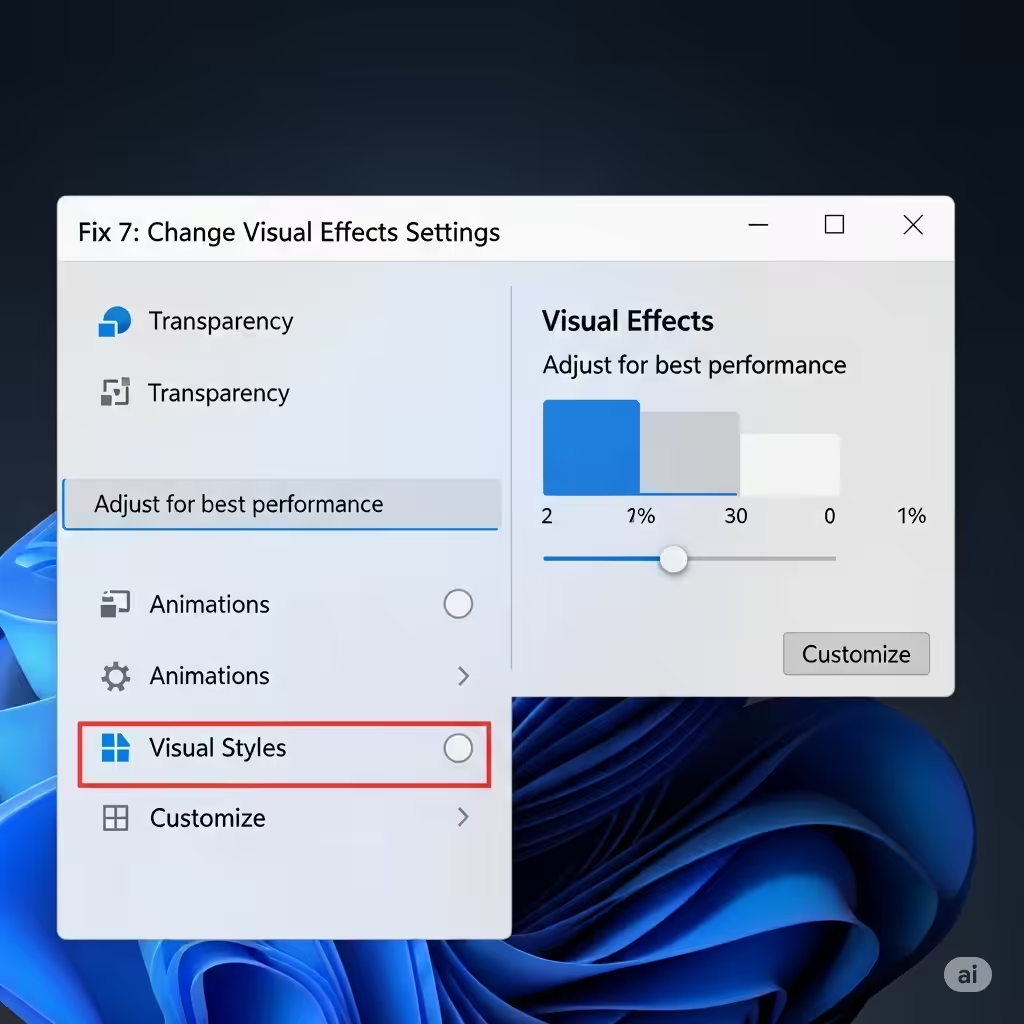
In some cases, system animations or visual effects may interfere with proper taskbar behavior.
Steps:
-
Right-click Start and select System
-
Click Advanced system settings on the right
-
Under the Performance section, click Settings
-
Select Adjust for best performance or manually uncheck:
-
Animate windows when minimizing and maximizing
-
Fade or slide menus into view
-
-
Click Apply and then OK
This helps reduce graphical inconsistencies that can leave UI elements like the taskbar “stuck.”
Fix 8: Check Application Settings
Some media players or apps have their own full-screen or UI settings. If you’re having taskbar problems in a specific app, check its settings menu for options like:
-
“Always on top” toggles
-
Full-screen mode (not just maximized window)
-
Borderless window mode (games)
Adjusting these can help the app correctly utilize the screen space and avoid interference with the taskbar.
Fix 9: Scan for Malware or Corruption
If none of the above work, there could be deeper issues—such as system file corruption or malware that interferes with UI elements.
Recommended tools:
-
Run sfc /scannow in Command Prompt to fix corrupted system files
-
Use Windows Defender or a trusted antivirus to run a full scan
-
Consider running DISM to repair system image issues
These scans help ensure the taskbar issue isn’t caused by deeper software damage.
Conclusion
The taskbar staying visible in full-screen mode is a common but solvable problem. Whether it’s due to notification interruptions, browser issues, or a simple glitch in Windows Explorer, one of the methods above should resolve it.
Quick Recap of Fixes:
-
Restart Windows Explorer
-
Enable auto-hide for the taskbar
-
Dismiss app notifications
-
Use F11 or true full-screen mode
-
Update your browser or Windows OS
-
Adjust visual effects and app settings
With the right steps, you can bring back the seamless, distraction-free experience that full-screen mode is supposed to offer.