


Solved: Task Manager Showing 100% Disk Usage on Windows
Seeing 100% disk usage in Task Manager is one of the most common performance problems on Windows 10 and Windows 11. When this happens, your computer may become extremely slow, applications may freeze, startup times may increase, and even simple tasks like opening folders can take several seconds.
Many users panic when they see the disk constantly running at 100%, but the issue is often caused by software problems rather than a failing hard drive. Background services, corrupted system files, outdated drivers, indexing issues, malware, or Windows features can all trigger high disk usage.
Fortunately, there are several proven ways to reduce disk usage and restore normal system performance.
What Does 100% Disk Usage Mean?
Disk usage in Task Manager shows how heavily your storage drive is being used. If it constantly stays at 100%, Windows cannot process requests efficiently, causing slowdowns and lag.
This problem can affect both:
- HDDs (Hard Disk Drives)
- SSDs (Solid State Drives)
However, traditional HDDs are usually affected more severely.
Common Symptoms
You may notice:
- Slow startup times
- Programs freezing or crashing
- Delayed mouse or keyboard response
- High system lag
- File Explorer responding slowly
- Constant hard drive noise
Common Causes of 100% Disk Usage
Windows Search Indexing
Search indexing can overload slower drives.
SysMain (Superfetch) Service
This service may aggressively preload applications.
Windows Updates
Background updates can consume heavy disk resources.
Corrupted System Files
Damaged files may cause repeated disk activity.
Malware or Viruses
Malicious software often causes abnormal disk usage.
Outdated Drivers
Storage controller drivers may malfunction.
Insufficient RAM
Low memory can increase paging activity on the disk.
How To Fix 100% Disk Usage on Windows
Try the following methods one by one.
Restart Your Computer
Temporary system glitches may disappear after rebooting.
Why It Helps
Background processes and services reset during restart.
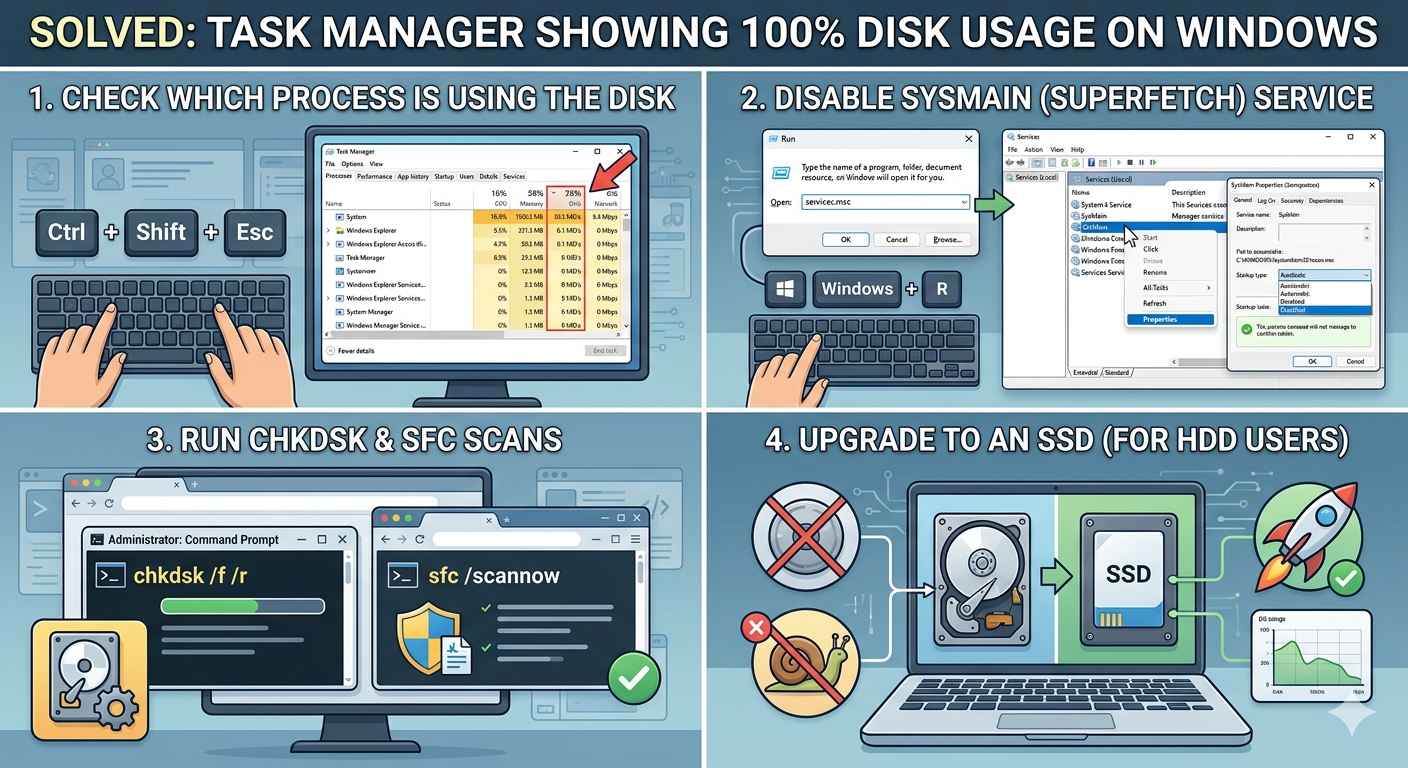
Check Which Process Is Using the Disk
Identify the application causing the issue.
Steps
- Press
Ctrl + Shift + Esc - Open Task Manager
- Click the Disk column
- Check which process uses the most disk resources
This helps narrow down the problem.
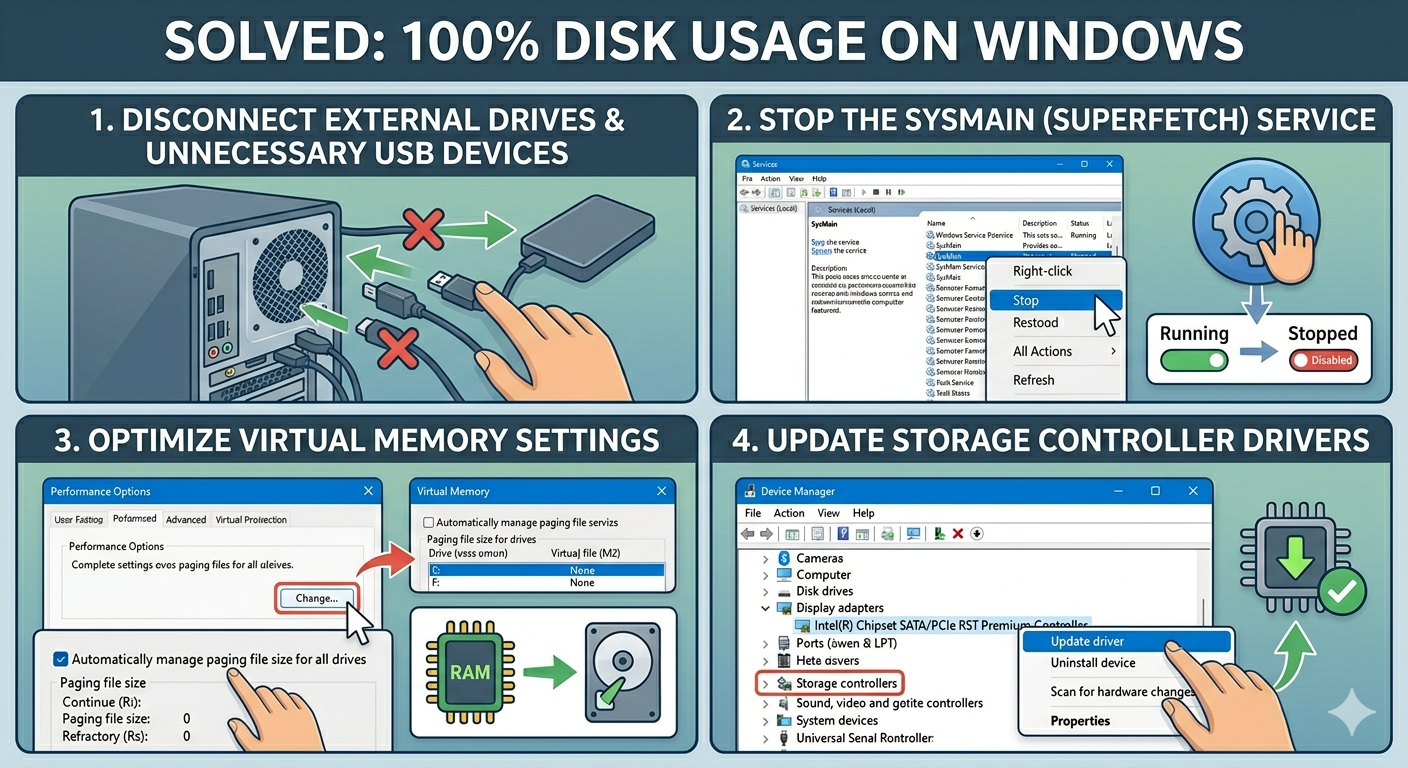
Disable SysMain (Superfetch)
SysMain is a common cause of high disk usage.
Steps
- Press
Windows + R - Type:
services.msc- Find SysMain
- Right-click it
- Select Stop
- Open Properties
- Set Startup Type to Disabled
Restart the PC afterward.
Disable Windows Search Temporarily
Search indexing can overload the disk.
Steps
Open Command Prompt as administrator and run:
net.exe stop "Windows search"Check whether disk usage improves.
Run Check Disk (CHKDSK)
Disk errors can cause constant activity.
Steps
Open Command Prompt as administrator and run:
chkdsk /f /rYou may need to restart the computer.
Run System File Checker (SFC)
Corrupted system files may trigger disk problems.
Steps
Run:
sfc /scannowRestart after completion.
Use DISM Tool
Repair deeper Windows image corruption.
Steps
Run:
DISM /Online /Cleanup-Image /RestoreHealthDisable Startup Programs
Too many startup apps can overload the disk.
Steps
- Open Task Manager
- Go to the Startup tab
- Disable unnecessary applications
Restart your PC.
Update Storage Drivers
Outdated SATA or NVMe drivers may cause issues.
Steps
- Open Device Manager
- Expand:
- IDE ATA/ATAPI controllers
- Storage controllers
- Update drivers
Switch to High Performance Power Plan
Power-saving settings may slow storage performance.
Steps
- Open Control Panel
- Go to Power Options
- Select High performance
Check for Malware
Viruses often cause heavy disk activity.
Steps
- Open Windows Security
- Run a Full Scan
- Remove threats if detected
Turn Off Background Apps
Background apps may continuously access the disk.
Steps
- Open Settings → Apps
- Disable unnecessary background applications
Update Windows
Performance fixes are frequently included in updates.
Steps
- Open Settings → Windows Update
- Install updates
- Restart your PC
Disable Delivery Optimization
Windows update sharing may use disk resources.
Steps
- Open Settings → Windows Update
- Go to Advanced options
- Open Delivery Optimization
- Turn it off
Check Virtual Memory Settings
Improper paging file settings may increase disk usage.
Steps
- Search for:
Advanced system settings- Open Performance Settings
- Go to Advanced → Virtual Memory
- Enable:
- Automatically manage paging file size
Upgrade to an SSD
If using an HDD, upgrading to SSD dramatically improves performance.
Benefits
- Faster startup
- Reduced disk bottlenecks
- Better responsiveness
- Faster app loading
Perform a Clean Boot
Background services may be causing the issue.
Steps
- Press
Windows + R - Type:
msconfig- Hide Microsoft services
- Disable non-essential services
- Disable startup apps
- Restart the PC
Check Drive Health
A failing drive may constantly operate at high usage.
Warning Signs
- Clicking noises
- Slow file transfers
- Frequent freezes
- Bad sectors
Use SMART monitoring tools if necessary.
Reset Windows Search Index
Corrupted indexing databases can overload storage.
Steps
- Open Indexing Options
- Click Advanced
- Select Rebuild
When 100% Disk Usage Indicates Hardware Failure
Sometimes the issue points to physical drive problems.
Possible Signs
- Disk disappears randomly
- Frequent blue screens
- Read/write errors
- Extremely slow performance even after fixes
In these cases, backup important files immediately.
Tips to Prevent High Disk Usage
To reduce future problems:
- Keep Windows updated
- Avoid unnecessary startup apps
- Use SSD storage if possible
- Scan for malware regularly
- Maintain sufficient free disk space
- Update drivers regularly
When to Seek Professional Help
Consider expert assistance if:
- Disk usage remains stuck at 100% constantly
- Hard drive makes unusual noises
- Windows frequently crashes
- SMART diagnostics show failure warnings
Final Thoughts
The 100% disk usage issue in Windows 10 and Windows 11 is usually caused by background services, indexing, corrupted files, outdated drivers, or storage-related problems. Although the system may become nearly unusable, the issue is often fixable without replacing hardware.
By disabling SysMain, checking disk health, repairing system files, updating drivers, and reducing background activity, most users can significantly lower disk usage and restore system performance.
Related articles
Fix Outlook Password Prompt Issue in Office 365
How to Fix Mobile Hotspot Not Working in Windows 10
How to Reduce Avast High Resource Usage in Windows 10 and 11