



How to Resolve the “DNS Server Not Responding” Issue in Windows 10
When browsing the internet, one of the most frustrating issues is the “DNS Server Isn’t Responding” error. This issue prevents your computer from connecting to websites, even if your internet is working. DNS (Domain Name System) is responsible for translating web addresses like google.com into IP addresses that your computer understands. When it fails, your browser can’t reach the websites you request.
Luckily, there are several ways to troubleshoot and fix this error in Windows 10. This guide provides a comprehensive list of methods to help you resolve the issue and restore your internet connection.
What Causes the “DNS Server Isn’t Responding” Error?
This error can be caused by a range of issues, including:
-
Problems with your internet service provider’s DNS servers
-
Incorrect network settings
-
Faulty network drivers
-
Security software conflicts
-
Misconfigured router or modem settings
-
Temporary network outages
Let’s explore how to fix it, step by step.
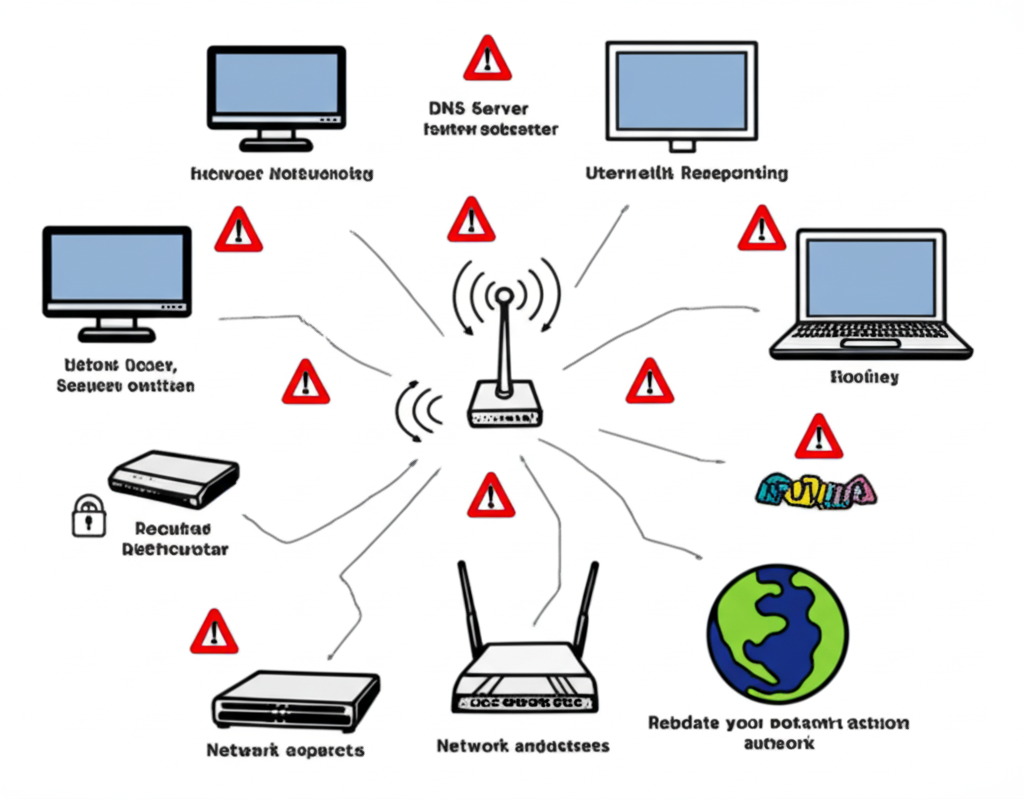
Step 1: Restart Your Computer and Router
Before diving into more complex solutions, start with the basics.
-
Restart your computer.
-
Turn off your modem and router for at least 30 seconds.
-
Turn them back on and wait for them to reconnect.
-
Try accessing the internet again.
This simple reset can resolve many temporary connectivity problems.

Step 2: Change Your DNS Server Address
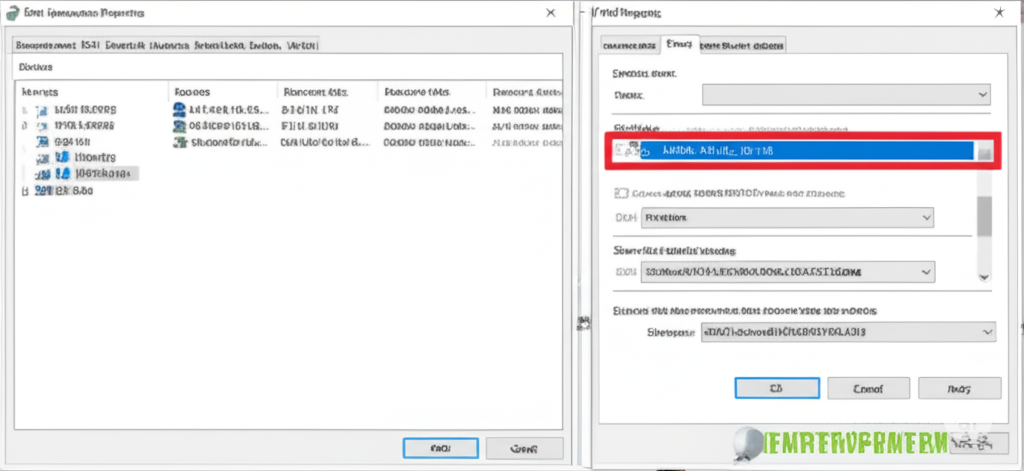
Your computer may be trying to reach an unresponsive DNS server. Switching to a public DNS like Google DNS or Cloudflare DNS often solves the issue.
How to Change DNS on Windows 10:
-
Press Windows + R, type
ncpa.cpl, and press Enter. -
Right-click your active network connection and select Properties.
-
Click on Internet Protocol Version 4 (TCP/IPv4), then click Properties.
-
Select Use the following DNS server addresses.
-
Enter the following values:
Preferred DNS server:
8.8.8.8
Alternate DNS server:8.8.4.4(Google’s DNS)Or use Cloudflare:
Preferred DNS:
1.1.1.1
Alternate DNS:1.0.0.1 -
Click OK and restart your connection.
Try accessing a website again to check if the issue is resolved.
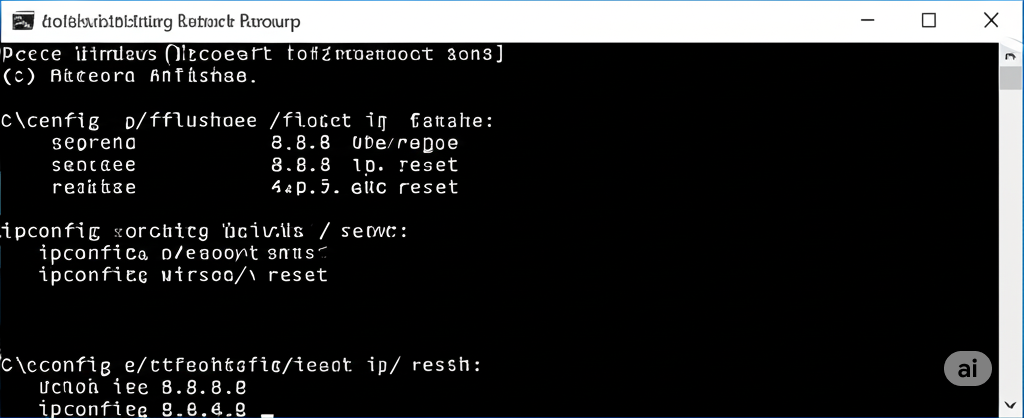
Step 3: Flush DNS Cache and Reset TCP/IP
Clearing the DNS cache can fix problems caused by outdated or corrupted DNS entries.
Steps:
-
Open Command Prompt as Administrator (search “cmd,” right-click, choose Run as administrator).
-
Run these commands one by one:
-
Restart your computer after executing all commands.
This will reset your network stack and clear DNS records, which often resolves the issue.
Step 4: Disable IPv6
Sometimes IPv6 can cause conflicts with DNS on certain networks.
To Disable IPv6:
-
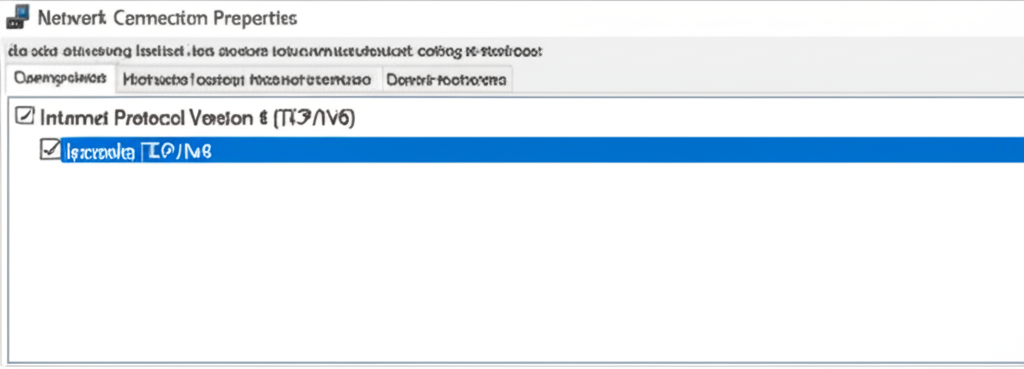
Press Windows + R, type
ncpa.cpl, and press Enter. -
Right-click your active connection and select Properties.
-
Uncheck Internet Protocol Version 6 (TCP/IPv6).
-
Click OK and restart your computer.
Test your browser after restarting to see if the DNS error is gone.
Step 5: Boot Into Safe Mode With Networking
Safe Mode loads Windows with only essential drivers and services. This can help identify if third-party software is interfering with your connection.
How to Boot Into Safe Mode With Networking:
-
Press Windows + R, type
msconfig, and press Enter. -
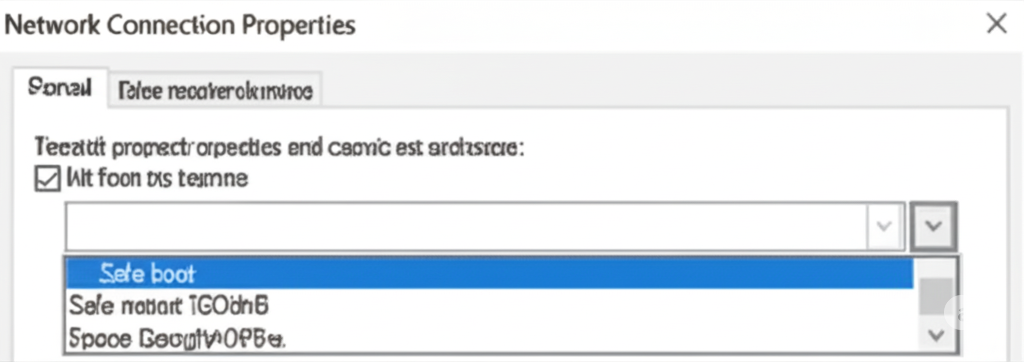
Go to the Boot tab.
-
Check Safe boot, then select Network.
-
Click Apply and OK, then restart your PC.
Try using your browser in Safe Mode. If it works, the problem is likely caused by third-party apps or drivers.
Return to normal mode by unchecking Safe boot in msconfig.
Step 6: Disable Security Software Temporarily
Antivirus and firewall programs can sometimes block DNS traffic, especially if they include network protection features.
-
Temporarily disable your antivirus or firewall software.
-
Test your browser again.
If the internet starts working, consider adjusting the settings of your security software or switching to a different one.
Note: Always re-enable your security software after testing.
Step 7: Update or Reinstall Network Drivers
Outdated or corrupted network drivers can cause DNS resolution failures.
To Update Your Network Drivers:
-
Press Windows + X and select Device Manager.
-
Expand the Network adapters section.
-
Right-click your adapter and select Update driver.
-
Choose Search automatically for drivers.
If that doesn’t help:
-
Right-click and choose Uninstall device.
-
Restart your PC to reinstall the drivers automatically.
You can also visit the manufacturer’s website to download the latest drivers manually.
Step 8: Try a Different Browser or Device
If the issue is isolated to a specific browser (e.g., Chrome), try using another one like Firefox or Edge.
Also, check if other devices (phones, tablets) on the same network are having issues. If they are, the problem is likely with the router or DNS settings at the network level.

Step 9: Reset Your Router to Factory Settings
If nothing else works, resetting the router may solve deep configuration errors.
-
Locate the reset button on the router.
-
Press and hold it for about 10–15 seconds (use a paperclip if needed).
-
Wait for the router to reboot and reconfigure your network.
Make sure you back up any custom router settings before doing this.
Conclusion
The “DNS Server Isn’t Responding” error in Windows 10 can prevent you from accessing the internet even when your network appears to be active. The good news is that this issue is usually caused by incorrect settings, outdated drivers, or DNS server issues — all of which can be fixed with a few straightforward steps.
Start with simple solutions like rebooting your system or changing your DNS. If those don’t work, move on to more advanced steps like flushing your DNS cache, updating drivers, or checking for software conflicts. With patience and this guide, you should be able to fix the error and get back online.