


Screenshot Methods for Windows 10 and 11 PCs
Capturing screenshots is a simple yet essential task for many Windows users. Whether you’re documenting a problem, saving an image from a website, or creating a tutorial, knowing how to take a screenshot efficiently can save time and effort.
Windows 10 and Windows 11 both offer multiple built-in methods for taking screenshots. Some involve keyboard shortcuts, while others utilize dedicated apps like Snipping Tool or Snip & Sketch. In this guide, we’ll walk through all the different ways you can capture your screen on both Windows 10 and 11 PCs.
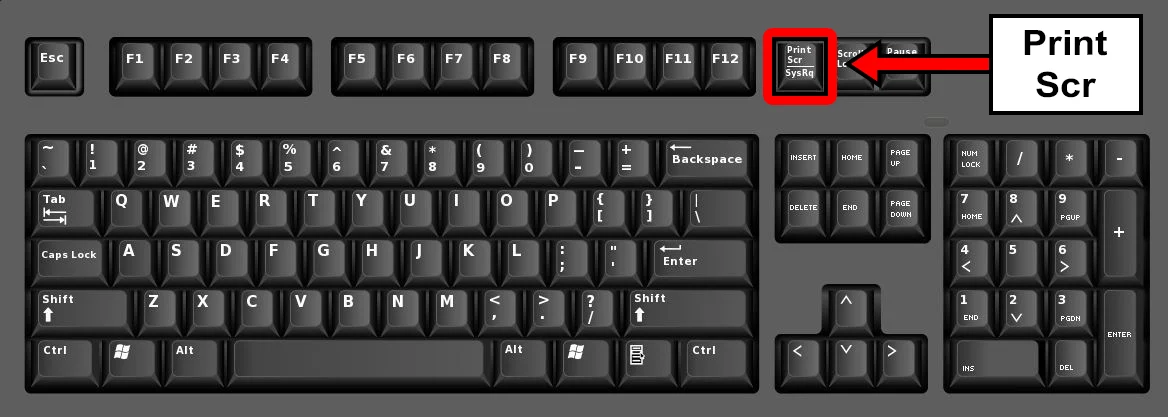
Using Print Screen (PrtScn) Key
The Print Screen key is the most basic method for taking a screenshot. It’s usually labeled as PrtScn, PrtSc, or something similar on your keyboard.
Full-screen Screenshot
Pressing the PrtScn key by itself captures the entire screen and copies it to the clipboard. You can then paste the screenshot into an app like Paint, Word, or an email using Ctrl + V.
Active Window Screenshot
To capture only the active window:
-
Press Alt + PrtScn
-
This will copy the currently active window to the clipboard
Paste it into a document or image editor to save.
Save Full-screen Screenshot Automatically
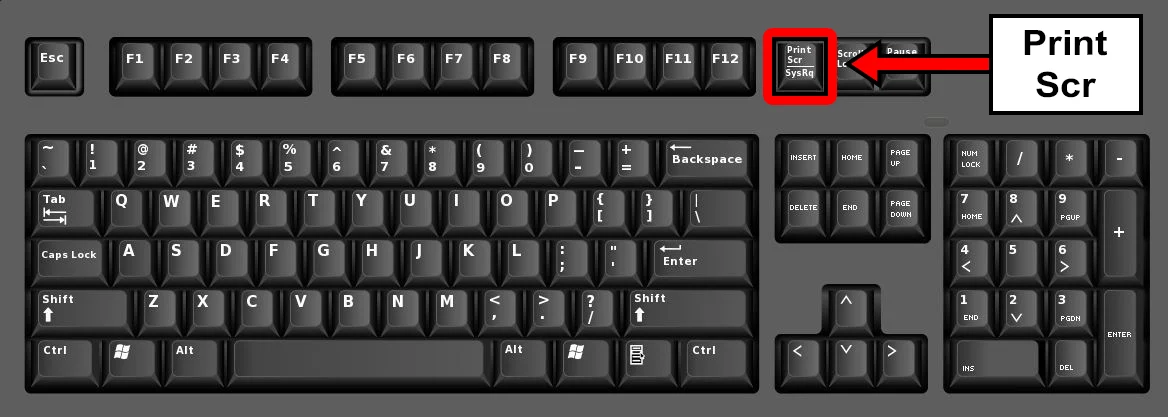
On Windows 10 and 11, you can press Windows + PrtScn to take a full-screen screenshot and save it automatically.
-
The screen will dim briefly
-
The image will be saved in Pictures > Screenshots
Using Snipping Tool (Windows 10 and 11)
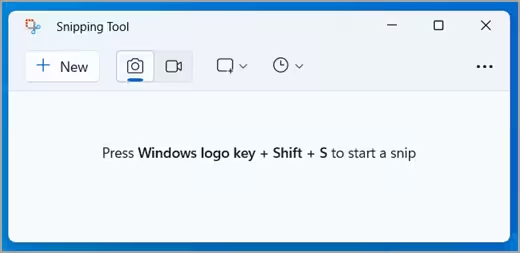
The Snipping Tool is a built-in utility that allows you to take custom screenshots.
How to Use Snipping Tool
-
Press Start, type Snipping Tool, and open it
-
Click New
-
Select the area you want to capture
-
Edit or annotate the screenshot
-
Click File > Save As to save the image
Snipping Tool offers several modes:
-
Free-form Snip
-
Rectangular Snip
-
Window Snip
-
Full-screen Snip
In Windows 11, Snipping Tool has been updated with better functionality and a more modern interface.
Using Snip & Sketch (Windows 10)
Windows 10 introduced Snip & Sketch as an improved replacement for the original Snipping Tool.
Launch Snip & Sketch
-
Press Windows + Shift + S
-
Your screen will dim and a small toolbar will appear at the top
You can choose:
-
Rectangular Snip
-
Freeform Snip
-
Window Snip
-
Full-screen Snip
The screenshot is copied to your clipboard and also appears in the Snip & Sketch editor, where you can annotate and save it.
Note: In Windows 11, this feature is integrated into the new Snipping Tool.
Using the Game Bar (Best for Gaming)
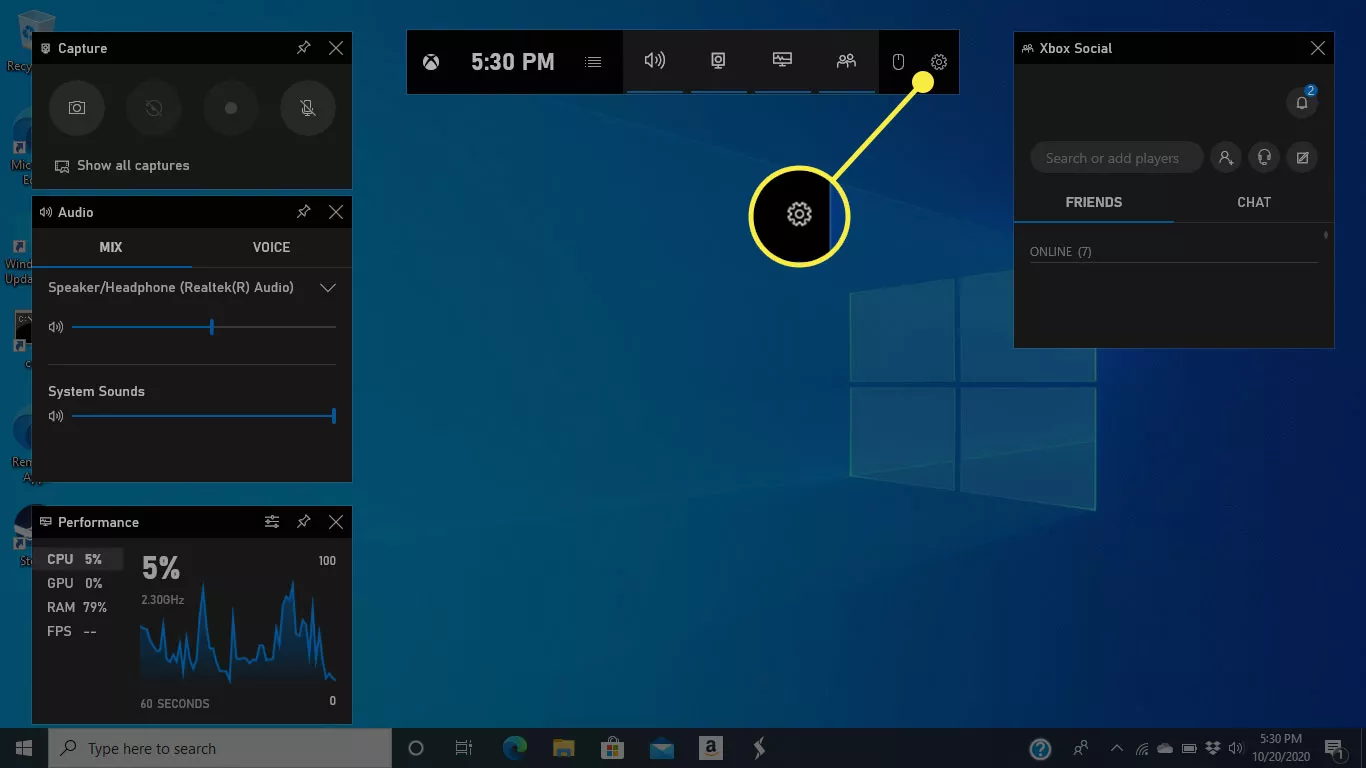
Windows 10 and 11 include the Xbox Game Bar, which can also take screenshots and record gameplay.
How to Use Game Bar
-
Press Windows + G to open Game Bar
-
Click the Camera icon or press Windows + Alt + PrtScn
-
Screenshots will be saved automatically to Videos > Captures
This method is ideal for gamers or when capturing high-performance apps.
Using Third-party Screenshot Tools
While Windows offers excellent built-in tools, you might prefer third-party apps for additional features like:
-
Delay timer
-
Cloud uploads
-
Scrolling window screenshots
-
Advanced annotation
Popular options include:
-
Greenshot
-
Lightshot
-
ShareX
-
Snagit
These tools often allow more advanced customization and workflows, especially useful for professionals.
Taking a Screenshot of a Specific Window or Region
If you want to capture a specific part of your screen, you can use either Snip & Sketch, Snipping Tool, or even third-party tools.
For fast access:
-
Press Windows + Shift + S
-
Drag to select the area you want to capture
The image goes to your clipboard. Open Paint or an image editor and press Ctrl + V to paste it.
Taking a Screenshot on a Laptop Without a PrtScn Key
Some compact laptops or keyboards may require using a Function key (Fn) along with PrtScn.
Try one of the following combinations:
-
Fn + PrtScn
-
Fn + Windows + PrtScn
-
Fn + Alt + PrtScn
If your keyboard doesn’t have a Print Screen key, you can always use Snipping Tool or Windows + Shift + S as an alternative.
How to Find Your Saved Screenshots
Screenshots taken using Windows + PrtScn or Game Bar are saved automatically.
Location:
This PC > Pictures > Screenshots
This PC > Videos > Captures (for Game Bar)
Screenshots taken with Snipping Tool or Snip & Sketch must be saved manually unless you paste and save them yourself.
Tips for Better Screenshot Management
-
Name your screenshots clearly when saving for easy organization
-
Use OneDrive or Google Drive to back them up
-
Create folders for categories (e.g., receipts, tutorials, errors)
-
If you often use screenshots in reports or emails, consider setting up keyboard shortcuts using third-party tools
Conclusion
Whether you’re a student capturing lecture slides, a developer debugging an error, or a gamer recording your achievements, Windows 10 and 11 offer multiple ways to take screenshots. From the classic Print Screen method to advanced tools like Snip & Sketch and Game Bar, you have a variety of options to fit your needs.
With this guide, you now know how to take full-screen, windowed, or custom-area screenshots, and how to access, save, and organize them. Mastering these techniques can save time and enhance your workflow—no matter how you use your PC.