


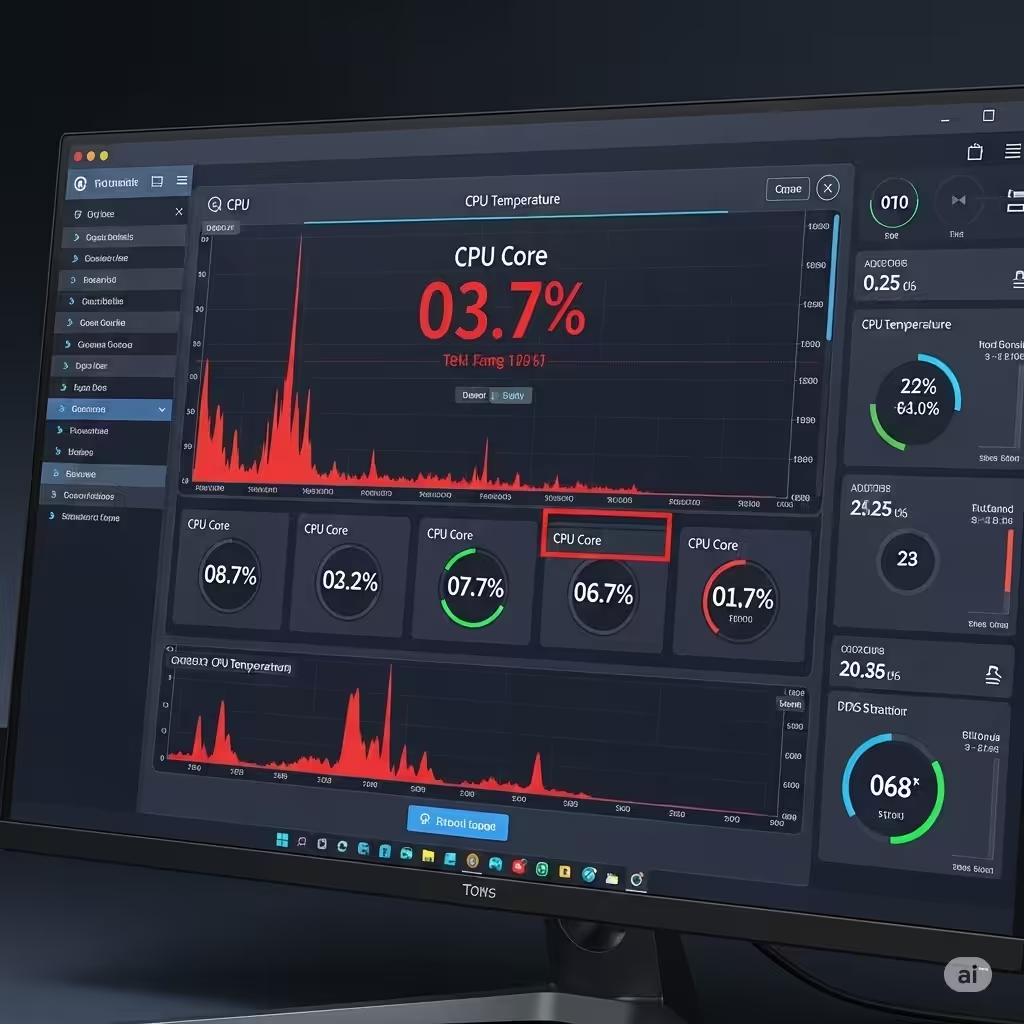
Checking CPU Heat Levels in Windows 10/11
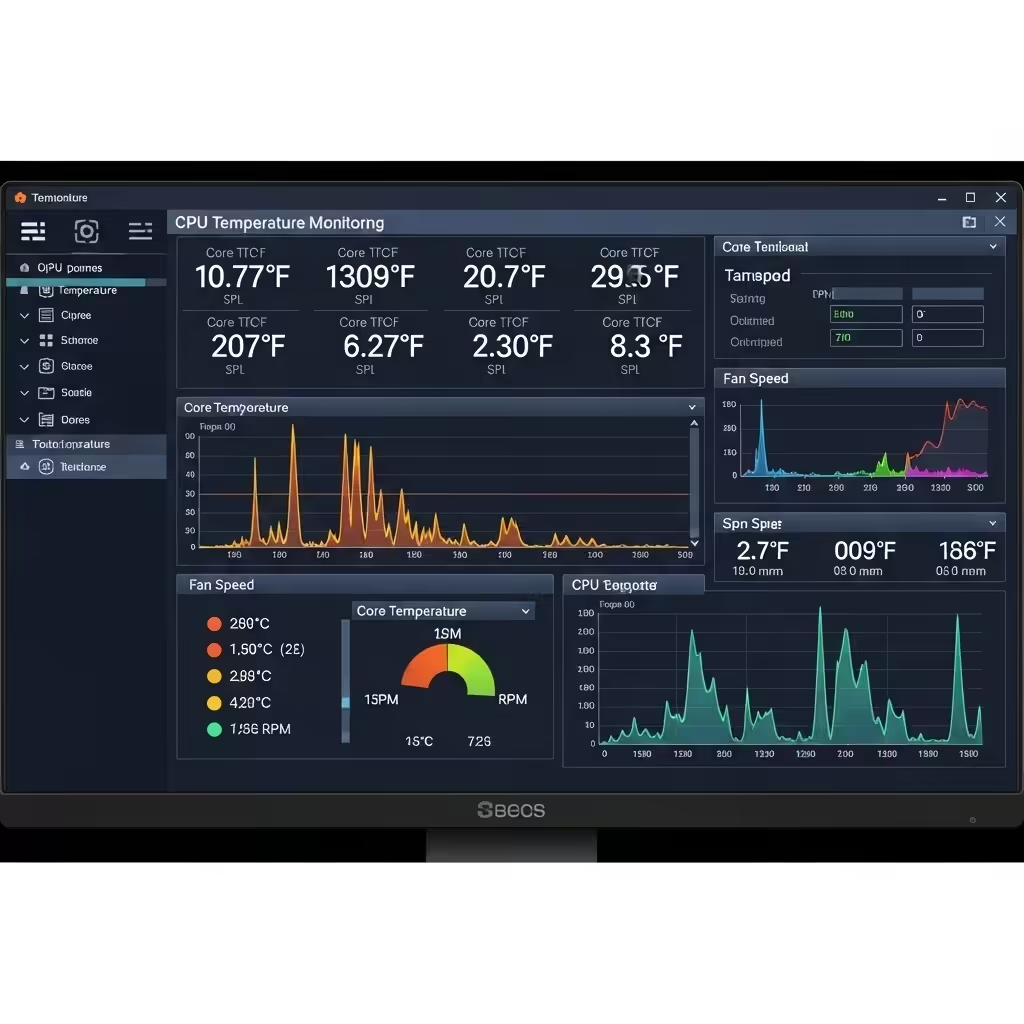
Keeping track of your computer’s CPU temperature is essential for maintaining system health, especially if you use demanding applications, run games, or overclock your system. Excessive heat can slow performance, damage components, and shorten the lifespan of your computer. Unfortunately, Windows 10 and 11 do not include built-in tools to directly display CPU temperature, but there are several reliable methods to monitor it.
In this guide, we will explore various ways to check your CPU temperature safely and accurately, and provide tips on how to keep your system cool.
Why Monitoring CPU Temperature Matters
The CPU is the heart of your computer, and like any powerful engine, it generates heat. If the temperature gets too high, the system might:
-
Automatically throttle performance
-
Shut down unexpectedly
-
Freeze or crash during intense tasks
-
Suffer from long-term damage to the processor or motherboard
Monitoring temperature allows you to detect early signs of overheating and take action before serious problems occur.
Ideal CPU Temperature Ranges
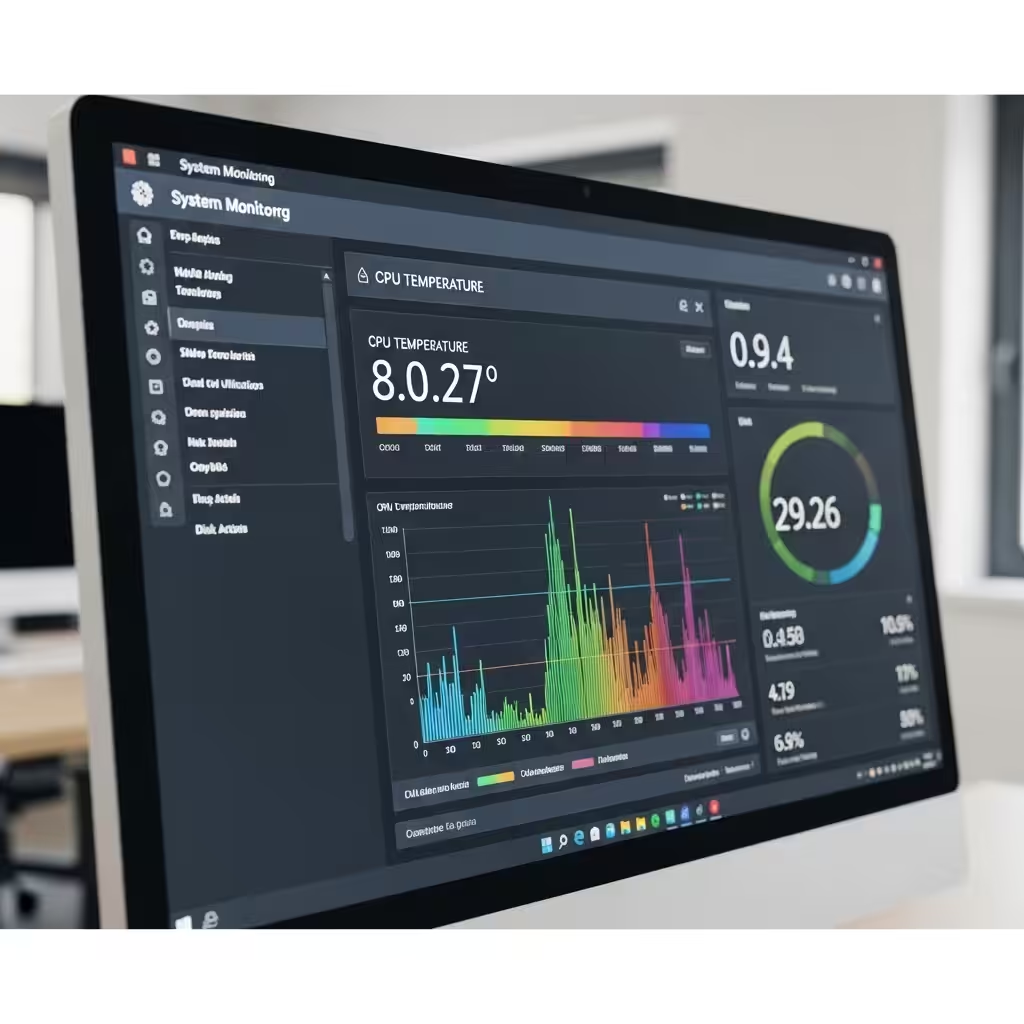
Before diving into the tools, it’s good to understand what’s considered a safe operating range:
-
Idle (basic tasks): 30°C to 50°C (86°F to 122°F)
-
Moderate load (multitasking, browsing): 50°C to 70°C (122°F to 158°F)
-
Heavy load (gaming, editing, rendering): 70°C to 85°C (158°F to 185°F)
-
Danger zone: Above 90°C (194°F)
Each CPU model has a different thermal threshold, so check your processor’s specifications on the manufacturer’s website (Intel or AMD).
Method 1: Check CPU Temperature in BIOS/UEFI
BIOS/UEFI is the firmware interface your PC uses to boot. Many motherboards provide CPU temperature readings here.
Steps:
-
Restart your PC.
-
As it boots, press the appropriate key to enter BIOS/UEFI. Common keys are Delete, F2, or Esc (varies by manufacturer).
-
Once in BIOS, look for a section like Hardware Monitor, System Information, or PC Health Status.
-
Your CPU temperature should be listed.
Note: BIOS only shows idle temperature and can’t be used for real-time monitoring while using Windows.
Method 2: Use Third-Party Applications
For real-time temperature monitoring while in Windows, third-party software is the best option.
HWMonitor
HWMonitor is a free tool that provides detailed information on your CPU, GPU, voltage, fan speed, and temperature.
-
Download from the official website: https://www.cpuid.com/softwares/hwmonitor.html
-
Install and run the program
-
Scroll to your CPU model
-
Look for Temperature or Core Temp
It shows the current, minimum, and maximum values for each core.
Core Temp
Core Temp is lightweight and focuses solely on CPU temperature.
-
Download: https://www.alcpu.com/CoreTemp/
-
Install and launch the app
-
The temperature of each CPU core is displayed
Core Temp also supports real-time logging and taskbar display, which is helpful for on-the-fly monitoring.
MSI Afterburner (Good for Gamers)
If you’re a gamer, MSI Afterburner allows CPU and GPU monitoring while also offering overclocking tools and on-screen display during games.
-
Download: https://www.msi.com/Landing/afterburner
-
Install and open the software
-
Navigate to Settings > Monitoring tab
-
Enable CPU temperature and overlay it in your game if needed
Speccy
Developed by Piriform, Speccy offers a clean UI and detailed PC insights.
-
Download: https://www.ccleaner.com/speccy
-
Install and open it
-
The CPU temperature appears under the Summary tab
Method 3: Use Taskbar Widgets with Temperature Info
Some tools, like Core Temp and HWiNFO, allow CPU temperatures to be shown in the taskbar for quick access. This is especially useful if you want passive monitoring without switching windows.
How to Lower High CPU Temperatures
If you find your CPU running too hot, here are some practical ways to cool it down:
Clean Your Computer
Dust buildup can block airflow and insulate heat. Regularly clean your:
-
CPU fan and heatsink
-
Intake and exhaust vents
-
Power supply fan
Use compressed air and make sure your PC is turned off and unplugged before cleaning.
Improve Airflow
Ensure your PC case has good airflow:
-
Arrange cables neatly to avoid air blockage
-
Add more case fans if needed (intake at front, exhaust at back/top)
-
Place your computer in a ventilated area
Reapply Thermal Paste
Over time, thermal paste between the CPU and its cooler may dry out.
-
Remove the CPU cooler
-
Clean off old thermal paste using isopropyl alcohol
-
Apply a new layer of quality thermal paste
-
Reseat the cooler
Upgrade the CPU Cooler
If you’re using a stock cooler and experiencing high temperatures under load, consider upgrading to:
-
A larger air cooler
-
An all-in-one liquid cooler
These provide more effective heat dissipation for powerful CPUs.
Disable Background Processes
Some apps cause high CPU usage, which can increase temperature. Use Task Manager to end unnecessary tasks:
-
Press Ctrl + Shift + Esc to open Task Manager
-
Go to the Processes tab
-
Sort by CPU usage and identify culprits
Final Thoughts
Checking your CPU temperature on Windows 10 or 11 may not be possible natively, but with the help of trusted third-party tools, it’s both simple and effective. Whether you’re just curious or troubleshooting an overheating issue, keeping your CPU cool is key to stable and efficient performance.
Make it a habit to check your CPU temps regularly, especially if you’re running heavy workloads, gaming for hours, or using older hardware. Preventive maintenance goes a long way in keeping your PC in great shape.