



How to Manage Toolbar Buttons in Office Applications
Microsoft Office is one of the most widely used productivity suites, offering applications such as Word, Excel, PowerPoint, and Outlook. These programs include toolbars and ribbons that allow users to quickly access commonly used features. However, not everyone works the same way, and the default toolbar layout may not always meet your specific needs. Fortunately, Office allows you to customize toolbars by adding or removing buttons.
This guide will walk you through the steps to personalize your toolbars in Microsoft Office so you can work more efficiently.
Understanding Toolbars and the Ribbon

Before diving into customization, it is helpful to understand what toolbars are in Microsoft Office.
-
Ribbon: The ribbon is the horizontal strip at the top of the window, divided into tabs such as Home, Insert, and Review. Each tab contains groups of commands.
-
Quick Access Toolbar (QAT): Located above or below the ribbon, the QAT provides easy access to frequently used commands like Save, Undo, and Redo. This toolbar is highly customizable.
When people talk about adding or removing buttons in Office, they usually mean customizing either the Quick Access Toolbar or the Ribbon tabs.
Why Customize Toolbars in Office?
Customizing toolbars provides several benefits:
-
Saves time by putting the tools you use most within easy reach.
-
Reduces clutter by removing commands you rarely or never use.
-
Improves productivity since you don’t need to dig through multiple menus.
-
Personalizes Office to match your workflow, whether you are a student, a business professional, or a casual user.
How to Add Buttons to the Quick Access Toolbar
The Quick Access Toolbar is the simplest and most common toolbar to customize.
Adding Commands Using the Ribbon
-
Open any Office application such as Word or Excel.
-
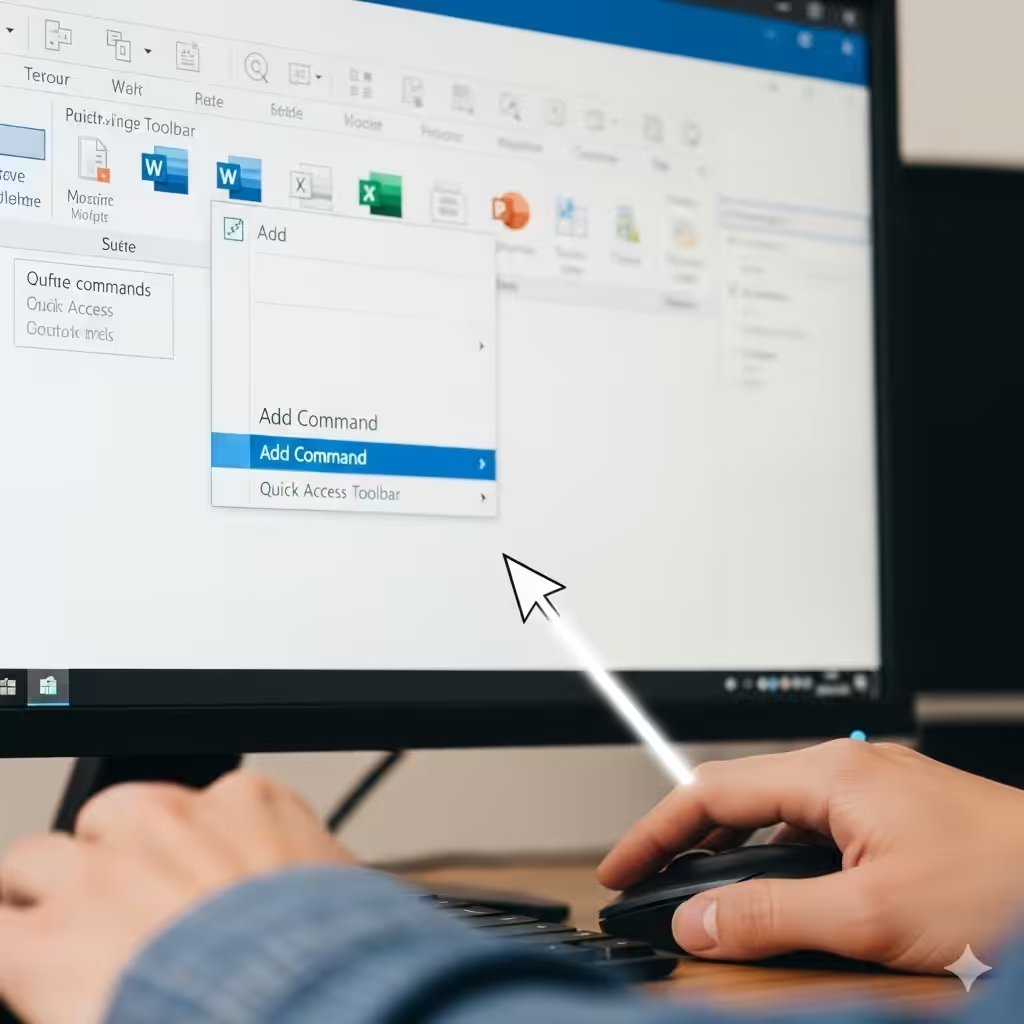
Right-click the command you want to add from the ribbon.
-
Select Add to Quick Access Toolbar.
For example, if you often insert tables, you can right-click the Table button in Word and add it directly to the QAT.
Adding Commands Through QAT Options
-
Click the drop-down arrow at the right end of the Quick Access Toolbar.
-
Select a command from the list of popular options (such as Print Preview or Spell Check).
-
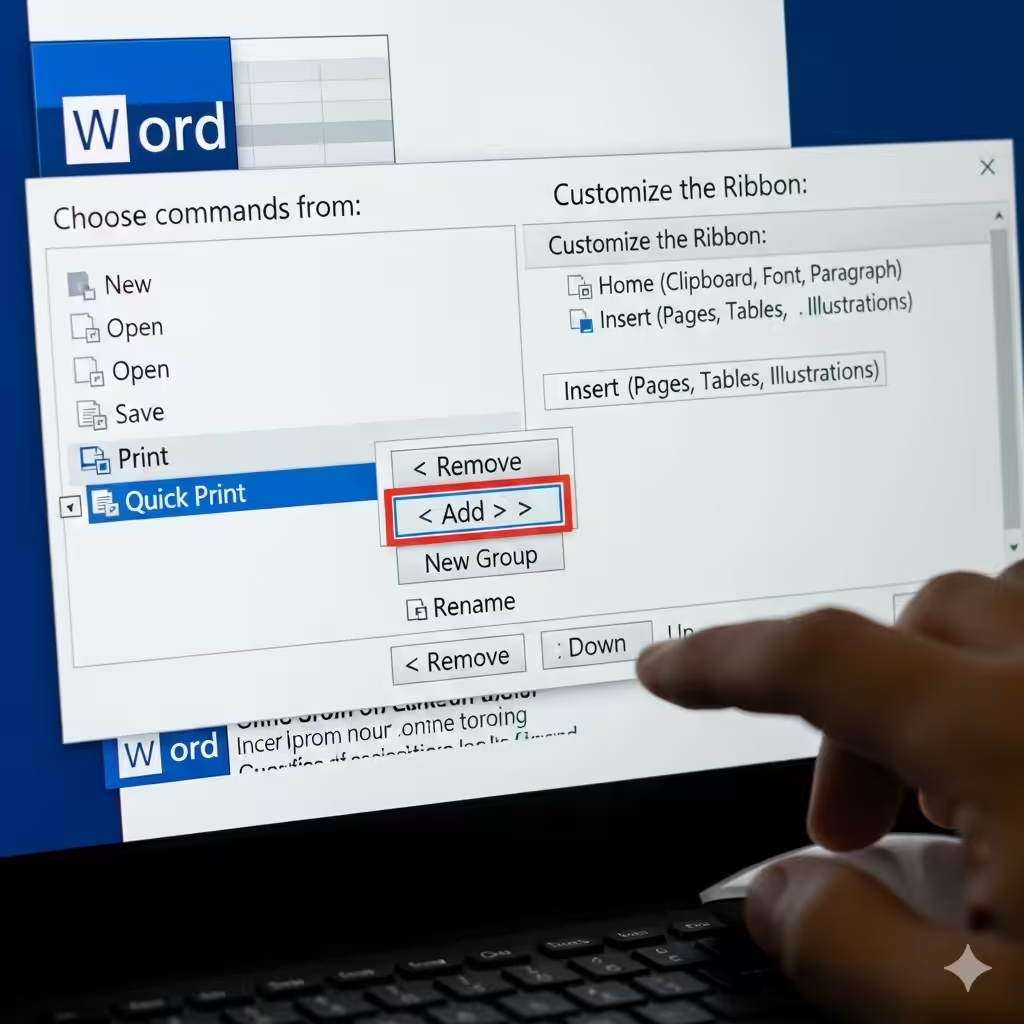
To access more commands, click More Commands.
This opens the Word Options, Excel Options, or similar dialog box, where you can add less common features not shown on the ribbon.
How to Remove Buttons from the Quick Access Toolbar
If your QAT becomes too crowded, you can easily remove commands.
-
Right-click the button on the QAT that you no longer need.
-
Select Remove from Quick Access Toolbar.
Alternatively, go back into the More Commands settings and uncheck or remove items.
How to Customize the Ribbon
While the Quick Access Toolbar is useful, you may also want to customize the ribbon itself. This allows you to add, remove, or rearrange entire groups of commands.
Adding a New Tab or Group
-
Right-click anywhere on the ribbon.
-
Select Customize the Ribbon.
-
In the customization dialog, click New Tab or New Group.
-
Rename the tab or group to something meaningful.
-
Add commands to your new group from the list on the left.
Adding Commands to Existing Tabs
-
Open the Customize Ribbon dialog box.
-
On the right side, select the tab and group where you want the command.
-
On the left side, select the command you want to add.
-
Click Add.
Removing Commands from the Ribbon
-
In the Customize Ribbon dialog, select the command or group you no longer want.
-
Click Remove.
This is helpful if certain commands clutter your ribbon or are not relevant to your work.
Restoring Default Toolbar Settings
Sometimes, you may want to reset the toolbar layout back to the original state.
-
Open the Customize Ribbon or Quick Access Toolbar settings.
-
At the bottom, click Reset.
-
Choose either Reset only selected Ribbon tab or Reset all customizations.
This option is useful if you experiment with customization but want to return to the standard Office setup.
Best Practices for Customizing Toolbars
-
Keep it simple: Only add commands you frequently use; too many buttons can slow you down.
-
Group similar tools together: For example, put formatting tools like bold, italic, and underline in one group.
-
Avoid duplicating commands: Don’t add buttons already visible on the ribbon unless you truly need them in multiple places.
-
Test your layout: Use the customized toolbar for a few days to ensure it improves your workflow.
Examples of Useful Toolbar Customizations
-
For writers and students: Add Word Count, Track Changes, and Insert Citation to the Quick Access Toolbar.
-
For accountants and data analysts: In Excel, add Sort, Filter, and Insert PivotTable to the ribbon.
-
For presenters: In PowerPoint, add Slide Master, Rehearse Timings, and Export as PDF to the Quick Access Toolbar.
-
For email management: In Outlook, add Archive, Rules, and Mark as Read to the QAT.
Common Issues and Troubleshooting
-
Can’t find a command: Some commands may not appear in the default lists. Use the “All Commands” view in the customization dialog to locate them.
-
Toolbar disappears: If the ribbon is minimized, click the arrow on the top-right to show it again.
-
Changes don’t apply: Ensure you click OK or Save after making adjustments in the customization dialog.
Conclusion
Customizing toolbars in Microsoft Office gives you more control over your workspace, helping you save time and improve productivity. Whether you add commands to the Quick Access Toolbar, create your own ribbon tabs, or remove unnecessary buttons, the process is straightforward and highly flexible.
By tailoring Office to your personal workflow, you can transform it from a general productivity tool into a personalized platform that meets your exact needs. The key is to keep your customization practical, organized, and aligned with the tasks you perform most often.