


Fixing the Windows 10 Error: Settings App Not Launching
The Settings app in Windows 10 is a vital tool for managing your device. It allows you to configure system preferences, update Windows, manage accounts, adjust privacy settings, and much more. However, some users encounter a frustrating issue where the Settings app won’t open or closes immediately after launching.
If you are facing this problem, don’t worry—there are several solutions available. In this guide, we’ll walk through different methods to fix the Settings app not opening in Windows 10.
Common Causes of the Settings App Not Opening
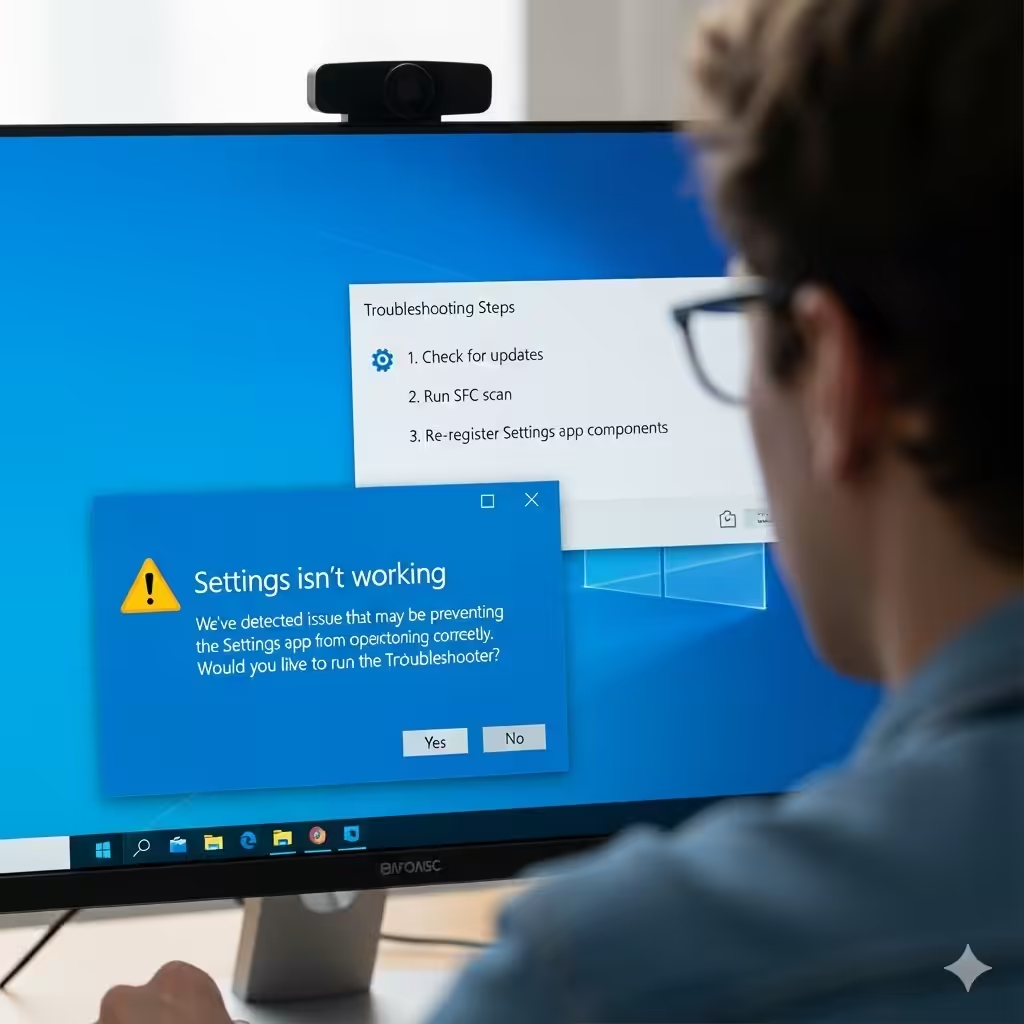
Before diving into solutions, it helps to understand the possible causes of this issue:
-
Corrupted system files.
-
Problems with recent Windows updates.
-
User profile corruption.
-
Conflicts with third-party software.
-
Registry or permission errors.
Knowing these causes makes it easier to apply the right fix.
Method 1: Restart Your Computer
Sometimes the simplest solution is the most effective. A quick restart clears temporary glitches that may be preventing the Settings app from working.
-
Save your work.
-
Click on the Start menu.
-
Select Power > Restart.
After restarting, try opening the Settings app again.
Method 2: Use the Shortcut to Open Settings
If clicking on the Start menu doesn’t launch the Settings app, try using the keyboard shortcut:
-
Press Windows + I.
If this doesn’t work, it’s a sign the issue is deeper and you may need additional troubleshooting.
Method 3: Run the Windows Troubleshooter
Windows has built-in troubleshooters that can detect and fix issues automatically.
-
Press Windows + R to open the Run dialog.
-
Type msdt.exe -id MaintenanceDiagnostic and press Enter.
-
Follow the prompts to complete the troubleshooter.
You can also run the Windows Update Troubleshooter if the issue started after a recent update.
Method 4: Re-wp-signup.php the Settings App with PowerShell
Sometimes the Settings app becomes unwp-signup.phped or corrupted. You can fix this using PowerShell.
-
Right-click the Start menu and select Windows PowerShell (Admin).
-
Copy and paste the following command:
-
Press Enter and wait for the command to complete.
-
Restart your PC and try opening the Settings app again.
Method 5: Create a New User Account
If your user profile is corrupted, the Settings app may not work correctly. Creating a new account can help.
-
Press Ctrl + Shift + Esc to open Task Manager.
-
Click File > Run new task.
-
Type cmd and check Create this task with administrative privileges.
-
In the Command Prompt, type:
-
Sign out and log in with the new account.
-
Check if the Settings app opens properly.
If it works, you can move your files to the new account.
Method 6: Use System File Checker and DISM
Corrupted system files are often the cause of problems with Windows apps. Running SFC and DISM can repair them.
-
Open Command Prompt as administrator.
-
Type the following commands one by one:
Wait for the scan to finish, then run:
-
Restart your PC after the scans are complete.
Check if the Settings app is working again.
Method 7: Reset the Settings App
If the app is installed but malfunctioning, resetting it can resolve the problem.
-
Press Windows + R, type ms-settings:, and hit Enter.
-
If this doesn’t work, continue with the next steps.
-
-
Right-click on the Start menu and select Windows PowerShell (Admin).
-
Run this command:
-
Restart your PC.
Method 8: Perform a System Restore
If the issue started after a recent change, rolling back to a restore point may help.
-
Press Windows + R, type rstrui, and hit Enter.
-
Follow the on-screen instructions to restore your system to an earlier date when Settings worked correctly.
Method 9: Update Windows 10
If you can access updates in another way (for example, through Command Prompt), updating Windows might solve the issue.
-
Open Command Prompt (Admin).
-
Run the following command:
-
Allow your system to install available updates.
Updating often fixes bugs that cause app malfunctions.
Method 10: Repair Install Windows 10
If none of the above solutions work, you may need to repair Windows without deleting your files.
-
Download the Windows 10 Media Creation Tool from Microsoft’s official website.
-
Run the tool and select Upgrade this PC now.
-
Follow the prompts to reinstall Windows while keeping personal files and applications.
This should restore the Settings app functionality without requiring a full reset.
Conclusion
The Settings app not opening in Windows 10 can be a frustrating issue, but it is usually fixable with the right approach. Starting with simple steps like restarting your computer or using shortcuts often solves the problem. If the issue persists, advanced solutions like re-wp-signup.phping the app, repairing system files, or creating a new user account can help.
By following the methods outlined in this guide, you should be able to restore full access to the Settings app and regain control over your Windows 10 device.