



Steps to Install and Get Started with Office on iPhone or iPad

Microsoft Office is no longer limited to desktops and laptops. With the increasing need for mobile productivity, Microsoft has optimized its suite of Office apps—Word, Excel, PowerPoint, Outlook, and others—for iPhone and iPad. If you use Microsoft 365, you can access full premium features on your Apple devices and stay productive while on the go.
This guide will show you step by step how to install and set up Office on your iPhone or iPad, and how to make the most of its features.
Why Use Office on iPhone or iPad?
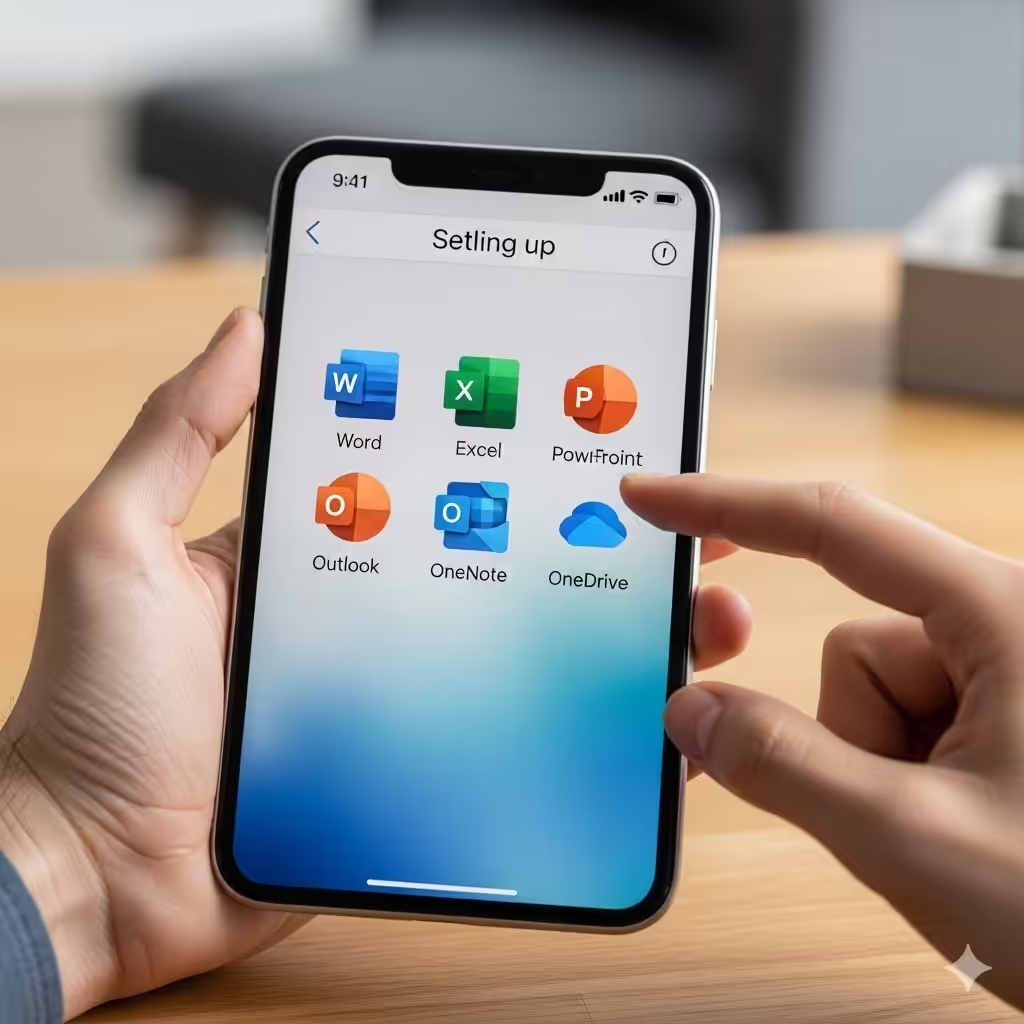
Before getting into the setup process, let’s look at why you might want to use Office apps on iOS devices:
-
Work on the go: Edit and create documents, spreadsheets, or presentations anywhere.
-
Seamless syncing: Your files are saved to OneDrive, allowing access on multiple devices.
-
Collaboration: Share and co-edit documents in real time with colleagues or classmates.
-
Optimized for touch: Office apps are designed with mobile-friendly gestures and controls.
-
Integration: Apps like Word, Excel, and Outlook integrate with Apple features such as Siri, iCloud, and multitasking on iPad.
Step 1: Download the Office Apps

You can either download the all-in-one Microsoft Office app (which combines Word, Excel, and PowerPoint) or install each app individually, depending on your preference.
Downloading from the App Store
-
Open the App Store on your iPhone or iPad.
-
Search for Microsoft Office, or search for Word, Excel, or PowerPoint individually.
-
Tap Get and authenticate with your Apple ID, Face ID, or Touch ID.
-
Wait for the apps to install on your device.
The all-in-one app is convenient if you want everything in one place, but separate apps may offer a more focused experience.
Step 2: Sign In With Your Microsoft Account
Once installed, you need to sign in to unlock all features.
-
Open the Office app (or Word, Excel, etc.).
-
Tap Sign In.
-
Enter the email and password associated with your Microsoft account.
-
If you have an Office 365 (Microsoft 365) subscription, sign in with the same account.
-
If you don’t have a subscription, you can still use free features with a standard Microsoft account.
-
-
Complete any additional security steps, such as two-factor authentication.
After signing in, your documents, templates, and preferences sync automatically across devices.
Step 3: Grant Permissions
Office apps may request permissions to function properly. Common requests include:
-
Files and Folders: To access documents stored locally.
-
Photos and Camera: For inserting images into Word or PowerPoint.
-
Notifications: To receive reminders or updates from Outlook.
Tap Allow when prompted to ensure full functionality.
Step 4: Accessing and Managing Files
One of the biggest advantages of using Office on iPhone or iPad is its integration with cloud services.
-
OneDrive: By default, Office apps save files to OneDrive, ensuring you can access them anywhere.
-
iCloud Drive: You can also connect iCloud for storing and retrieving files.
-
Other Services: Dropbox, Google Drive, and Box can be added for flexibility.
To add cloud storage:
-
Open an Office app.
-
Tap Open > Add a Place.
-
Select the service and sign in with your credentials.
Step 5: Using Word, Excel, and PowerPoint
Here’s what you can do with the main Office apps on iOS:
Word
-
Create and edit documents.
-
Use formatting tools like headings, lists, and tables.
-
Insert images directly from your device or cloud storage.
Excel
-
Build spreadsheets and apply formulas.
-
Use charts and pivot tables for analysis.
-
Collaborate in real time with team members.
PowerPoint
-
Design and edit slideshows.
-
Insert images, shapes, and animations.
-
Use Presenter View on iPad for professional presentations.
Step 6: Using Outlook and Teams
If you rely on communication and scheduling, Outlook and Teams are essential.
-
Outlook: Manage emails, calendars, and contacts. Integration with Office lets you attach files from OneDrive directly into messages.
-
Teams: Join meetings, chat, and collaborate. You can open shared Word, Excel, or PowerPoint files directly from Teams into their respective apps.
Step 7: Enabling Offline Access
If you often work without an internet connection, enabling offline access is crucial.
-
Open the document you want to use offline.
-
Tap the More options (•••) menu.
-
Select Make Available Offline.
This ensures you can continue working, and changes will sync once you reconnect.
Step 8: Customizing the Experience
To get the most out of Office on iOS, consider these customization tips:
-
Pin Favorite Documents: Keep important files at the top for quick access.
-
Enable Dark Mode: Use the system-wide Dark Mode on iOS for comfortable reading.
-
Use Siri Shortcuts: Create voice commands like “Hey Siri, open my budget spreadsheet.”
-
iPad Multitasking: Use split view on iPad to work on Excel while referencing a Word document.
Step 9: Troubleshooting Common Issues
If you run into problems, here are some quick fixes:
-
Can’t sign in: Ensure your subscription is active and your account credentials are correct.
-
Files not syncing: Check your internet connection and verify OneDrive is enabled.
-
App crashes: Update to the latest version or reinstall from the App Store.
-
Limited features: Some tools are only available with an active Microsoft 365 subscription.
Conclusion
Installing and setting up Office on an iPhone or iPad is a straightforward process that brings powerful productivity tools to your fingertips. Whether you’re editing documents in Word, crunching numbers in Excel, designing slides in PowerPoint, or managing emails in Outlook, the Office apps ensure you can work efficiently anytime, anywhere.
By signing in with your Microsoft account, enabling cloud storage, and customizing the apps to fit your workflow, you’ll unlock the full potential of Microsoft Office on iOS. For professionals, students, and anyone who values productivity on the move, Office on iPhone and iPad is an essential tool.