


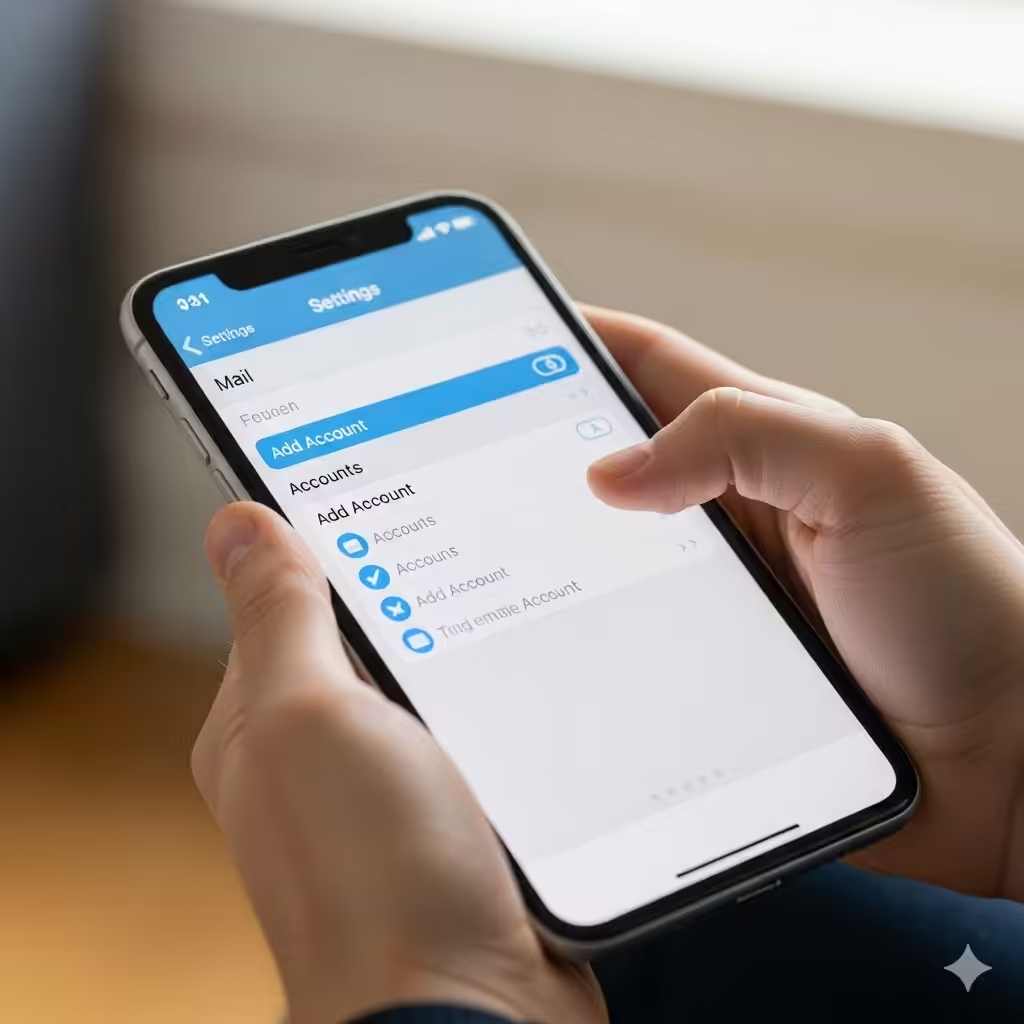
Guide to Adding and Managing Email in the iOS Mail Application
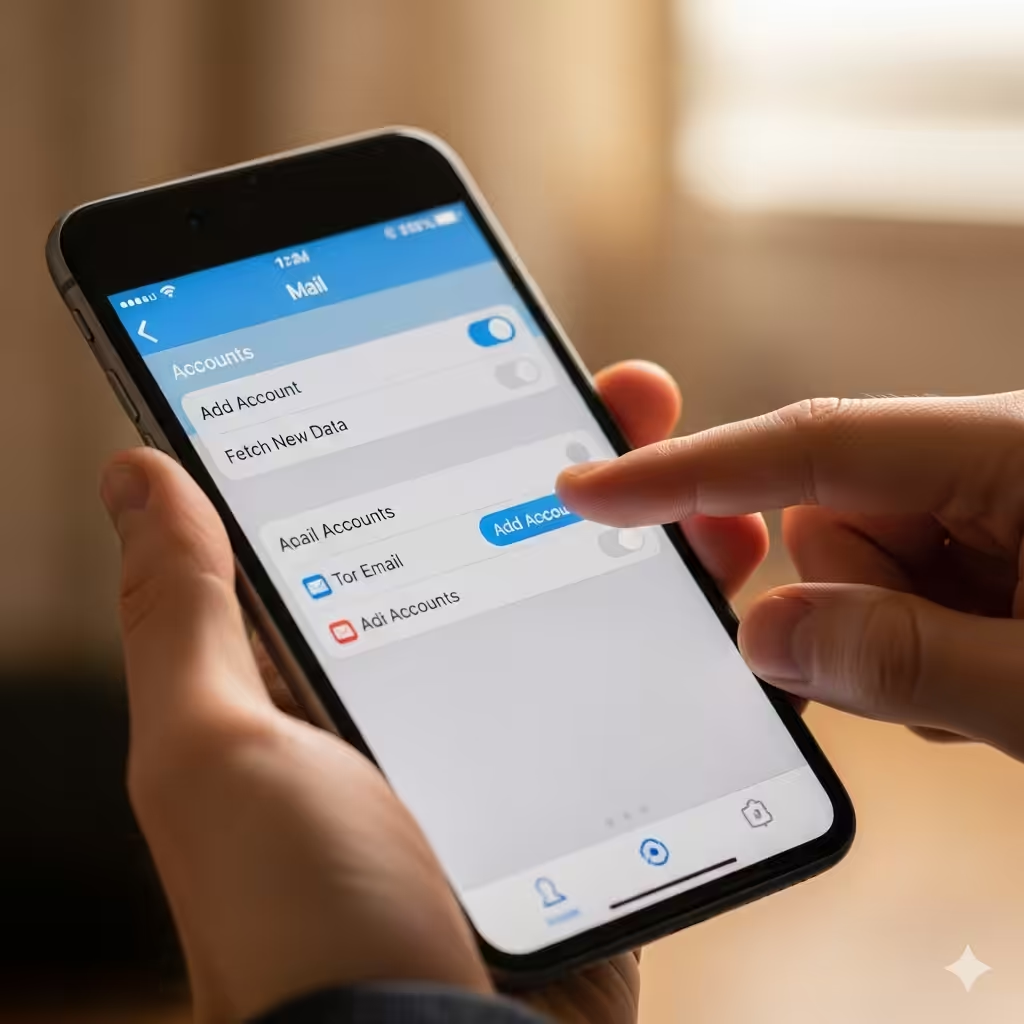
Email is one of the most essential tools for communication, both for personal and professional use. On iPhone and iPad, the built-in Mail app makes managing your inbox easy and efficient. With support for major email providers like Gmail, Outlook, Yahoo, and Exchange, you can stay connected no matter where you are.
This guide will walk you step by step through setting up your email in the iOS Mail app, explain different configuration options, and share tips to make the most of your email experience.
Why Use the iOS Mail App?
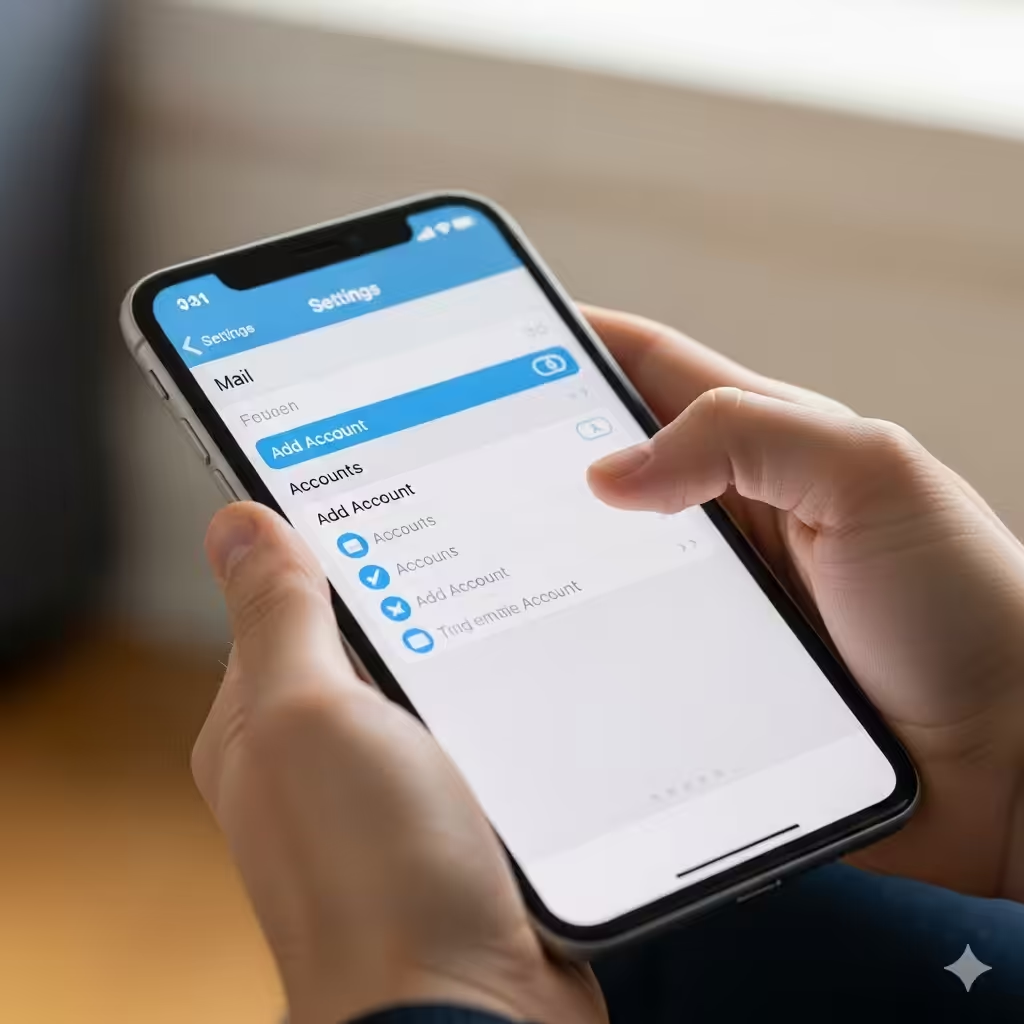
Apple’s Mail app comes pre-installed on every iPhone and iPad, and it integrates seamlessly with iOS features. Here are some reasons to use it:
-
Unified inbox: Manage multiple email accounts in one place.
-
Native integration: Works smoothly with iOS features such as notifications, contacts, and Siri.
-
Privacy and security: Apple emphasizes user privacy with built-in protection.
-
Offline access: Read and draft messages even without internet access.
-
Ease of use: The app has a clean and intuitive interface.
Step 1: Open the Mail App or Settings.
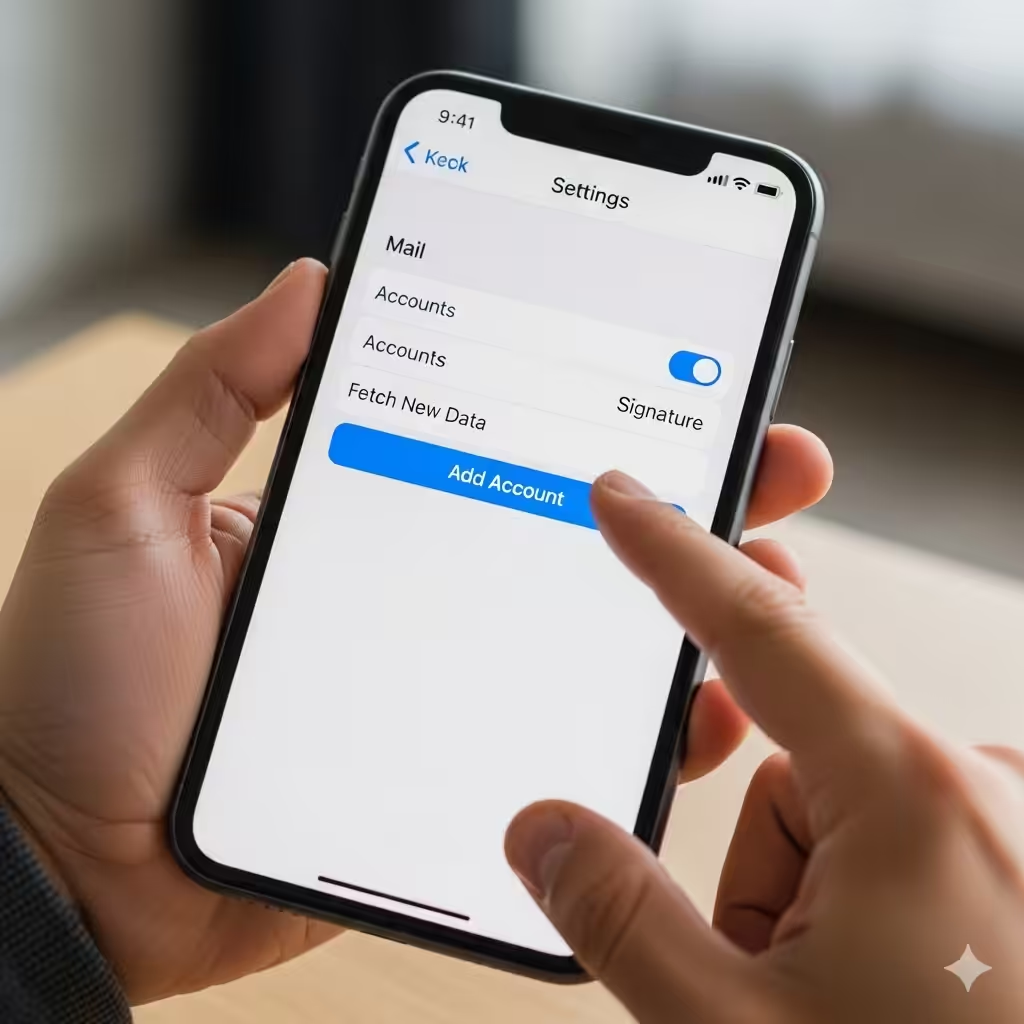
There are two ways to start setting up your email:
-
Through the Mail App
-
Open the Mail app for the first time.
-
You’ll be prompted to add an email account.
-
-
Through iOS Settings
-
Go to Settings on your iPhone or iPad.
-
Scroll down and select Mail.
-
Tap Accounts > Add Account.
-
Both methods lead to the same setup process.
Step 2: Choose Your Email Provider
Once you tap Add Account, you’ll see a list of popular email services:
-
iCloud
-
Microsoft Exchange
-
Google (Gmail)
-
Yahoo
-
Outlook.com
-
AOL
If your provider isn’t listed, you can choose Other and set it up manually using IMAP or POP settings.
Step 3: Enter Your Account Information
After selecting your email provider:
-
Enter your email address.
-
Input your password.
-
Tap Next to proceed.
Depending on the provider, you may also be asked to allow permissions or verify your identity with two-factor authentication.
Step 4: Configure Sync Options
Once the account is verified, you’ll be asked which items to sync:
-
Mail: Your inbox, sent, and other folders.
-
Contacts: Sync email contacts with your device.
-
Calendars: Add events and schedules from your email calendar.
-
Notes: Sync notes linked to your email account.
Choose the options that fit your needs. For most users, enabling Mail, Contacts, and Calendar is sufficient. Tap Save to finish.
Step 5: Access Your Email
Now that your account is added:
-
Open the Mail app.
-
Your inbox will load, showing messages from the account you just added.
-
If you’ve added multiple accounts, you can view them individually or combine them in the All Inboxes view.
Step 6: Add Multiple Accounts
If you use more than one email account, you can add them all to the Mail app.
-
Go to Settings > Mail > Accounts > Add Account.
-
Repeat the setup process for each provider.
-
Switch between accounts or view them all together from the Mail app.
This is particularly helpful for managing personal and work emails in one place.
Step 7: Customize Mail Settings
The Mail app offers several customization options to optimize your experience.
Notifications
-
Go to Settings > Notifications > Mail.
-
Choose how you’d like to be alerted for new messages (sounds, banners, lock screen).
-
You can customize notifications per account.
Signature
-
Go to Settings > Mail > Signature.
-
Add a personalized email signature (e.g., your name, title, or company).
-
You can set different signatures for each account.
Swipe Options
-
Go to Settings > Mail > Swipe Options.
-
Customize what happens when you swipe left or right on a message (delete, archive, mark as read).
Default Account
-
If you have multiple accounts, choose a default for sending new emails under Settings > Mail > Default Account.
Step 8: Troubleshooting Common Issues
Sometimes, problems may occur while setting up or using the Mail app. Here are common issues and solutions:
-
Incorrect password: Double-check your login credentials.
-
Server errors: If using manual setup, confirm IMAP/POP and SMTP server details from your email provider.
-
No internet connection: Ensure Wi-Fi or mobile data is enabled.
-
Emails not syncing: Refresh the inbox by pulling down, or re-enable Mail sync in account settings.
-
Authentication errors: Some providers require enabling “Allow less secure apps” or app-specific passwords.
Step 9: Best Practices for Managing Email on iOS
To make the most out of the Mail app, consider these practices:
-
Organize with folders: Create folders or labels to sort your emails.
-
Use VIP list: Mark important contacts as VIPs to prioritize their messages.
-
Search efficiently: Use the built-in search bar to quickly find emails by sender, subject, or keyword.
-
Archive instead of delete: Keep your inbox tidy without losing important messages.
-
Enable Focus Mode: Use iOS Focus Mode to limit email notifications during work or personal time.
Step 10: Security Tips
Protecting your email account is crucial. Follow these tips to stay secure:
-
Enable two-factor authentication: Adds an extra layer of protection to your email login.
-
Keep iOS updated: Regular updates ensure the latest security patches.
-
Avoid public Wi-Fi for sensitive emails: Use mobile data or a VPN instead.
-
Log out of unused accounts: Remove accounts you no longer use.
Conclusion
Setting up your email using the iOS Mail app is simple, convenient, and powerful. With its ability to manage multiple accounts, sync contacts and calendars, and offer customization options, the Mail app is a reliable tool for staying connected on the go.
By following the steps in this guide, you can add your email account, adjust settings to suit your preferences, troubleshoot common issues, and keep your communication secure. Whether for personal use or business, the iOS Mail app ensures that your inbox is always just a tap away.