


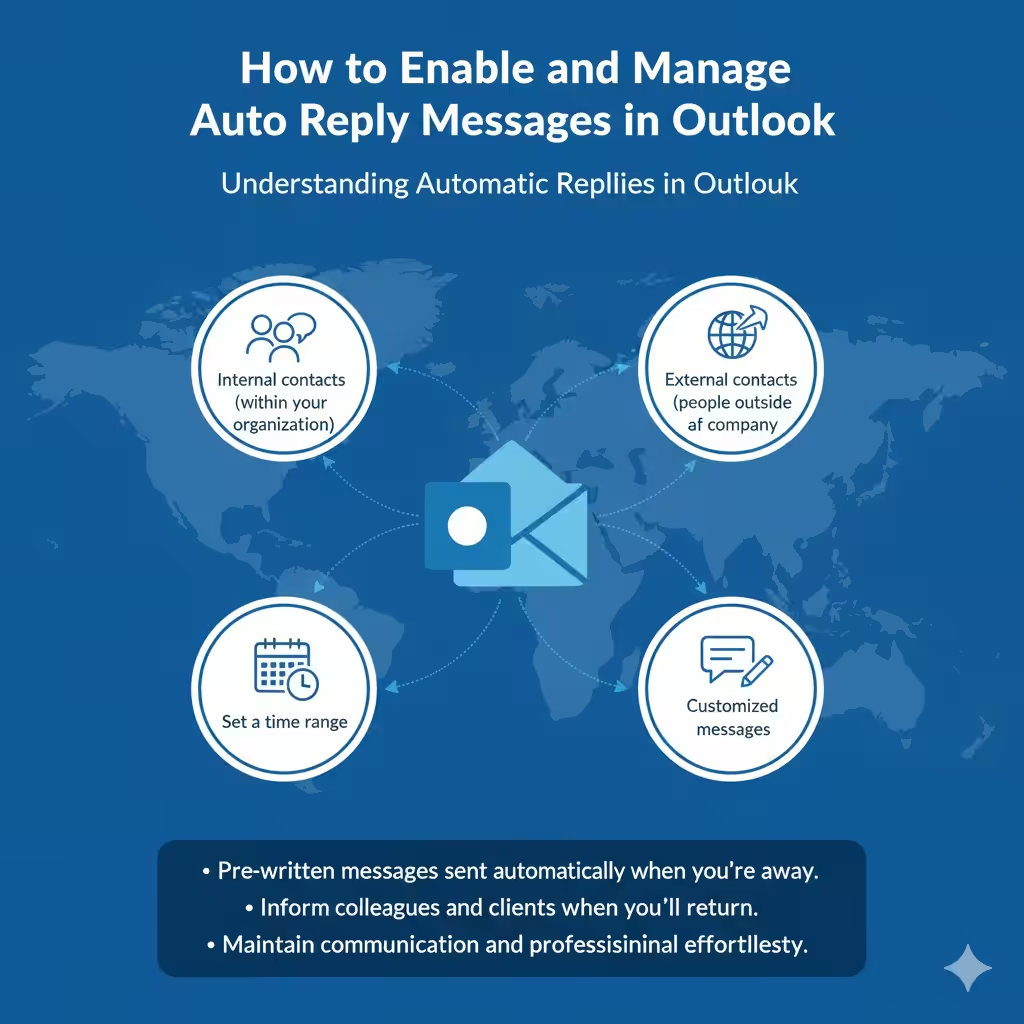
How to Enable and Manage Auto Reply Messages in Outlook
Automatic replies, often called Out of Office messages, are a convenient way to inform others that you’re unavailable to respond to emails right away. Whether you’re on vacation, away for business, or simply taking personal time, Microsoft Outlook allows you to set up automatic replies that send customized responses to incoming emails.
This guide will walk you through how to set up automatic replies in Microsoft Outlook for Microsoft 365, Outlook 2021, Outlook 2019, Outlook 2016, and the Outlook web app. You’ll also learn how to personalize messages, control timing, and manage rules for advanced automation.
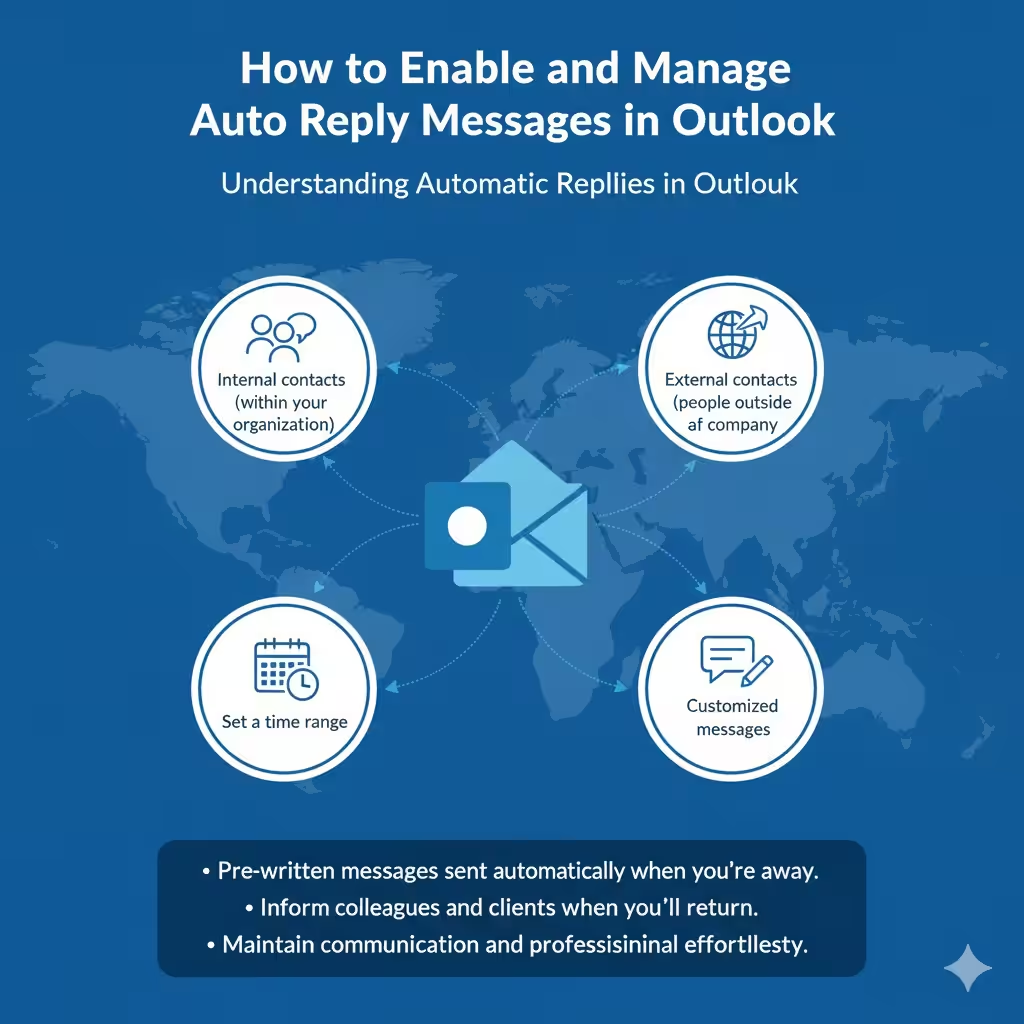
Understanding Automatic Replies in Outlook
Automatic replies are pre-written messages that Outlook sends automatically when you’re not available to respond to emails. These replies can be sent to:
-
Internal contacts (within your organization)
-
External contacts (people outside your company)
You can set different messages for each group, and even specify how long the automatic reply should remain active.
This feature is especially useful for maintaining communication while ensuring that your colleagues and clients know when they can expect your response.
Setting Up Automatic Replies in Outlook for Microsoft 365, 2021, or 2019
If you’re using a desktop version of Outlook with Microsoft 365, Outlook 2021, or Outlook 2019, follow these steps:
-
Open Outlook on your computer.
-
Go to the File tab in the top-left corner.
-
Select Automatic Replies (Out of Office).
-
In the Automatic Replies window, select Send automatic replies.
-
If you want the replies to start and stop automatically, check Only send during this time range, then set the Start time and End time.
-
Under the Inside My Organization tab, type the message you want your colleagues or internal team members to receive.
-
Switch to the Outside My Organization tab to write a separate message for external contacts.
-
Once you’ve completed both messages, click OK.
Outlook will now automatically send your selected message during the specified time period.
Example of an Automatic Reply Message
Here’s a sample message you can use as a template:
For internal contacts:
Hello,
I am currently out of the office and will not be checking emails until [date]. If your matter is urgent, please contact [Name] at [Email/Phone number].
Thank you for your understanding.
Best regards,
[Your Name]
For external contacts:
Hello,
Thank you for your message. I am out of the office and will return on [date]. If your message is urgent, please contact our main office at [Email/Phone number].
Best regards,
[Your Name]
You can modify these templates to match your tone, style, and specific needs.
Setting Up Automatic Replies in Outlook Web App (Outlook.com or Office 365 Web)
If you use the Outlook web app, you can set up automatic replies directly in your browser.
-
Open your web browser and go to Outlook.com or Office.com, then sign in to your Microsoft account.
-
Click the Settings gear icon in the top-right corner.
-
Select View all Outlook settings at the bottom of the sidebar.
-
Go to Mail > Automatic Replies.
-
Turn on Automatic replies on.
-
You can choose to:
-
Send replies only during a specific time period
-
Block your calendar during this time
-
Automatically decline new invitations
-
-
Enter your reply message in the text box.
-
Optionally, select Send replies outside your organization to create a separate message for external contacts.
-
Click Save to activate your automatic replies.
Your out-of-office message will now automatically be sent to incoming emails until the end of your specified period.
Setting Up Automatic Replies in Outlook for Mac
For users on Mac, the steps are similar:
-
Open Outlook for Mac.
-
Click on the Tools menu.
-
Select Out of Office.
-
Check Send automatic replies for account [your account name].
-
Type your message in the text box.
-
If you want to limit the replies to a specific period, check Only send replies during this time period and set the dates.
-
You can also create a separate message for people outside your organization.
-
Click OK to save.
Your automatic replies will now be active according to your chosen settings.
Creating Custom Rules with Automatic Replies
In Outlook desktop versions, you can set custom rules to control how incoming messages are handled while you’re away. For example, you can:
-
Forward emails to a colleague.
-
Move messages to a specific folder.
-
Delete or mark messages automatically.
To set rules:
-
Go to File > Automatic Replies.
-
In the Automatic Replies window, click Rules (bottom left).
-
Select Add Rule.
-
Choose the conditions for the rule (e.g., messages from specific people).
-
Set the desired action (e.g., forward, move, or delete).
-
Click OK to confirm.
Rules give you flexibility and control over how your mailbox behaves during your absence.
How to Turn Off Automatic Replies
When you return, you should disable automatic replies to stop sending the out-of-office message.
For Outlook Desktop:
-
Go to File > Automatic Replies and choose Do not send automatic replies, then click OK.
For Outlook Web:
-
Go to Settings > Mail > Automatic Replies and toggle the switch off.
For Outlook on Mac:
-
Go to Tools > Out of Office, uncheck Send automatic replies, and click OK.
Best Practices for Writing Professional Automatic Replies
Here are a few tips to make your automatic reply clear and professional:
-
Be concise: Avoid long explanations; keep your message short and direct.
-
Include return date: Let people know when you’ll be available again.
-
Provide alternative contacts: Offer a colleague’s email or phone number for urgent issues.
-
Be polite: Use a friendly, professional tone.
-
Avoid sharing too much personal information: Keep your response business-focused.
Example of a polished message:
Hi,
Thank you for your email. I am currently out of the office and will return on [Date]. For immediate assistance, please contact [Colleague’s Name] at [Email/Phone].
Best regards,
[Your Name]
Troubleshooting Common Issues with Automatic Replies
If your automatic replies aren’t working as expected, here are some quick solutions:
-
Check your internet connection – Automatic replies require Outlook to connect to your mail server.
-
Verify account type – Not all email accounts support server-based replies (especially POP or IMAP accounts).
-
Ensure the time range is correct – If you set a time period, confirm the start and end dates are accurate.
-
Restart Outlook – Sometimes changes take effect only after restarting the application.
-
Update Outlook – Ensure you’re running the latest version for compatibility and bug fixes.
Conclusion
Setting up automatic replies in Microsoft Outlook is a simple yet essential task that helps maintain professionalism and communication when you’re away. Whether you’re using Outlook on Windows, Mac, or the web, the process is straightforward and fully customizable.
By following the steps outlined above, you can easily set internal and external messages, define time ranges, and even apply custom rules to handle emails automatically. With a well-written out-of-office message, you’ll ensure that colleagues, clients, and partners remain informed while you take the time you need away from your inbox.