


Troubleshooting the “Your Connection Is Not Private” Issue in Google Chrome
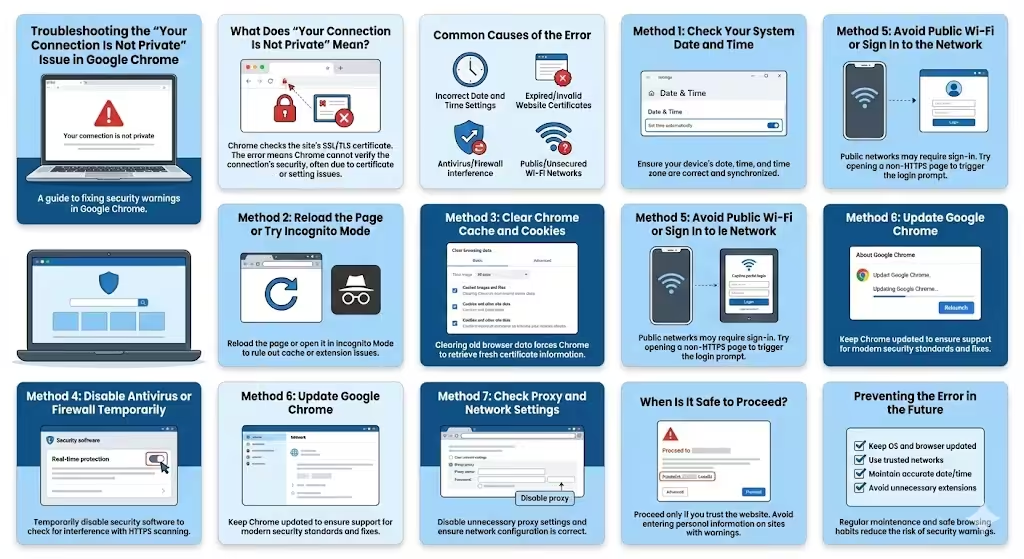
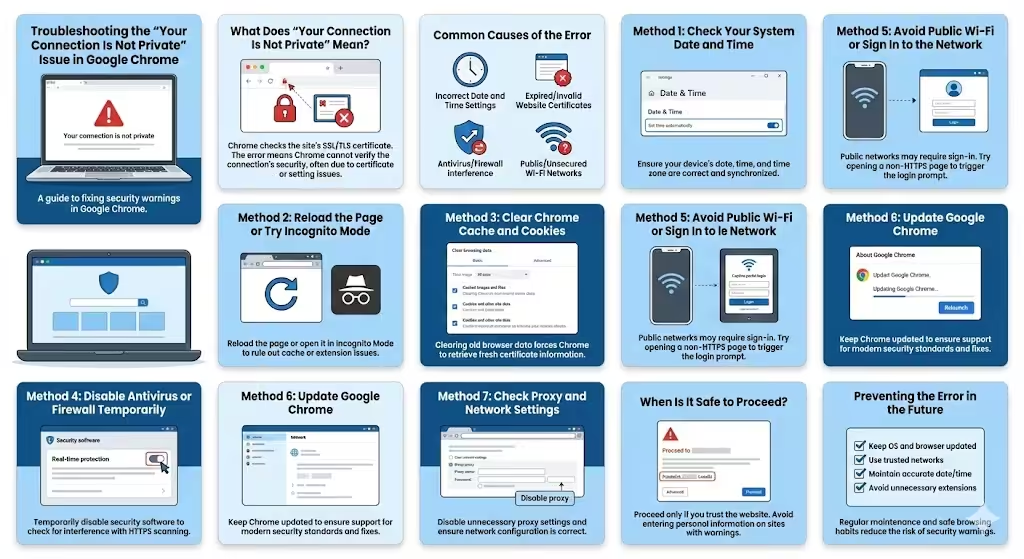
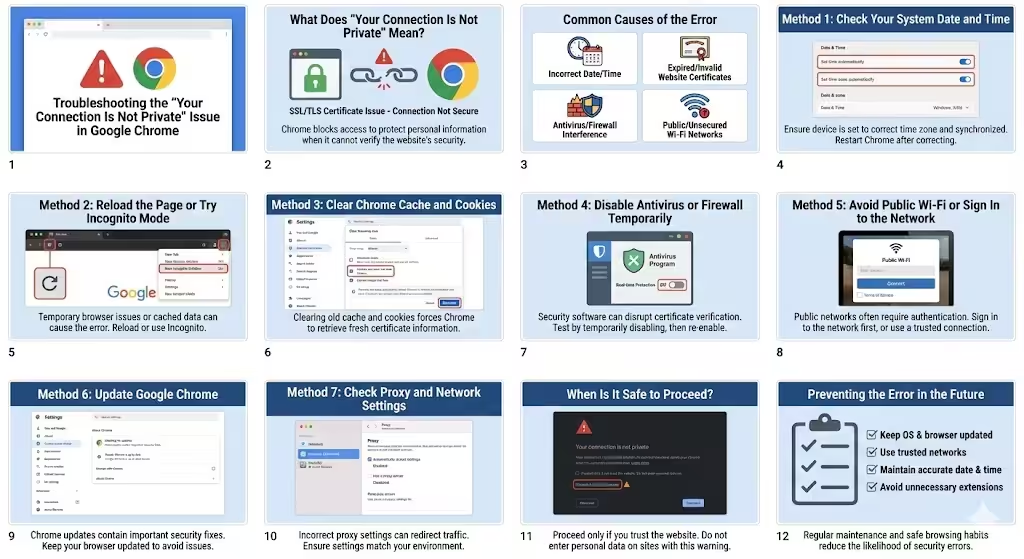
The “Your connection is not private” error in Google Chrome is a security warning that appears when the browser cannot establish a secure connection to a website. Instead of loading the page, Chrome blocks access to protect your personal information, such as passwords, messages, or payment details. While this warning is designed to keep users safe, it can also appear due to local configuration issues rather than an actual threat.
This error commonly affects users on Windows, macOS, and ChromeOS and may appear suddenly, even on websites that previously worked without problems. Understanding why the error occurs and how to fix it can help you restore access safely and avoid similar issues in the future.
What Does “Your Connection Is Not Private” Mean?
When you visit a secure website, Chrome checks its SSL/TLS certificate to confirm the site’s identity and ensure that data is encrypted. If Chrome detects a problem with this certificate, it displays the “Your connection is not private” message.
This warning indicates that Chrome cannot verify the security of the connection. The issue may be caused by an expired certificate, incorrect system settings, or interference from software on your device or network.
Common Causes of the Error
Several factors can trigger this privacy warning.
Incorrect Date and Time Settings
If your computer’s date or time is incorrect, Chrome may consider SSL certificates invalid, even if they are not.
Expired or Invalid Website Certificates
Some websites fail to renew their security certificates on time, causing browsers to block access.
Antivirus or Firewall Interference
Security software may scan encrypted connections and disrupt Chrome’s certificate verification process.
Public or Unsecured Wi-Fi Networks
Public networks sometimes intercept traffic, which can trigger privacy warnings in Chrome.
Method 1: Check Your System Date and Time
An incorrect system clock is one of the most common causes of this error.
How to Fix Date and Time
Ensure your device is set to the correct time zone and that date and time are synchronized automatically. After correcting the settings, restart Chrome and reload the website.
Method 2: Reload the Page or Try Incognito Mode
Temporary browser issues can sometimes trigger security warnings.
Quick Browser Test
Reload the page or open it in Incognito Mode. If the site loads correctly in Incognito Mode, cached data or extensions may be causing the issue.
Method 3: Clear Chrome Cache and Cookies
Corrupted browser data can interfere with certificate validation.
Why Clearing Cache Helps
Clearing cached files and cookies removes outdated security data and forces Chrome to retrieve fresh certificate information from the website.
Method 4: Disable Antivirus or Firewall Temporarily
Some antivirus programs scan HTTPS traffic and may trigger privacy errors.
Testing for Software Conflicts
Temporarily disable your antivirus or firewall and reload the website. If the error disappears, adjust the software’s HTTPS scanning settings rather than leaving protection disabled.
Method 5: Avoid Public Wi-Fi or Sign In to the Network
Public Wi-Fi networks often require authentication.
Captive Portal Issues
Some networks redirect traffic until you accept terms or sign in. Open a non-HTTPS page to trigger the login prompt, then try accessing the secure site again.
Method 6: Update Google Chrome
Outdated browsers may not support modern security standards.
Why Updates Matter
Chrome updates include fixes for certificate handling and security improvements. Keeping Chrome updated reduces false security warnings.
Method 7: Check Proxy and Network Settings
Incorrect proxy settings can redirect traffic through untrusted servers.
Network Configuration Review
Disable unnecessary proxy settings and ensure your network configuration matches your environment. Restart Chrome after making changes.
When Is It Safe to Proceed?
Chrome may allow you to proceed at your own risk, but caution is essential.
Important Safety Considerations
Proceed only if you trust the website and understand the risk. Avoid entering passwords, payment information, or personal data on sites with certificate warnings.
Preventing the Error in the Future
- Keep your operating system and browser updated
- Use trusted networks whenever possible
- Maintain accurate date and time settings
- Avoid installing unnecessary browser extensions
These habits reduce the likelihood of encountering security warnings.
Conclusion
The “Your connection is not private” error in Google Chrome is designed to protect users from unsafe connections, but it can also appear due to local configuration issues, outdated software, or network interference. By checking system settings, clearing browser data, updating Chrome, and reviewing security software, most users can resolve the issue quickly. Understanding the cause of the warning helps you make informed decisions and browse the web more safely.