


How to Create ZIP Files and Folders on a Mac
Compressing files and folders into ZIP archives is a common task for Mac users. Whether you want to save storage space, send large files via email, upload documents online, or organize data efficiently, ZIP compression offers a simple and reliable solution. macOS includes built-in tools that allow you to compress files without installing any additional software.
This comprehensive guide explains how to compress files and folders to ZIP on a Mac using built-in features and optional tools. You will also learn best practices, common issues, and tips to ensure your compressed files remain easy to share and access.
What Does ZIP Compression Mean?
Before compressing files, it helps to understand what ZIP compression actually does.
How ZIP Files Work
A ZIP file is an archive that contains one or more files or folders in a compressed format. Compression reduces file size by removing redundant data, making files faster to transfer and easier to store.
Why Use ZIP Files on macOS
ZIP files are widely supported across operating systems. Files compressed on macOS can be opened on Windows, Linux, and other platforms without compatibility issues.
How to Compress Files to ZIP Using Finder
Finder is the easiest and most common way to create ZIP files on a Mac.
Compressing a Single File
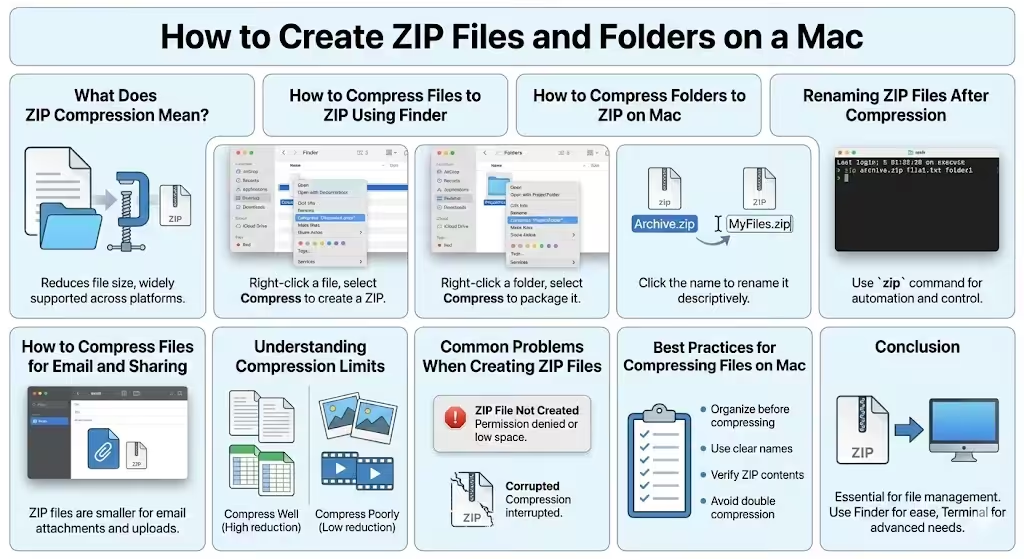
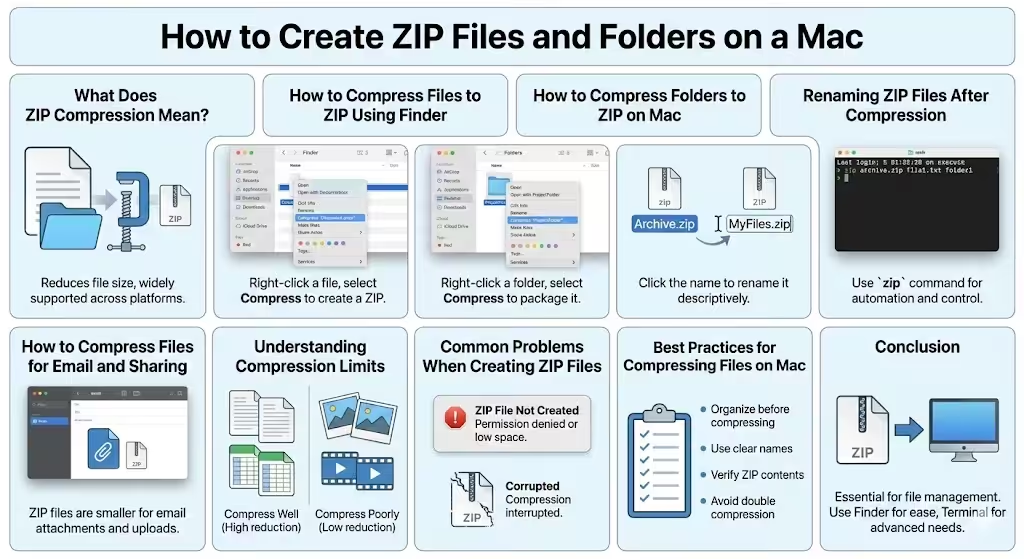
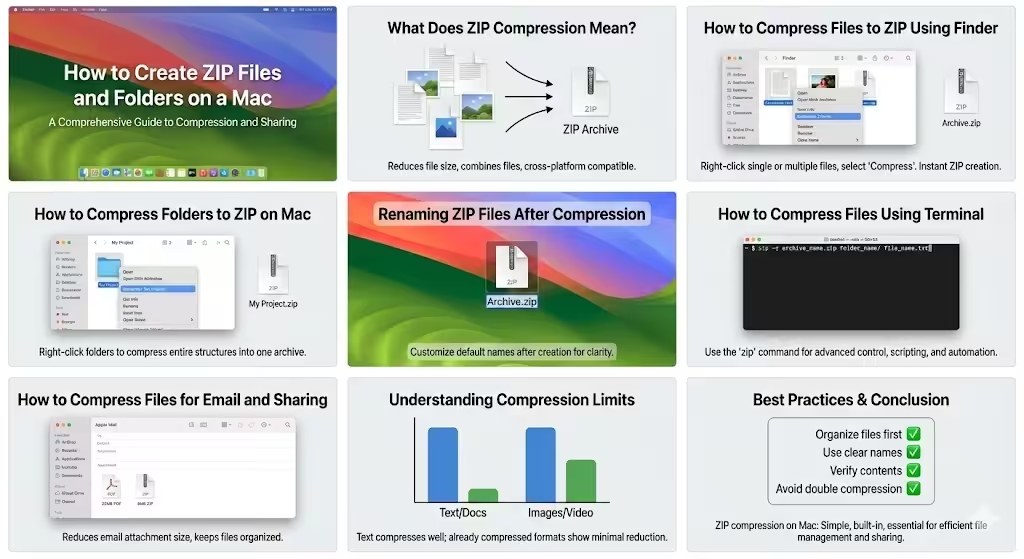
Right-click (or Control-click) the file you want to compress and select Compress. macOS instantly creates a ZIP archive in the same location.
Compressing Multiple Files
Select multiple files, right-click, and choose Compress Items. All selected files are combined into a single ZIP file.
How to Compress Folders to ZIP on Mac
Folders can also be compressed easily.
Zipping a Single Folder
Right-click the folder and choose Compress. The resulting ZIP file contains the entire folder structure.
Zipping Multiple Folders
Select several folders, right-click, and choose Compress Items. macOS packages all folders into one ZIP archive.
Renaming ZIP Files After Compression
macOS assigns a default name to ZIP files.
Customizing File Names
After compression, click the ZIP file name to rename it. Using descriptive names helps recipients understand the contents without opening the archive.
How to Compress Files Using Terminal
Advanced users may prefer the Terminal for more control.
Using the zip Command
Terminal allows you to compress files using commands. This method is useful for scripting, automation, or handling large numbers of files.
When Terminal Compression Is Useful
Terminal compression is ideal for developers, system administrators, or users who want consistent results across projects.
How to Compress Files for Email and Sharing
ZIP files are commonly used for sharing.
Reducing Attachment Size
Compressing files makes them easier to send via email services that limit attachment size. ZIP files also keep multiple documents organized.
Sharing ZIP Files Online
Compressed files upload faster to cloud storage services and reduce bandwidth usage.
Understanding Compression Limits
Not all files compress equally.
Files That Compress Well
Text documents, spreadsheets, and databases usually compress significantly.
Files That Compress Poorly
Images, videos, and already compressed formats often show minimal size reduction.
Common Problems When Creating ZIP Files
Occasional issues may arise.
ZIP File Not Created
Ensure you have permission to modify the folder and sufficient storage space.
Corrupted ZIP Files
Corruption can occur if compression is interrupted. Recreating the ZIP file usually resolves the problem.
Best Practices for Compressing Files on Mac
- Organize files before compression
- Use clear and descriptive names
- Verify ZIP contents before sharing
- Avoid compressing already compressed files unnecessarily
Following these practices ensures smooth file sharing and storage.
Conclusion
Learning how to compress files and folders to ZIP on a Mac is an essential skill for everyday file management. macOS makes the process simple through Finder while also offering advanced options through Terminal for experienced users. By understanding compression basics, choosing the right method, and following best practices, you can efficiently reduce file sizes, organize data, and share files with confidence.