


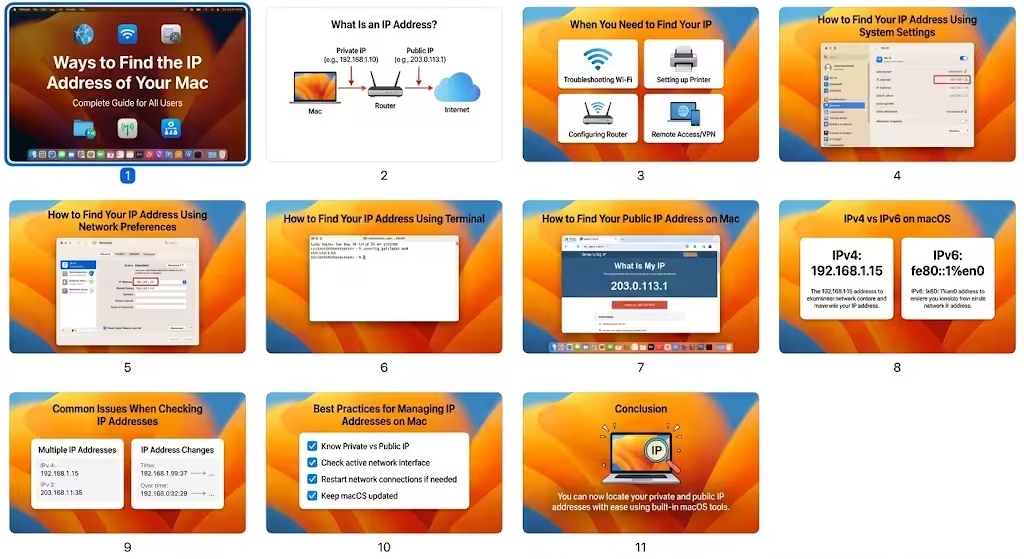
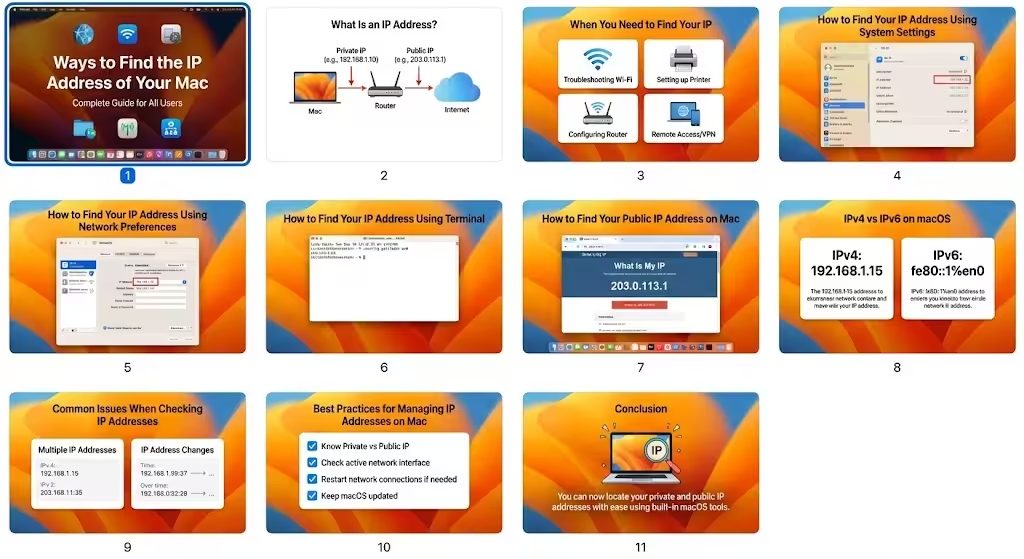
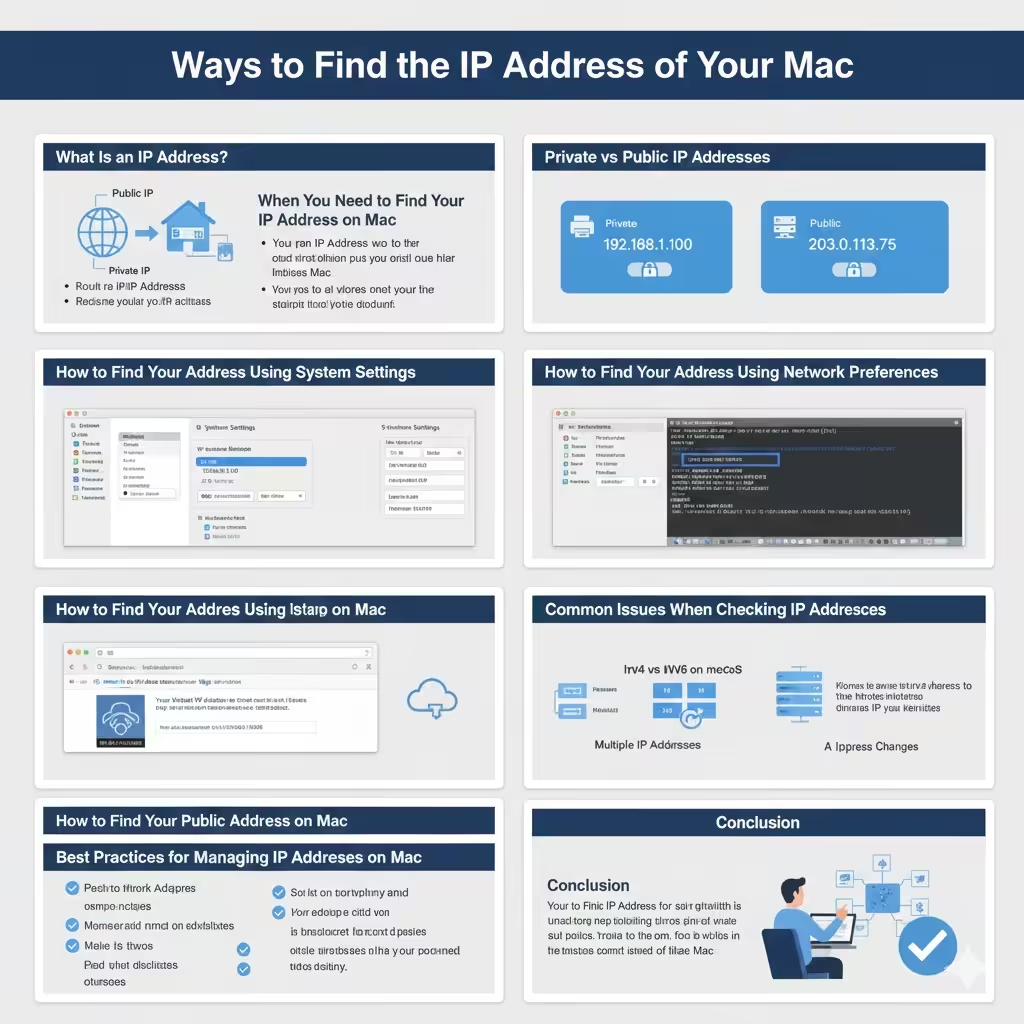
Ways to Find the IP Address of Your Mac
Knowing how to find your IP address on a Mac is an essential skill for troubleshooting network issues, configuring routers, setting up remote connections, or improving online security. Whether you are using Wi‑Fi or Ethernet, macOS provides several simple ways to view your IP address without installing any additional software.
In this complete guide, you will learn what an IP address is, why it matters, and multiple methods to find your IP address on a Mac. The instructions are suitable for beginners and advanced users alike and work across modern versions of macOS.
What Is an IP Address?
Before locating it, it helps to understand what an IP address actually is.
Understanding IP Addresses
An IP (Internet Protocol) address is a unique numerical identifier assigned to a device connected to a network. It allows devices to communicate with each other and with the internet. Without an IP address, data would not know where to go or where it came from.
Private vs Public IP Addresses
Your Mac usually has two IP addresses:
- A private IP address used within your local network
- A public IP address assigned by your internet service provider
Knowing which one you need depends on the task you are performing.
When You Need to Find Your IP Address on Mac
There are many situations where locating your IP address is necessary.
Common Use Cases
You may need your IP address when:
- Troubleshooting internet connectivity issues
- Setting up printers or file sharing
- Configuring firewalls or routers
- Connecting to a remote server or VPN
- Allowing access to a specific device on your network
Understanding how to access this information quickly can save time and frustration.
How to Find Your IP Address Using System Settings
The easiest method is through macOS system settings.
Finding IP Address for Wi‑Fi
Open System Settings, select Network, and choose Wi‑Fi from the list. Click the active connection to view details, where your IP address is displayed under network information.
Finding IP Address for Ethernet
If your Mac is connected via Ethernet, select Ethernet in the Network section. The IP address appears in the connection status details.
This method is reliable and works for most users.
How to Find Your IP Address Using Network Preferences
Some macOS versions use Network Preferences instead of System Settings.
Viewing Network Details
Open Network Preferences, select your active network connection, and review the status panel. The IP address is listed clearly along with subnet mask and router information.
This method provides additional network details useful for advanced troubleshooting.
How to Find Your IP Address Using Terminal
Terminal offers a fast and precise way to view IP information.
Using Terminal Commands
Open Terminal and use network commands to display IP addresses. This method is preferred by advanced users, developers, and IT professionals who want quick access to network data.
Why Use Terminal?
Terminal allows you to view multiple interfaces, identify active connections, and diagnose network problems efficiently.
How to Find Your Public IP Address on Mac
Your public IP address is different from your local one.
Understanding Public IP Visibility
The public IP address is visible to websites and online services. It represents your network on the internet rather than your individual device.
When Public IP Is Needed
Public IP addresses are often required for remote access, hosting services, or troubleshooting external connectivity issues.
IPv4 vs IPv6 on macOS
macOS supports both IPv4 and IPv6 protocols.
What Is IPv4?
IPv4 is the most widely used IP format and consists of four numerical blocks separated by periods. Most home networks still rely on IPv4.
What Is IPv6?
IPv6 is a newer protocol designed to provide more addresses and improved efficiency. Some networks display both IPv4 and IPv6 addresses simultaneously.
Understanding the difference helps you choose the correct address when configuring applications.
Common Issues When Checking IP Addresses
Users may encounter confusion when viewing IP information.
Multiple IP Addresses Displayed
A Mac can show multiple IP addresses if it has more than one active network interface. Always select the address that matches your active connection.
IP Address Changes
IP addresses can change over time, especially on home networks using dynamic assignment. This is normal and not usually a problem.
Best Practices for Managing IP Addresses on Mac
- Know whether you need a private or public IP
- Check the active network interface
- Restart network connections if information looks incorrect
- Keep macOS updated for accurate network reporting
These practices help avoid mistakes when working with network settings.
Conclusion
Finding your IP address on a Mac is a straightforward process thanks to macOS’s built-in network tools. Whether you prefer using System Settings, Network Preferences, or Terminal, you can quickly locate both private and public IP addresses as needed. By understanding the difference between IP types and knowing where to look, you can troubleshoot network issues, configure connections, and manage your Mac’s network settings with confidence.