


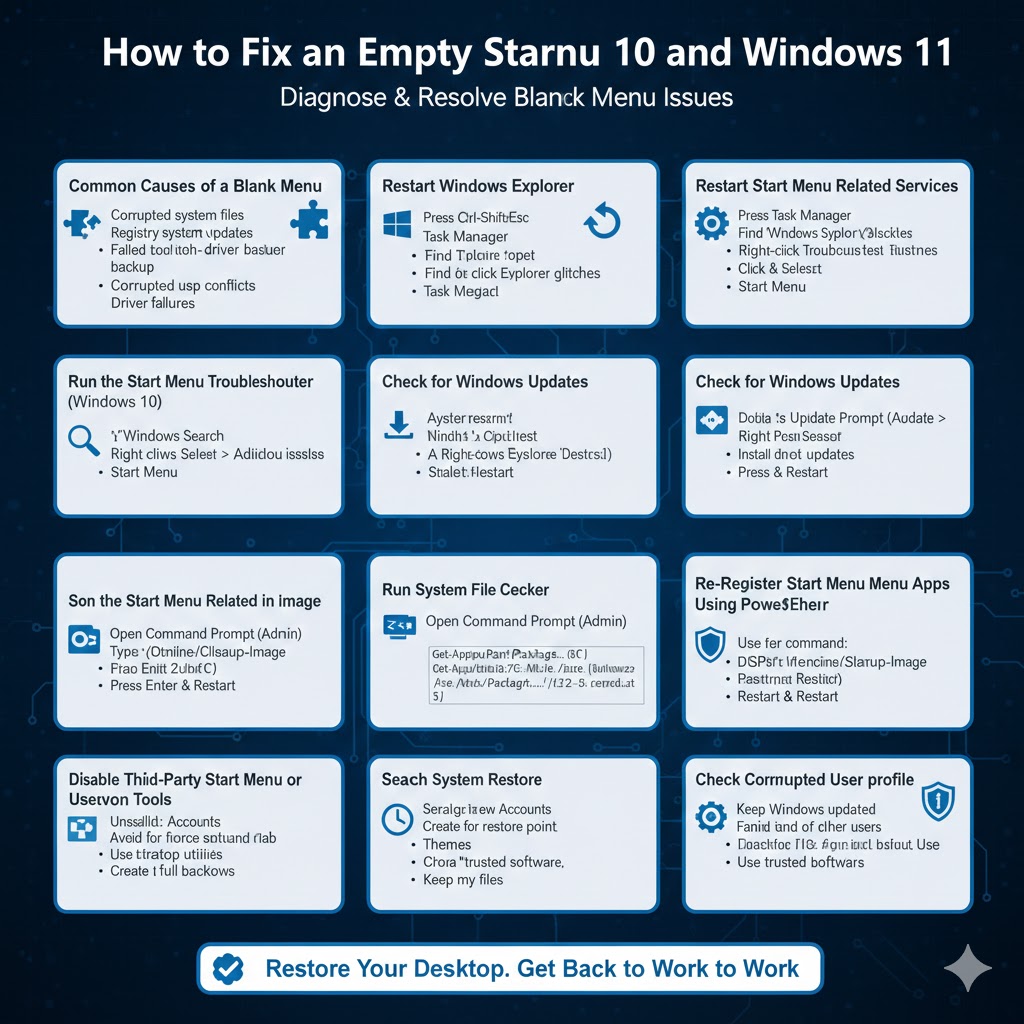
How to Fix an Empty Start Menu in Windows 10 and Windows 11
The Start Menu is a core part of the Windows experience. It provides quick access to apps, settings, search, and power options. When the Start Menu suddenly becomes blank in Windows 10 or Windows 11—showing no icons, no tiles, or an empty panel—it can make the system feel almost unusable.
This issue may appear after a Windows update, system crash, driver change, or software installation. In some cases, clicking the Start button opens an empty menu, while in others the menu does not respond correctly at all. Fortunately, a blank Start Menu is usually caused by software or configuration issues rather than hardware failure.
This guide explains why the Start Menu becomes blank and provides step-by-step solutions to fix the problem on both Windows 10 and Windows 11.
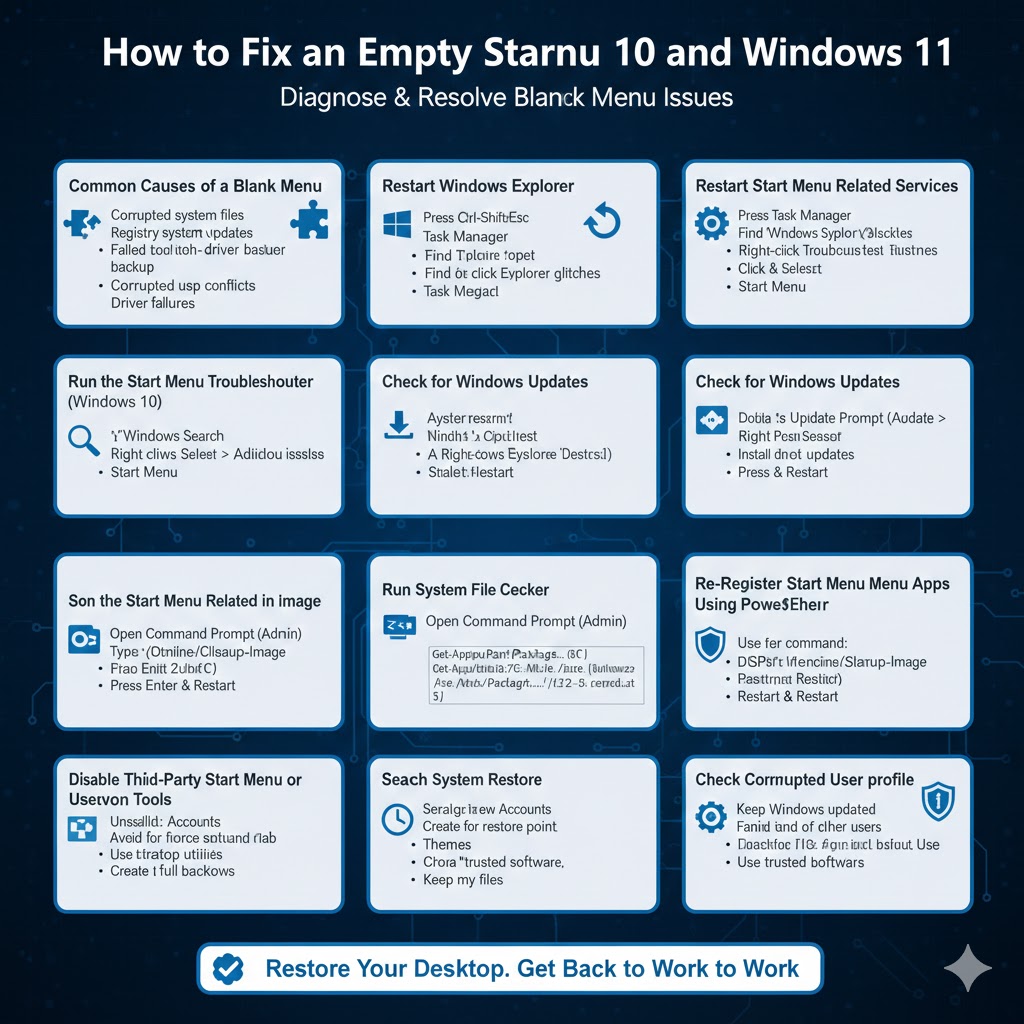
Common Causes of a Blank Start Menu
Understanding the cause helps you choose the correct solution.
A blank Start Menu is often related to:
- Corrupted system files
- Failed or incomplete Windows updates
- Problems with Windows Explorer
- Corrupted user profile
- Issues with Windows Search or Start Menu services
- Conflicts with third-party applications
In Windows 11, Start Menu problems are more closely tied to system services and user profile data, while Windows 10 may also be affected by tile database corruption.
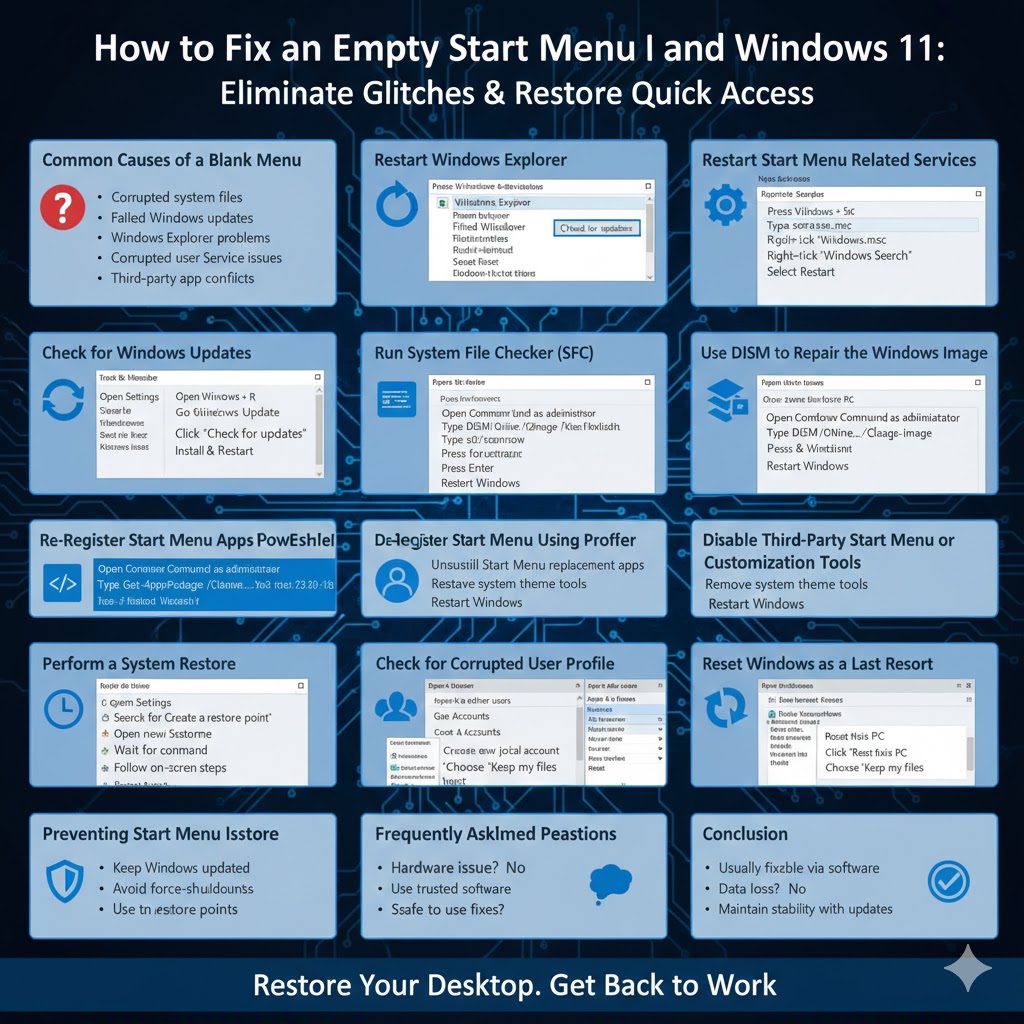
Restart Windows Explorer
The Start Menu is controlled by Windows Explorer. If Explorer stops responding or fails to load properly, the Start Menu may appear blank.
To restart Windows Explorer:
- Press Ctrl + Shift + Esc to open Task Manager
- Find Windows Explorer in the list
- Right-click it and select Restart
Your screen may flicker briefly. Once Explorer reloads, check if the Start Menu displays normally.
Restart Start Menu Related Services
Several background services are essential for the Start Menu to function.
To restart them:
- Press Windows + R, type
services.msc, and press Enter - Locate Windows Search
- Right-click it and select Restart
Restarting this service often fixes blank or unresponsive Start Menus, especially when search results are missing.
Run the Start Menu Troubleshooter (Windows 10)
Windows 10 includes a built-in troubleshooter designed to detect and fix Start Menu issues.
To use it:
- Open Settings
- Go to Update & Security
- Select Troubleshoot
- Choose Additional troubleshooters
- Run the Start Menu troubleshooter
Windows will automatically detect problems and apply fixes where possible.
Check for Windows Updates
A blank Start Menu can be caused by bugs that Microsoft fixes through updates.
To check for updates:
- Open Settings
- Go to Windows Update
- Click Check for updates
Install any available updates and restart your computer. This step is especially important for Windows 11, where Start Menu issues are often resolved through cumulative updates.
Run System File Checker (SFC)
Corrupted system files can prevent the Start Menu from loading correctly.
To run SFC:
- Open Command Prompt as administrator
- Type
sfc /scannow - Press Enter
Windows will scan and repair damaged system files automatically. Restart your PC after the scan completes.
Use DISM to Repair the Windows Image
If SFC does not fix the issue, the Windows image itself may be corrupted.
Run the following commands in an elevated Command Prompt:
DISM /Online /Cleanup-Image /CheckHealthDISM /Online /Cleanup-Image /ScanHealthDISM /Online /Cleanup-Image /RestoreHealth
After the process finishes, restart your computer and test the Start Menu again.
Re-wp-signup.php Start Menu Apps Using PowerShell
Re-wp-signup.phping built-in Windows apps can fix Start Menu corruption.
To do this:
- Right-click the Start button
- Select Windows Terminal (Admin) or PowerShell (Admin)
- Enter the following command:
Get-AppxPackage -AllUsers | Foreach {Add-AppxPackage -DisableDevelopmentMode -wp-signup.php "$($_.InstallLocation)\AppXManifest.xml"}
Wait for the command to complete, then restart Windows.
Check for Corrupted User Profile
If the Start Menu works correctly in a different user account, your current profile may be corrupted.
To test this:
- Open Settings
- Go to Accounts
- Select Family & other users
- Create a new local user account
Log in to the new account and check the Start Menu. If it works, consider migrating your files to the new profile.
Disable Third-Party Start Menu or Customization Tools
Third-party customization software can interfere with the Start Menu.
Temporarily uninstall:
- Start Menu replacement apps
- System theme tools
- Desktop customization utilities
Restart Windows after uninstalling and check if the issue is resolved.
Perform a System Restore
If the blank Start Menu appeared recently, System Restore can roll Windows back to a working state.
To use System Restore:
- Search for Create a restore point
- Open it and click System Restore
- Choose a restore point created before the issue occurred
System Restore does not remove personal files but may uninstall recent programs.
Reset Windows as a Last Resort
If none of the above solutions work, resetting Windows can resolve deep system issues.
To reset Windows:
- Open Settings
- Go to System > Recovery
- Click Reset this PC
- Choose Keep my files
This reinstalls Windows while preserving personal data.
Preventing Start Menu Issues in the Future
To reduce the chance of Start Menu problems:
- Keep Windows updated
- Avoid force-shutting down the system
- Use trusted software only
- Create restore points regularly
These habits help maintain system stability.
Conclusion
A blank Start Menu in Windows 10 or Windows 11 can be frustrating, but it is usually fixable without reinstalling the operating system. In most cases, restarting Windows Explorer, repairing system files, or re-wp-signup.phping apps resolves the issue quickly.
By following the step-by-step solutions in this guide, you can restore full Start Menu functionality and keep your Windows system running smoothly.