


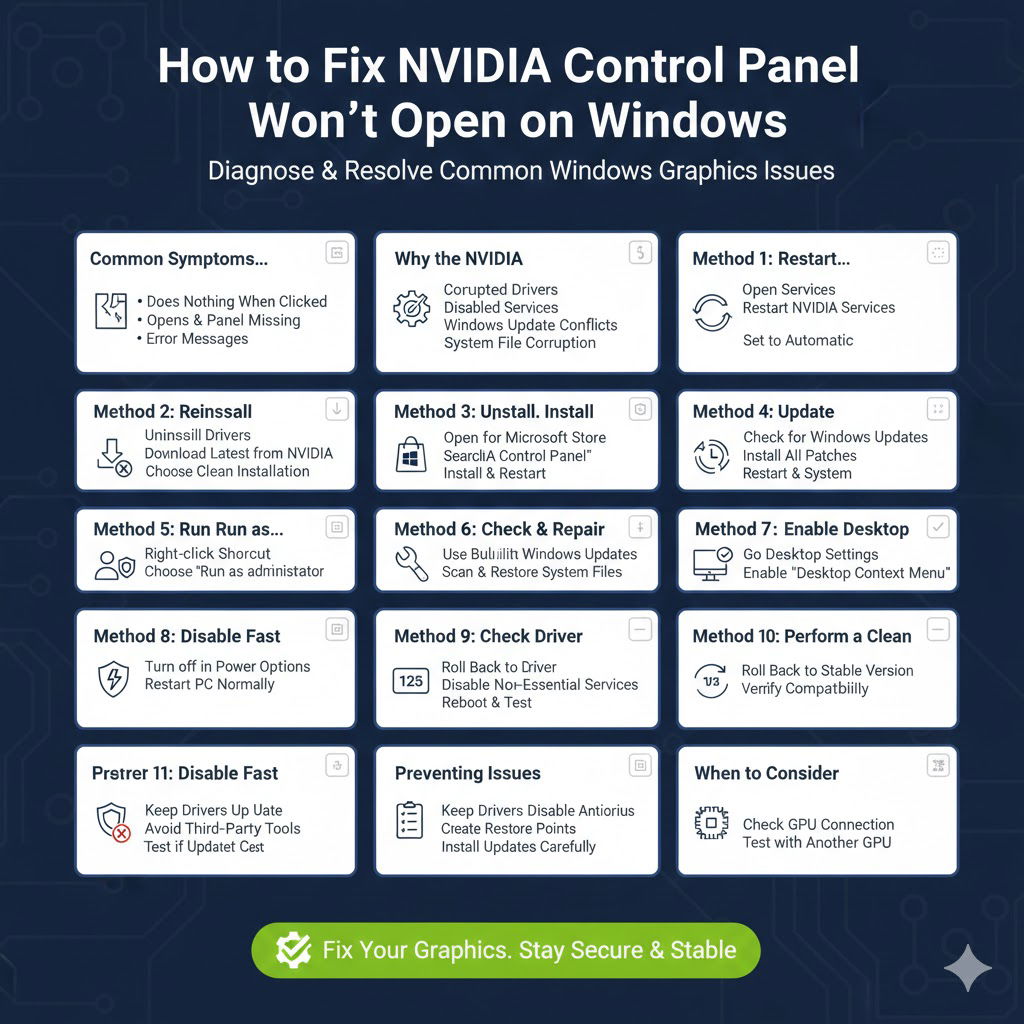
NVIDIA Control Panel Won’t Open on Windows: How to Fix It
The NVIDIA Control Panel is an essential utility for users with NVIDIA graphics cards. It allows you to manage display settings, adjust 3D performance options, configure GPU preferences, and optimize graphics for gaming and professional applications. When the NVIDIA Control Panel refuses to open on Windows, it can be frustrating and limit your ability to customize graphics settings.
This issue can occur on both Windows 10 and Windows 11 and is usually caused by driver problems, missing services, corrupted system files, or incorrect installation methods. Fortunately, there are several reliable ways to fix the NVIDIA Control Panel not opening issue and restore full functionality.
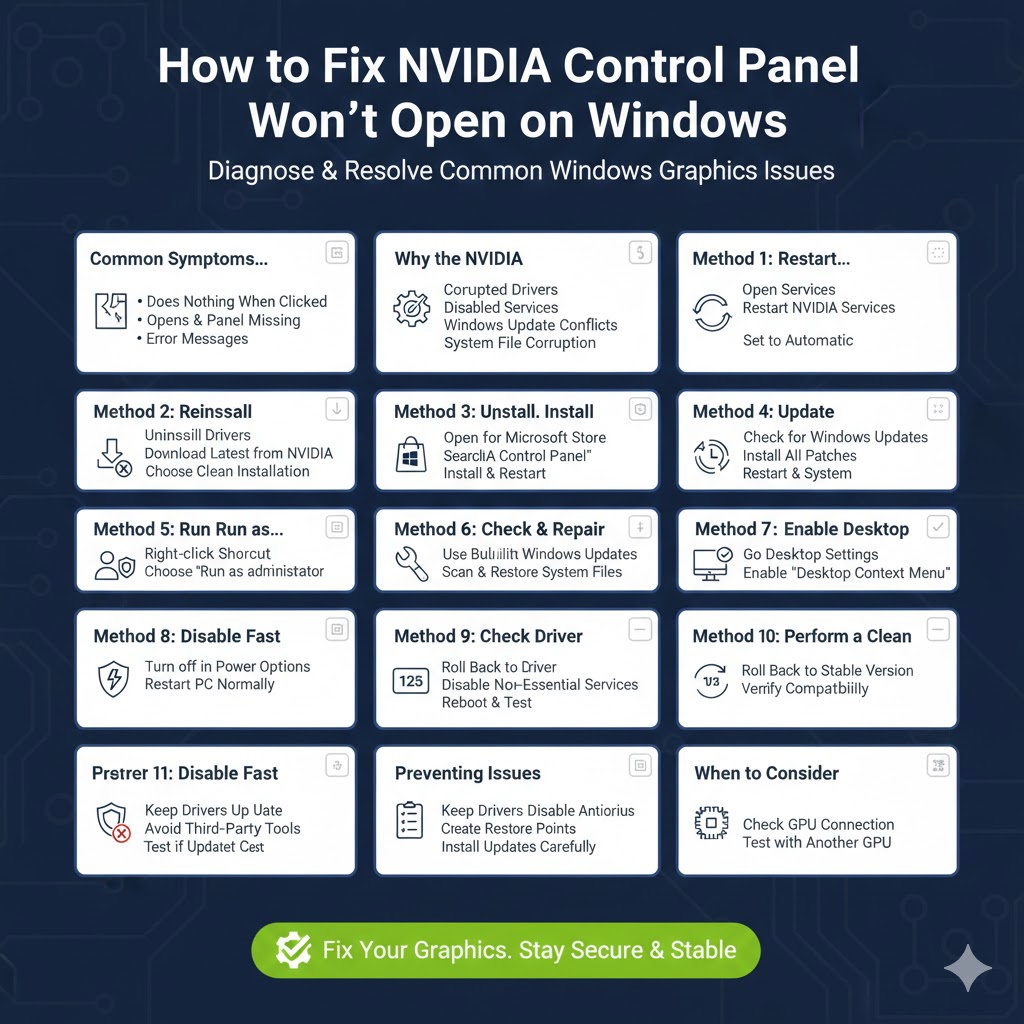
Common Symptoms of the NVIDIA Control Panel Not Opening
Understanding the symptoms helps confirm the issue before applying fixes.
NVIDIA Control Panel Does Nothing When Clicked
Clicking the app icon produces no response.
Control Panel Opens and Immediately Closes
The application launches briefly and then shuts down.
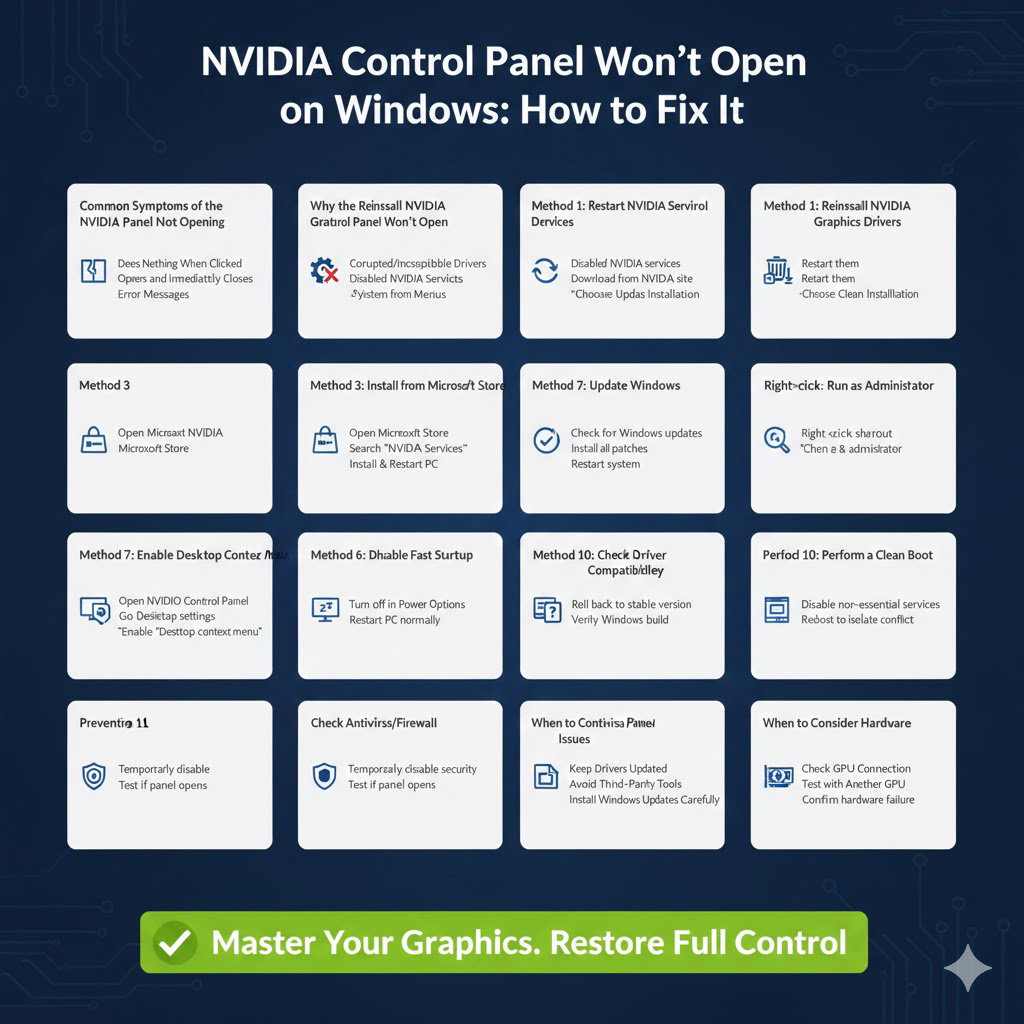
NVIDIA Control Panel Missing
The app does not appear in the desktop context menu or Control Panel.
Error Messages
Windows may display errors related to NVIDIA services or files.
Why the NVIDIA Control Panel Won’t Open
Several underlying issues can prevent the NVIDIA Control Panel from launching properly.
Corrupted or Incompatible Graphics Drivers
Outdated or damaged drivers are the most common cause.
Disabled NVIDIA Services
Required background services may not be running.
Incorrect Installation Source
Installing drivers without the control panel component can cause the issue.
Windows Update Conflicts
Recent Windows updates may conflict with existing drivers.
System File Corruption
Damaged Windows files can prevent apps from opening.
Method 1: Restart NVIDIA Services
Why This Helps
The NVIDIA Control Panel depends on background services to function.
Steps
Open Services, locate NVIDIA Display Container LS and other NVIDIA services, then restart them. Ensure they are set to start automatically.
Method 2: Reinstall NVIDIA Graphics Drivers
Why Reinstallation Works
Reinstalling drivers replaces corrupted or missing files.
How to Do It
Uninstall current NVIDIA drivers from Device Manager or Apps & Features, then install the latest drivers from NVIDIA’s official source.
Clean Installation Option
Choose a clean installation to remove old settings and conflicts.
Method 3: Install NVIDIA Control Panel from Microsoft Store
Why This Is Important
On newer Windows versions, the NVIDIA Control Panel may be distributed through the Microsoft Store.
Steps
Open Microsoft Store, search for NVIDIA Control Panel, install it, and restart your PC.
Method 4: Update Windows
Why Updates Matter
Windows updates often include compatibility fixes for GPU drivers.
Steps
Check for Windows updates and install all available patches, then restart your system.
Method 5: Run NVIDIA Control Panel as Administrator
Why This Helps
Permission issues can prevent the app from launching.
Steps
Right-click the NVIDIA Control Panel shortcut and choose Run as administrator.
Method 6: Check and Repair System Files
Why System File Repair Is Necessary
Corrupted Windows files can interfere with NVIDIA applications.
Steps
Use built-in Windows repair tools to scan and restore system files to their original state.
Method 7: Enable NVIDIA Control Panel Desktop Context Menu
Why This Matters
The control panel may be working but hidden from the desktop menu.
Steps
Once opened, go to Desktop settings inside NVIDIA Control Panel and enable the desktop context menu option.
Method 8: Disable Fast Startup
Why Fast Startup Can Cause Problems
Fast Startup may prevent NVIDIA services from loading properly.
Steps
Turn off Fast Startup in Power Options, then restart your PC normally.
Method 9: Check Display Driver Version Compatibility
Why Compatibility Is Important
Some driver versions may not be fully compatible with your Windows build.
Steps
Roll back to a previous stable driver version if the issue began after a recent update.
Method 10: Perform a Clean Boot
Why Clean Boot Helps
It isolates software conflicts that may block NVIDIA Control Panel.
Steps
Disable non-essential startup services and reboot. If the control panel opens, re-enable services gradually to identify the conflict.
Method 11: Check Antivirus and Firewall Software
Why Security Software Can Interfere
Overly aggressive antivirus programs may block NVIDIA services.
Steps
Temporarily disable antivirus protection and test if the control panel opens.
Preventing NVIDIA Control Panel Issues in the Future
Keep Drivers Up to Date
Regularly update GPU drivers using official sources.
Avoid Third-Party Driver Tools
Unofficial tools can install incompatible driver versions.
Create Restore Points
Restore points allow easy rollback if issues occur.
Install Windows Updates Carefully
Allow updates to complete fully without interruption.
When to Consider Hardware Issues
If none of the software fixes work, hardware problems may be involved.
Check GPU Connection
Ensure the graphics card is properly seated.
Test with Another GPU
Testing another GPU can help confirm hardware failure.
Conclusion
The NVIDIA Control Panel not opening on Windows is a common issue, but it is usually easy to fix with the right approach. Most problems are caused by driver corruption, missing services, or installation conflicts. By following the solutions outlined in this guide, you can restore access to the NVIDIA Control Panel and regain full control over your graphics settings.
Maintaining updated drivers, stable system files, and compatible software will help prevent similar issues in the future. With proper care, the NVIDIA Control Panel should run smoothly and reliably on both Windows 10 and Windows 11.