


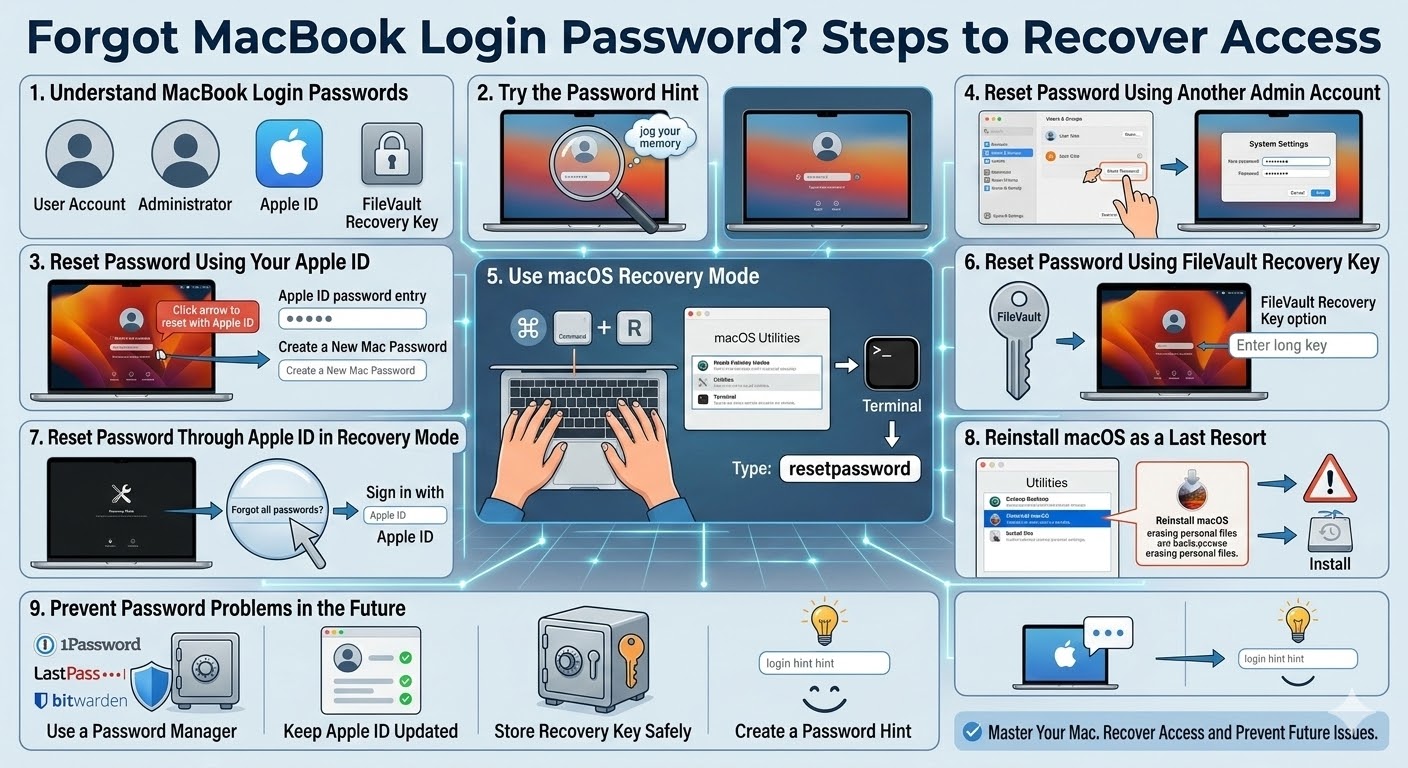
Forgot MacBook Login Password? Steps to Recover Access
Forgetting your MacBook password can be stressful, especially if you rely on your laptop for work, school, or personal tasks. Without the correct password, you may feel locked out of your own device and unsure how to regain access. Fortunately, macOS includes several built-in recovery options that can help you reset your password and log back into your Mac safely.
Whether you forgot your login password, your Apple ID password, or your administrator credentials, there are several methods you can try. This guide explains the most reliable ways to regain access to your MacBook and prevent the problem from happening again.
Understanding MacBook Login Passwords
Before attempting a fix, it helps to understand how MacBook passwords work.
Your Mac may use several different passwords:
-
User account password – Used to log in to your Mac
-
Administrator password – Required for system-level changes
-
Apple ID password – Used for iCloud and Apple services
-
FileVault recovery key – Used if disk encryption is enabled
If you forget your login password, you may still be able to reset it using one of these recovery options.
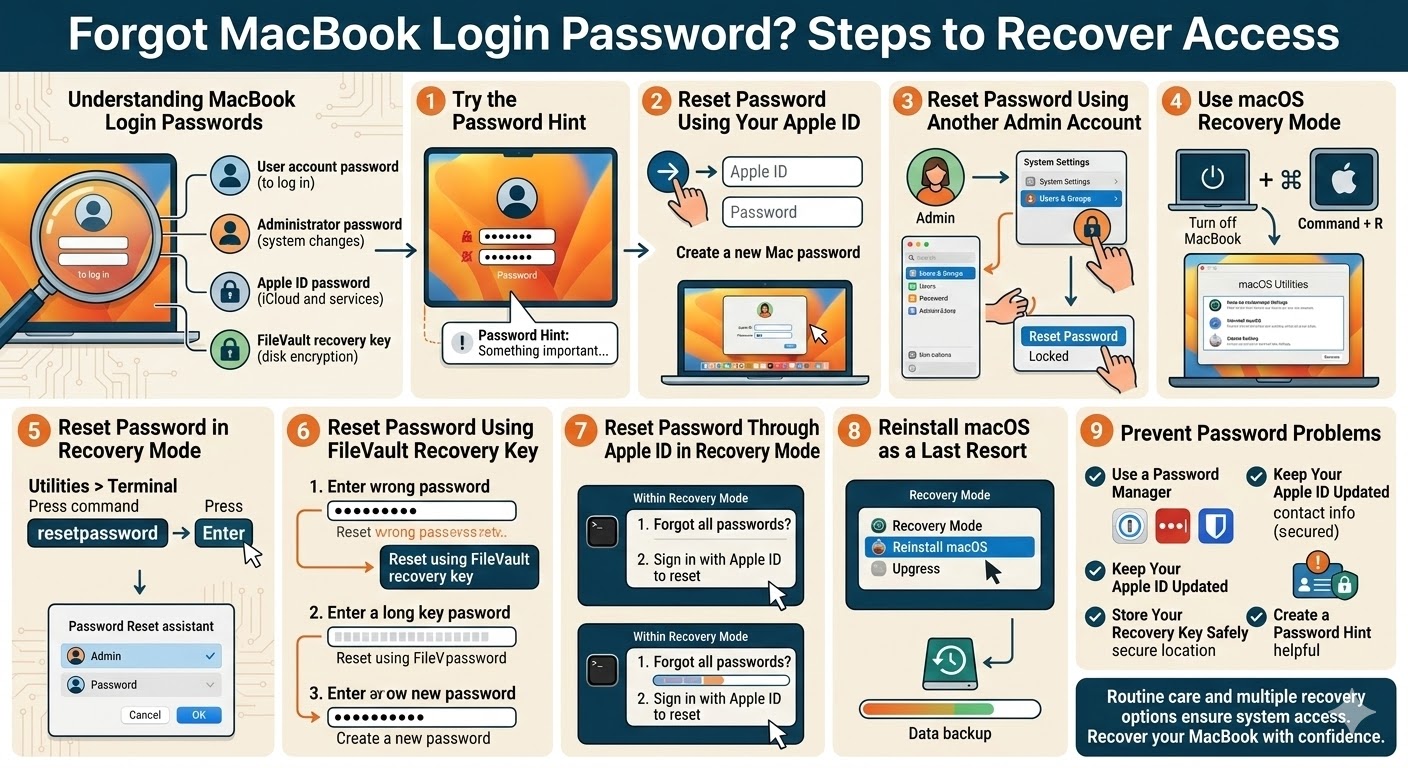
Try the Password Hint
When you create a password on macOS, the system usually asks you to set a password hint. This hint can help remind you of the password.
How to View the Password Hint
-
On the login screen, enter the wrong password several times
-
After a few attempts, macOS may display the password hint below the password field
Sometimes the hint is enough to jog your memory and help you recall the correct password.
Reset the Password Using Your Apple ID
If your MacBook is linked to your Apple ID, you may be able to reset the password directly from the login screen.
Steps to Reset Using Apple ID
-
On the login screen, enter the wrong password several times
-
A message may appear saying you can reset the password using your Apple ID
-
Click the arrow icon or reset option
-
Enter your Apple ID and password
-
Follow the on-screen instructions to create a new Mac password
After resetting the password, restart your Mac and log in with the new credentials.
Reset Password Using Another Admin Account
If your Mac has multiple user accounts and one of them has administrator privileges, you can reset the password through that account.
Steps
-
Log in using the administrator account
-
Open System Settings (or System Preferences on older macOS versions)
-
Select Users & Groups
-
Click the lock icon and enter the admin password
-
Select the user account that needs a password reset
-
Click Reset Password
-
Enter a new password and password hint
Once the new password is set, log out and sign in using the updated password.
Use macOS Recovery Mode
If you cannot reset the password through Apple ID or another account, you can use macOS Recovery Mode.
Recovery Mode is a built-in troubleshooting environment that allows you to repair or reset system settings.
How to Enter Recovery Mode
-
Turn off your MacBook
-
Turn it on and immediately press and hold Command + R
-
Release the keys when the Apple logo appears
After entering Recovery Mode, you will see the macOS Utilities window.
Reset Password in Recovery Mode
-
From the menu bar, click Utilities
-
Select Terminal
-
Type the following command:
-
Press Enter
The Password Reset assistant will open, allowing you to select your account and create a new password.
Restart your Mac after the reset is complete.
Reset Password Using FileVault Recovery Key
If FileVault disk encryption is enabled, your Mac may provide a recovery key during setup. This key can be used to reset your password.
Steps
-
Enter the wrong password several times on the login screen
-
A message may appear offering the option to reset using the FileVault recovery key
-
Enter the recovery key
-
Follow the instructions to create a new password
This method works only if FileVault was previously configured.
Reset Password Through Apple ID in Recovery Mode
In some cases, Recovery Mode allows password resets through your Apple ID.
Steps
-
Enter Recovery Mode
-
Select Forgot all passwords? or a similar option
-
Sign in with your Apple ID
-
Follow the prompts to reset your password
After the reset, restart your Mac normally.
Reinstall macOS as a Last Resort
If none of the password reset methods work, reinstalling macOS may be necessary. This option should be used only if you cannot access the system through any other method.
Reinstall macOS
-
Start your Mac in Recovery Mode
-
Select Reinstall macOS
-
Follow the on-screen instructions
In many cases, reinstalling macOS will not erase personal files, but backing up data beforehand is always recommended.
Prevent Password Problems in the Future
Forgetting passwords can happen to anyone. Fortunately, there are several ways to prevent future login issues.
Use a Password Manager
Password managers securely store login credentials and help you generate strong passwords.
Popular options include:
-
1Password
-
LastPass
-
Bitwarden
These tools allow you to access passwords quickly and securely.
Keep Your Apple ID Updated
Your Apple ID plays a key role in password recovery. Make sure your Apple ID credentials and recovery email are up to date.
Store Your Recovery Key Safely
If FileVault encryption is enabled, always keep the recovery key in a secure location. This key can save you if you forget your password.
Create a Password Hint
A helpful password hint can make it easier to remember your password later without compromising security.
Final Thoughts
Forgetting your MacBook password can be inconvenient, but it does not mean you have permanently lost access to your device. macOS includes several recovery options, such as resetting the password with your Apple ID, using another administrator account, or accessing Recovery Mode.
Related articles
How to Fix Wi-Fi Disconnecting Issues on Windows 10