


How to Fix File Explorer Search Not Working in Windows
The File Explorer search box is one of the most useful features in Windows. It allows users to quickly locate files, folders, and documents without manually browsing through directories. However, sometimes the search box in File Explorer stops working properly. You may notice that it does not respond when you type, fails to display results, or simply freezes.
This issue can occur in Windows 10 and Windows 11 due to system bugs, indexing problems, corrupted files, or software conflicts. Fortunately, there are several effective methods you can use to fix the problem and restore the search functionality.
In this guide, we will explore the common causes of the File Explorer search box not working and provide step-by-step solutions to resolve the issue.
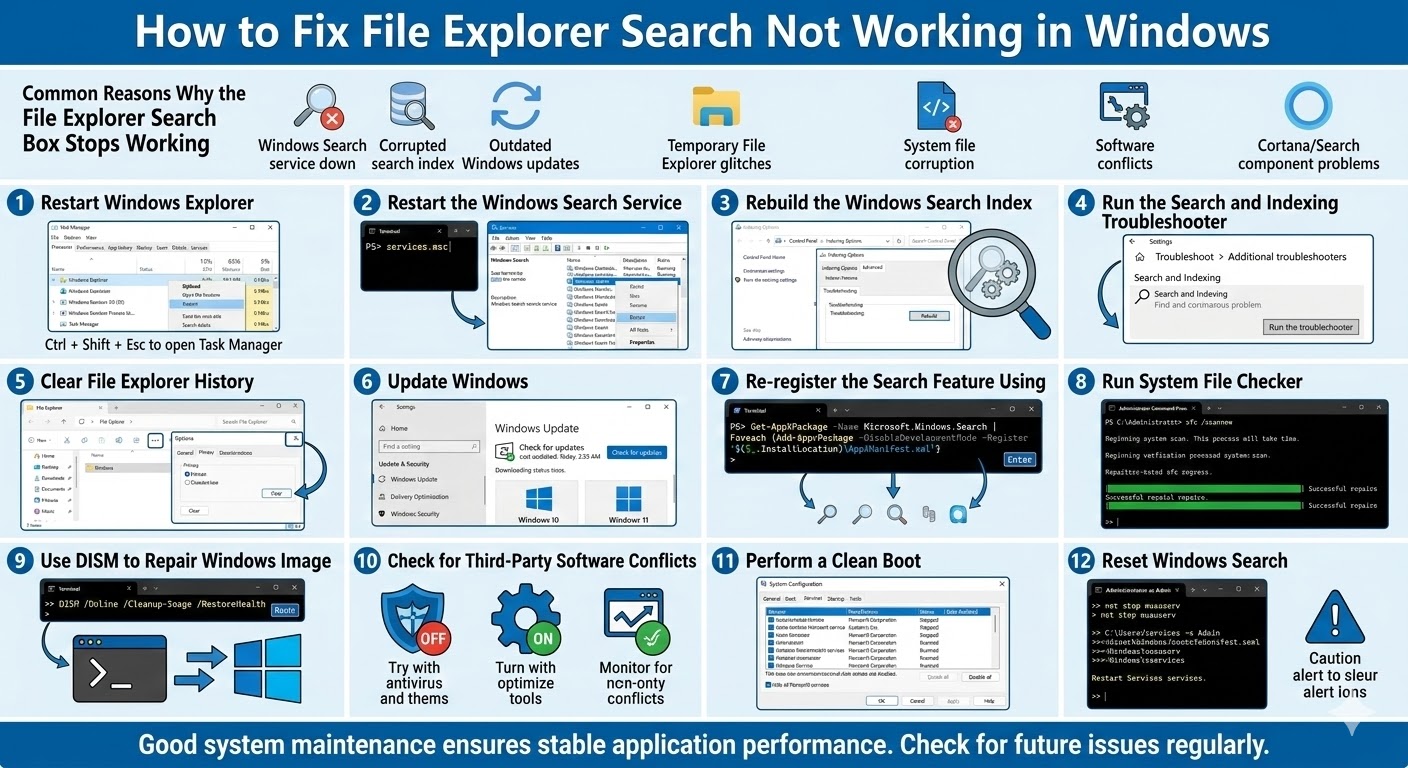
Common Reasons Why the File Explorer Search Box Stops Working
Before attempting fixes, it helps to understand the potential reasons behind the issue.
Some of the most common causes include:
-
Windows Search service not running
-
Corrupted search index
-
Outdated Windows updates
-
Temporary File Explorer glitches
-
System file corruption
-
Conflicts with third-party software
-
Problems with Cortana or Windows Search components
Identifying the cause can help you apply the most effective solution.
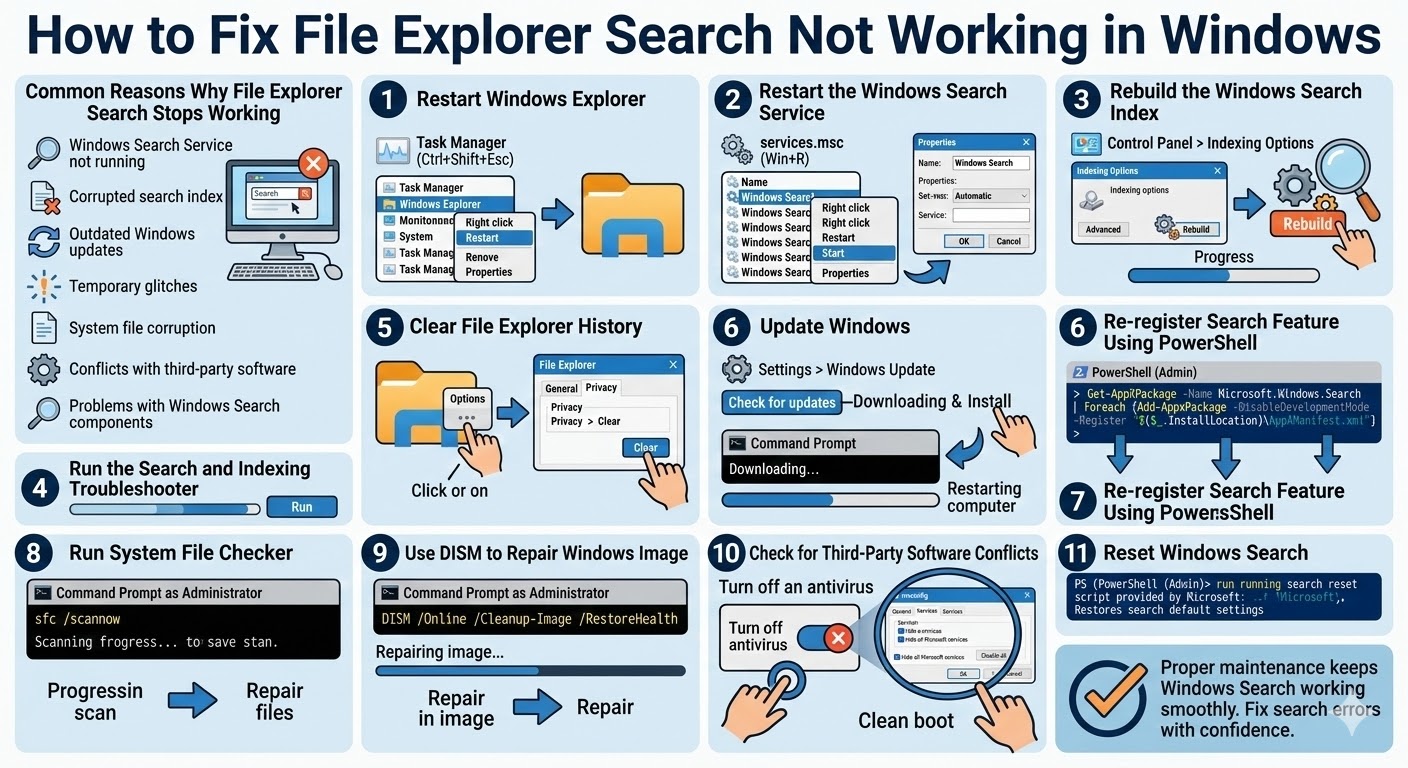
Restart Windows Explorer
Sometimes the File Explorer search box stops working due to a temporary system glitch. Restarting Windows Explorer can quickly refresh the interface.
Steps to Restart Windows Explorer
-
Press Ctrl + Shift + Esc to open Task Manager
-
Find Windows Explorer in the process list
-
Right-click it and select Restart
After restarting Explorer, open File Explorer again and test the search box.
Restart the Windows Search Service
The search feature in File Explorer depends on the Windows Search service. If the service stops running, search functions may fail.
How to Restart the Service
-
Press Windows + R
-
Type services.msc and press Enter
-
Scroll down to Windows Search
-
Right-click it and select Restart
If the service is disabled, right-click it, select Properties, and set the Startup type to Automatic.
Rebuild the Windows Search Index
Windows uses an index to quickly locate files. If the index becomes corrupted, search results may not work properly.
Steps to Rebuild the Index
-
Open Control Panel
-
Select Indexing Options
-
Click Advanced
-
Under the Troubleshooting section, click Rebuild
Rebuilding the index may take some time depending on the number of files on your computer.
Run the Search and Indexing Troubleshooter
Windows includes built-in troubleshooters designed to detect and fix system issues.
Run the Troubleshooter
-
Open Settings
-
Go to Update & Security
-
Select Troubleshoot
-
Click Additional troubleshooters
-
Choose Search and Indexing
-
Follow the on-screen instructions
This tool will automatically diagnose and repair common search-related problems.
Clear File Explorer History
Corrupted File Explorer history may also cause the search box to malfunction.
Clear Explorer History
-
Open File Explorer
-
Click the three dots menu or Options
-
Open the General tab
-
Under Privacy, click Clear
Restart File Explorer and check if the search feature works again.
Update Windows
Outdated versions of Windows may contain bugs that affect File Explorer and the search system.
Check for Updates
-
Open Settings
-
Select Windows Update
-
Click Check for updates
-
Install any available updates
Restart your computer after the update completes.
Re-register the Search Feature Using PowerShell
Sometimes Windows Search components need to be re-registered.
Steps
-
Right-click the Start button
-
Select Windows Terminal (Admin) or PowerShell (Admin)
-
Enter the following command:
-
Press Enter
After the command finishes, restart your computer.
Run System File Checker
Corrupted system files can cause File Explorer search to stop working.
Run SFC Scan
-
Open Command Prompt as Administrator
-
Type the following command:
-
Press Enter
The scan will detect and repair corrupted system files.
Use DISM to Repair Windows Image
If the SFC scan cannot fix the problem, you can use the DISM tool to repair the Windows system image.
Run the DISM Command
Wait for the process to complete and restart your computer afterward.
Check for Third-Party Software Conflicts
Some third-party programs, especially antivirus or system optimization tools, may interfere with Windows Search.
What You Can Do
-
Temporarily disable antivirus software
-
Uninstall recently installed programs
-
Perform a clean boot
If the search box works after disabling certain software, that program may be the cause.
Perform a Clean Boot
A clean boot starts Windows with minimal drivers and startup programs.
Steps
-
Press Windows + R
-
Type msconfig
-
Open the Services tab
-
Check Hide all Microsoft services
-
Click Disable all
-
Restart your computer
This helps identify whether background applications are causing the issue.
Reset Windows Search
In some cases, resetting Windows Search completely can fix persistent problems.
Reset Search via PowerShell
Open PowerShell as Administrator and run a search reset script provided by Microsoft. This process reinstalls search components and restores default settings.
Prevent File Explorer Search Issues
To avoid future search problems, follow these best practices:
-
Keep Windows updated
-
Avoid installing unnecessary system optimization tools
-
Perform regular malware scans
-
Maintain sufficient disk space
-
Restart your computer periodically
Proper system maintenance helps keep Windows Search working smoothly.
Final Thoughts
The File Explorer search box not working problem can make it difficult to locate files quickly on your computer. Fortunately, most cases can be resolved with simple troubleshooting methods such as restarting Windows Explorer, rebuilding the search index, restarting Windows Search services, or repairing system files.
Related articles
How to Fix Wi-Fi Disconnecting Issues on Windows 10