


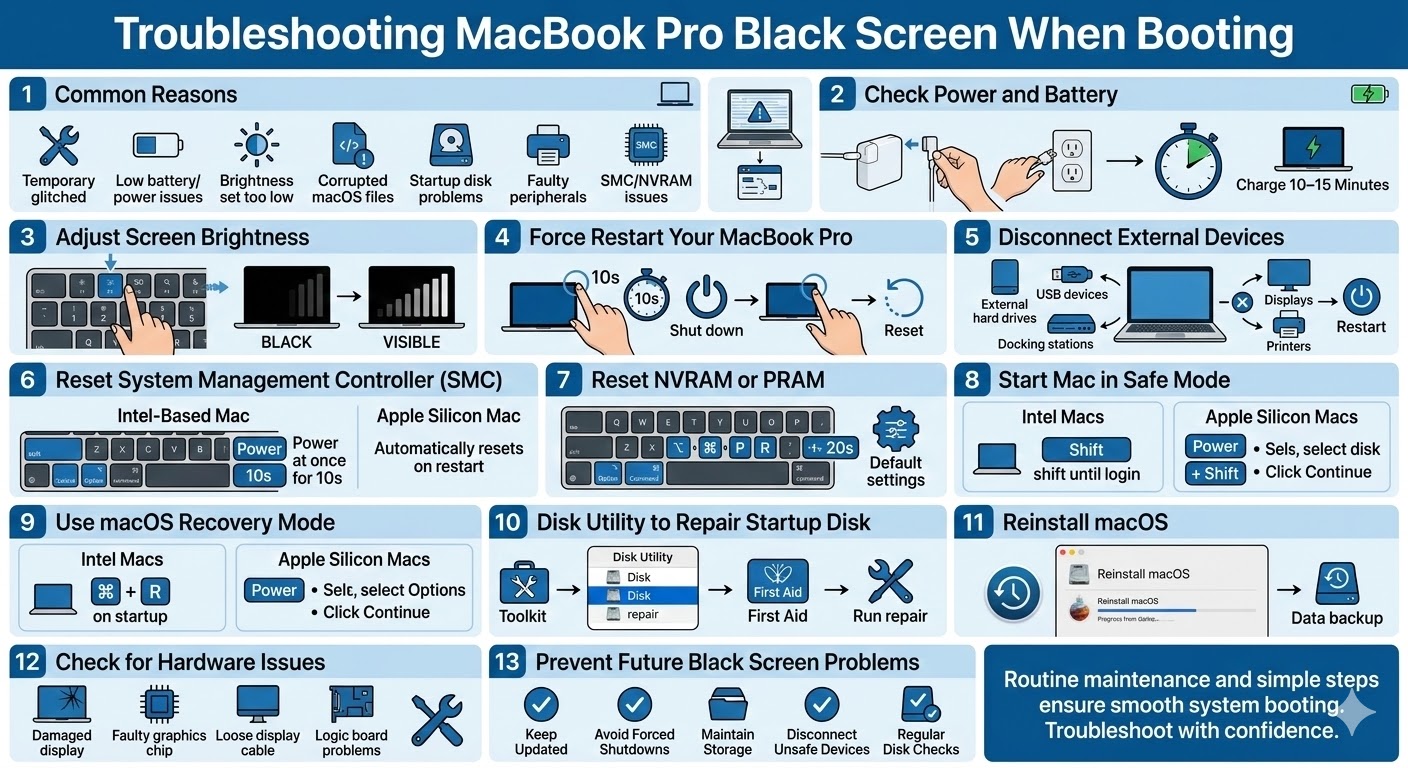
Troubleshooting MacBook Pro Black Screen When Booting
A MacBook Pro booting to a black screen can be alarming, especially when you press the power button and the display shows nothing but darkness. In some cases, you may hear the startup sound or see the keyboard light up, but the screen remains black. This issue can prevent you from accessing your files and using your computer normally.
Fortunately, a black screen during startup does not always mean that your MacBook Pro has serious hardware damage. The problem can often be caused by software glitches, display issues, corrupted system files, or incorrect startup settings. With the right troubleshooting steps, you may be able to fix the issue and restore your MacBook Pro to normal operation.
This guide explains the common reasons behind the MacBook Pro black screen problem and provides several proven solutions to resolve it.
Common Reasons Why MacBook Pro Boots to a Black Screen
Before trying fixes, it helps to understand what might cause the issue.
Some of the most common causes include:
-
Temporary system glitches
-
Low battery or power issues
-
Display brightness set too low
-
Corrupted macOS files
-
Startup disk problems
-
Faulty peripherals connected to the Mac
-
Issues with the System Management Controller (SMC) or NVRAM
Identifying the cause will help you apply the correct solution more efficiently.
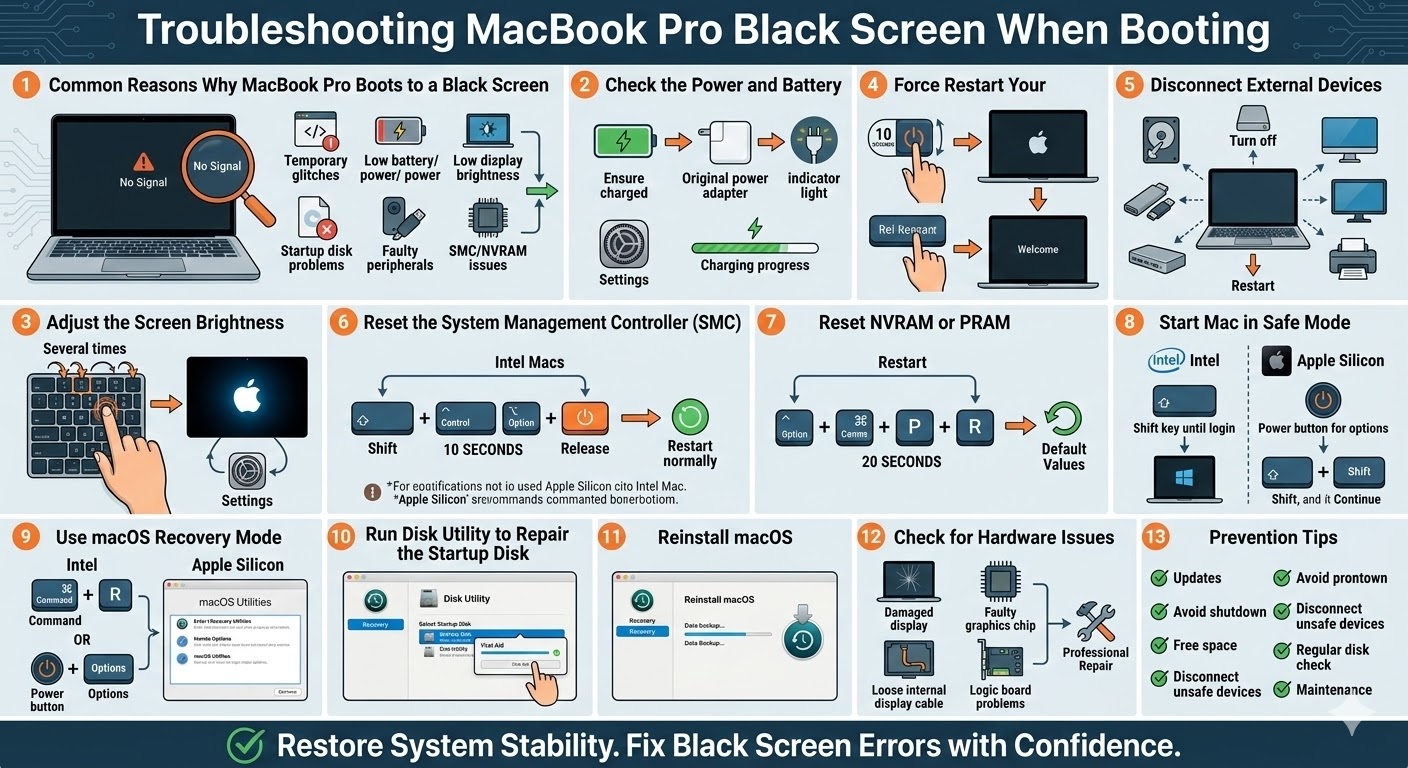
Check the Power and Battery
One of the simplest reasons for a black screen is insufficient power.
What You Should Check
-
Ensure the MacBook Pro battery is charged
-
Connect the original power adapter
-
Verify that the charging cable is properly connected
-
Look for the charging indicator light if available
If the battery was completely drained, allow the laptop to charge for 10–15 minutes before attempting to power it on again.
Adjust the Screen Brightness
Sometimes the MacBook may appear to have a black screen simply because the brightness level is set extremely low.
Try pressing the brightness up key (F2) several times to increase the screen brightness. If the display suddenly appears, the issue may simply be incorrect brightness settings.
Force Restart Your MacBook Pro
A temporary system glitch may prevent macOS from displaying the startup screen.
Steps to Force Restart
-
Press and hold the Power button for about 10 seconds
-
Wait until the MacBook shuts down completely
-
Press the Power button again to restart the computer
This simple reset can often fix temporary boot problems.
Disconnect External Devices
External devices can sometimes interfere with the startup process.
Devices that may cause problems include:
-
External hard drives
-
USB devices
-
Docking stations
-
External displays
-
Printers
What to Do
-
Turn off the MacBook Pro
-
Disconnect all external devices
-
Leave only the power adapter connected
-
Restart the computer
If the Mac boots normally, reconnect devices one at a time to identify the problematic device.
Reset the System Management Controller (SMC)
The System Management Controller (SMC) manages hardware functions such as power, battery management, and thermal control. Resetting it can solve many power-related problems.
Reset SMC (Intel-Based MacBook Pro)
-
Shut down your MacBook
-
Press and hold Shift + Control + Option on the left side of the keyboard
-
Press and hold the Power button at the same time
-
Hold all keys for 10 seconds
-
Release the keys and turn on the Mac normally
On newer Apple Silicon Macs, restarting the computer automatically resets the SMC.
Reset NVRAM or PRAM
NVRAM (Non-Volatile Random Access Memory) stores settings such as screen resolution, startup disk information, and display configuration.
Resetting it may fix black screen issues caused by incorrect settings.
Steps to Reset NVRAM
-
Turn off the MacBook Pro
-
Turn it on and immediately press and hold:
Option + Command + P + R
-
Hold the keys for about 20 seconds
-
Release them and allow the Mac to restart
After the reset, your display settings will return to default values.
Start Mac in Safe Mode
Safe Mode loads macOS with minimal drivers and can help diagnose software issues.
Boot Into Safe Mode
For Intel Macs:
-
Turn off the Mac
-
Turn it on and immediately hold the Shift key
-
Release the key when the login screen appears
For Apple Silicon Macs:
-
Shut down the Mac
-
Hold the Power button until startup options appear
-
Select your startup disk
-
Hold Shift and click Continue in Safe Mode
If the Mac starts successfully in Safe Mode, the issue may be related to software or startup programs.
Use macOS Recovery Mode
If macOS fails to load properly, Recovery Mode can help repair the system.
Enter Recovery Mode
For Intel Macs:
-
Turn off the Mac
-
Turn it on and hold Command + R
For Apple Silicon Macs:
-
Hold the Power button until startup options appear
-
Select Options
-
Click Continue
From the recovery menu, you can access tools to repair the system.
Run Disk Utility to Repair the Startup Disk
Disk errors may prevent macOS from loading properly.
Repair Disk Using Disk Utility
-
Open Recovery Mode
-
Select Disk Utility
-
Choose your startup disk
-
Click First Aid
-
Run the repair process
If Disk Utility finds and repairs errors, restart your Mac afterward.
Reinstall macOS
If system files are corrupted, reinstalling macOS may resolve the black screen issue.
Steps
-
Enter macOS Recovery Mode
-
Select Reinstall macOS
-
Follow the instructions on the screen
In most cases, reinstalling macOS will not erase your personal files, but backing up your data beforehand is always recommended.
Check for Hardware Issues
If none of the troubleshooting steps work, the problem may be related to hardware.
Possible hardware issues include:
-
Damaged display panel
-
Faulty graphics chip
-
Loose internal display cable
-
Logic board problems
If you suspect hardware damage, it may be necessary to contact Apple Support or visit an authorized repair center.
Prevent Future Black Screen Problems
While not all issues can be avoided, you can reduce the chances of encountering black screen problems.
Best Practices
-
Keep macOS updated
-
Avoid forcing shutdowns frequently
-
Maintain sufficient storage space
-
Disconnect unsafe external devices
-
Run regular disk checks
Proper system maintenance helps ensure your MacBook runs smoothly.
Final Thoughts
A MacBook Pro booting to a black screen can be frustrating, but the problem is often fixable with simple troubleshooting steps. Checking the power supply, resetting the SMC and NVRAM, disconnecting external devices, and using macOS Recovery tools can often resolve the issue quickly.
Related articles
How to Fix Wi-Fi Disconnecting Issues on Windows 10