


Troubleshooting Screen Resolution Issues in Windows 10
Screen resolution plays a crucial role in how content appears on your computer display. When the resolution is set correctly, text appears sharp, images are clear, and everything fits perfectly on the screen. However, many Windows 10 users encounter screen resolution problems, such as blurry text, incorrect display size, or the inability to change resolution settings.
These issues can make your computer difficult to use and may affect productivity, especially when working with documents, images, or videos. Screen resolution problems usually occur due to outdated drivers, incorrect display settings, or hardware conflicts.
Fortunately, most resolution issues can be fixed with a few simple troubleshooting steps. This guide will explain the common causes of screen resolution problems in Windows 10 and provide effective solutions to restore your display settings.
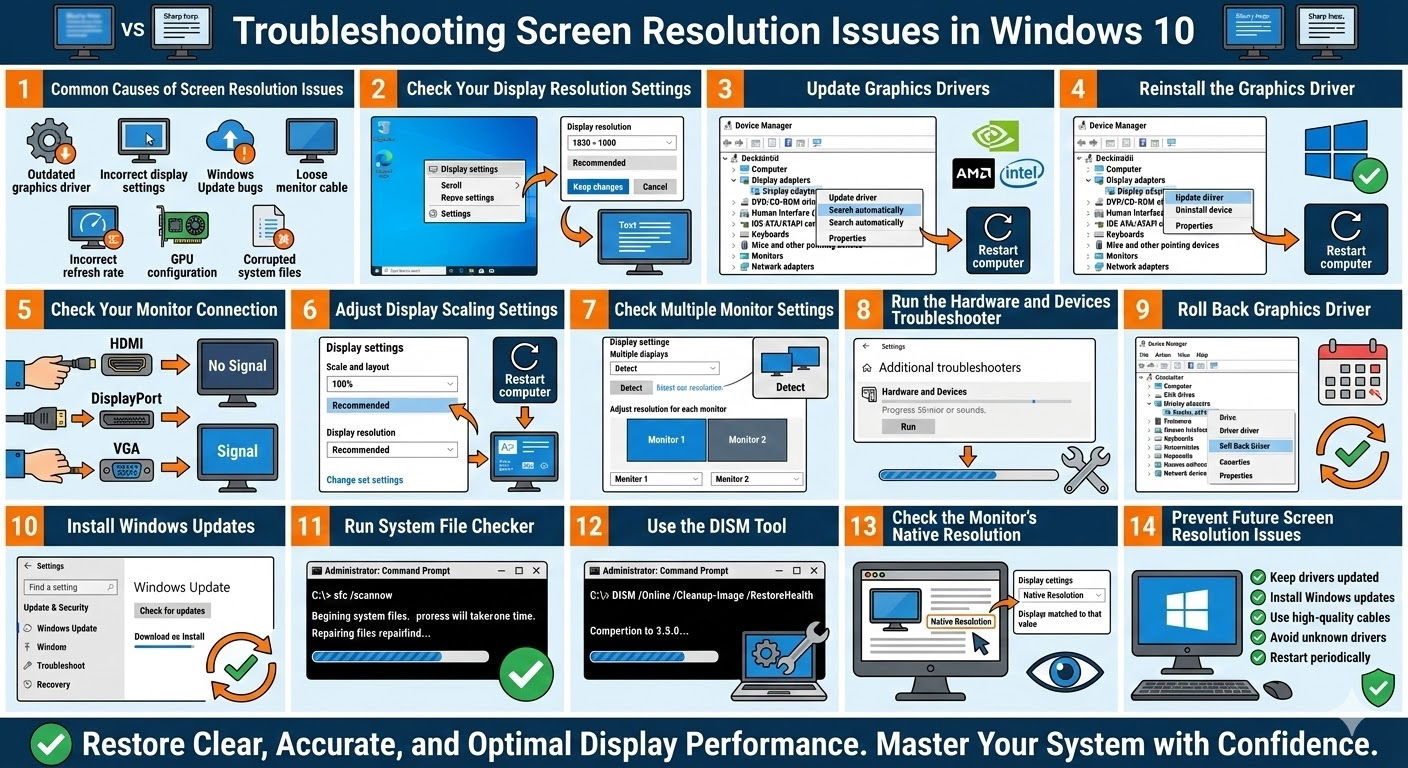
Common Causes of Screen Resolution Issues
Before applying fixes, it helps to understand what might cause display resolution problems.
Some of the most common causes include:
-
Outdated or missing graphics drivers
-
Incorrect display settings
-
Windows updates causing compatibility issues
-
Faulty monitor connections
-
Incorrect refresh rate settings
-
Graphics card configuration problems
-
Corrupted system files
Understanding the cause will make it easier to apply the correct solution.
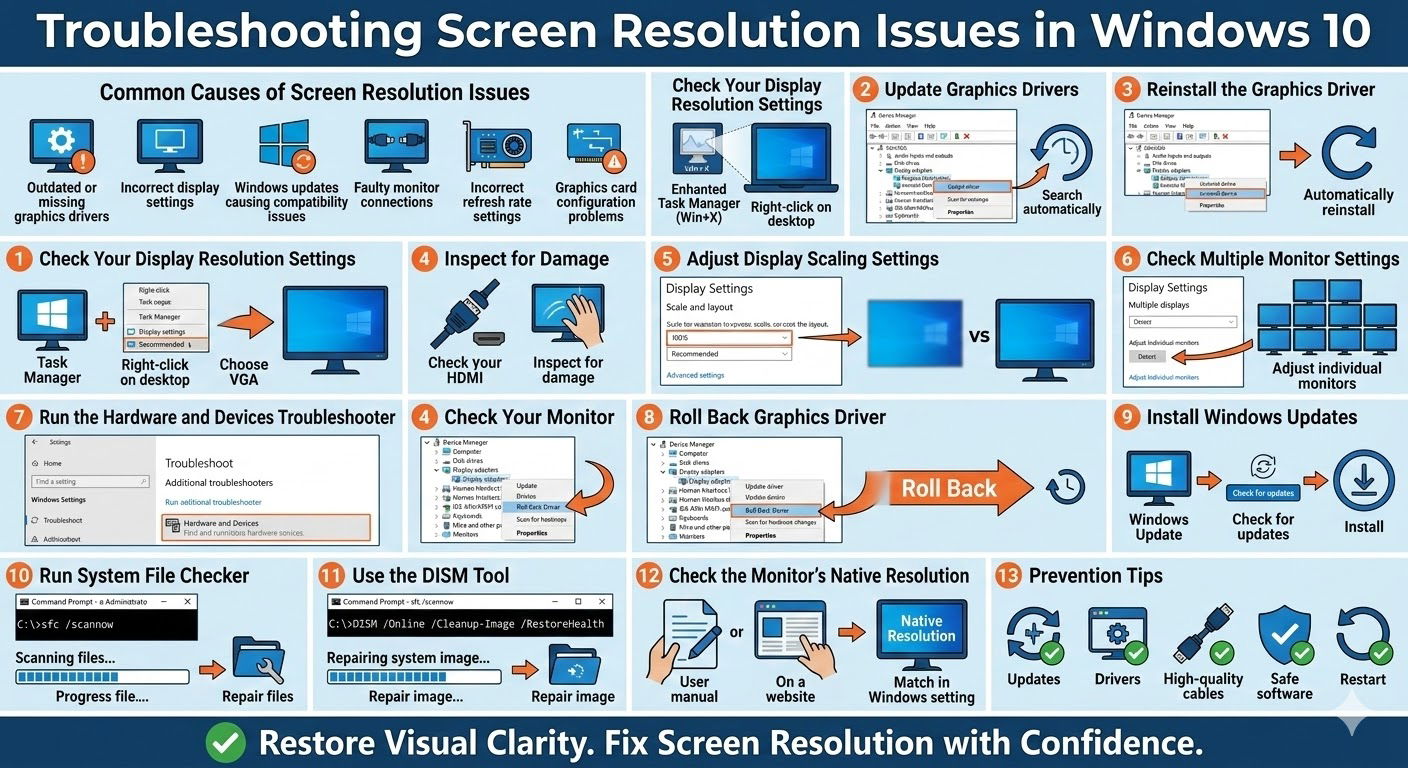
Check Your Display Resolution Settings
Sometimes the resolution is simply set incorrectly in the Windows display settings.
How to Adjust Screen Resolution
-
Right-click on the desktop
-
Select Display settings
-
Scroll to the Display resolution section
-
Choose the Recommended resolution from the drop-down menu
-
Click Keep changes
The recommended resolution usually matches the native resolution of your monitor, which provides the best visual quality.
Update Graphics Drivers
Graphics drivers control how your computer communicates with the display hardware. Outdated or corrupted drivers can cause resolution problems.
Update Drivers Using Device Manager
-
Press Windows + X
-
Select Device Manager
-
Expand Display adapters
-
Right-click your graphics card
-
Select Update driver
-
Choose Search automatically for drivers
After installing the latest driver, restart your computer.
You can also download the newest drivers from the official websites of graphics manufacturers such as NVIDIA, AMD, or Intel.
Reinstall the Graphics Driver
If updating the driver does not fix the problem, reinstalling it may help.
Steps to Reinstall the Driver
-
Open Device Manager
-
Expand Display adapters
-
Right-click your graphics device
-
Select Uninstall device
-
Restart your computer
Windows will automatically reinstall the driver during startup.
Check Your Monitor Connection
Loose or faulty display cables can also cause resolution issues.
What to Check
-
Ensure the HDMI, DisplayPort, or VGA cable is securely connected
-
Inspect cables for damage
-
Try using another cable
-
Connect the monitor to a different port on your computer
If you are using an external monitor, verify that the monitor itself is functioning properly.
Adjust Display Scaling Settings
Display scaling controls how large text, apps, and icons appear on the screen. Incorrect scaling settings may make the screen appear blurry or incorrectly sized.
Adjust Scaling
-
Open Display settings
-
Find the Scale and layout section
-
Set scaling to 100% or the recommended value
Restart your computer after making changes.
Check Multiple Monitor Settings
If you are using multiple monitors, incorrect display configuration may cause resolution problems.
Configure Multiple Displays
-
Open Display settings
-
Scroll to the Multiple displays section
-
Click Detect if your monitor is not recognized
-
Adjust resolution settings for each monitor individually
Make sure each monitor is set to its recommended resolution.
Run the Hardware and Devices Troubleshooter
Windows provides built-in troubleshooters that can help identify hardware-related problems.
Run Troubleshooter
-
Open Settings
-
Go to Update & Security
-
Select Troubleshoot
-
Click Additional troubleshooters
-
Run the Hardware and Devices troubleshooter
Follow the instructions to detect and fix issues automatically.
Roll Back Graphics Driver
If screen resolution problems started after a driver update, rolling back the driver may fix the issue.
Steps
-
Open Device Manager
-
Expand Display adapters
-
Right-click your graphics device
-
Select Properties
-
Open the Driver tab
-
Click Roll Back Driver
Restart your computer after rolling back the driver.
Install Windows Updates
Sometimes Microsoft releases updates that fix display-related bugs.
Check for Updates
-
Open Settings
-
Select Update & Security
-
Click Windows Update
-
Choose Check for updates
Install any available updates and restart your computer.
Run System File Checker
Corrupted system files may interfere with graphics settings and display functions.
Run SFC Scan
-
Open Command Prompt as Administrator
-
Type the following command:
-
Press Enter
The scan will check for corrupted files and repair them automatically.
Use the DISM Tool
If the SFC scan cannot resolve the issue, use the Deployment Image Servicing and Management (DISM) tool.
Run the Command
After the process completes, restart your computer.
Check the Monitor’s Native Resolution
Each monitor has a native resolution, which provides the best display quality. Using a different resolution may cause blurriness or distortion.
You can find the native resolution:
-
In the monitor’s user manual
-
On the manufacturer’s website
-
In the monitor’s on-screen display settings
Set Windows to match that resolution for optimal results.
Prevent Future Screen Resolution Issues
To avoid display problems in the future, follow these best practices:
-
Keep graphics drivers updated
-
Install Windows updates regularly
-
Use high-quality display cables
-
Avoid installing unknown driver software
-
Restart your computer periodically
Maintaining your system properly helps ensure stable display performance.
Final Thoughts
Screen resolution problems in Windows 10 can be frustrating, especially when they affect the clarity and usability of your display. Fortunately, most resolution issues are caused by incorrect settings, outdated drivers, or simple hardware problems.
Related articles
How to Fix Wi-Fi Disconnecting Issues on Windows 10
How to Fix No Internet Connection in Windows 10
Troubleshooting Windows Update Download Stuck After Windows 10 Upgrade