


Solved: Google Chrome Not Opening on Windows PC
Google Chrome is one of the most widely used web browsers in the world, but sometimes it may suddenly stop opening or launching on Windows 10 or Windows 11. You may click the Chrome icon repeatedly and nothing happens, or the browser may briefly appear and then close immediately.
This issue can be caused by several factors, including corrupted browser files, background process conflicts, outdated software, malware, or Windows system problems. Fortunately, most Chrome launch problems can be fixed without reinstalling Windows.
In this guide, you’ll learn the most common reasons why Chrome won’t open and the best ways to fix it.
Why Won’t Chrome Open on Windows?
When Chrome fails to launch, it usually means something is preventing the browser from starting correctly. The issue may involve:
- Corrupted Chrome data
- Background Chrome processes
- Antivirus interference
- Damaged user profiles
- Compatibility issues
- System file corruption
The browser may fail completely or behave unpredictably during startup.
Common Symptoms
You may notice:
- Chrome does nothing when clicked
- Chrome opens briefly then closes
- Blank or white screen appears
- Chrome crashes immediately
- Multiple Chrome processes in Task Manager
- Error messages during launch
Common Causes of the Problem
Corrupted Chrome User Profile
Damaged browser settings or profile data can stop Chrome from launching.
Background Chrome Processes
Stuck processes may prevent new browser instances.
Antivirus or Firewall Conflicts
Security software may block Chrome.
Outdated Chrome Version
Older versions may become unstable or incompatible.
Corrupted System Files
Windows issues can interfere with browser functionality.
Malware or Unwanted Programs
Malicious software can disrupt browser startup.
How To Fix Chrome Won’t Open on Windows 11/10
Try these solutions one by one.
Restart Your Computer
A simple restart can clear temporary glitches.
Why It Helps
Background processes and memory conflicts may reset after rebooting.
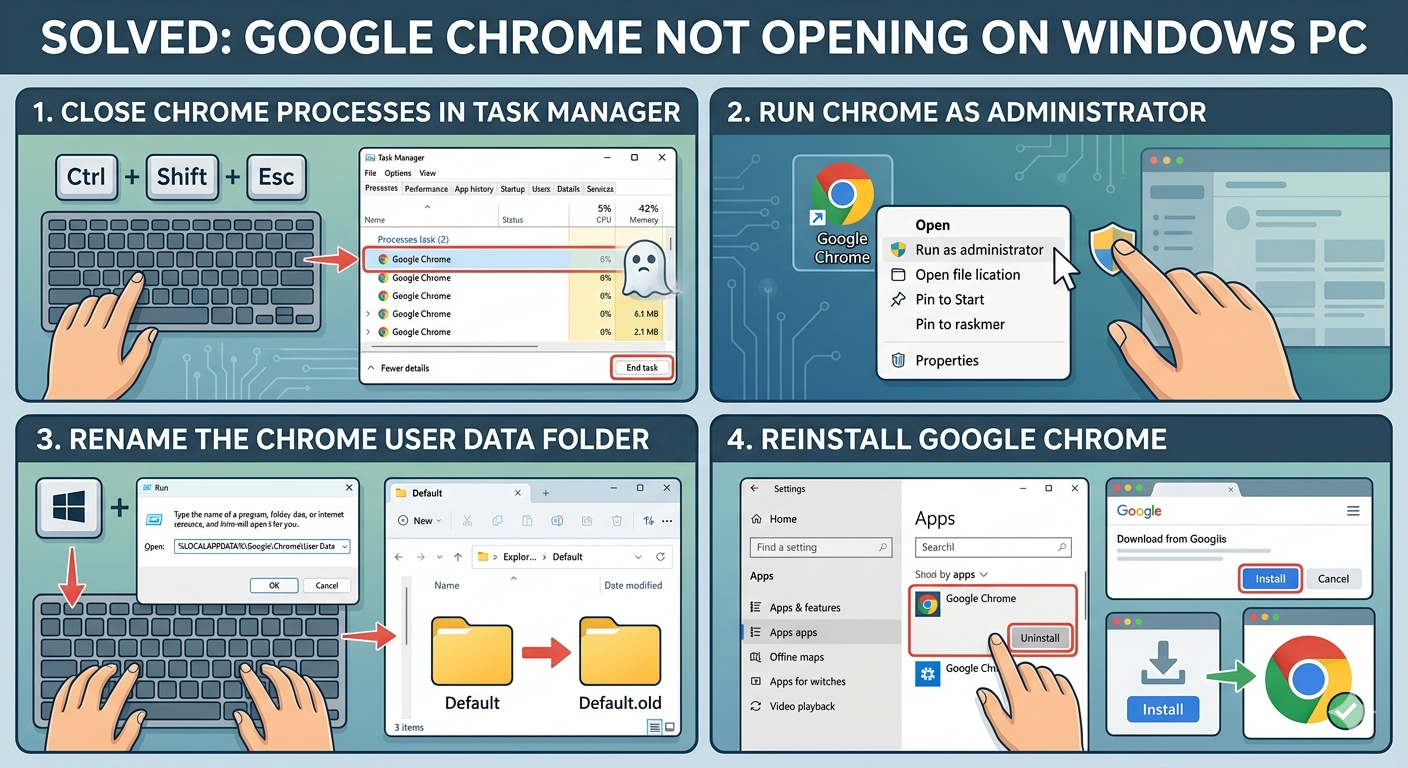
Close Chrome Processes in Task Manager
Chrome may still be running in the background.
Steps
- Press
Ctrl + Shift + Esc - Open Task Manager
- Look for Google Chrome processes
- Select each Chrome process
- Click End task
Then try launching Chrome again.
Run Chrome as Administrator
Permission issues may block startup.
Steps
- Right-click Chrome shortcut
- Select Run as administrator
If Chrome opens successfully, permissions may be involved.
Disable Antivirus Temporarily
Some antivirus programs block Chrome incorrectly.
What to Do
- Disable third-party antivirus temporarily
- Try launching Chrome again
- Re-enable protection afterward
Rename the Chrome User Data Folder
Corrupted browser profiles are a common cause.
Steps
- Press
Windows + R - Type:
%LOCALAPPDATA%\Google\Chrome\User Data- Rename the Default folder to:
Default.old- Restart Chrome
Chrome will create a fresh profile automatically.
Reinstall Google Chrome
If browser files are damaged:
Steps
- Open Settings → Apps
- Uninstall Google Chrome
- Restart your PC
- Download the latest version from Google
- Install Chrome again
Check Windows Compatibility Settings
Incorrect compatibility settings may prevent startup.
Steps
- Right-click Chrome shortcut
- Select Properties
- Open Compatibility tab
- Disable compatibility mode if enabled
Delete Temporary Files
Corrupted cache files may interfere.
Steps
- Press
Windows + R - Type:
%temp%- Delete temporary files
- Restart the PC
Run System File Checker (SFC)
Corrupted Windows files may affect applications.
Steps
Open Command Prompt as administrator and run:
sfc /scannowRestart after completion.
Use DISM Tool
Repair deeper Windows image issues.
Steps
Run:
DISM /Online /Cleanup-Image /RestoreHealthCheck for Malware
Malware can prevent browsers from opening.
What to Do
- Open Windows Security
- Run a Full Scan
- Remove detected threats
Disable Hardware Acceleration
If Chrome partially opens before crashing:
Steps
Launch Chrome with this command:
chrome.exe --disable-gpuThis disables GPU acceleration temporarily.
Reset Chrome Settings
If Chrome opens but behaves abnormally:
Steps
- Open Chrome
- Go to Settings → Reset settings
- Restore settings to default
Check Internet Security or Firewall Settings
Firewall rules may block Chrome.
Steps
- Open Windows Firewall settings
- Allow Google Chrome through firewall
- Save changes
Perform a Clean Boot
Background applications may conflict with Chrome.
Steps
- Press
Windows + R - Type:
msconfig- Hide Microsoft services
- Disable remaining services
- Disable startup applications
- Restart your PC
Create a New Windows User Account
A corrupted user profile may affect Chrome.
Steps
- Open Settings → Accounts
- Add a new user account
- Sign into the new profile
- Test Chrome
Update Windows
System compatibility issues may already be fixed.
Steps
- Open Settings → Windows Update
- Install available updates
- Restart your PC
When Chrome Opens But Immediately Closes
This may indicate:
- Corrupted extensions
- Damaged profile data
- Malware interference
- GPU rendering issues
Try Safe Mode or reinstall Chrome completely.
Alternative Browsers While Troubleshooting
If Chrome remains unusable temporarily:
Try
- Microsoft Edge
- Firefox
- Brave
- Opera
Tips to Prevent Chrome Launch Problems
To reduce future issues:
- Keep Chrome updated
- Avoid suspicious extensions
- Maintain Windows updates
- Use trusted antivirus software
- Clear temporary files regularly
When to Seek Additional Help
Consider advanced troubleshooting if:
- Chrome crashes repeatedly after reinstall
- Multiple browsers stop working
- Windows applications also fail to launch
- Malware keeps returning
Final Thoughts
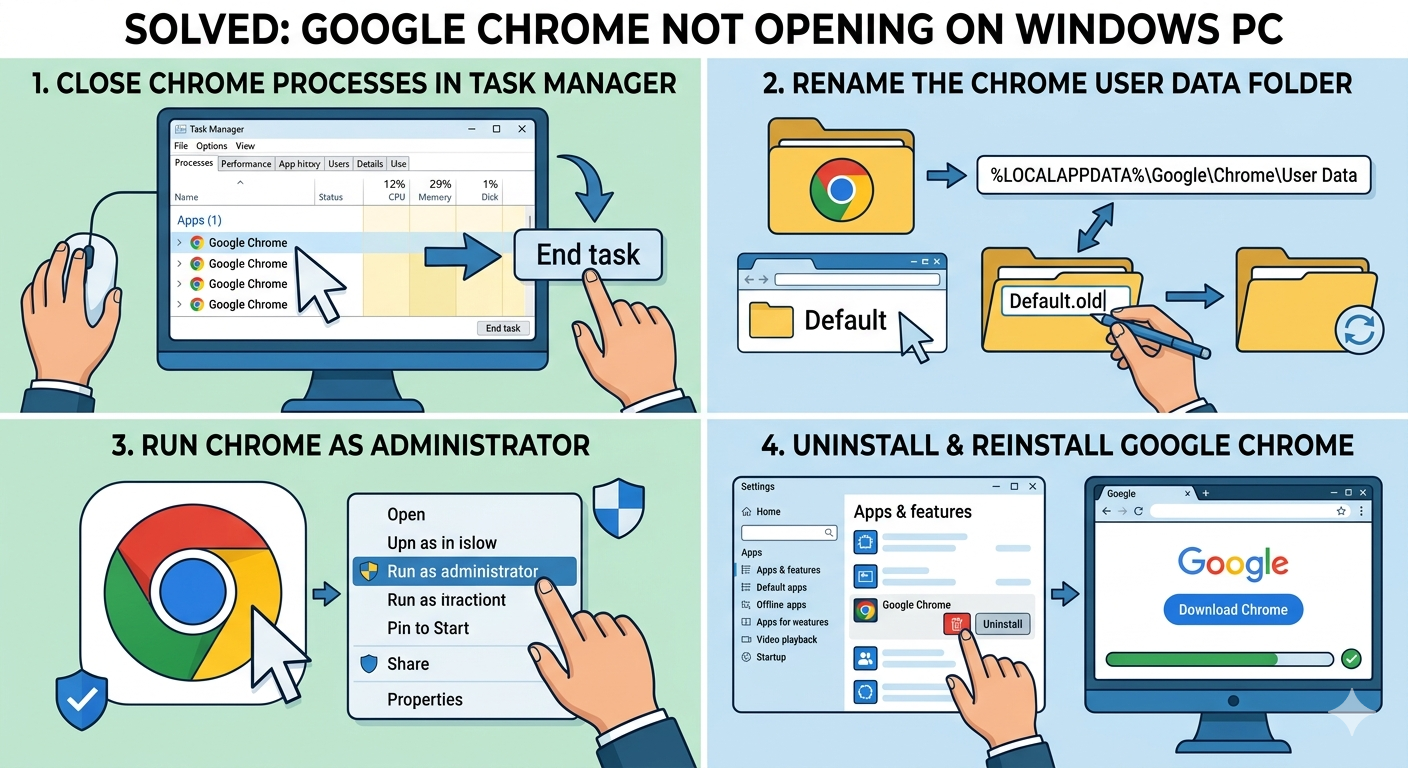
If Chrome won’t open or launch on Windows 10 or Windows 11, the issue is usually related to corrupted profile data, background processes, software conflicts, or damaged system files. Fortunately, most cases can be fixed using basic troubleshooting steps.
By ending Chrome processes, resetting user data, reinstalling the browser, repairing system files, and checking for malware, most users can restore Chrome functionality quickly.
Related articles
Fix Outlook Password Prompt Issue in Office 365