


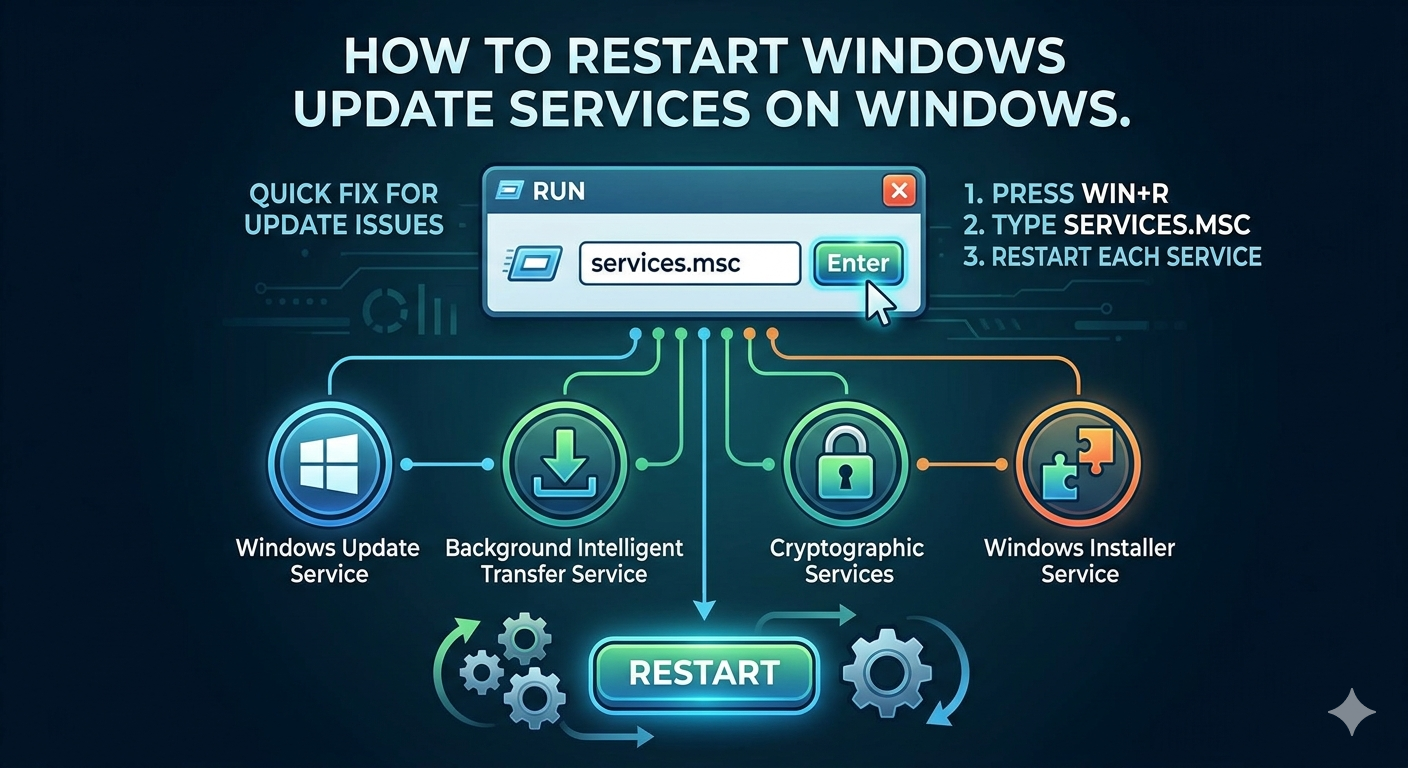
How to Restart Windows Update Services on Windows
Windows Update is an essential feature that keeps your computer secure, stable, and compatible with the latest software and drivers. However, updates do not always work smoothly. Sometimes Windows Update may freeze, fail to download files, display error codes, or remain stuck checking for updates indefinitely.
One of the most effective troubleshooting methods is to restart Windows Update related services. These services control downloading, verifying, and installing updates in the background. If one of them stops working properly, the entire update process can fail.
Fortunately, restarting these services is usually simple and can resolve many Windows Update problems on both Windows 10 and Windows 11.
In this guide, you’ll learn which services are related to Windows Update, why restarting them helps, and the safest methods to restart them correctly.
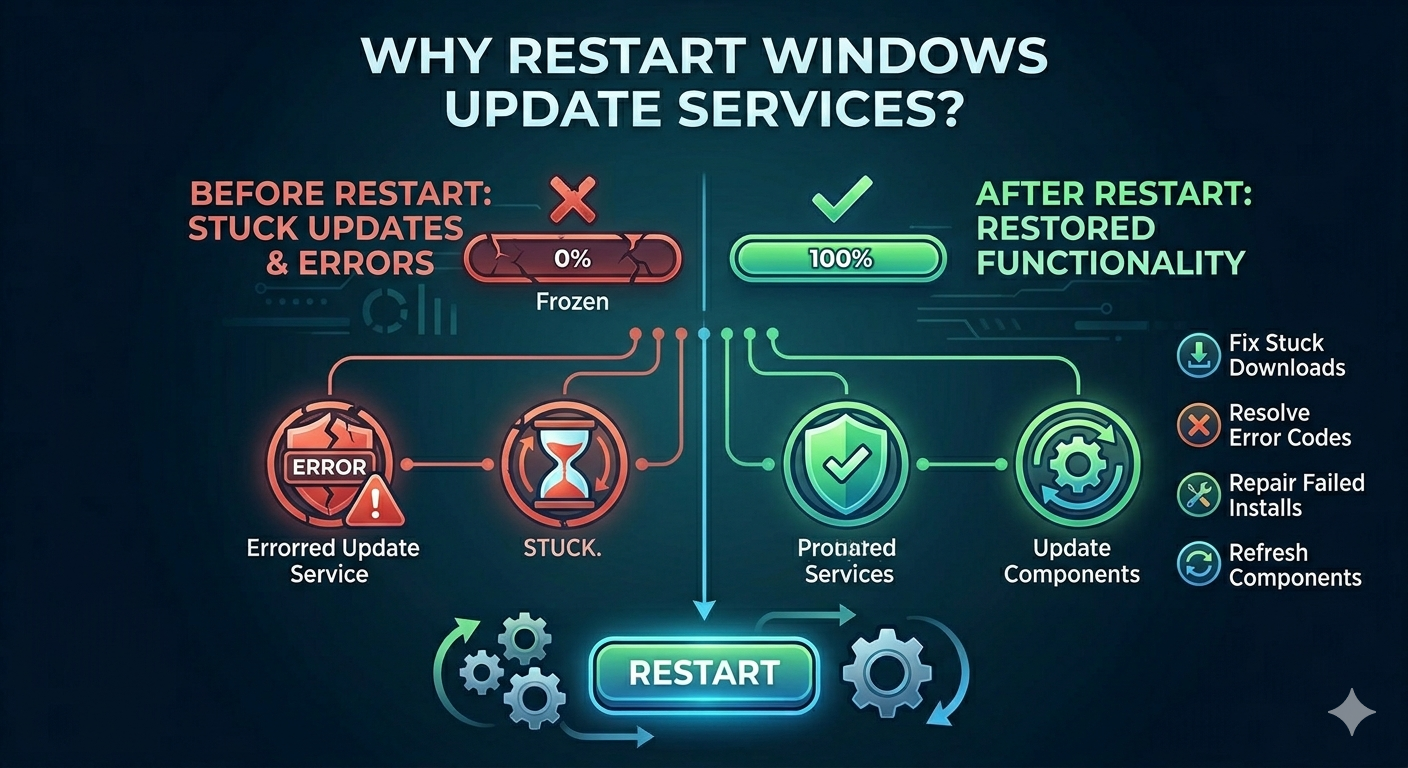
Why Restart Windows Update Services?
Windows Update relies on several background services to function properly. If these services become stuck, corrupted, or disabled, updates may stop working entirely.
Restarting the services can help:
- Fix stuck Windows updates
- Resolve update download errors
- Repair failed installations
- Refresh update components
- Restore normal update functionality
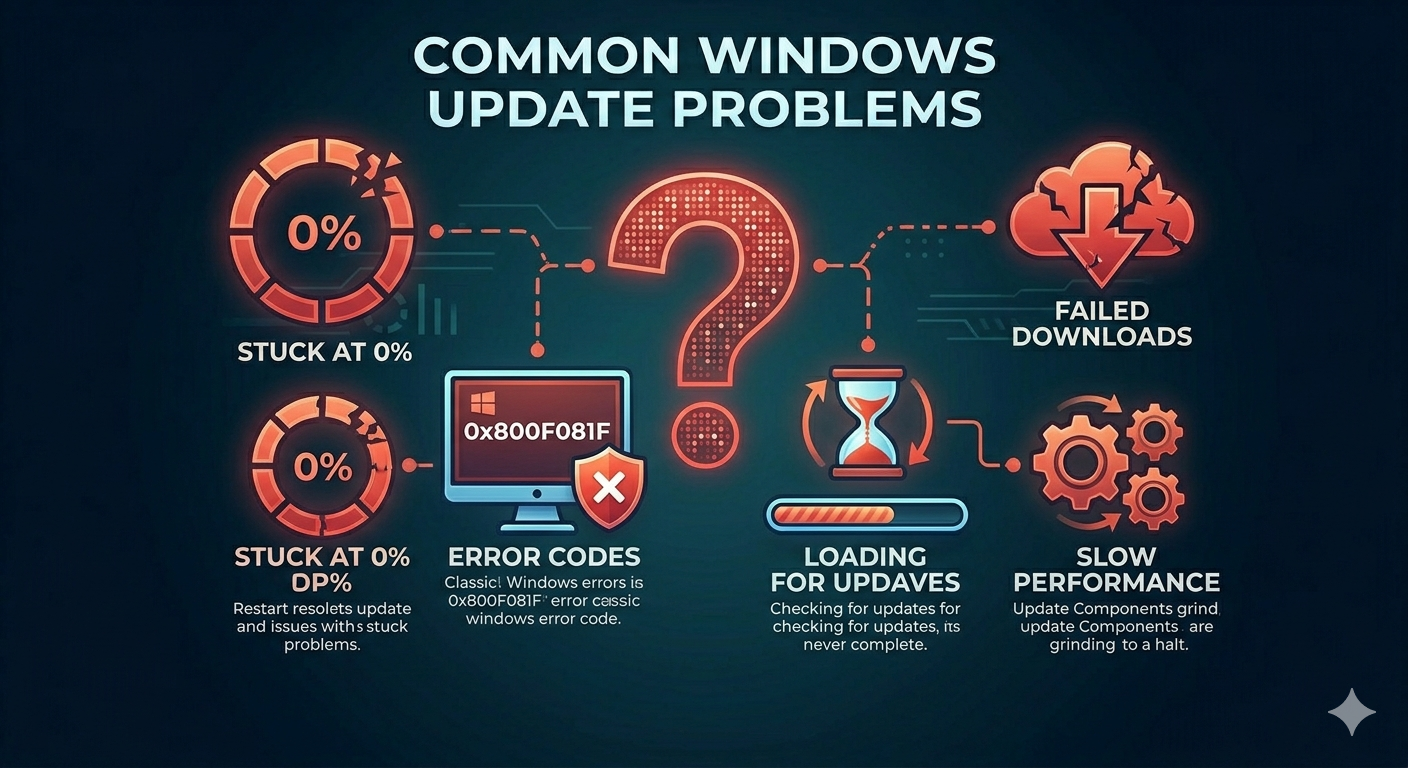
Common Windows Update Problems
You may encounter issues such as:
- Windows Update stuck at 0% or 100%
- Error codes during updates
- “Checking for updates” loading forever
- Failed update installations
- Missing update services
- Slow update downloads
Important Windows Update Related Services
Several Windows services are critical for update functionality.
Windows Update Service (wuauserv)
This is the primary update service responsible for detecting and installing updates.
Background Intelligent Transfer Service (BITS)
BITS handles update downloads in the background efficiently.
Cryptographic Services
This service verifies update signatures and security certificates.
Windows Installer Service
Some updates require the installer service to complete installation.
How to Restart Windows Update Services
There are multiple ways to restart these services safely.
Method 1: Restart Services Using Services Manager
This is the easiest method for most users.
Steps
- Press
Windows + R - Type:
services.msc- Press Enter
The Services window will open.
Restart These Services One by One
Locate the following services:
- Windows Update
- Background Intelligent Transfer Service
- Cryptographic Services
- Windows Installer
For each service:
- Right-click the service
- Select Restart
If Restart is unavailable:
- Choose Stop first
- Then choose Start
Method 2: Restart Services Using Command Prompt
Advanced users may prefer Command Prompt.
Steps
- Search for Command Prompt
- Right-click it
- Select Run as administrator
Stop the Services
Run the following commands:
net stop wuauserv
net stop bits
net stop cryptsvc
net stop msiserver
Restart the Services
Now run:
net start wuauserv
net start bits
net start cryptsvc
net start msiserver
Restart your computer afterward.
Method 3: Restart Services Using PowerShell
PowerShell can also manage Windows services.
Steps
- Open PowerShell as administrator
- Run:
Restart-Service wuauserv
Restart-Service bits
Restart-Service cryptsvc
Restart-Service msiserver
Reset Windows Update Components
Sometimes restarting services alone is not enough.
Resetting update components can help repair deeper issues.
Rename SoftwareDistribution Folder
The SoftwareDistribution folder stores temporary update files.
Steps
- Stop update services first
- Open File Explorer
- Navigate to:
C:\Windows\SoftwareDistribution- Rename the folder to:
SoftwareDistribution.old- Restart update services
Windows will recreate the folder automatically.
Rename Catroot2 Folder
Catroot2 stores update signature data.
Steps
Navigate to:
C:\Windows\System32\catroot2Rename it to:
catroot2.oldRestart services afterward.
Run Windows Update Troubleshooter
Windows includes a built-in repair tool.
Steps
- Open Settings
- Go to System → Troubleshoot
- Select Other troubleshooters
- Run Windows Update Troubleshooter
Check Windows Update Service Startup Type
Services must not be disabled.
Recommended Settings
- Windows Update → Manual or Automatic
- BITS → Automatic (Delayed Start)
- Cryptographic Services → Automatic
Run System File Checker
Corrupted system files can break update services.
Steps
Open Command Prompt as administrator and run:
sfc /scannowRestart afterward.
Use DISM Tool
Repair deeper Windows image problems.
Steps
Run:
DISM /Online /Cleanup-Image /RestoreHealthCheck Internet Connection
Windows Update depends on stable internet access.
Try
- Restarting your router
- Using Ethernet instead of Wi-Fi
- Disabling VPN temporarily
Disable Antivirus Temporarily
Security software may block update services.
Important
Only disable protection temporarily for testing.
Check Disk Space
Insufficient storage can interrupt updates.
Recommended Free Space
- At least 20 GB for major updates
Delete unnecessary files if needed.
Perform a Clean Boot
Background programs may interfere with update services.
Steps
- Press
Windows + R - Type:
msconfig- Hide Microsoft services
- Disable non-essential services
- Restart the PC
When Windows Update Services Keep Stopping
If services stop repeatedly:
Possible Causes
- Malware infection
- Corrupted system files
- Disabled dependencies
- Broken Windows installation
Further repair may be required.
Tips to Prevent Windows Update Issues
To reduce future problems:
- Keep Windows updated regularly
- Avoid shutting down during updates
- Maintain enough free disk space
- Use reliable antivirus software
- Restart the PC occasionally
When to Seek Additional Help
Consider advanced troubleshooting if:
- Update services disappear completely
- Multiple update errors continue appearing
- Windows cannot install any updates
- System corruption keeps returning
Final Thoughts
Restarting Windows Update related services is one of the most effective ways to fix update problems on Windows 10 and Windows 11. Since Windows Update depends on several background services working correctly, even one malfunctioning service can prevent updates from downloading or installing properly.
By restarting services like Windows Update, BITS, Cryptographic Services, and Windows Installer, many update errors can be resolved quickly. If necessary, resetting update components and repairing system files can further restore update functionality.
Related articles
Fix Outlook Password Prompt Issue in Office 365