


How to Reduce Avast High Resource Usage in Windows 10 and 11
Avast Antivirus is one of the most widely used security programs for Windows computers. While it provides strong protection against malware and online threats, some users experience a frustrating problem where the Avast service uses extremely high CPU or disk resources.
When this happens, your computer may become slow, noisy, or unresponsive. Applications may take longer to open, games may lag, and Task Manager may show Avast consuming a large percentage of CPU, memory, or disk activity.
This issue can occur on both Windows 10 and Windows 11, and it is usually related to background scans, outdated software, corrupted files, or conflicts with Windows services.
Fortunately, there are several effective ways to reduce Avast resource usage and restore normal system performance.
Why Does Avast Use High CPU or Disk Resources?
Avast continuously monitors your system in real time to protect against threats. During scans or updates, it may temporarily consume additional resources.
However, if Avast constantly uses high CPU or disk usage for long periods, there may be an underlying problem.
Common Symptoms
You may notice:
- High CPU usage from Avast service
- Disk usage stuck near 100%
- Sluggish system performance
- Loud fan noise
- Applications freezing
- Slow startup times
- Avast background processes running continuously
Common Causes of the Problem
Background Virus Scans
Scheduled scans can heavily use system resources.
Outdated Avast Version
Older versions may contain bugs or compatibility issues.
Corrupted Avast Files
Damaged program files can cause abnormal behavior.
Conflicts With Windows Services
Windows Defender or other services may conflict with Avast.
Real-Time Protection Overload
Continuous monitoring may overwork slower systems.
Large Scan History or Logs
Accumulated logs may slow Avast processes.
How To Fix Avast Service High CPU and Disk Usage
Follow these solutions step by step.
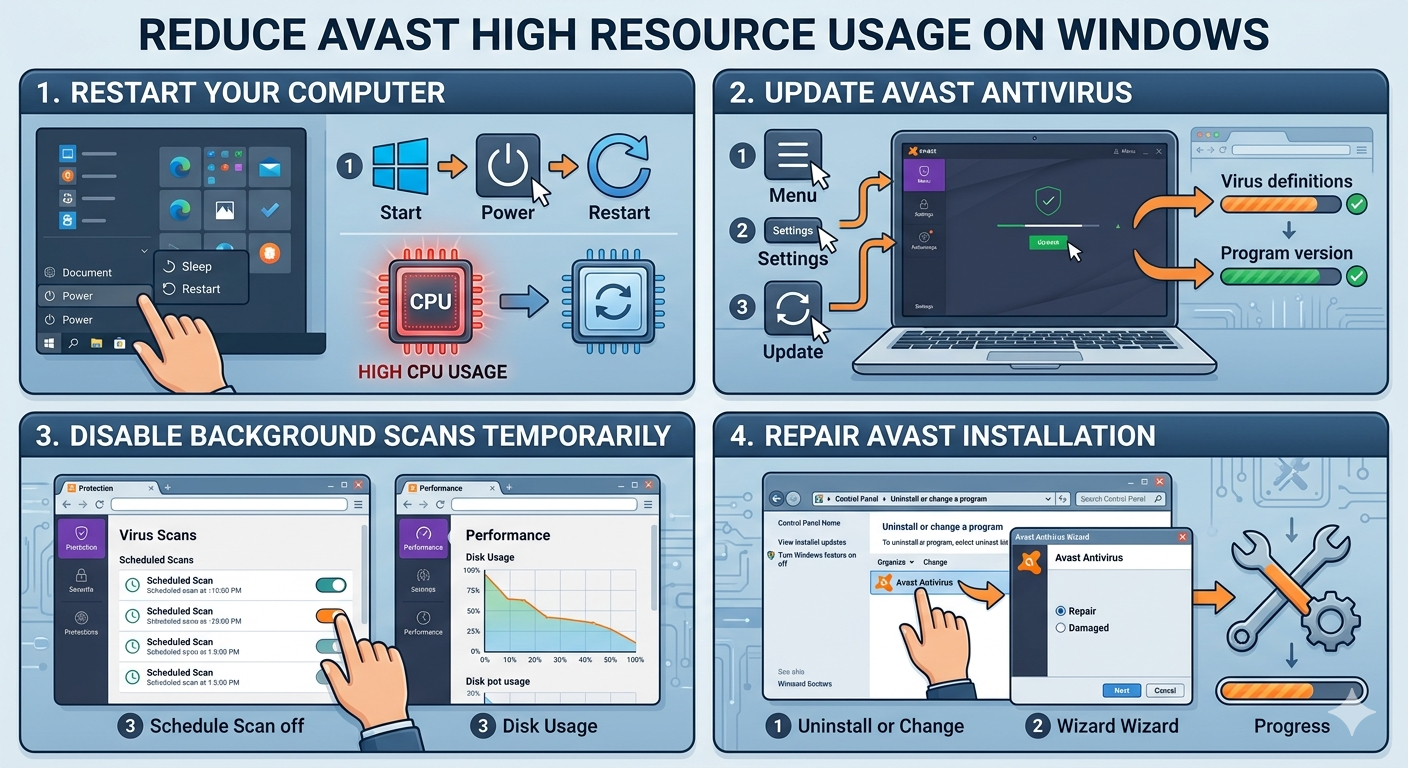
Restart Your Computer
Temporary Avast processes may reset after rebooting.
Why It Helps
Background services and memory usage refresh during restart.
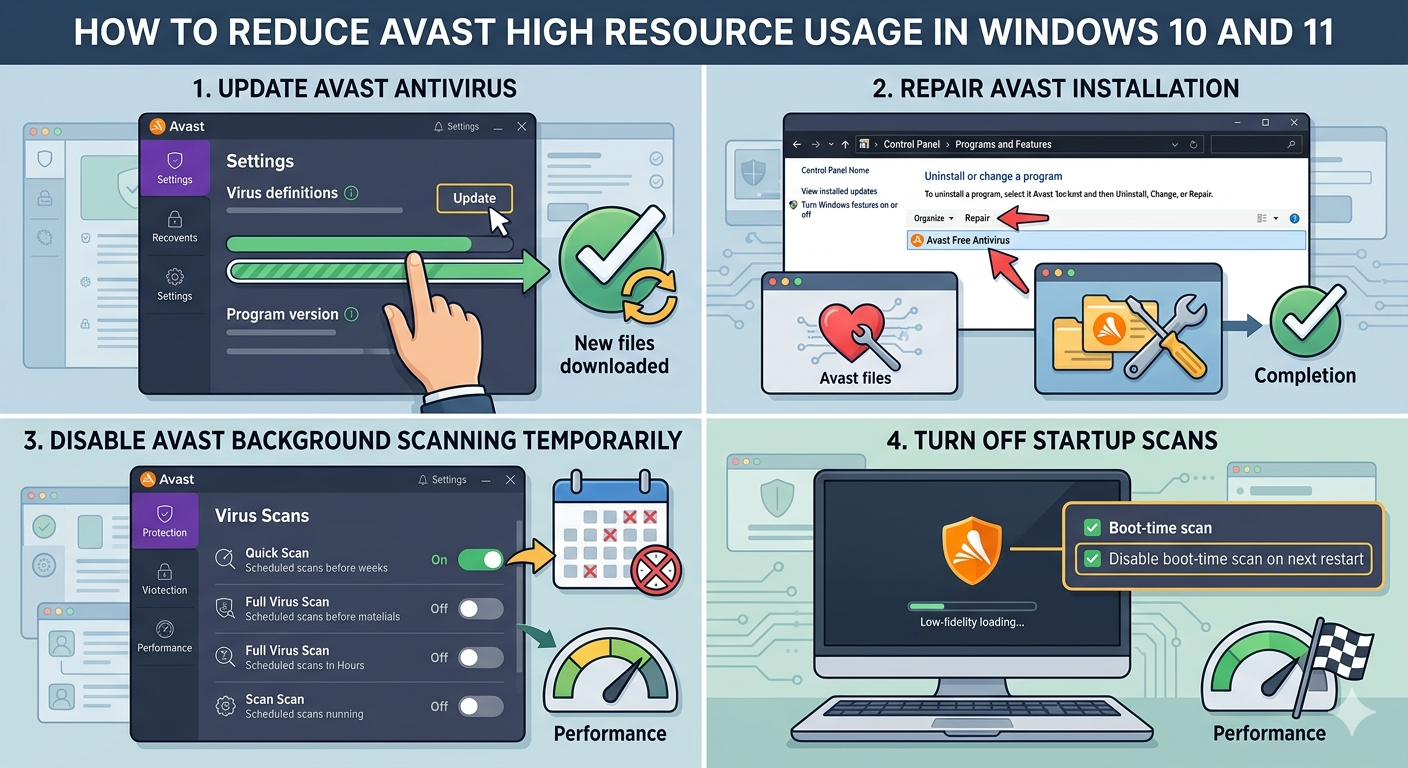
Update Avast Antivirus
New updates often fix performance bugs.
Steps
- Open Avast
- Go to Menu → Settings → Update
- Update:
- Virus definitions
- Program version
Restart your PC afterward.
Disable Avast Background Scanning Temporarily
Background scans may overload the system.
Steps
- Open Avast
- Go to Protection → Virus Scans
- Disable unnecessary scheduled scans
- Restart the computer
Reduce Avast Notifications and Features
Some Avast features constantly run in the background.
Consider Disabling
- Software updater
- Browser cleanup tools
- Wi-Fi inspector
- Performance monitoring features
Only disable features you do not need.
Repair Avast Installation
Corrupted files may cause high resource usage.
Steps
- Open Control Panel → Programs and Features
- Select Avast Antivirus
- Click Uninstall/Change
- Choose Repair
Restart after the repair completes.
Clear Temporary Files
Temporary system clutter may increase disk activity.
Steps
- Press
Windows + R - Type:
%temp%- Delete temporary files
- Empty Recycle Bin
Disable Mail Shield if Unnecessary
Mail scanning can use additional CPU resources.
Steps
- Open Avast
- Go to Protection → Core Shields
- Disable Mail Shield if not needed
Turn Off Automatic Scans During Startup
Startup scans can slow the system significantly.
Steps
- Open Avast settings
- Locate boot-time scan options
- Disable unnecessary startup scans
Check for Windows Updates
Compatibility fixes may already exist.
Steps
- Open Settings → Windows Update
- Install updates
- Restart your PC
Disable Windows Defender Temporarily
Running multiple antivirus programs simultaneously may cause conflicts.
Important
Only disable Defender temporarily for testing purposes.
Steps
- Open Windows Security
- Go to Virus & threat protection
- Manage settings
- Disable real-time protection temporarily
Run System File Checker (SFC)
Corrupted Windows files may affect Avast.
Steps
Open Command Prompt as administrator and run:
sfc /scannowRestart afterward.
Use DISM Tool
Repair deeper Windows corruption.
Steps
Run:
DISM /Online /Cleanup-Image /RestoreHealthPerform a Clean Boot
Background applications may conflict with Avast.
Steps
- Press
Windows + R - Type:
msconfig- Hide Microsoft services
- Disable unnecessary services
- Disable startup apps
- Restart your PC
Reinstall Avast Completely
If Avast remains problematic:
Steps
- Uninstall Avast completely
- Restart your PC
- Download the latest Avast version
- Reinstall it
Using Avast’s official uninstall utility may help remove leftover files.
Check Disk Health
Disk problems can worsen Avast performance.
Run CHKDSK
Open Command Prompt as administrator and run:
chkdsk /f /rRestart if prompted.
Upgrade System Hardware
Older systems may struggle with modern antivirus software.
Helpful Upgrades
- SSD storage
- More RAM
- Faster CPU
Adjust Avast Scan Sensitivity
Aggressive scanning may overuse resources.
Try
- Reducing scan frequency
- Excluding trusted folders
- Avoiding full-system scans too often
When Avast Causes Constant 100% Disk Usage
This often indicates:
- Corrupted installation
- Disk health problems
- Excessive background scanning
- Conflicts with other security tools
Reinstallation usually resolves persistent issues.
Alternative Antivirus Options
If Avast continues causing performance problems, you may consider alternatives such as:
- Microsoft Defender
- Bitdefender
- ESET
- Malwarebytes
Choose trusted security software only.
Tips to Prevent High CPU and Disk Usage
To reduce future performance issues:
- Keep Avast updated
- Avoid running multiple antivirus programs
- Schedule scans during idle hours
- Maintain sufficient disk space
- Keep Windows updated
When to Seek Professional Help
Consider additional troubleshooting if:
- CPU usage remains constantly high
- System freezes continue
- Disk usage stays at 100%
- Multiple applications become unstable
Final Thoughts
High CPU and disk usage caused by Avast service is usually related to background scanning, outdated software, corrupted files, or conflicts with Windows services. Although the issue can slow down your computer significantly, it is often fixable with a few adjustments.
By updating Avast, reducing background scans, repairing installation files, checking system integrity, and optimizing startup services, most users can restore smooth performance on Windows 10 and Windows 11.
Related articles
Fixing the “Kernel Security Check Failure” Error on Windows 10