


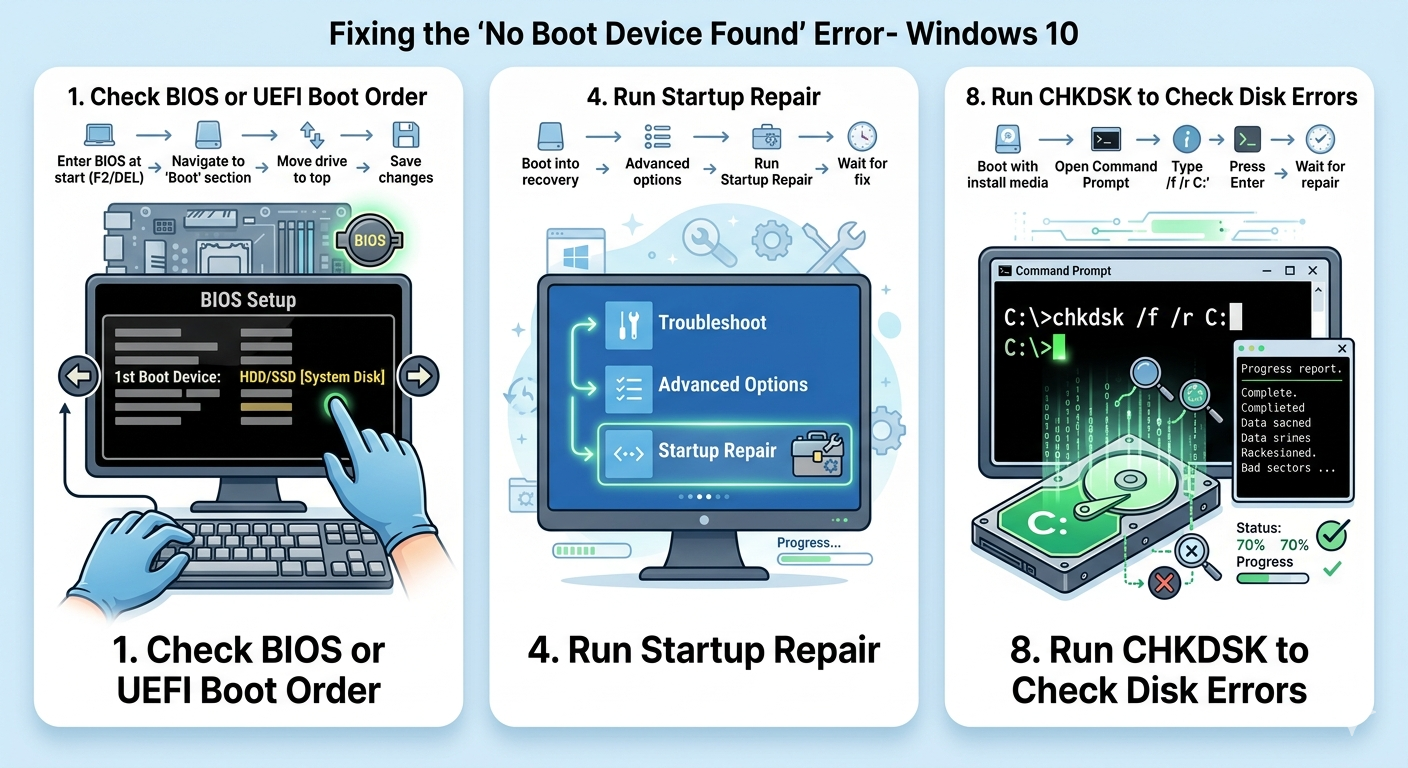
How to Fix “No Boot Device Found” Error on Windows 10
The “No Boot Device Found” error is one of the most alarming startup problems Windows users can encounter. Instead of loading Windows normally, the computer displays a message indicating that no bootable device could be detected. As a result, the system cannot start, leaving users unable to access files, applications, or the desktop.
This problem usually occurs on Windows 10 systems but may also affect Windows 11 and older versions of Windows. The issue can be caused by incorrect BIOS settings, damaged boot files, hard drive failures, disconnected storage devices, or corrupted Windows installations.
Fortunately, the error does not always mean your hard drive is permanently damaged. In many cases, the problem can be fixed using built-in recovery tools and a few troubleshooting steps.
In this guide, you’ll learn what causes the “No Boot Device Found” error and how to fix it properly.
What Does “No Boot Device Found” Mean?
When a computer starts, the BIOS or UEFI firmware looks for a bootable drive containing Windows. If the system cannot find a valid operating system or boot partition, it displays the “No Boot Device Found” error.
Essentially, the computer cannot locate the files needed to start Windows.
Common Symptoms
You may see messages such as:
- No Boot Device Found
- No Bootable Device
- Operating System Not Found
- Boot Device Missing
- Insert Boot Disk and Press Any Key
The system may also:
- Restart repeatedly
- Freeze at startup
- Enter BIOS automatically
- Show a black screen
Common Causes of the Error
Incorrect Boot Order
The BIOS may attempt to boot from the wrong device.
Corrupted Boot Configuration
Damaged boot files can prevent Windows from loading.
Hard Drive Connection Problems
Loose or damaged SATA cables may disconnect the drive.
Failing Hard Drive or SSD
Storage hardware failure is a major cause of boot issues.
Corrupted Windows Installation
System file corruption can damage the boot partition.
Failed Windows Updates
Interrupted updates may break startup components.
How To Fix No Boot Device Found on Windows 10
Follow these solutions carefully.
Restart Your Computer
Temporary startup glitches can sometimes resolve themselves.
Why It Helps
The BIOS may properly detect the drive after rebooting.
Disconnect External Devices
External devices can interfere with boot detection.
Disconnect
- USB drives
- External hard disks
- Memory cards
- Printers
- DVDs
Then restart the PC.
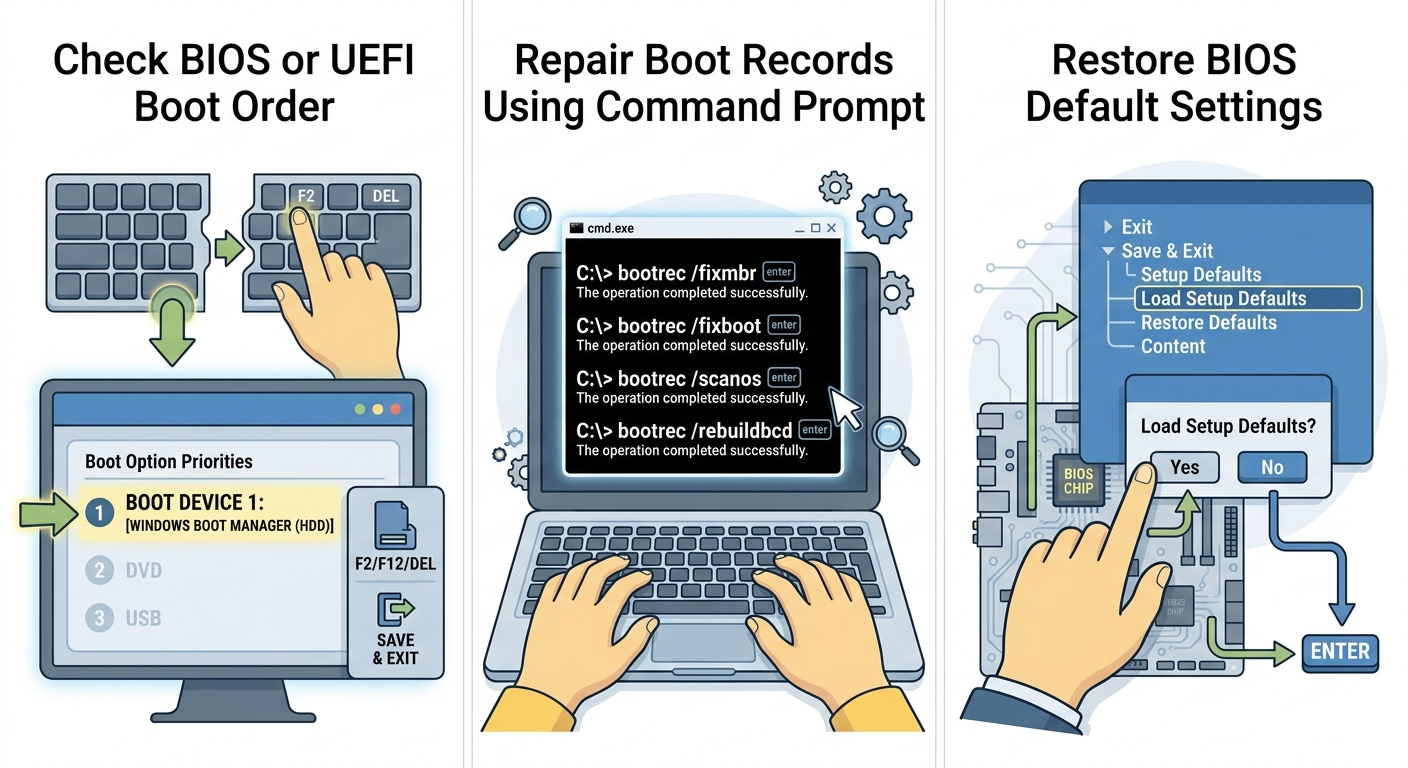
Check BIOS or UEFI Boot Order
The system drive must be the primary boot device.
Steps
- Restart the PC
-
Enter BIOS/UEFI by pressing:
F2F12DELESC
(depends on manufacturer)
- Open the Boot section
- Ensure the Windows drive is first in boot order
- Save changes and restart
Verify the Drive Is Detected in BIOS
If the drive does not appear, there may be a hardware issue.
What to Check
- SSD/HDD visibility in BIOS
- Storage connection status
- NVMe drive detection
If the drive is missing entirely, hardware troubleshooting may be required.
Reconnect the Hard Drive or SSD
Loose cables can prevent drive detection.
Desktop PCs
Check:
- SATA data cable
- Power cable
Laptops
Reseat the storage drive carefully if possible.
Run Startup Repair
Windows Recovery can repair startup files automatically.
Steps
- Boot into Windows Recovery Environment
- Select:
Troubleshoot → Advanced options → Startup Repair- Choose your Windows installation
- Wait for repairs to finish
Restart afterward.
Repair Boot Records Using Command Prompt
Damaged boot records commonly trigger this error.
Steps
Open Command Prompt from recovery mode and run:
bootrec /fixmbr
bootrec /fixboot
bootrec /scanos
bootrec /rebuildbcd
Restart the PC after completion.
Run CHKDSK to Check Disk Errors
Disk corruption may prevent booting.
Steps
Run:
chkdsk /f /r C:Replace C: with the correct drive letter if necessary.
Run System File Checker (SFC)
Corrupted system files can damage startup.
Steps
Run:
sfc /scannowUse DISM Tool
Repair deeper Windows image corruption.
Steps
Run:
DISM /Online /Cleanup-Image /RestoreHealthCheck Boot Mode (UEFI vs Legacy)
Incorrect boot mode settings may prevent Windows from loading.
Important
If Windows was installed in UEFI mode, BIOS should also use UEFI.
Avoid switching modes randomly unless necessary.
Restore BIOS Default Settings
Incorrect BIOS configurations can break boot detection.
Steps
- Enter BIOS
- Select:
- Load Setup Defaults
or: - Restore Defaults
- Load Setup Defaults
- Save changes and restart
Test Drive Health
A failing drive may no longer boot properly.
Warning Signs
- Clicking noises
- Slow performance before failure
- Frequent crashes
- SMART warnings
If possible, test the drive using diagnostic tools.
Use System Restore
If the issue started recently:
Steps
- Boot into recovery mode
- Select:
System Restore- Choose a restore point before the problem began
Uninstall Recent Updates
Failed updates may damage startup files.
Steps
- Open recovery options
- Select:
- Uninstall Updates
- Remove recent updates
Create Windows Installation Media
If recovery tools are unavailable:
You May Need
- USB installation drive
- Another working computer
Boot from the USB drive to access repair tools.
Reset or Reinstall Windows
If repairs fail completely, reinstalling Windows may be necessary.
Options
- Reset this PC
- Clean Windows installation
Back up important data first if possible.
When the Drive Is Physically Damaged
Hardware failure may require replacement.
Possible Signs
- Drive not detected in BIOS
- Grinding or clicking sounds
- Frequent read/write errors
- Windows corruption returning repeatedly
In these cases, replacing the storage drive is often necessary.
Tips to Prevent Boot Device Errors
To reduce future startup issues:
- Avoid forced shutdowns
- Keep Windows updated
- Use reliable power protection
- Monitor drive health regularly
- Back up important files frequently
When to Seek Professional Help
Consider professional assistance if:
- The drive is not detected at all
- Data recovery is required
- BIOS settings do not help
- Hardware damage is suspected
Final Thoughts
The “No Boot Device Found” error on Windows 10 usually occurs because the system cannot detect a valid bootable drive or operating system. While the issue may seem serious, many cases are caused by boot configuration errors, corrupted startup files, or incorrect BIOS settings rather than complete hardware failure.
By checking BIOS settings, repairing boot records, running disk checks, and using Windows recovery tools, many users can successfully restore their systems without losing data.
Related articles
Fix Outlook Password Prompt Issue in Office 365
How to Fix Mobile Hotspot Not Working in Windows 10
Windows 10 Ethernet Invalid IP Configuration? Here’s How to Fix It