


How to Fix Modern Setup Host Errors on Windows
Many Windows users notice a process called Modern Setup Host running in Task Manager and wonder whether it is safe or why it sometimes causes high CPU usage, disk activity, overheating, or installation problems.
Modern Setup Host is a legitimate Windows component used during system updates and upgrades, especially when installing major Windows feature updates. While it normally works quietly in the background, it can occasionally cause performance issues or become stuck during updates.
If your computer slows down significantly, displays update errors, or shows high resource usage related to Modern Setup Host, there are several ways to fix the problem safely.
In this guide, you’ll learn what Modern Setup Host is, why it may cause issues, and how to troubleshoot it on Windows 10 and Windows 11.
What Is Modern Setup Host?
Modern Setup Host is a Windows process associated with:
- Windows Update
- Windows upgrade installations
- Feature updates
- System preparation during upgrades
The executable file is usually named:
SetupHost.exeIt is typically located in:
C:\$Windows.~BT\SourcesThis process becomes active mainly during major Windows upgrades.
Is Modern Setup Host Safe?
Yes, the genuine Modern Setup Host is a legitimate Microsoft process and is generally safe.
However, malware can sometimes disguise itself using similar names. If the file is located outside the normal Windows directories, you should scan your system for threats.
Common Problems Caused by Modern Setup Host
Users often report:
- High CPU usage
- High disk usage
- Excessive RAM consumption
- Windows Update freezing
- Slow system performance
- Installation errors
- Overheating during updates
Why Does Modern Setup Host Use High Resources?
During updates, Windows may:
- Extract large installation files
- Verify system compatibility
- Install drivers
- Migrate user settings
- Replace system files
These tasks naturally require CPU, RAM, and disk activity.
However, if the process remains active for unusually long periods or constantly uses high resources, troubleshooting may be necessary.
How To Fix Modern Setup Host Problems
Try the following solutions carefully.
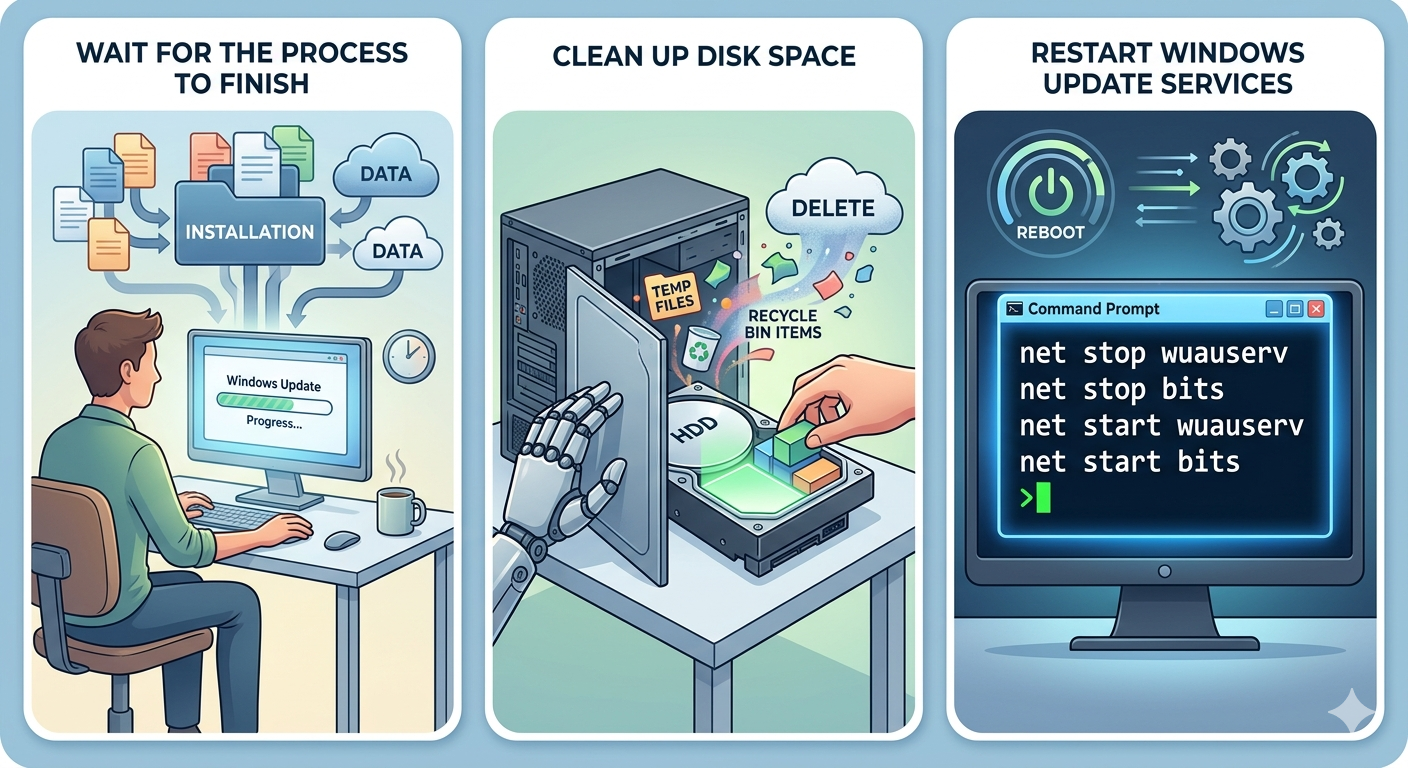
Wait for the Process to Finish
Sometimes the process simply needs more time.
Important
Large Windows updates may take:
- 30 minutes
- Several hours on slower PCs
Especially on HDD-based systems.
Restart Your Computer
Temporary update glitches may disappear after rebooting.
Why It Helps
Restarting resets update services and stuck processes.
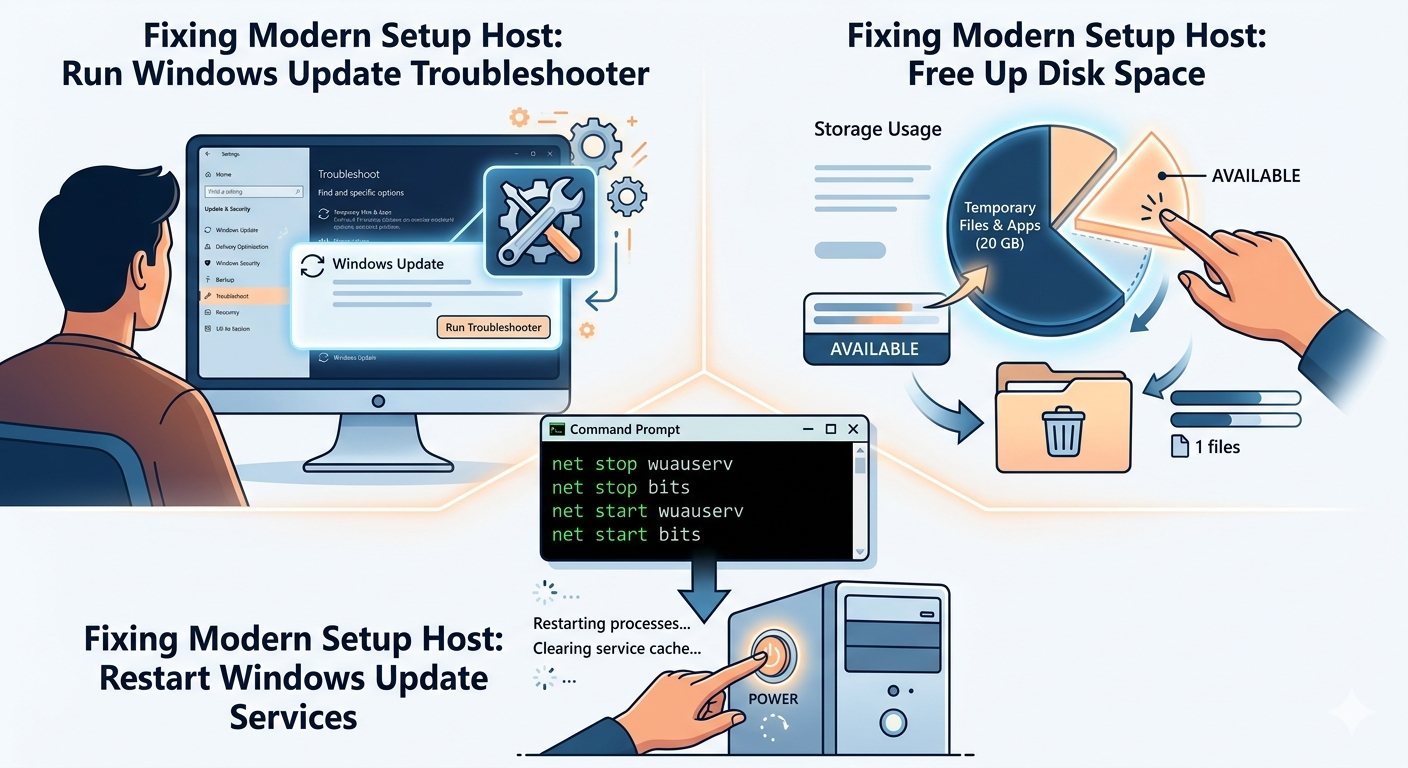
Run Windows Update Troubleshooter
Windows includes a built-in repair utility.
Steps
- Open Settings
- Go to System → Troubleshoot
- Select Other troubleshooters
- Run Windows Update Troubleshooter
Free Up Disk Space
Windows upgrades require significant storage.
Recommended Free Space
- At least 20 GB available
How To Free Space
- Delete temporary files
- Empty Recycle Bin
- Remove unused apps
- Use Disk Cleanup
Delete Temporary Update Files
Corrupted update files may cause setup issues.
Steps
- Press
Windows + R - Type:
cleanmgr- Run Disk Cleanup
- Remove:
- Temporary files
- Windows Update files
- Delivery Optimization files
Restart Windows Update Services
Update services may become stuck.
Steps
Open Command Prompt as administrator and run:
net stop wuauserv
net stop bits
net start wuauserv
net start bits
Restart the PC afterward.
Run System File Checker (SFC)
Corrupted system files may interfere with upgrades.
Steps
Run:
sfc /scannowRestart after completion.
Use DISM Tool
Repair deeper Windows image corruption.
Steps
Run:
DISM /Online /Cleanup-Image /RestoreHealthDisable Background Applications
Background apps may interfere with setup operations.
Try Closing
- Browsers
- Games
- Editing software
- Third-party update utilities
Disable Antivirus Temporarily
Security software may block upgrade processes.
Important
Only disable antivirus temporarily while testing.
Perform a Clean Boot
Third-party services may conflict with updates.
Steps
- Press
Windows + R - Type:
msconfig- Hide Microsoft services
- Disable unnecessary services
- Disable startup applications
- Restart your PC
Check for Malware
Fake setup processes may indicate malware infection.
Steps
- Open Windows Security
- Run a Full Scan
- Remove detected threats
Rename SoftwareDistribution Folder
Corrupted update cache files can trigger setup problems.
Steps
- Stop Windows Update services
- Navigate to:
C:\Windows\SoftwareDistribution- Rename it to:
SoftwareDistribution.old- Restart update services
Update Device Drivers
Outdated drivers may cause upgrade compatibility issues.
Focus on
- Graphics drivers
- Storage drivers
- Network drivers
Check CPU and Disk Usage in Task Manager
Monitor whether usage decreases over time.
Steps
- Press
Ctrl + Shift + Esc - Open Task Manager
- Check:
- CPU usage
- Disk usage
- Memory usage
Temporary spikes during updates are normal.
Use Windows Installation Assistant
If updates fail repeatedly:
Try
- Windows Installation Assistant
- Media Creation Tool
These tools can bypass some update problems.
When Modern Setup Host Causes 100% Disk Usage
This usually happens because:
- Large update extraction is occurring
- HDD performance is slow
- Corrupted update cache exists
- Background services are conflicting
SSD-based systems typically handle upgrades faster.
Can You Disable Modern Setup Host?
You generally should not permanently disable it because it is part of Windows Update functionality.
However, you can temporarily stop update processes if troubleshooting is required.
How To Verify the Process Is Legitimate
Steps
- Open Task Manager
- Right-click Modern Setup Host
- Select Open file location
The legitimate file should exist in official Windows directories.
Tips to Prevent Modern Setup Host Problems
To reduce future issues:
- Keep enough free disk space
- Use SSD storage if possible
- Keep drivers updated
- Install Windows updates regularly
- Avoid interrupting updates
When to Seek Additional Help
Consider advanced troubleshooting if:
- Modern Setup Host constantly uses high CPU
- Updates fail repeatedly
- System freezes continue
- Multiple Windows components become unstable
Final Thoughts
Modern Setup Host is a legitimate Windows process responsible for handling updates and major system upgrades. While temporary high CPU, RAM, or disk usage during updates is normal, persistent performance problems may indicate corrupted update files, driver conflicts, insufficient storage, or system corruption.
By clearing update caches, restarting update services, repairing system files, freeing disk space, and running troubleshooting tools, most Modern Setup Host issues can be resolved successfully.
Related articles
Fixing the “Kernel Security Check Failure” Error on Windows 10