


Solved: Unlicensed Product Error in Microsoft Office
Microsoft Office is one of the most widely used productivity suites in the world, but many users occasionally encounter activation problems such as “Unlicensed Product,” “Product Activation Failed,” or other Office activation errors. When these messages appear, Office applications like Word, Excel, and PowerPoint may enter reduced functionality mode, limiting editing and saving capabilities.
Activation issues can happen for many reasons, including expired subscriptions, incorrect Microsoft accounts, internet connection problems, corrupted licensing files, or software conflicts. Fortunately, most Office activation problems can be resolved without reinstalling Windows.
In this guide, you’ll learn what causes Office activation errors and how to fix the “Unlicensed Product” problem on Windows 10 and Windows 11.
What Does “Unlicensed Product” Mean in Office?
Microsoft Office requires a valid license or subscription to verify ownership and enable full functionality. If Office cannot confirm the license properly, it displays activation warnings.
Common messages include:
- Unlicensed Product
- Product Activation Failed
- Activation Required
- This copy of Microsoft Office is not activated
- We couldn’t verify the subscription
When activation fails, some Office features may become restricted.
Common Symptoms
You may notice:
- Yellow or red activation banners in Office
- Unable to edit documents
- Office apps opening in read-only mode
- Frequent activation prompts
- Sign-in errors
- Subscription verification failures
Common Causes of Office Activation Errors
Expired Microsoft 365 Subscription
Expired subscriptions are one of the most common causes.
Wrong Microsoft Account
You may be signed into an account that does not own the license.
Internet Connectivity Problems
Office requires internet access for license verification.
Corrupted Office Licensing Files
Damaged activation files may prevent successful validation.
Multiple Office Versions Installed
Conflicting Office installations can trigger activation problems.
System Date and Time Issues
Incorrect system time may interfere with license verification.
How To Fix Unlicensed Product and Activation Errors in Office
Try the following methods carefully.
Restart Your Computer
Temporary licensing glitches may disappear after rebooting.
Why It Helps
Restarting refreshes Office services and activation components.
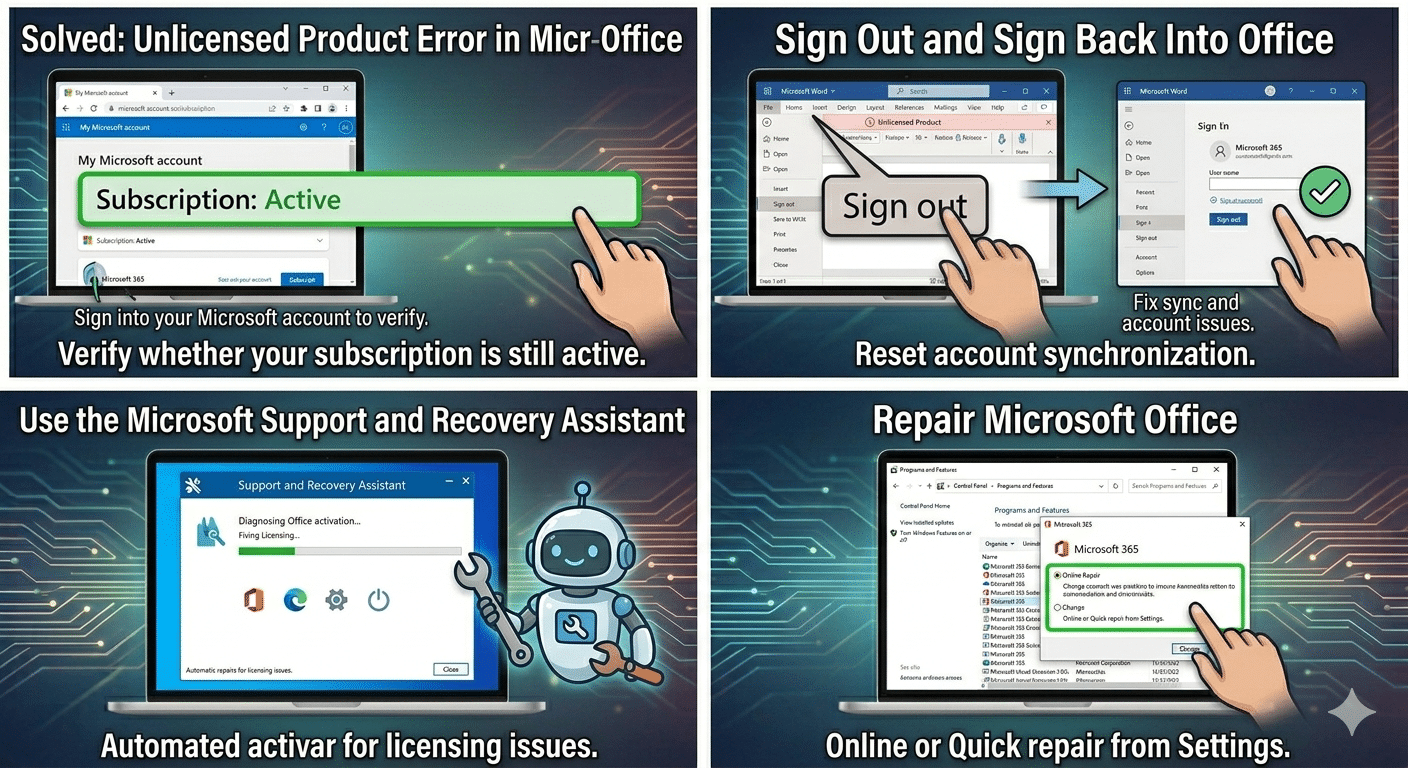
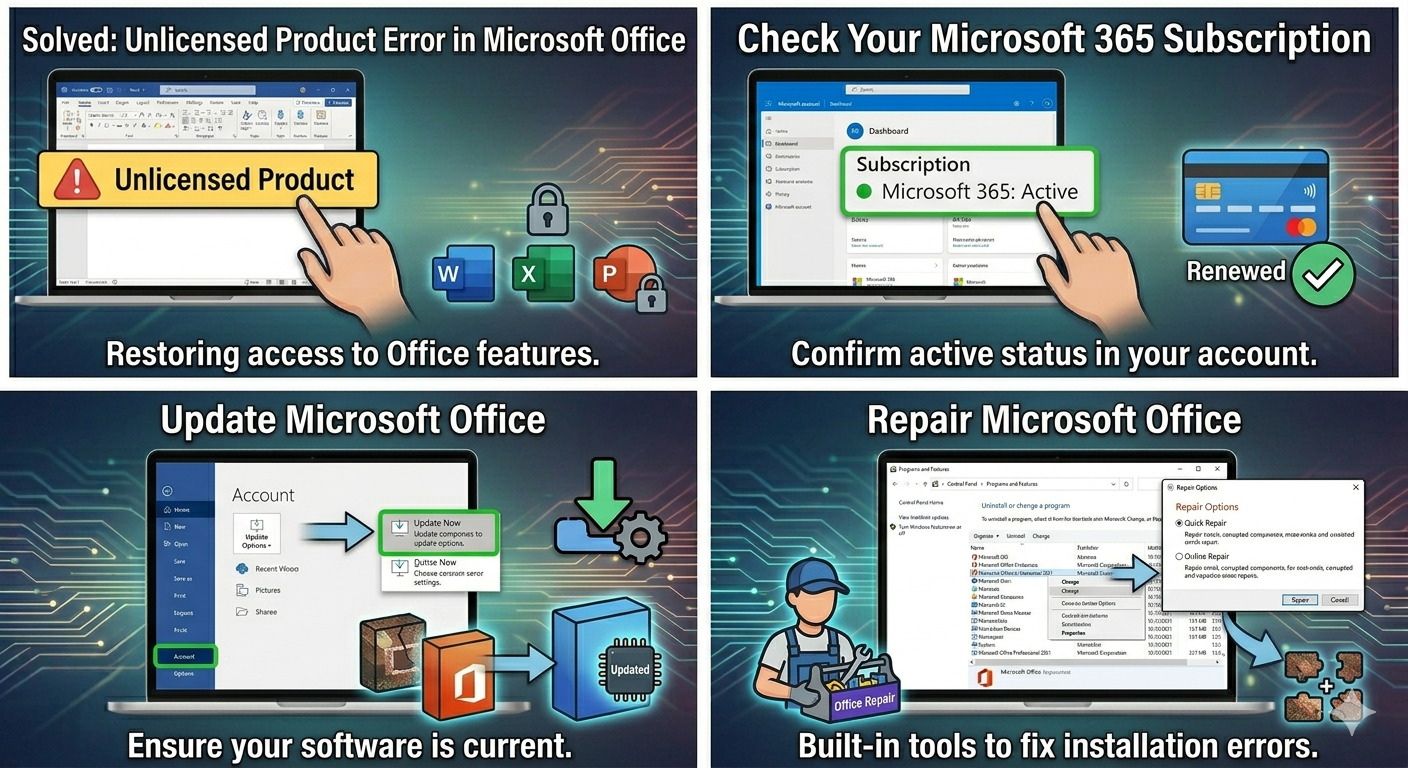
Check Your Microsoft 365 Subscription
Verify whether your subscription is still active.
Steps
- Sign into your Microsoft account
- Check subscription status
- Confirm that Microsoft 365 is active
Renew the subscription if it has expired.
Sign Out and Sign Back Into Office
Account synchronization issues may cause activation failures.
Steps
- Open any Office app
- Go to:
- File → Account
- Sign out of Office
- Restart the app
- Sign in again using the licensed Microsoft account
Make Sure You Are Using the Correct Account
Many users accidentally sign into the wrong Microsoft account.
Verify
- Personal account
- School account
- Work account
Use the account associated with the Office purchase.
Check Your Internet Connection
Office activation requires stable internet access.
Try
- Restarting the router
- Switching networks
- Disabling VPN temporarily
Update Microsoft Office
Outdated Office builds may contain activation bugs.
Steps
- Open an Office app
- Go to:
- File → Account
- Select:
- Update Options → Update Now
Run Office as Administrator
Permission issues may block activation.
Steps
- Right-click the Office app
- Select:
Run as administrator- Attempt activation again
Check System Date and Time
Incorrect date settings can interfere with Microsoft servers.
Steps
- Open:
- Settings → Time & Language
- Enable:
- Set time automatically
- Set time zone automatically
Use the Microsoft Support and Recovery Assistant
Microsoft provides a repair tool for Office issues.
What It Can Fix
- Activation problems
- Licensing issues
- Sign-in failures
- Subscription errors
Repair Microsoft Office
Corrupted Office files commonly trigger activation errors.
Steps
- Open:
- Control Panel → Programs and Features
- Select Microsoft Office
- Choose:
- Change
- Try:
- Quick Repair
If needed, use:
- Online Repair
Remove Multiple Office Installations
Having several Office versions installed may create conflicts.
Try Removing
- Old Office editions
- Trial versions
- Unused Office apps
Restart the PC afterward.
Clear Office Credentials
Stored credentials may become corrupted.
Steps
- Open:
- Control Panel → Credential Manager
- Remove Office-related credentials
- Restart Office and sign in again
Check Firewall and Antivirus Settings
Security software may block activation servers.
Try
- Temporarily disabling antivirus
- Allowing Office through firewall
- Testing activation again
Run System File Checker (SFC)
Corrupted Windows files may affect Office licensing.
Steps
Open Command Prompt as administrator and run:
sfc /scannowRestart after completion.
Use DISM Tool
Repair deeper Windows corruption.
Steps
Run:
DISM /Online /Cleanup-Image /RestoreHealthReset Office Activation State
Sometimes cached activation information becomes corrupted.
Try
- Signing out of all Office apps
- Restarting the PC
- Signing back in carefully
Check Proxy or VPN Settings
VPNs and proxy servers may interfere with license verification.
Try
- Disabling VPN temporarily
- Resetting proxy settings
Activate Office Using Product Key
If you purchased a standalone Office version:
Steps
- Open an Office app
- Go to:
- File → Account
- Select:
- Change Product Key
Enter your valid product key.
Reinstall Microsoft Office
If activation continues failing:
Steps
- Uninstall Office completely
- Restart the computer
- Download the latest version from Microsoft
- Reinstall and activate again
When Office Says “Product Activation Failed”
This message often indicates:
- Invalid license
- Expired subscription
- Corrupted activation cache
- Internet verification failure
Carefully checking the associated Microsoft account usually helps.
When Office Works but Shows Unlicensed Product
Sometimes Office still functions temporarily despite activation warnings.
Possible Causes
- Delayed license verification
- Subscription syncing issues
- Temporary Microsoft server problems
Waiting and reconnecting to the internet may help.
Tips to Prevent Office Activation Problems
To avoid future activation issues:
- Keep Office updated
- Renew subscriptions on time
- Use only one Office version when possible
- Maintain stable internet access
- Use genuine Microsoft licenses
When to Contact Microsoft Support
Consider contacting Microsoft if:
- Product keys are rejected repeatedly
- Subscription status appears incorrect
- Activation servers fail continuously
- Licensing errors persist after reinstalling Office
Final Thoughts
The “Unlicensed Product” and Office activation errors are usually caused by expired subscriptions, incorrect Microsoft accounts, corrupted Office files, or internet verification problems. Although these warnings can limit Office functionality, most activation issues can be fixed using built-in repair tools and account verification steps.
By checking your subscription status, signing into the correct account, repairing Office, updating software, and removing conflicting installations, most users can restore full Office functionality successfully.
Related articles
Fix Outlook Password Prompt Issue in Office 365
How to Fix Mobile Hotspot Not Working in Windows 10
Microsoft Office Not Opening and Stuck on Updating Screen? Here’s the Fix