


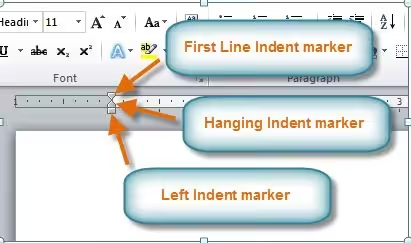
How to Add a Hanging Indent in Word
A hanging indent is a formatting style where the first line of a paragraph is aligned to the left margin, and the following lines are indented. This style is commonly used in bibliographies, reference lists (such as in APA, MLA, or Chicago citation styles), and legal documents. If you’re working on an academic paper or formal report, knowing how to create a hanging indent in Microsoft Word can save you time and keep your formatting consistent.
This guide will show you multiple methods to create a hanging indent in Microsoft Word — whether you’re using the desktop app, the online version, or even shortcuts. Let’s get started.
What Is a Hanging Indent?
In a typical paragraph, all lines are aligned at the same margin. But with a hanging indent, the first line remains at the margin, and all other lines in the paragraph are indented to the right.
Here’s how it looks:
When to Use a Hanging Indent
Hanging indents are primarily used for:
-
Bibliographies and reference lists in citation styles like APA, MLA, and Chicago
-
Legal citations
-
Scripts or technical writing
-
List formatting that requires alignment for better readability
Now, let’s go through the steps to apply this format.
Method 1: Using the Paragraph Dialog Box
This is the most reliable method, especially when working with citations or lists that span multiple lines.
Step-by-Step Instructions:
-
Open Microsoft Word and load your document.
-
Highlight the paragraph or text block where you want to apply the hanging indent.
-
Right-click the selected text and choose Paragraph.
-
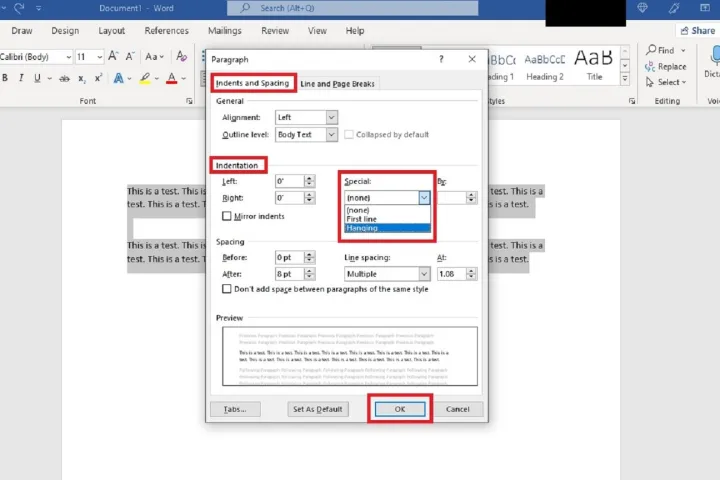
In the Paragraph dialog box, go to the Indents and Spacing tab.
-
Under Indentation, find the Special drop-down menu.
-
Select Hanging from the list.
-
Adjust the By field (usually set to 0.5 inches by default) if you want a different indent size.
-
Click OK to apply the changes.
You’ll now see the first line flush with the margin and the remaining lines indented.
Method 2: Using the Ruler
The ruler method provides a visual way to adjust indentation. If you’re a more hands-on user, this might be your preferred approach.
Enabling the Ruler:
-
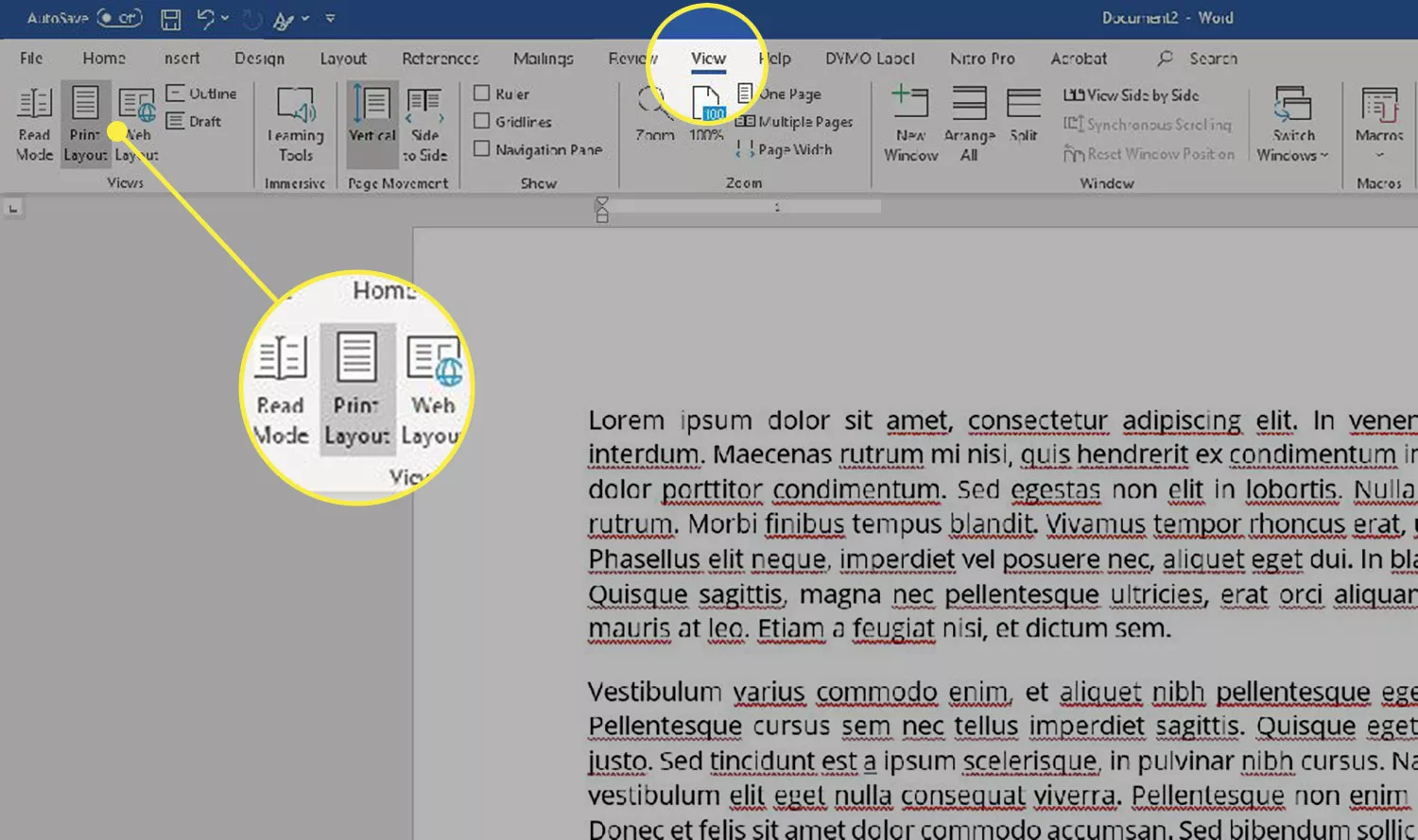
Go to the View tab on the Word ribbon.
-
Check the box labeled Ruler if it’s not already visible.
Applying a Hanging Indent with the Ruler:
-
Highlight the paragraph or text block.
-
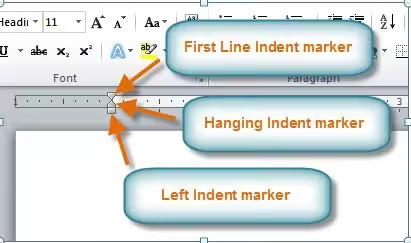
Look at the top ruler. You’ll see two small triangles and a rectangle:
-
Top triangle: First line indent
-
Bottom triangle: Hanging indent
-
Rectangle below both: Left indent (moves both triangles)
-
-
Drag the bottom triangle to the right (usually 0.5 inches) to create a hanging indent.
-
Make sure the top triangle stays at the left margin (0-inch mark).
You’ve successfully created a hanging indent using the ruler.
Method 3: Keyboard Shortcut (Works for Windows Desktop App)
While Word doesn’t have a direct shortcut to apply a hanging indent from scratch, you can use a keyboard combination after opening the Paragraph dialog:
-
Highlight your text.
-
Press Ctrl + T on your keyboard.
Each time you press Ctrl + T, it increases the hanging indent by 0.5 inches. To reduce the indent, press Ctrl + Shift + T.
This method is great for quickly adjusting indents without clicking through menus.
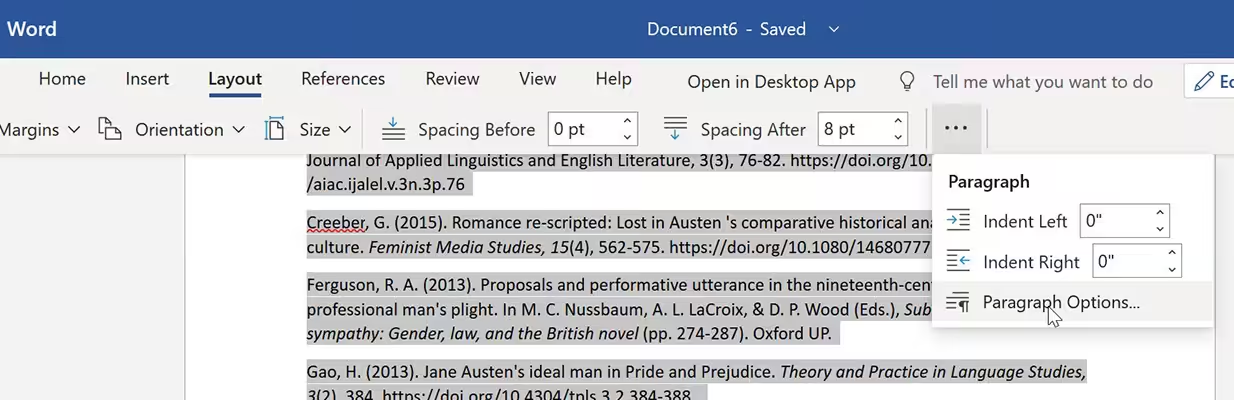
How to Create a Hanging Indent in Word Online
If you’re using Word in a web browser, the steps are slightly different due to the simplified interface.
Steps:
-
Select the text or citation you want to indent.
-
Click on the Format menu at the top (or right-click and choose Paragraph Options).
-
Click Paragraph Options to open the panel on the right.
-
Under Indentation, select Hanging in the Special drop-down.
-
Adjust the By value if needed.
-
Click OK or click away to apply the changes.
Note: Some advanced formatting features might not be available in Word Online compared to the desktop version.
Tips for Using Hanging Indents Effectively
-
Use Styles: If you’re applying hanging indents to multiple references, consider using a custom style so you can update formatting universally later.
-
Don’t mix indents: Avoid mixing hanging indents with left indents or first-line indents unless formatting requires it.
-
Double-check spacing: Especially in academic or legal documents, ensure that indentation and line spacing follow required guidelines.
Common Issues and Fixes
Indent Not Showing?
-
Check that you’re applying the indent to the correct paragraph. In Word, even a line break (Shift + Enter) instead of a full paragraph break (Enter) can affect formatting.
-
Make sure you’re not using bullet points or numbering, as these can override indentation settings.
Can’t Find the Dialog Box?
-
Try going to the Layout tab instead of Paragraph.
-
Use Alt + H + P + G as a keyboard combination to open the Paragraph settings in some versions.
Conclusion
Creating a hanging indent in Microsoft Word is easy once you know where to look. Whether you’re writing a research paper, creating a bibliography, or formatting legal text, using this feature keeps your document neat, professional, and easy to read.
With the methods covered in this guide — Paragraph dialog box, ruler adjustment, keyboard shortcuts, and Word Online — you can apply hanging indents efficiently in any situation.