


Accessing and Managing Steam Screenshots on Windows 10
Steam is one of the most widely used gaming platforms in the world, and it comes packed with a number of convenient features—one of which is the ability to take screenshots while playing games. But many users aren’t quite sure where those screenshots go after they’re taken, or how to manage and share them.
This guide will walk you through how to take, find, and use the Steam screenshot folder on a Windows 10 PC.
How to Take a Screenshot in Steam
Before we can locate the screenshot folder, let’s make sure you know how to capture one.
Default Screenshot Shortcut
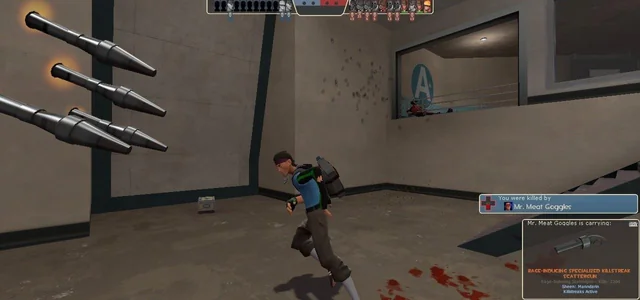
The default key to take a screenshot on Steam is F12. While you’re in-game, press F12, and a screenshot will be taken and saved automatically by Steam.
You’ll also see a small pop-up notification confirming that the screenshot has been saved.
Changing the Screenshot Hotkey
If you want to use a different key:
-
Open the Steam client
-
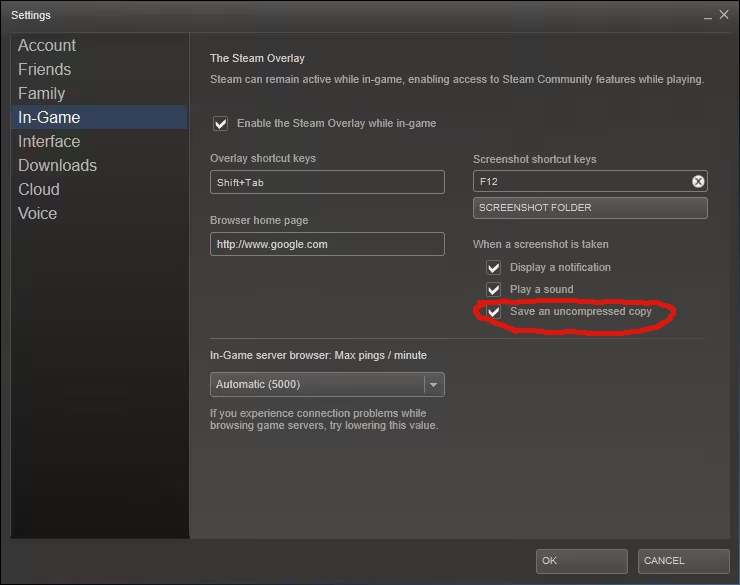
Go to Steam > Settings
-
Click In-Game
-
Under Screenshot shortcut keys, assign a new hotkey
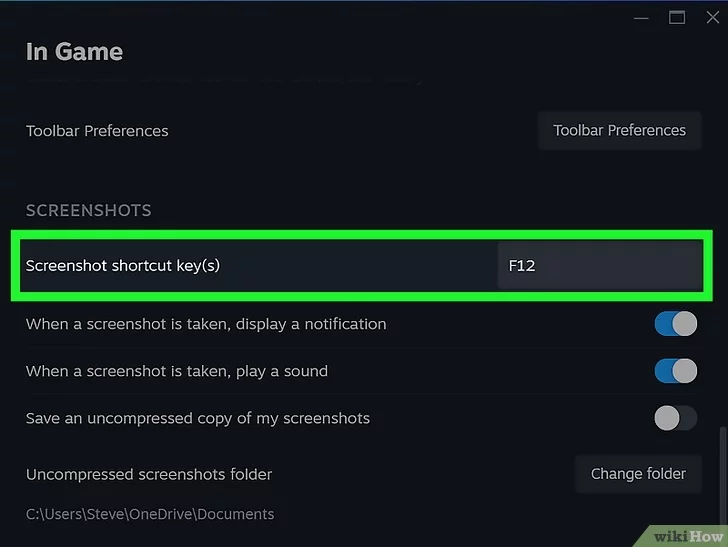
This setting is useful if F12 interferes with other in-game controls.
How to Access the Steam Screenshot Folder
Steam screenshots are saved in two locations:
-
Locally on your PC
-
Inside the Steam client
Let’s go over both.
Access via Steam Client
-
Open the Steam client
-
Click View > Screenshots
-
A window will appear showing screenshots taken from all your games
-
Use the drop-down menu to choose a specific game
From this menu, you can:
-
Upload screenshots to your Steam profile or cloud
-
Delete unwanted screenshots
-
Open the folder location directly
To open the folder, click Show on Disk at the bottom-right of the Screenshot Manager window.
Access via File Explorer (Manual Method)
If you prefer to browse manually using File Explorer, the screenshots are saved in this path by default:
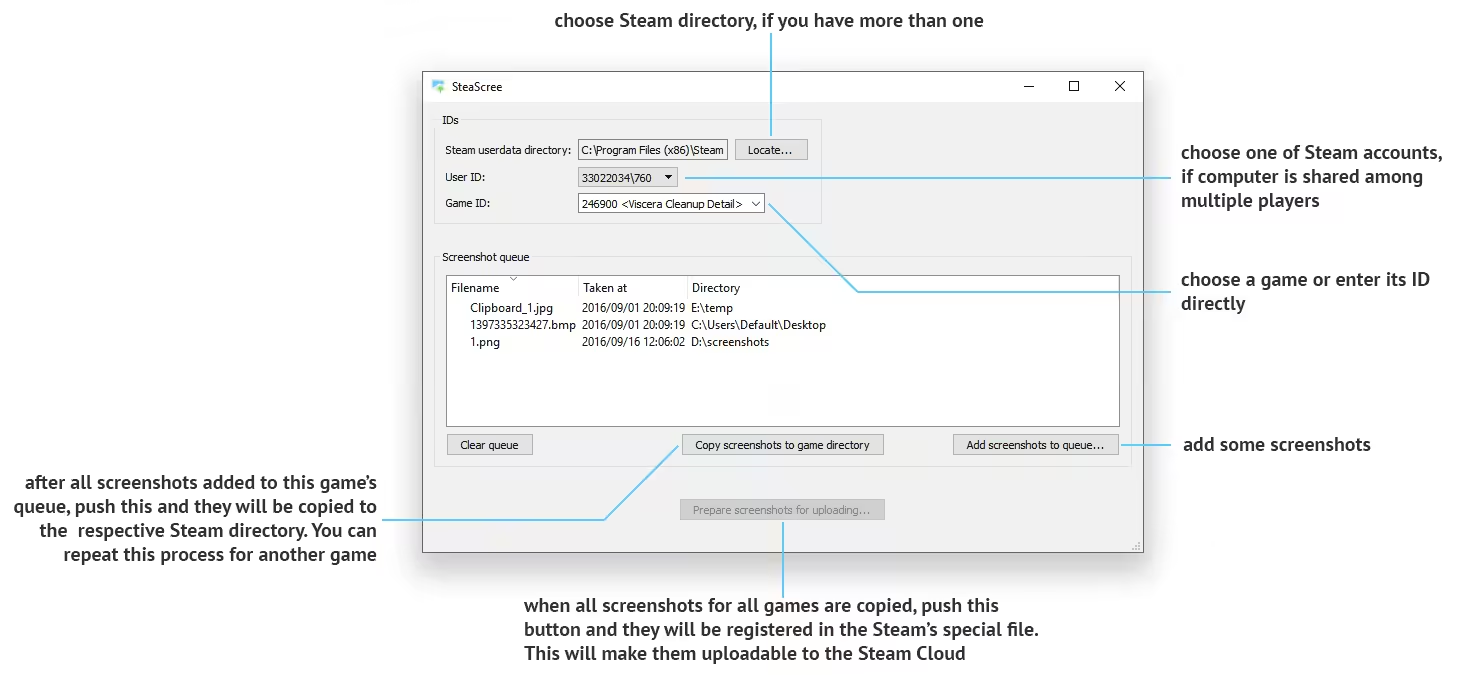
C:\Program Files (x86)\Steam\userdata\[UserID]\760\remote\[AppID]\screenshots
Let’s break that down:
-
[UserID] is your Steam user’s numerical ID
-
[AppID] is the ID of the game the screenshot belongs to
To find your Steam ID:
-
Open Steam
-
Go to View > Settings > Interface
-
Check the box Display Steam URL address when available
-
Then go to View > Profile
-
Your Steam ID is the number in the URL:
https://steamcommunity.com/profiles/[SteamID]
To find a game’s AppID:
-
Visit https://steamdb.info
-
Search for the game name
-
Look for the App ID in the game’s info box
Once you replace those IDs, you’ll reach the correct screenshot folder.
How to Change the Default Screenshot Folder
If you want to save screenshots in a different folder:
-
Open Steam client
-
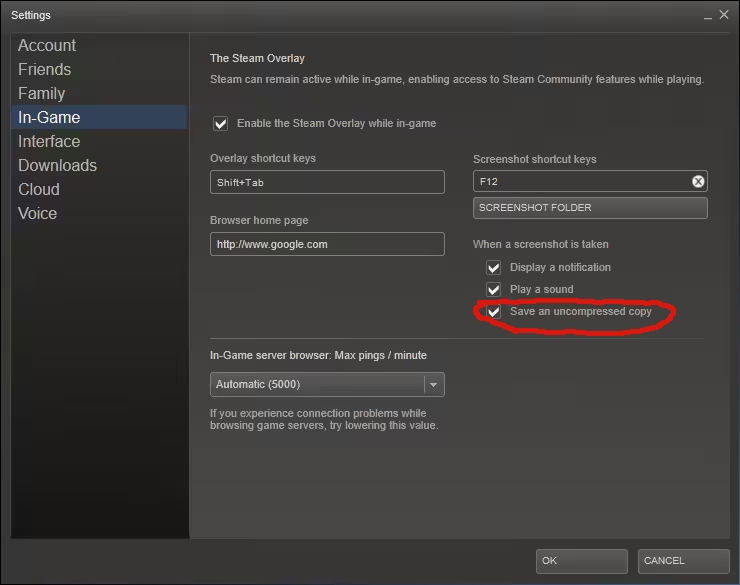
Go to Settings > In-Game
-
Under Screenshot shortcut keys, click Screenshot Folder
-
Browse to your preferred folder and click Select
From now on, all screenshots will be saved in that folder.
How to Upload Screenshots to Steam
Steam lets you share your screenshots with friends or the public.
Steps:
-
Press F12 to take a screenshot in-game
-
After exiting the game, Steam will show the Screenshot Uploader
-
Select the screenshots you want to upload
-
Add captions or make them private/public
-
Click Upload
Uploaded screenshots will be viewable in your Steam profile’s Screenshots section.
How to Use or Edit Steam Screenshots
Your screenshots are saved as .jpg files, which means you can:
-
Open them in any image viewer
-
Edit them with Paint, Photoshop, or other image editors
-
Share them on Discord, Twitter, Reddit, etc.
Editing Tips:
-
For better clarity, crop unnecessary parts
-
Use annotation tools to highlight specific game elements
-
Add blur or arrows to emphasize important areas
What to Do If Screenshots Aren’t Saving
If you’re pressing the screenshot hotkey but nothing is being saved, here are a few things to try:
1. Check Shortcut Settings
Make sure your screenshot hotkey is not disabled or in conflict with another program.
2. Verify Game Supports Overlay
Screenshots require the Steam Overlay. Ensure it’s enabled:
-
Go to Steam > Settings > In-Game
-
Check Enable the Steam Overlay while in-game
3. Run Steam as Administrator
Sometimes permissions prevent screenshots from being saved. Right-click the Steam shortcut and choose Run as administrator.
Using Third-Party Screenshot Tools (Optional)
If Steam’s screenshot feature doesn’t meet your needs, you can use tools like:
-
Snipping Tool or Snip & Sketch (Windows 10 built-ins)
-
ShareX – Free, advanced screen capture tool
-
Greenshot – Lightweight and customizable
These tools allow for timed screenshots, screen recordings, and more flexible editing features.
Conclusion
Steam makes it easy to capture in-game moments with its screenshot feature. Whether you’re saving a high score, capturing a funny glitch, or sharing beautiful in-game scenery, knowing how to find and manage your screenshots is essential.
You can access them through the Steam client or manually via File Explorer. Customize your hotkeys, save location, and upload options for the best experience.
Now that you know exactly where your screenshots go and how to use them, your best gaming moments are just a click away.