


How to Take a Screenshot on Mac: 6 Simple Methods
Taking screenshots on a Mac is one of the simplest and most useful functions available to users. Whether you want to capture your entire screen, a specific window, or just a selected portion of it, macOS provides multiple built-in tools to help you do it quickly and efficiently.
In this article, we’ll walk you through six reliable methods to take screenshots on a Mac, including keyboard shortcuts, built-in applications, and advanced tricks to make the most of your screenshots.
1. Capture the Entire Screen
The most straightforward way to take a screenshot is by capturing the entire screen.
Shortcut: Command + Shift + 3
When you press Command + Shift + 3, your Mac will instantly capture the full display. You’ll see a small thumbnail appear in the bottom-right corner (if you’re using macOS Mojave or later). You can click it to edit or let it automatically save to your desktop.
Where It’s Saved
By default, screenshots are saved as image files on your desktop, named with the date and time they were taken.
2. Capture a Selected Portion of the Screen
If you only want to capture part of the screen, there’s a shortcut for that too.
Shortcut: Command + Shift + 4
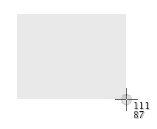
When you press Command + Shift + 4, your mouse pointer turns into a crosshair. You can click and drag to select the exact area you want to capture. When you release the mouse button, macOS takes the screenshot.
Bonus Tip
After pressing the shortcut, you can press:
-
Spacebar: Switch to window capture mode
-
Esc: Cancel the screenshot
This method is useful for highlighting specific content or eliminating distractions from your image.
3. Capture a Specific Window
Sometimes you need a clean capture of just one window or dialog box.
Shortcut: Command + Shift + 4, then Spacebar
-
Press Command + Shift + 4
-
Then press the Spacebar
-
Your cursor will change to a camera icon
-
Click on the window you want to capture

macOS will add a nice drop shadow around the window in the screenshot.
4. Use the Screenshot App (Screenshot Utility)
macOS comes with a built-in screenshot app that gives you even more control over how you take your screenshots.
Shortcut: Command + Shift + 5
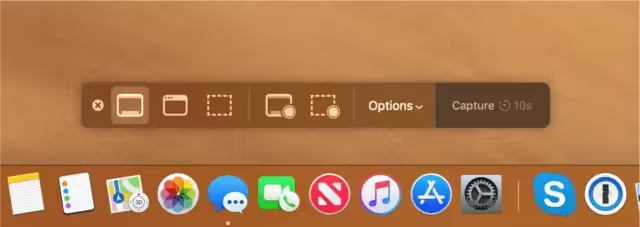
This opens the Screenshot Toolbar, which offers options to:
-
Capture entire screen
-
Capture selected window
-
Capture selected portion
-
Record entire screen
-
Record selected portion
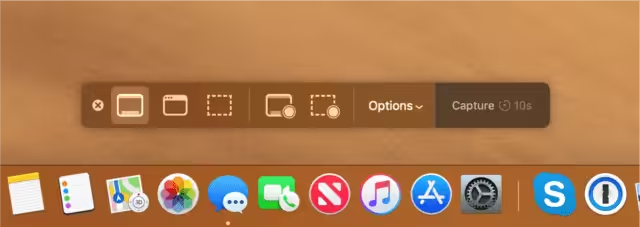
You can also set options like:
-
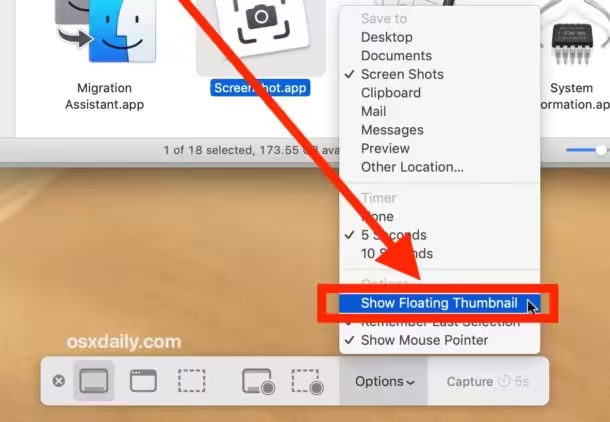
Save location
-
Timer (5 or 10 seconds delay)
-
Show/hide mouse pointer
This tool is perfect when you want more flexibility or plan to record a screen video.
5. Take a Screenshot Using Touch Bar (For MacBook Pro Users)
If you have a MacBook Pro with a Touch Bar, you can take a screenshot of what’s on it.
Shortcut: Command + Shift + 6
This captures everything shown on the Touch Bar. While not as common, this feature can be handy for developers or anyone showcasing custom Touch Bar setups.
6. Copy Screenshot to Clipboard Instead of Saving
Sometimes you don’t want to save a file — you just want to paste the screenshot into a message or document.
Add Control to the Shortcut
-
Command + Control + Shift + 3 – Copies full screen to clipboard
-
Command + Control + Shift + 4 – Copies selected area to clipboard
You can then paste the screenshot directly into an email, chat, or image editor using Command + V.
Editing and Annotating Screenshots
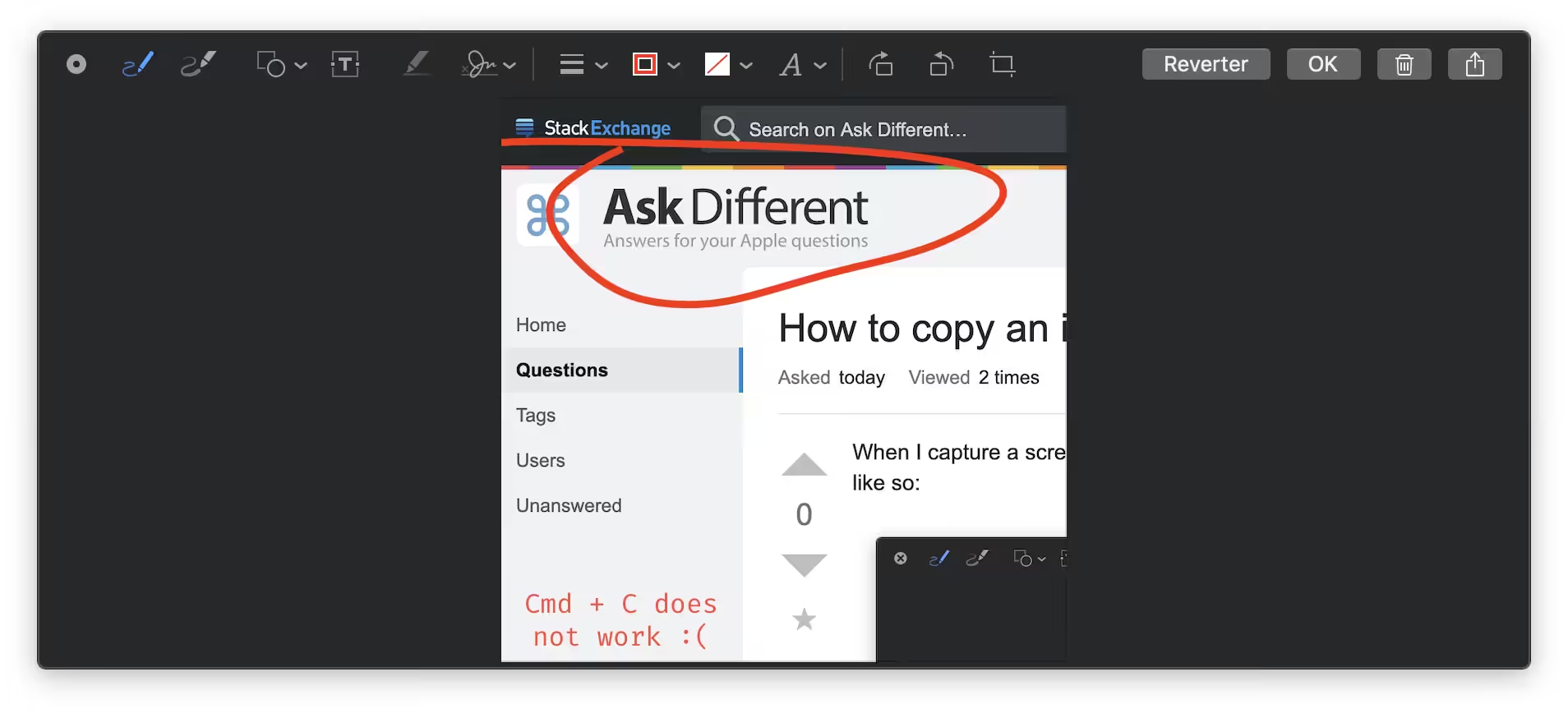
If you’re using macOS Mojave or later, every time you take a screenshot, a thumbnail preview appears in the bottom-right corner.
Clicking on this opens the Markup editor, where you can:
-
Crop
-
Draw or highlight
-
Add text or shapes
-
Sign with your trackpad or Apple Pencil (on iPad using Sidecar)
After editing, click Done to save or Share to send via Mail, Messages, AirDrop, and more.
Changing the Default Save Location
By default, screenshots save to your desktop, which can get cluttered quickly. You can change the location easily.
Steps:
-
Press Command + Shift + 5 to open the Screenshot Toolbar
-
Click Options
-
Under “Save to,” select a different folder (e.g., Documents, Downloads, or a custom folder)
You can also choose to copy screenshots to the clipboard directly from here.
Using Preview to Take a Screenshot
You can also use the Preview app to take screenshots, especially if you’re already working within the app.
How to Do It:
-
Open Preview
-
Click File > Take Screenshot
-
Choose from:
-
From Selection
-
From Window
-
From Entire Screen
-
This method is a bit slower but can be useful if you’re editing images within Preview.
Third-party Screenshot Tools for Mac
While macOS includes great built-in options, you might want more advanced features. Third-party tools like:
-
Skitch (by Evernote)
-
Snagit (premium)
-
Lightshot
-
CleanShot X (macOS-exclusive)
These apps offer tools like scrolling screenshots, cloud sharing, OCR (text recognition), and more.
Conclusion
macOS offers a powerful and flexible set of screenshot tools right out of the box. Whether you’re quickly grabbing the entire screen, selecting just a portion, or recording a video, there’s a method for every situation.
By mastering these six ways to take a screenshot on a Mac, you can work more efficiently, communicate clearly, and never miss a visual detail again. From simple shortcuts to full-featured tools, your Mac has everything you need — no extra software required.