


How to Adjust Language Settings in Word for Mac 2016
Microsoft Word for Mac 2016 includes strong language tools that allow you to switch editing languages, proofing languages, and display languages based on your needs. Whether you’re writing multilingual documents, collaborating with international colleagues, or adjusting your interface to a more familiar language, Word for Mac provides flexible settings to support your work.
Changing the language in Word for Mac 2016 is not complicated, but many users get confused because Word has several language layers—each serving different purposes. This guide explains everything clearly and helps you change the language step-by-step.
Understanding Language Settings in Word for Mac 2016
Before you adjust anything, it’s helpful to know the three main types of language settings Word uses:
1. Editing Language
This controls the language of:
-
Spelling check
-
Grammar tools
-
AutoCorrect suggestions
-
Dictionary behavior
For example, switching the editing language to French enables the French dictionary, spelling rules, and grammar tools.
2. Proofing Language
This applies to the specific text within a document. You can mix English, Spanish, Japanese, or any other supported languages on a single page. Word will apply the correct dictionary and rules based on your selection.
3. Display Language
This setting changes the language of the Word interface:
-
Menus
-
Ribbon
-
Dialog boxes
-
Buttons
Microsoft Office for Mac 2016 uses your macOS system language for the interface, which means the display language is not changed from within Word—it follows the operating system.
Why You Might Need to Change the Language
Changing the language can be useful for:
-
Writing essays or reports in a different language
-
Preparing documents for international clients
-
Using spell check for languages other than English
-
Practicing a foreign language
-
Adjusting the interface to your native language
For multilingual workers and students, having proper language support significantly improves accuracy and efficiency.
How to Change the Editing and Proofing Language in Word for Mac 2016
You can change these settings directly inside Word. The process is simple.
Step-by-Step Instructions
Step 1: Open Microsoft Word
Launch Word for Mac 2016 and open a new or existing document.
Step 2: Select the Text (Optional)
If you want to change the language only for part of your document:
-
Highlight the text where you want the new language applied.
If you want to change the entire document, you can skip this step.
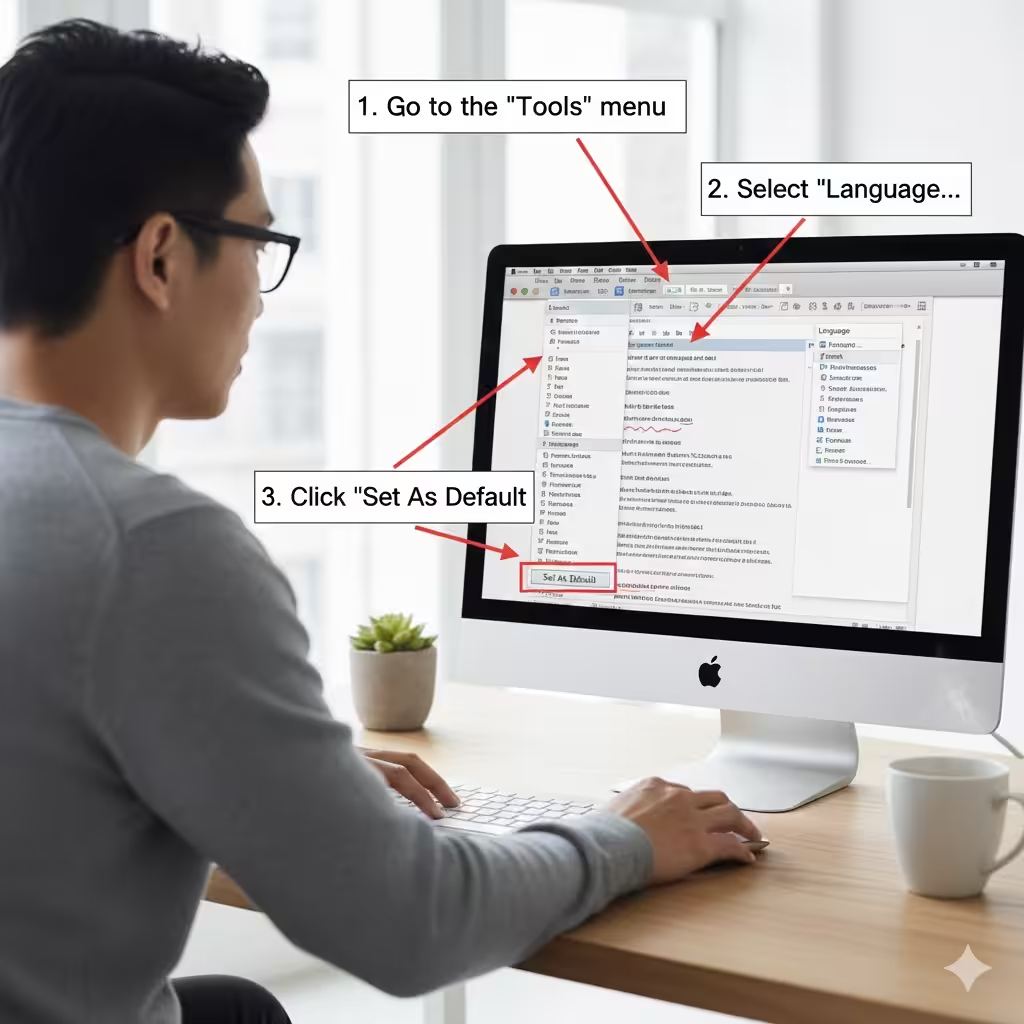
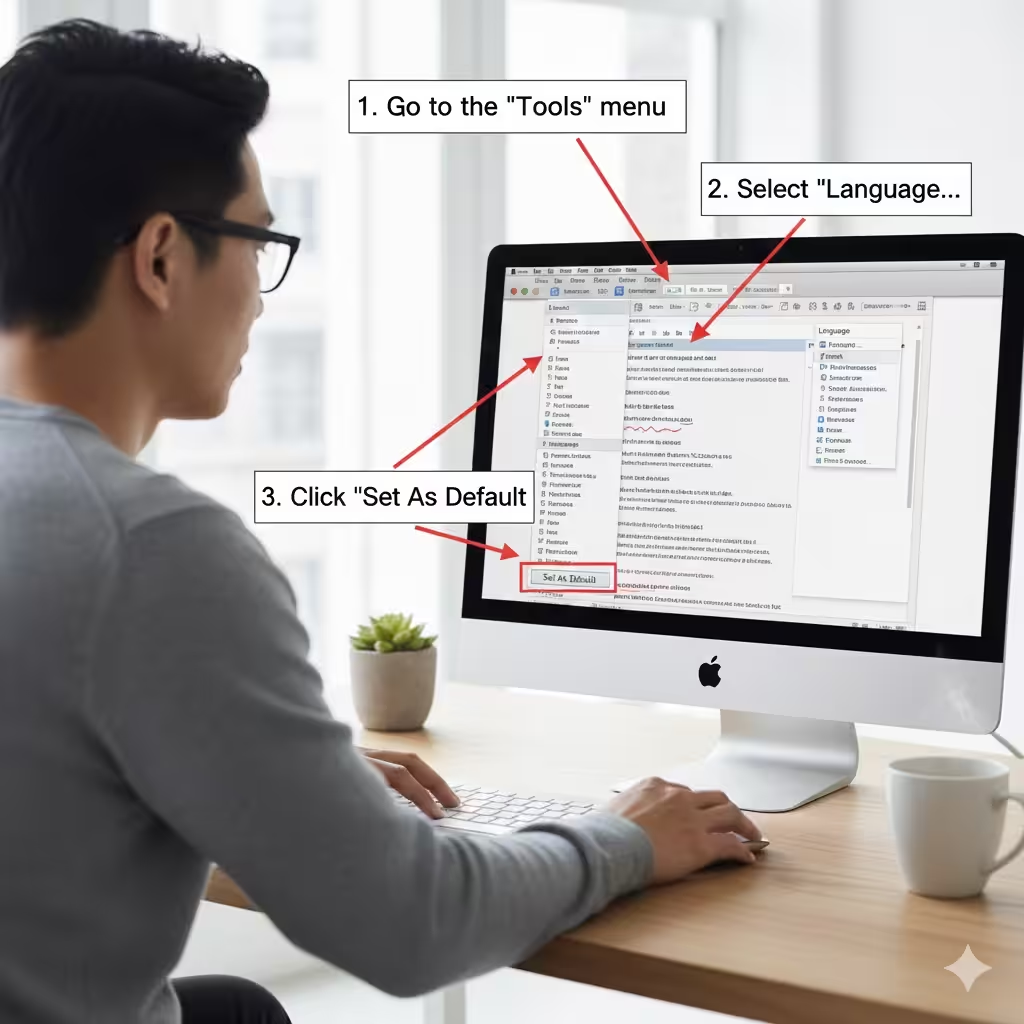
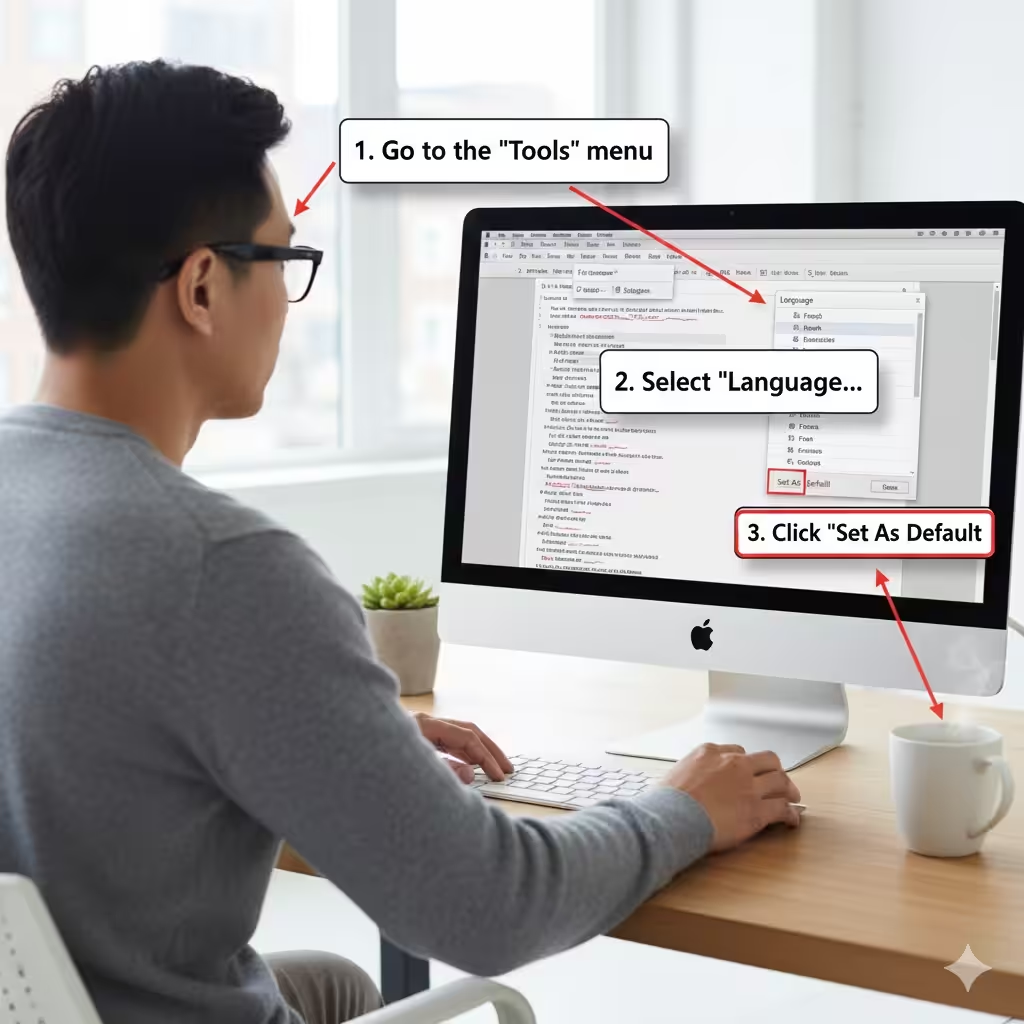
Step 3: Go to the “Tools” Menu
At the top of your screen:
-
Click Tools in the macOS menu bar.
Step 4: Select “Language”
Choose the Language option.
A dialog box will appear showing a list of languages.
Step 5: Choose Your Desired Language
Scroll through the list and select the language you want to apply.
Common examples:
-
English (US)
-
English (UK)
-
French
-
German
-
Spanish
-
Chinese
-
Japanese
-
Portuguese
Step 6: Set as Default (Optional)
If you want all new documents to use this language:
-
Click Set As Default at the bottom of the dialog box.
Word will ask you to confirm. Choose OK.
Step 7: Apply the Language
Click OK to apply the selected language to your document or highlighted text.
That’s it—your proofing and editing language is now updated.
Changing the Display Language in Word for Mac 2016
Unlike Windows, Office 2016 for Mac does not allow changing the display language directly within Word. Instead, the interface language is tied to your Mac’s system language.
How to Change macOS System Language
Step 1: Open System Preferences
Click the Apple menu → System Preferences.
Step 2: Select “Language & Region”
This panel controls which languages macOS uses.
Step 3: Add a New Language
Click the + button and choose your preferred language.
Examples:
-
French
-
German
-
Spanish
-
Chinese
-
Japanese
Step 4: Move the New Language to the Top
Drag it to the top of the list.
macOS will ask if you want to use this as your primary language.
Select Yes.
Step 5: Restart Your Mac
Restarting is required for Word and other apps to adopt the new display language.
Now the menus, ribbons, and buttons in Word should appear in the new language.
How to Change the Language for AutoCorrect in Word for Mac 2016
Autocorrect behaves differently depending on your selected language. To adjust it:
Step-by-Step Instructions
-
Open Word → Go to Tools.
-
Select AutoCorrect.
-
The language rules will automatically follow the proofing language.
-
Modify any AutoCorrect preferences as needed.
You do not need to change AutoCorrect manually—Word handles it based on the proofing language.
Troubleshooting Language Issues in Word for Mac 2016
Sometimes users face problems when switching languages. Here are solutions for the most common issues.
1. Spell Check Is Not Working
Possible causes:
-
The language has not been applied correctly.
-
Proofing tools may not be installed.
-
The document language overrides your settings.
Fix:
Reopen Tools → Language, reselect the language, and click Set As Default if needed.
2. Word Still Uses the Wrong Dictionary
This usually happens when text already had a language applied.
Fix:
Highlight all content → Tools → Language → choose the correct language → click OK.
3. The Interface Is Still in the Old Language
Because Word follows macOS, you must:
-
Change macOS system language
-
Restart your Mac
4. Language Won’t Stay as Default
Sometimes templates override settings.
Fix:
Edit your Normal.dotm template:
-
Open Word
-
Go to Tools → Language
-
Choose your language
-
Set as Default
-
Save changes
Best Practices for Working with Multiple Languages
If you regularly work with different languages, these habits can help:
Create Separate Templates
For example:
-
English template
-
Spanish template
-
French template
Each can have separate formatting and proofing rules.
Use Styles for Language-Specific Sections
Assign a style named “Spanish Text” or “French Text” with a specific language applied.
Enable Automatic Language Detection
Word can detect the language you’re typing and apply the correct dictionary—helpful for multilingual documents.
Keep macOS and Office Updated
Updates include improved language support and fixes for proofing tools.
Conclusion
Changing the language in Word for Mac 2016 is essential for users who work in multilingual environments. Whether you’re adjusting the proofing tools, correcting spelling in another language, or switching the interface to something more familiar, Word provides all the tools you need. By understanding how editing, proofing, and display languages differ—and following the steps outlined in this guide—you can configure Word to match your workflow and write confidently in any language.