


How to Manage Your Email by Creating Folders
Email has become one of the most essential communication tools in both personal and professional life. Yet as messages pile up—newsletters, receipts, notifications, work updates, reminders, personal conversations—it can quickly become overwhelming. A cluttered inbox makes it harder to find important information, slows productivity, and increases the likelihood of missing crucial messages.
Creating and using folders is one of the simplest and most effective ways to bring order to your inbox. Whether you use Outlook, Gmail, Yahoo Mail, or another service, folder organization gives you a structured way to group emails by topic, priority, sender, or project. This guide shows you how to organize your inbox using folders, how to maintain a clean email environment, and how to build a system that works long-term.
Why Organizing Email with Folders Is Important
Staying organized with email offers many benefits. When you have clear folder categories, you can manage your messages more efficiently and reduce stress from clutter.
Key Advantages
-
Improved Productivity: You avoid wasting time scrolling through hundreds of messages.
-
Faster Search Results: Searching becomes more accurate when emails are already grouped logically.
-
Better Focus: A tidy inbox prevents distractions and helps you concentrate on meaningful tasks.
-
Reduced Risk of Missing Important Emails: Important messages stand out when the clutter is gone.
-
Clear Separation of Work and Personal Life: Categorizing emails helps maintain boundaries and prevents mixing responsibilities.
Choosing a Folder Structure That Works for You
Before creating folders, think about how you use email. A good folder system reflects your daily habits, responsibilities, and communication patterns.
Common Folder Structures
-
By Category:
-
Work
-
Personal
-
Bills & Receipts
-
Travel
-
Newsletters
-
-
By Priority:
-
Urgent
-
Follow-Up
-
Review Later
-
-
By Projects or Clients:
-
Project A
-
Project B
-
Client X
-
Client Y
-
-
By Time Period:
-
2023
-
2024
-
Q1, Q2, Q3, Q4
-
-
By Sender:
-
HR
-
Manager
-
Family
-
Vendors
-
There is no perfect system—it depends entirely on your workflow. Choose a structure you can maintain easily.
How to Create Email Folders in Popular Email Services
Every email platform supports folder organization, though the steps vary. Below are the most common ones.
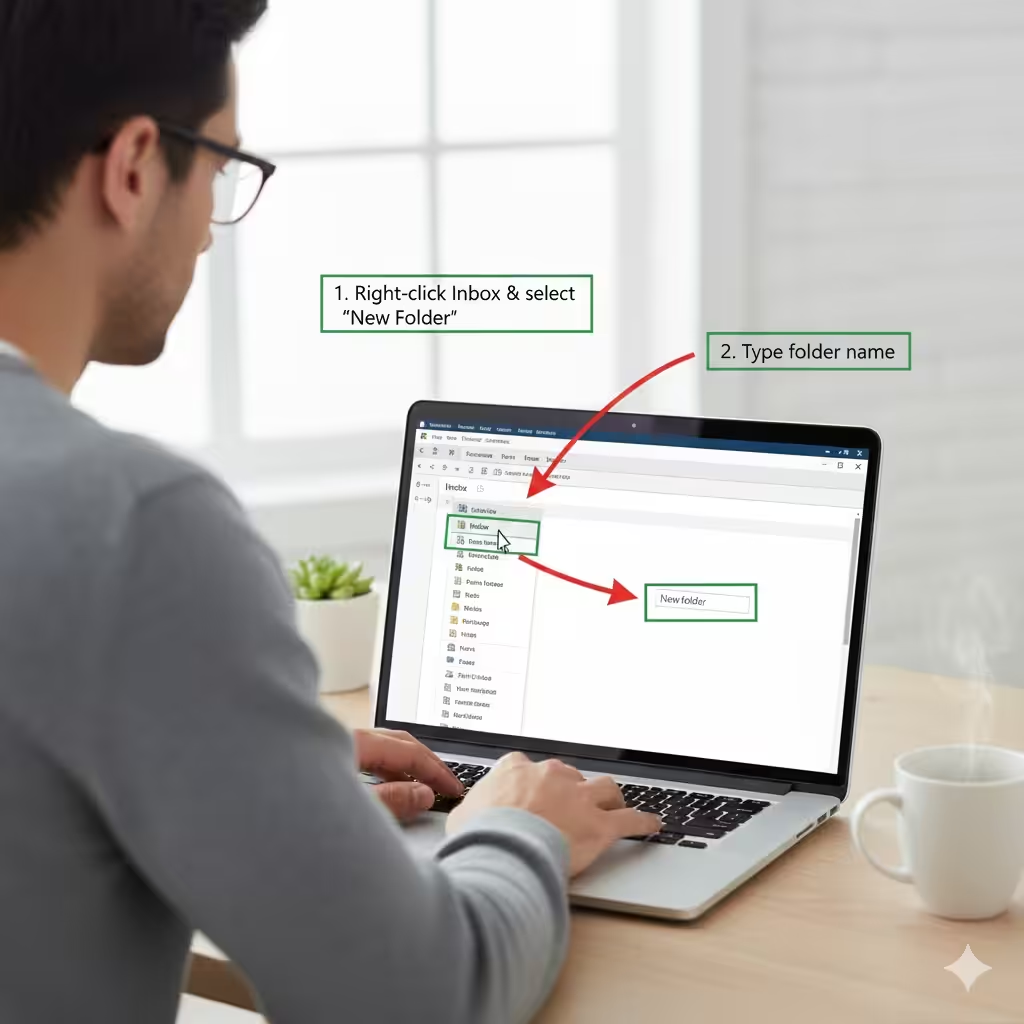
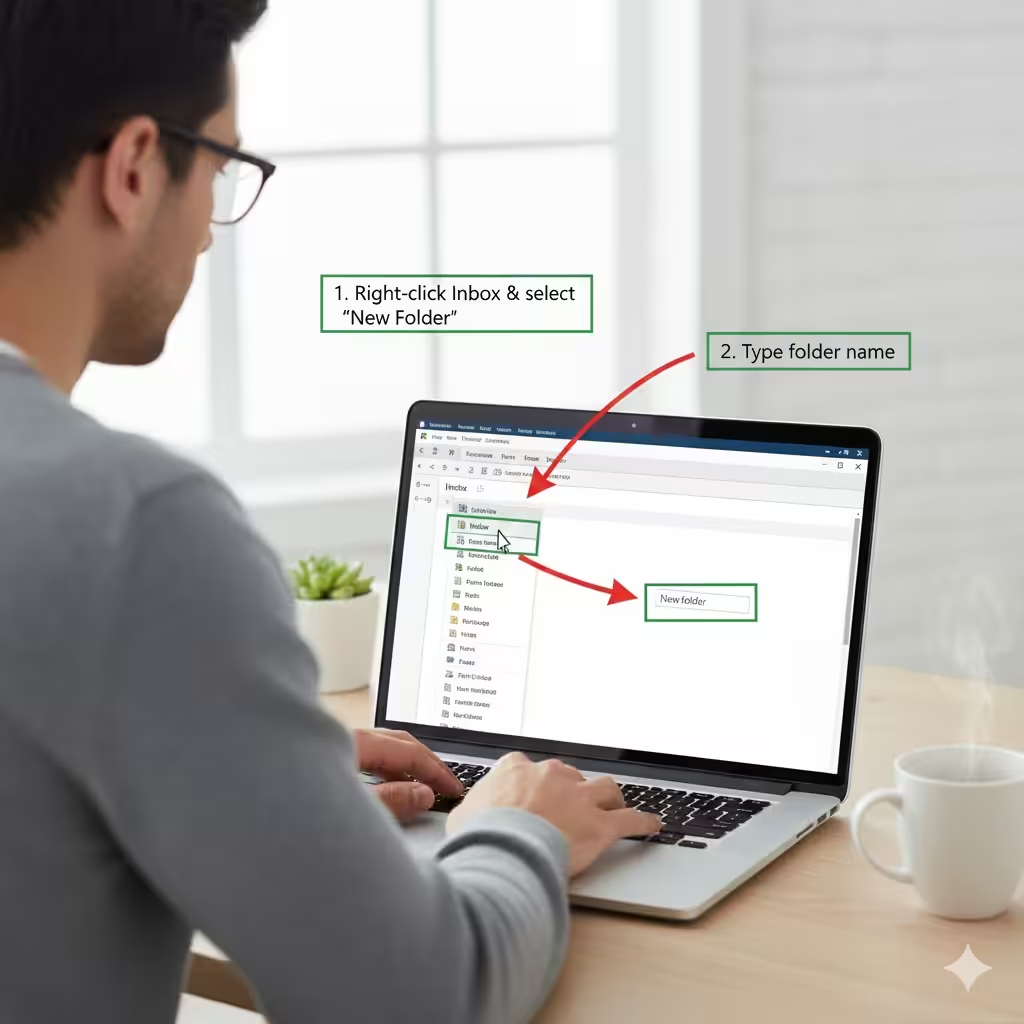
Creating Folders in Microsoft Outlook
-
Open Outlook.
-
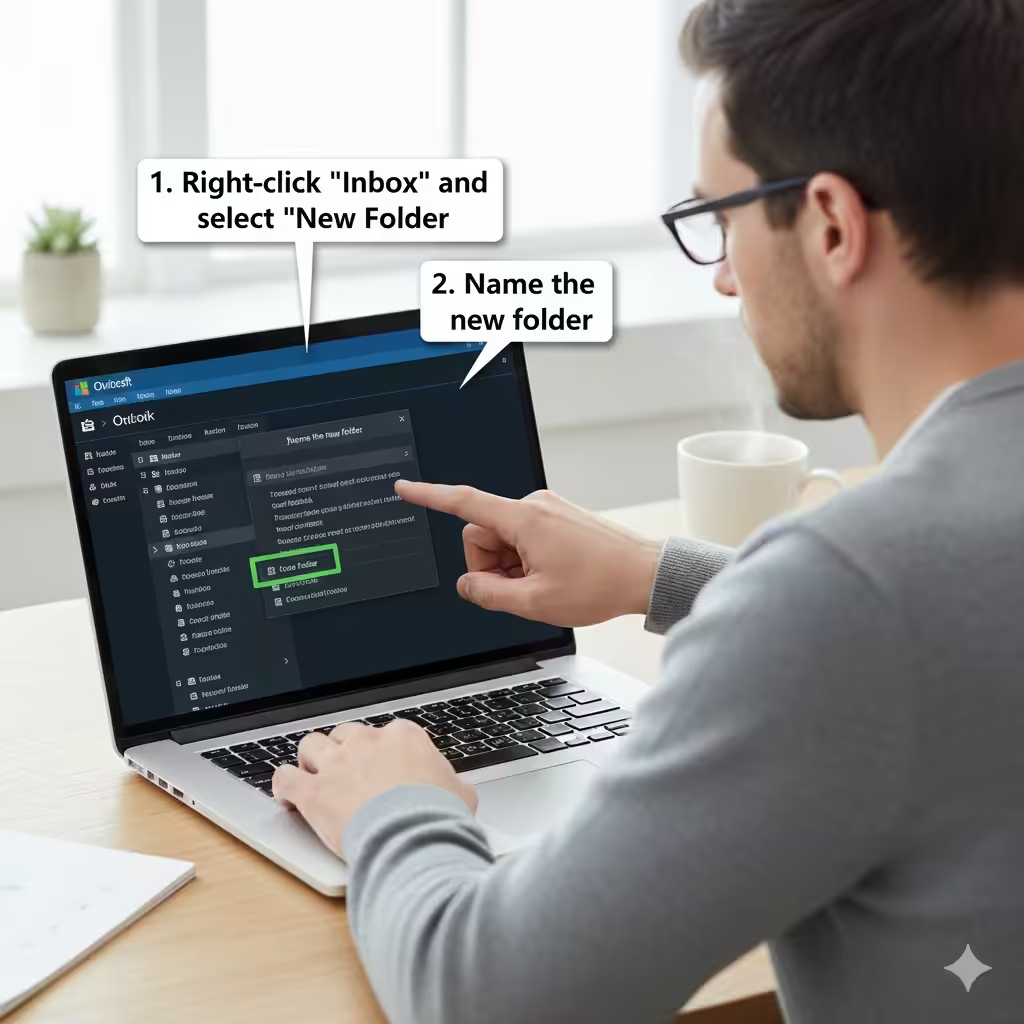
Right-click your email account or Inbox.
-
Select New Folder.
-
Name the folder and press Enter.
-
Repeat this process to build your structure.
Outlook also supports subfolders, which are helpful for grouping emails under parent categories.
Creating Folders in Gmail
Gmail uses “Labels,” but they function like folders.
-
Open Gmail.
-
On the left panel, scroll down and select Create new label.
-
Name your label.
-
(Optional) Nest it under another label for a folder-like hierarchy.
Gmail labels allow emails to appear in multiple categories at the same time.
Creating Folders in Yahoo Mail
-
Open Yahoo Mail.
-
On the left sidebar, click the Plus (+) next to Folders.
-
Name your folder.
-
Press Save.
Yahoo Mail supports unlimited custom folders.
How to Organize Emails Into Folders
Once your folders are set up, start sorting your messages. The key is to do it systematically.
1. Move Emails Manually
This is the simplest method:
-
Select the email
-
Drag it into a folder
-
Or right-click → Move to → choose the folder
2. Use Automatic Rules or Filters
Filters help sort emails automatically based on:
-
Sender
-
Keywords
-
Subject
-
Categories
-
Specific domains
Examples
-
Emails from your manager go into Work > Manager
-
Receipts are sent to Bills & Receipts
-
Newsletters go to Subscriptions
This automation saves time and keeps your inbox clean without constant manual effort.
3. Archive Old Emails
If you don’t want to delete messages but you rarely need them, use the Archive feature. This keeps your inbox uncluttered while preserving your email history.
4. Delete Unnecessary Emails
Not all emails deserve storage. Remove:
-
Promotions
-
Spam
-
Expired coupons
-
Old notifications
-
Duplicated messages
Regular deletion makes your folder system more effective.
Tips for Maintaining a Well-Organized Email System
A folder system only works if you maintain it. Here are practical habits to keep your inbox under control.
1. Sort Emails Daily or Weekly
Set aside a few minutes to clean your inbox. The more frequently you organize, the less work it becomes.
2. Limit the Number of Folders
Too many folders can make organization confusing. Keep it simple and only add new folders when necessary.
3. Merge or Remove Unused Folders
If you find yourself ignoring certain folders, delete or combine them with others.
4. Use a “To-Do” or “Action Needed” Folder
This helps you separate tasks from general communication.
5. Unsubscribe from Emails You Never Read
Cleaning the source of clutter is the best long-term solution.
6. Use Email Categories and Flags
Most email services allow you to mark:
-
Important messages
-
Emails requiring follow-up
-
Messages related to specific tasks
These tools work well alongside folders.
Advanced Strategies for Email Organization
For users with high email volume, these features can significantly improve efficiency.
1. Color-Coding
Assign colors to folders or labels:
-
Red for urgent messages
-
Blue for work
-
Green for personal
-
Yellow for financial items
Colors make it easy to identify categories at a glance.
2. Priority Inbox (Gmail)
Gmail can automatically sort your email into:
-
Important
-
Starred
-
Everything else
This helps keep your most valuable messages at the top.
3. Smart Folders (Outlook and Apple Mail)
Smart folders automatically gather emails based on conditions, without moving them from their original folders.
4. Search Folders
Create dynamic search filters that behave like folders. For example:
-
“Unread emails from clients”
-
“Messages containing invoices”
They update in real time.
When Should You Reorganize Your Folder System?
Your folder structure should evolve with your needs. Consider reorganizing when:
-
Your job roles change
-
You start new projects
-
You subscribe to new services
-
Email volume increases
-
Your current system becomes inefficient
A fresh structure can dramatically improve how you manage your inbox.
Conclusion
Organizing your email with folders brings clarity and efficiency to your digital communication. By designing a folder structure that fits your workflow, using filters and rules, and maintaining your system regularly, you can keep your inbox clean and avoid the stress of digital clutter. A well-organized email environment not only saves time but also helps you stay focused, productive, and in control of your messages.