


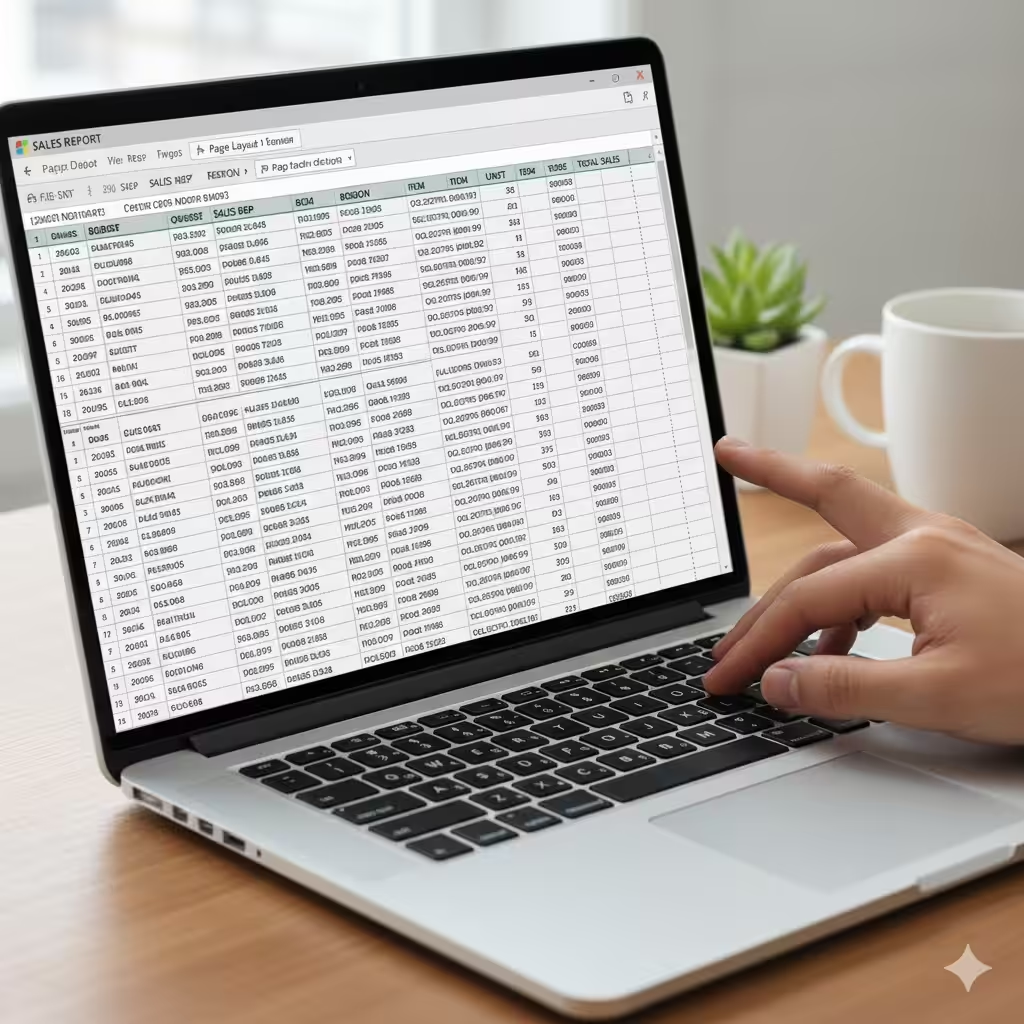
Step-by-Step Instructions to Adjust Page Orientation in Excel
Microsoft Excel is widely used for managing data, performing calculations, and creating reports. When preparing to print or present your data, page orientation becomes an important factor in ensuring your document looks neat and readable. Whether you’re working on a financial report, a chart, or a large table, knowing how to change the page orientation in Excel helps you optimize your worksheet layout for printing and sharing.
This guide will walk you through how to change page orientation in Excel step by step, explain when to use different orientations, and provide helpful tips for better page setup.
What Is Page Orientation in Excel?
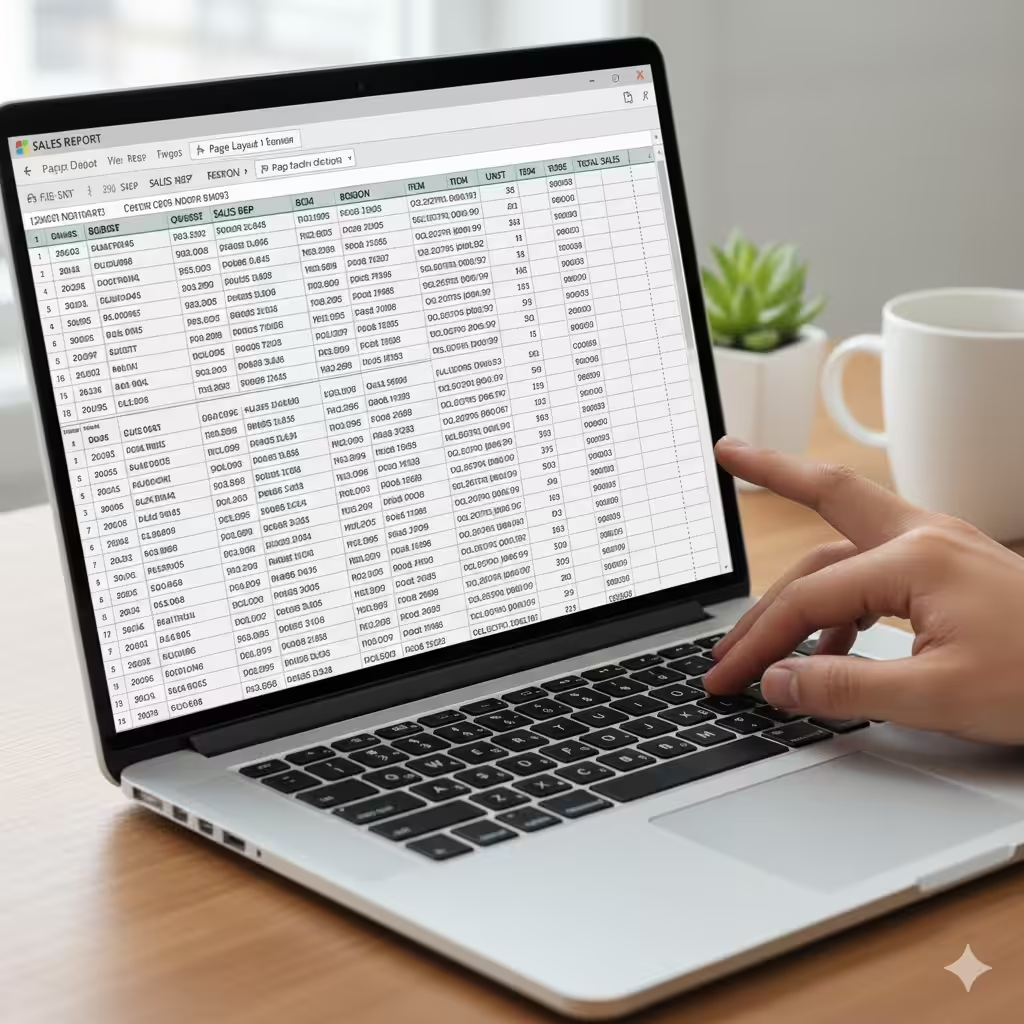
Page orientation determines the direction in which your worksheet is printed on a page. Excel offers two main types of page orientation:
-
Portrait Orientation: The page is taller than it is wide (vertical layout).
-
Landscape Orientation: The page is wider than it is tall (horizontal layout).
Portrait orientation is ideal for worksheets with fewer columns and more rows, while landscape orientation is perfect for wide tables, large charts, or reports with many columns.
Changing the page orientation ensures your printed document fits the content properly and prevents unnecessary page breaks or cut-off data.
Why Change Page Orientation in Excel?
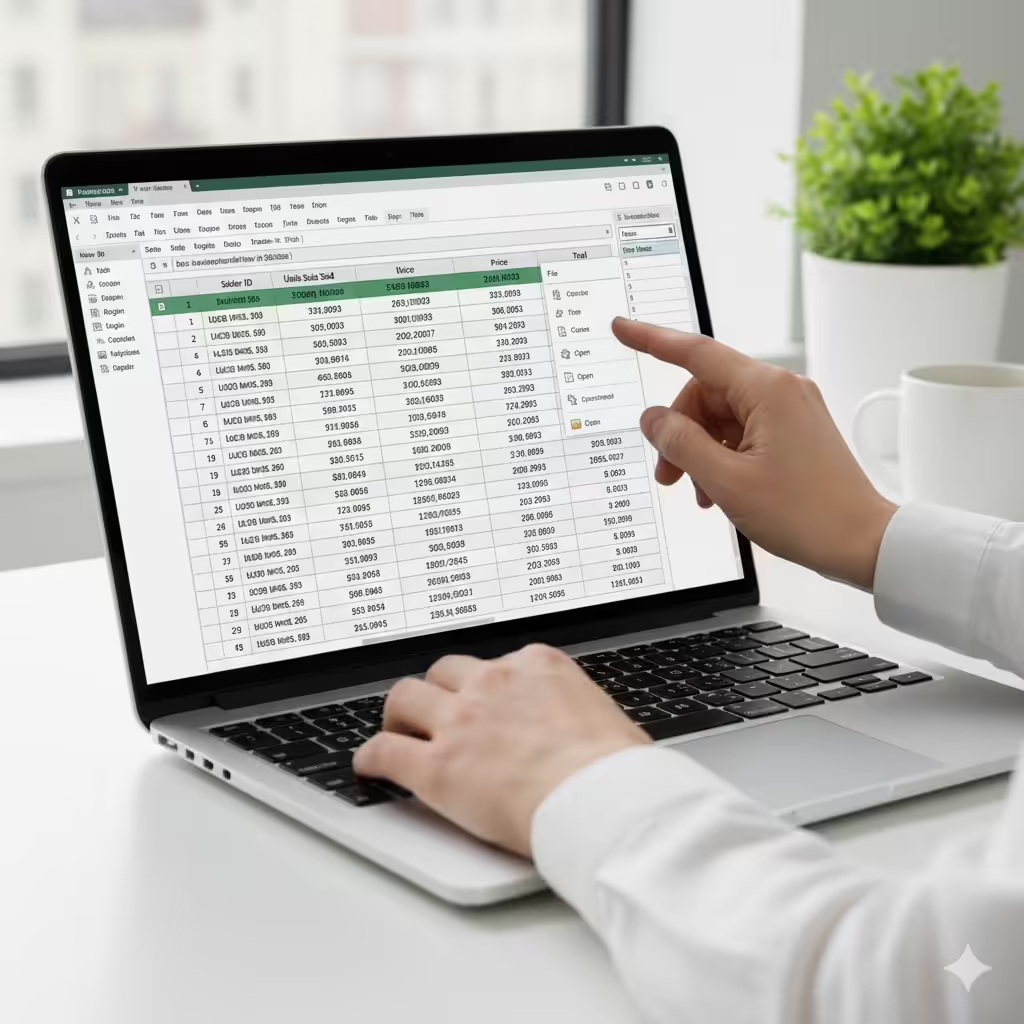
Changing page orientation can greatly improve the appearance and usability of your Excel documents. Here are a few common reasons to adjust orientation:
-
To Fit Wide Tables on One Page: Landscape mode can fit more columns across the page.
-
To Improve Readability: Proper orientation ensures your data is displayed clearly.
-
To Prepare Reports and Charts: Landscape orientation is often used for professional reports and dashboards.
-
To Customize Print Layouts: Choosing the right orientation helps when combining multiple sheets into a single report.
Whether you’re printing invoices, employee records, or sales summaries, the right page orientation makes your Excel output look polished and well-structured.
Step 1: Open Your Excel Worksheet
Start by opening the Excel file that you want to adjust.
-
Launch Microsoft Excel.
-
Open your existing file or create a new worksheet.
-
Ensure your data is properly formatted — with clear headers and columns — before setting up the page.
It’s always best to review your worksheet layout before making printing adjustments.
Step 2: Access the Page Layout Tab
Excel’s Page Layout tab provides all the tools for customizing how your worksheet will appear when printed.
-
Click the Page Layout tab in the Excel ribbon.
-
In the Page Setup group, you’ll see options for Margins, Orientation, Size, and Print Area.
This section allows you to control everything about your page’s appearance.
Step 3: Change the Page Orientation
Now that you’re in the Page Layout tab, you can change the orientation easily.
-
Click Orientation in the Page Setup group.
-
Choose either:
-
Portrait – to print the worksheet vertically.
-
Landscape – to print the worksheet horizontally.
-
Your worksheet will immediately adjust to the new layout. You’ll notice the page break lines (dotted lines) move according to the selected orientation.
Shortcut Tip:
If you prefer using the ribbon quickly, you can also press Alt + P + O, then select P (Portrait) or L (Landscape).
Step 4: Use the Page Setup Dialog Box for More Control
For more precise control over how your worksheet prints, use the Page Setup dialog box.
-
Click the small arrow in the bottom-right corner of the Page Setup group on the Page Layout tab.
-
In the dialog box, go to the Page tab.
-
Under Orientation, choose either Portrait or Landscape.
-
You can also adjust:
-
Scaling: Fit the sheet to one page wide or tall.
-
Paper Size: Choose A4, Letter, or any other paper type.
-
Print Quality: Adjust DPI for better clarity.
-
-
Click OK to apply your settings.
This method is especially helpful when preparing complex reports that need to be printed professionally.
Step 5: Preview the Page Before Printing
Before you print your document, it’s crucial to preview how it will appear on paper.
-
Go to File → Print or press Ctrl + P.
-
The Print Preview window will display how your worksheet will look with the selected orientation.
-
If something doesn’t look right, click the Arrow next to “Portrait Orientation” or “Landscape Orientation” in the print settings to switch again.
You can also adjust scaling options like Fit Sheet on One Page or Fit All Columns on One Page to make sure all data fits neatly.
Step 6: Change Page Orientation for a Specific Worksheet
If your workbook has multiple sheets, you can assign different orientations for each one.
-
Go to the sheet where you want to change the orientation.
-
Follow the same steps: Page Layout → Orientation → Choose Portrait or Landscape.
-
Repeat this for each worksheet as needed.
This is useful when you have both narrow and wide sheets in a single workbook, such as financial summaries and detailed charts.
Step 7: Change Page Orientation for Selected Pages (Using Page Breaks)
Sometimes, you may only want a specific section of your worksheet to print in a different orientation.
Here’s how you can handle that:
-
Insert Page Breaks to separate the content (Page Layout → Breaks → Insert Page Break).
-
Set the orientation for each section individually by copying the data to different sheets and adjusting each one’s orientation.
-
When printing, combine the pages as needed in your PDF or printer settings.
Although Excel doesn’t allow mixed orientations within the same worksheet, this method provides a workaround.
Step 8: Use Print Titles and Page Layout Options
After setting the orientation, you can further improve your document layout by using print titles and margins.
-
Print Titles: Repeat header rows on every printed page. Go to Page Layout → Print Titles → Rows to repeat at top.
-
Margins: Adjust page margins to ensure all content fits. Choose Narrow, Normal, or Wide, or customize them manually.
-
Gridlines and Headings: Enable these options in the Sheet tab of Page Setup to make printed data easier to read.
These options help produce a cleaner, more professional report.
Step 9: Change Page Orientation for Charts or Graphs
If you have charts in your worksheet, landscape orientation usually works best.
To adjust this:
-
Select the chart.
-
Resize it to fit the printable area.
-
Change the page orientation to Landscape to make the chart more readable.
This ensures your graphs are displayed properly without being cut off during printing.
Step 10: Save and Export Your File
Once your page layout and orientation are finalized, save your workbook.
-
Click File → Save As to keep a backup copy.
-
To share or print digitally, select File → Export → Create PDF/XPS Document.
Exporting as a PDF preserves your orientation and layout, ensuring that anyone who views the file sees it exactly as intended.
Tips for Better Page Orientation Management in Excel
-
Use Landscape Mode for Wide Tables: It helps avoid data cut-offs.
-
Fit to One Page: Use scaling options like “Fit All Columns on One Page.”
-
Check Margins and Print Area: Ensure no data is outside the print area.
-
Use Page Break Preview: Found under the View tab, this feature helps visualize how your worksheet will print.
-
Save Custom Print Settings: Each worksheet saves its own orientation and layout, so review them before printing multiple sheets.
Common Issues When Changing Page Orientation
Issue 1: Data Not Fitting on the Page
If some columns or rows still don’t appear, reduce margins or use the Fit Sheet on One Page option in Print Settings.
Issue 2: Page Breaks Appearing in Odd Places
Manually adjust page breaks under Page Layout → Breaks → Reset All Page Breaks.
Issue 3: Orientation Not Saving
Make sure to save your workbook after setting the orientation for each sheet. Otherwise, Excel will revert to the default portrait layout.
Conclusion
Changing the page orientation in Excel is a simple yet powerful way to control how your worksheet looks when printed or shared. Whether you’re preparing a compact table in Portrait mode or a wide financial report in Landscape, understanding this feature ensures your data is presented clearly and professionally.
By following this step-by-step guide, you can easily adjust the orientation for any worksheet, preview it before printing, and fine-tune it with margins, print titles, and scaling options.