


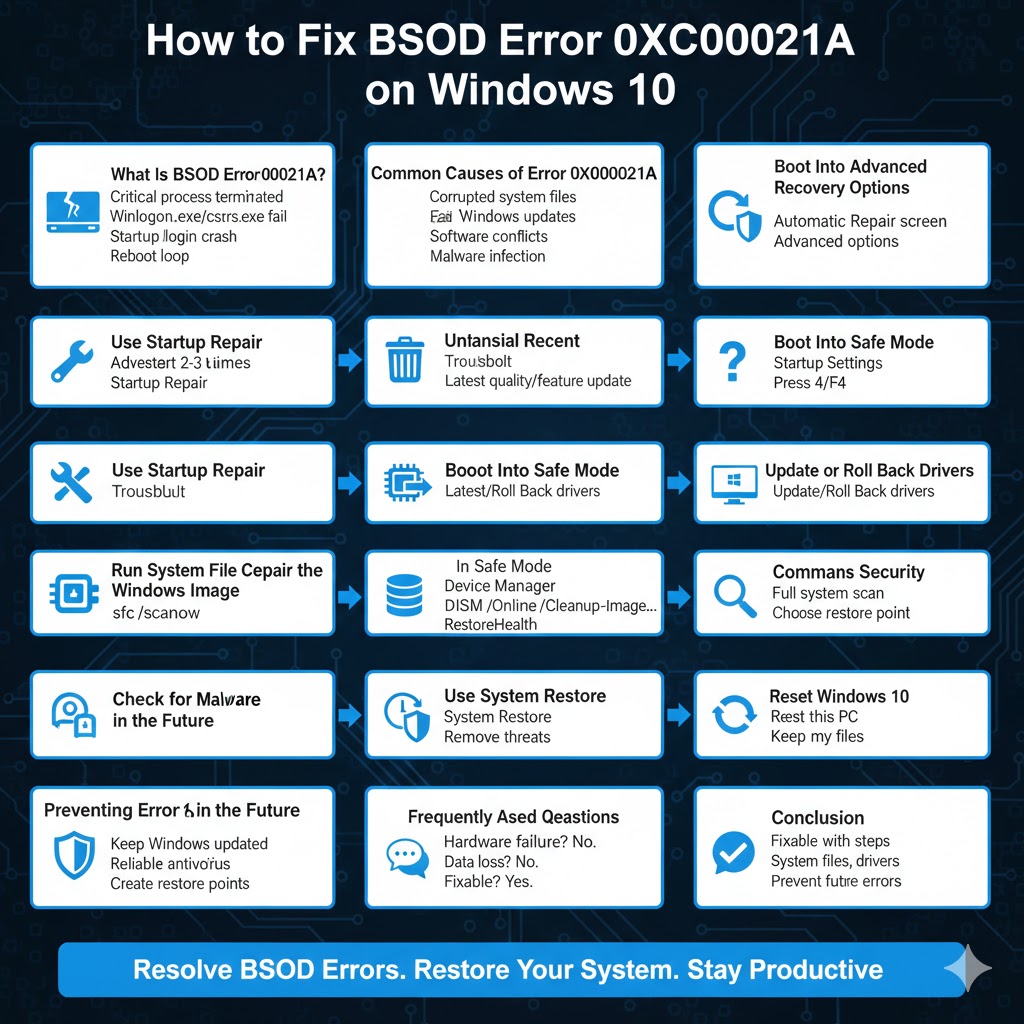
How to Fix BSOD Error 0xC000021A on Windows 10
The Blue Screen of Death (BSOD) error 0xC000021A on Windows 10 is one of the more serious stop codes users can encounter. When this error appears, Windows suddenly crashes and restarts, often preventing the system from booting normally. For many users, the error seems to appear without warning, sometimes after a Windows update, driver installation, or system modification.
Although the error looks intimidating, it does not always mean that your hardware is permanently damaged. In most cases, BSOD error 0xC000021A is related to corrupted system files, incompatible drivers, or failed updates. This guide explains what the error means, why it happens, and how to fix it step by step.
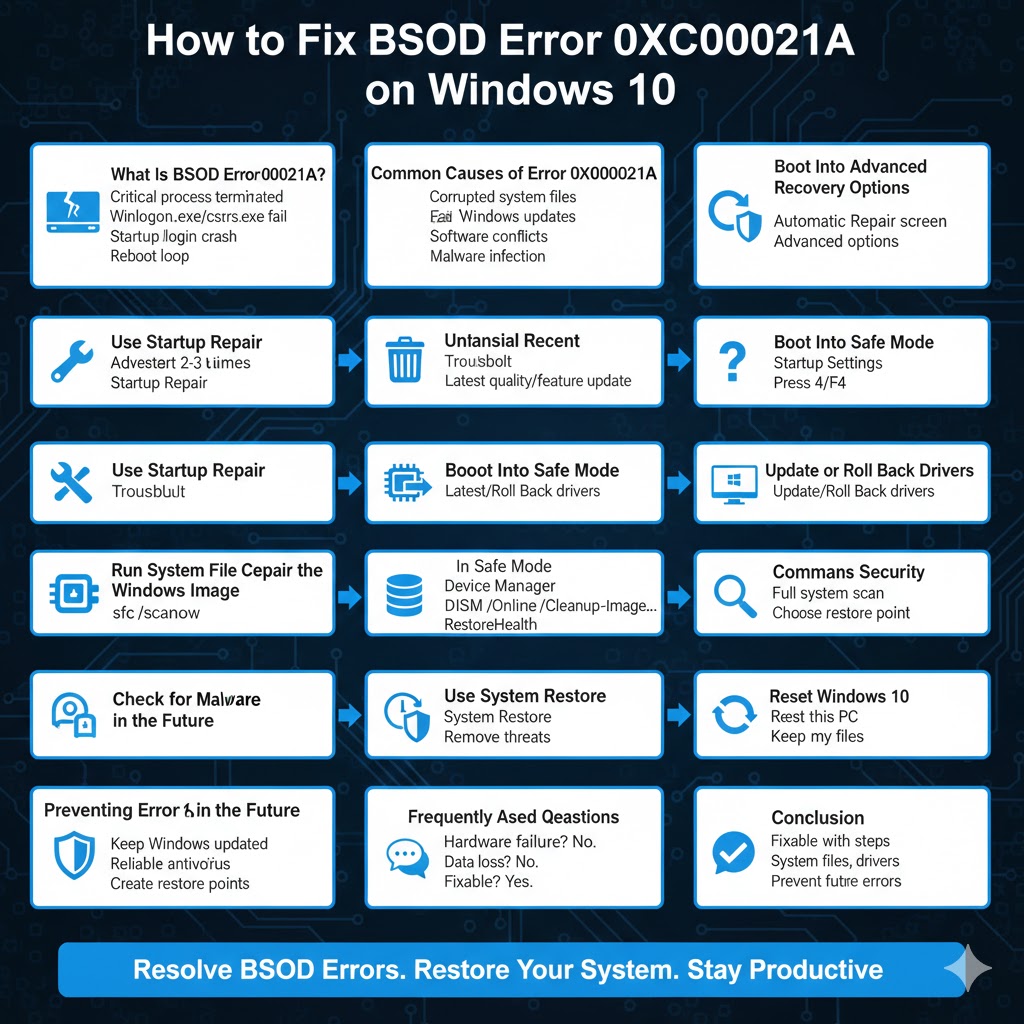
What Is BSOD Error 0xC000021A?
Error code 0xC000021A occurs when a critical user-mode subsystem such as Winlogon.exe or Client Server Runtime Subsystem (csrss.exe) terminates unexpectedly. These processes are essential for Windows to function properly. When Windows detects that they have failed, it shuts down immediately to prevent further damage.
This error typically happens during startup, login, or shortly after Windows loads. In many cases, users are stuck in a reboot loop and cannot access the desktop.
Common Causes of Error 0xC000021A
Understanding the root cause helps determine the best solution. The most common reasons include:
- Corrupted or missing system files
- Failed or interrupted Windows updates
- Incompatible or outdated drivers
- Third-party software conflicts
- Malware infections
- Improper system modifications or registry changes
The error often appears after a major Windows update or when system files are replaced incorrectly.
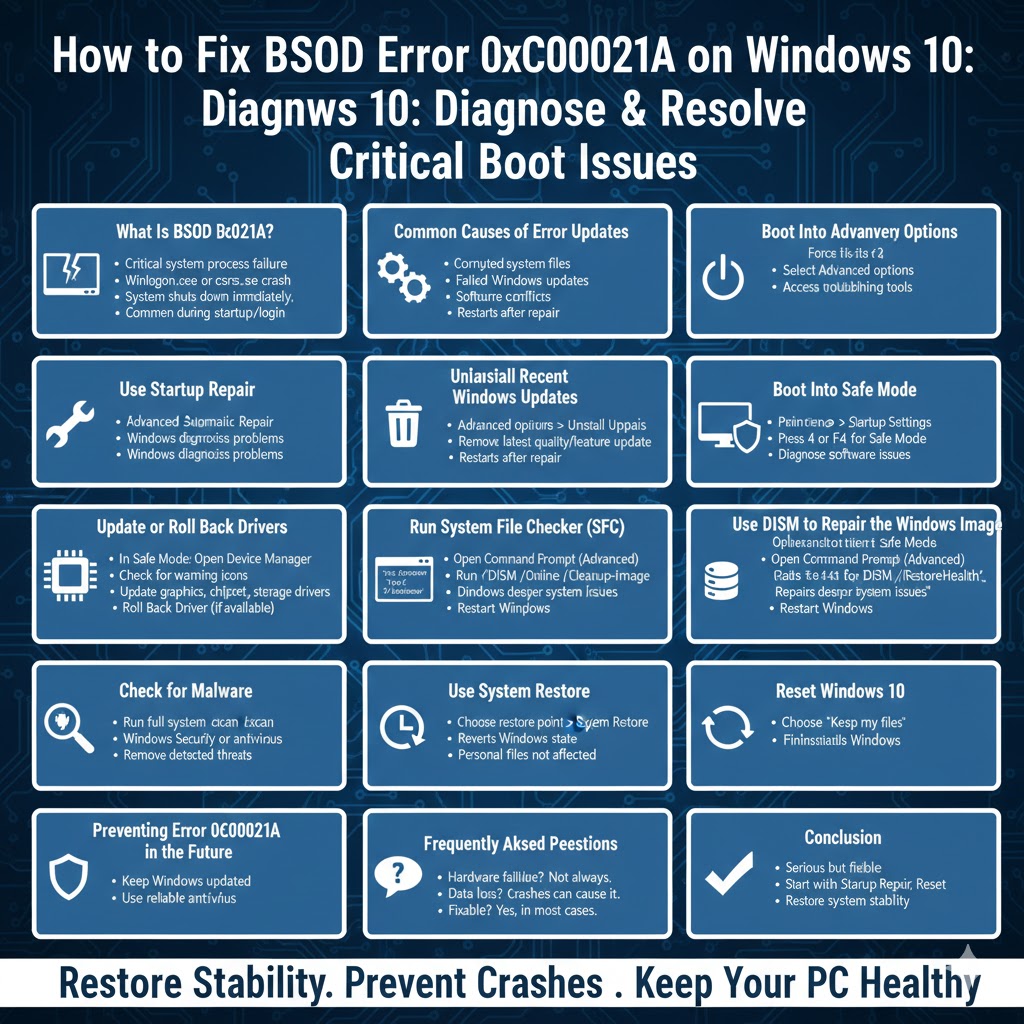
Boot Into Advanced Recovery Options
Since this BSOD often prevents normal startup, the first step is to access Windows Recovery Environment (WinRE).
To enter WinRE:
- Force restart your computer two or three times during boot
- Windows will automatically load Automatic Repair
- Select Advanced options
From here, you can access troubleshooting tools that help fix the issue.
Use Startup Repair
Startup Repair automatically scans for issues that prevent Windows from booting.
To run Startup Repair:
- Go to Advanced options
- Select Troubleshoot
- Choose Advanced options
- Click Startup Repair
Windows will attempt to diagnose and repair startup-related problems. After the process completes, restart your PC and check if the error is resolved.
Uninstall Recent Windows Updates
A faulty or incomplete Windows update is a very common cause of error 0xC000021A.
To remove recent updates:
- Go to Advanced options
- Select Troubleshoot
- Click Advanced options
- Choose Uninstall Updates
- Select Uninstall latest quality update or feature update
Once removed, restart your system and see if Windows boots normally.
Boot Into Safe Mode
Safe Mode loads Windows with minimal drivers and services, making it easier to diagnose software-related issues.
To enter Safe Mode:
- Go to Advanced options
- Select Startup Settings
- Click Restart
- Press 4 or F4 to enable Safe Mode
If Windows starts in Safe Mode, the issue is likely caused by a driver or third-party application.
Update or Roll Back Drivers
Driver incompatibility is another major cause of BSOD errors.
In Safe Mode:
- Open Device Manager
- Check for devices with warning icons
- Update drivers for graphics, chipset, and storage controllers
If the error appeared after a recent driver update, roll it back instead by opening the driver’s properties and selecting Roll Back Driver.
Run System File Checker (SFC)
Corrupted system files can trigger critical process failures.
To run SFC:
- Open Command Prompt from Advanced options
- Type
sfc /scannow - Press Enter
Windows will scan and repair missing or damaged system files automatically.
Use DISM to Repair the Windows Image
If SFC does not fix the problem, the Windows image itself may be corrupted.
Run the following commands one by one:
DISM /Online /Cleanup-Image /CheckHealthDISM /Online /Cleanup-Image /ScanHealthDISM /Online /Cleanup-Image /RestoreHealth
After completion, restart your computer.
Check for Malware
Some malware targets system processes and can cause serious stability issues.
Run a full system scan using Windows Security or a trusted antivirus tool. Remove any detected threats and restart the system.
Use System Restore
If the error started recently, System Restore can revert Windows to a working state.
To use System Restore:
- Go to Advanced options
- Select System Restore
- Choose a restore point created before the BSOD occurred
This process does not delete personal files but may remove recently installed programs.
Reset Windows 10
If all other solutions fail, resetting Windows is the most reliable fix.
To reset Windows:
- Go to Advanced options
- Select Reset this PC
- Choose Keep my files
This reinstalls Windows while preserving personal data.
Preventing Error 0xC000021A in the Future
To reduce the risk of this BSOD recurring:
- Keep Windows and drivers up to date
- Avoid interrupting Windows updates
- Do not install unverified system modification tools
- Use reliable antivirus software
- Create restore points regularly
Conclusion
BSOD error 0xC000021A on Windows 10 is serious but fixable. In most cases, the problem is caused by corrupted system files, failed updates, or driver conflicts. By carefully following the solutions in this guide—starting with Startup Repair and Safe Mode, and progressing to SFC, DISM, and System Restore—you can recover your system without losing data.
If the issue persists even after a reset, hardware diagnostics may be necessary. However, for most users, one of the methods above will successfully restore Windows to a stable state.