


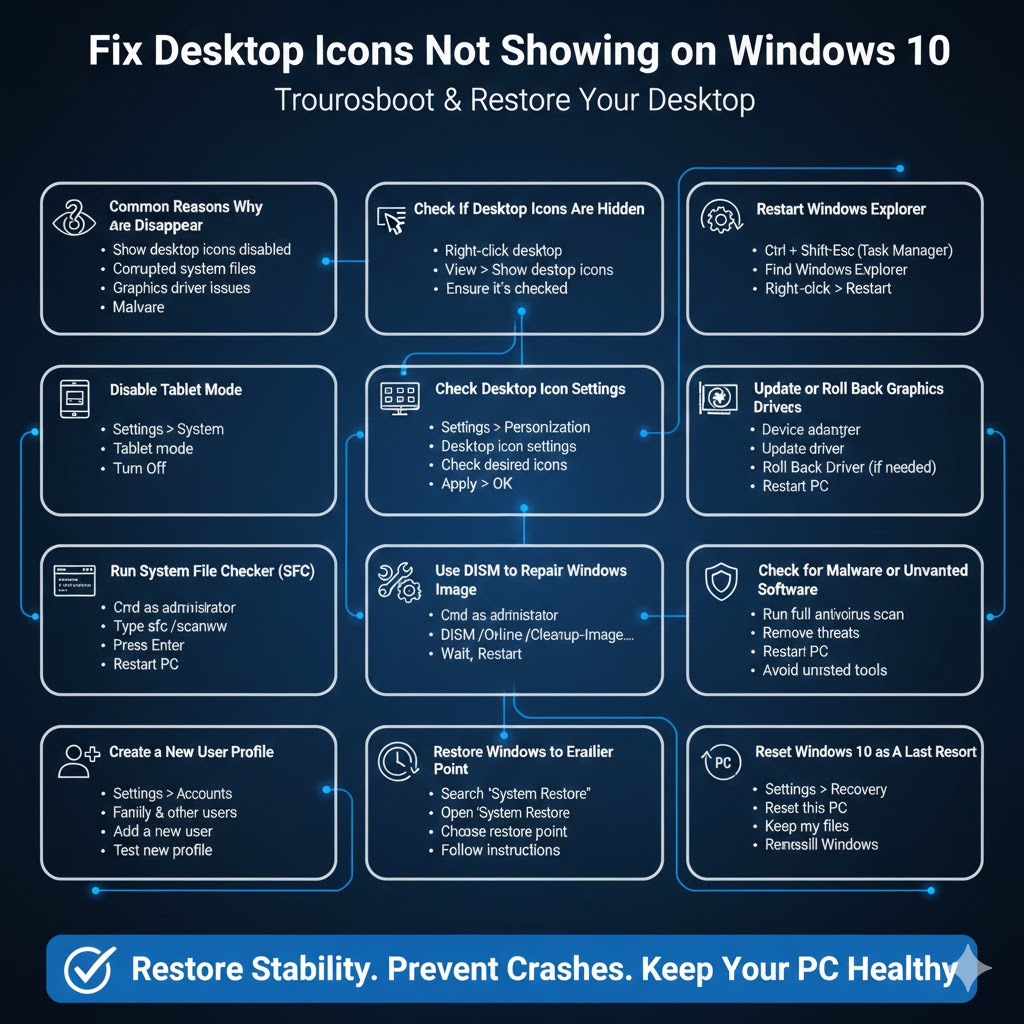
Fix Desktop Icons Not Showing on Windows 10
Desktop icons suddenly disappearing on Windows 10 is a common and frustrating issue. One moment everything looks normal, and the next your desktop appears empty, even though your files and shortcuts still exist somewhere on the system. This problem can be caused by simple display settings, Windows Explorer glitches, tablet mode, corrupted system files, or even graphics driver issues.
The good news is that in most cases, desktop icons are not deleted—they are simply hidden or not being displayed correctly. This guide explains all possible causes and provides step-by-step solutions to restore missing desktop icons on Windows 10 safely and effectively.
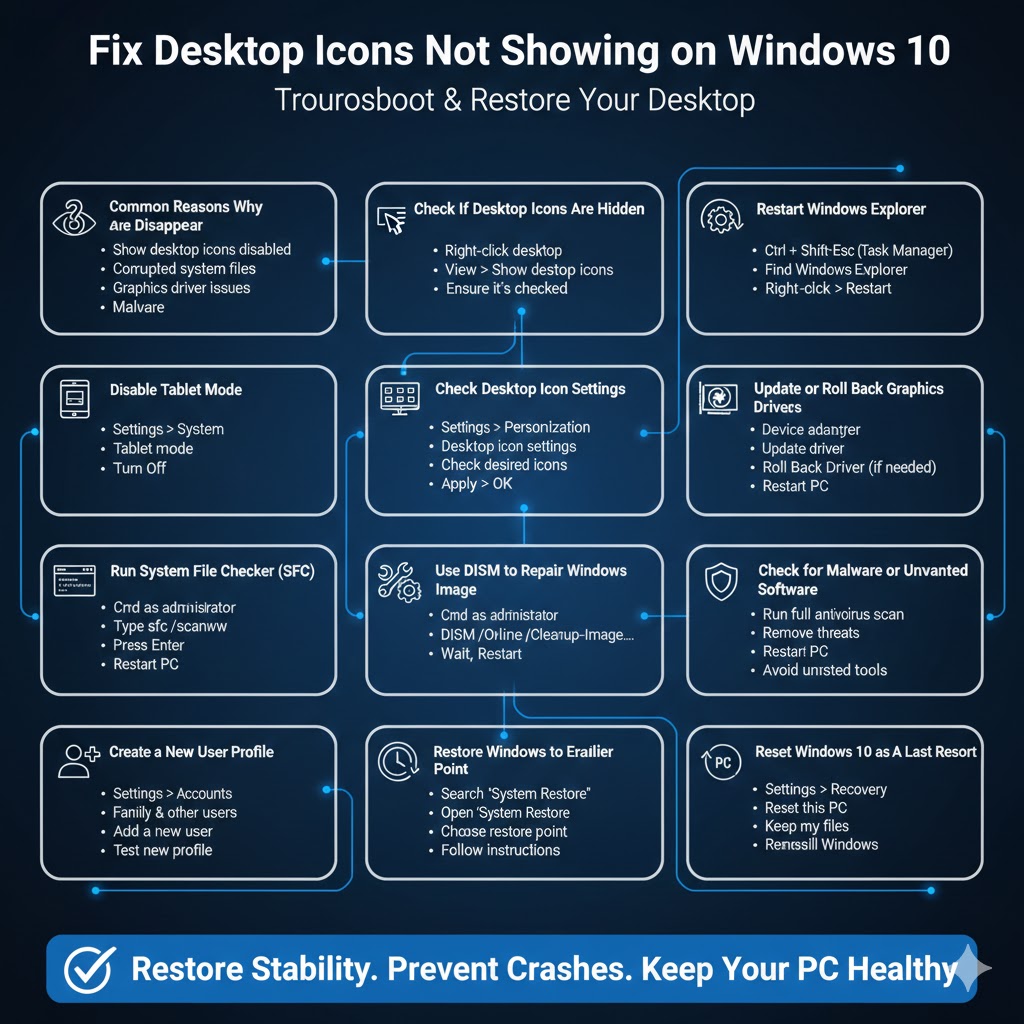
Common Reasons Why Desktop Icons Disappear
Understanding the cause makes troubleshooting much easier. Desktop icons can disappear due to both accidental changes and system-related problems.
One of the most common reasons is that the “Show desktop icons” option has been disabled. This can happen accidentally through a right-click menu or after a Windows update. Tablet Mode is another frequent cause, especially on laptops or 2-in-1 devices. When Tablet Mode is enabled, Windows may hide desktop icons by design.
Other causes include:
- Windows Explorer crashing or failing to refresh
- Corrupted system files
- Graphics driver problems
- Malware or third-party customization software
- User profile issues
Check If Desktop Icons Are Hidden
The first and easiest thing to check is whether Windows is simply hiding your desktop icons.
Right-click on an empty area of the desktop, hover your mouse over View, and make sure Show desktop icons is checked. If it is unchecked, click it once to re-enable it. Your desktop icons should reappear immediately.
If this option was already enabled, move on to the next solution.
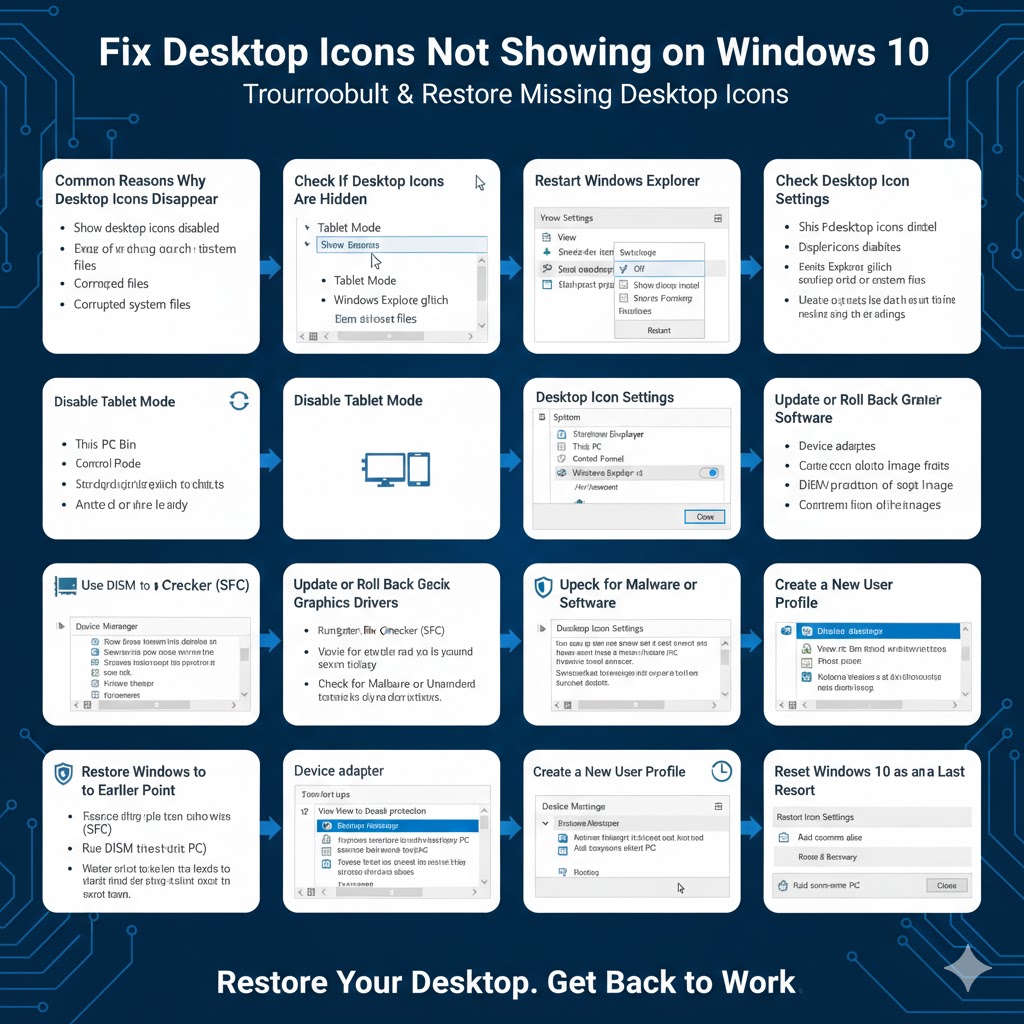
Restart Windows Explorer
Windows Explorer controls the desktop, taskbar, and file manager. If it crashes or freezes, desktop icons may disappear even though the system is still running.
To restart Windows Explorer:
- Press Ctrl + Shift + Esc to open Task Manager
- Find Windows Explorer in the list
- Right-click it and select Restart
Your screen may briefly flicker, and then the desktop should reload. In many cases, this instantly restores missing icons.
Disable Tablet Mode
Tablet Mode changes how Windows displays apps and the desktop. When enabled, desktop icons may not appear as expected.
To turn off Tablet Mode:
- Open Settings
- Go to System
- Select Tablet mode from the left panel
- Set Tablet mode to Off
After disabling it, return to the desktop and check whether your icons are back.
Check Desktop Icon Settings
Sometimes system icons such as This PC, Recycle Bin, Network, or Control Panel disappear while other icons remain visible.
To restore system icons:
- Open Settings
- Go to Personalization
- Select Themes
- Click Desktop icon settings
- Check the icons you want to display
- Click Apply, then OK
This ensures essential Windows desktop icons are enabled.
Update or Roll Back Graphics Drivers
Graphics driver issues can prevent desktop icons from displaying correctly, especially after Windows updates or driver changes.
To update your graphics driver:
- Right-click the Start button
- Select Device Manager
- Expand Display adapters
- Right-click your graphics card and choose Update driver
If the problem started after a recent update, try rolling back the driver instead. In Device Manager, open the driver properties, go to the Driver tab, and select Roll Back Driver if available.
Restart your computer after making changes.
Run System File Checker (SFC)
Corrupted or missing system files can cause display problems, including missing desktop icons.
To run System File Checker:
- Open Command Prompt as administrator
- Type
sfc /scannow - Press Enter
Windows will scan and repair system files automatically. This process may take several minutes. Once completed, restart your computer and check the desktop again.
Use DISM to Repair Windows Image
If SFC does not fix the issue, the Windows image itself may be damaged. The Deployment Image Servicing and Management (DISM) tool can repair deeper system issues.
Run these commands in an elevated Command Prompt:
DISM /Online /Cleanup-Image /CheckHealthDISM /Online /Cleanup-Image /ScanHealthDISM /Online /Cleanup-Image /RestoreHealth
After the process finishes, restart Windows.
Check for Malware or Unwanted Software
Some malware or aggressive desktop customization tools can hide icons or interfere with Explorer.
Run a full scan using Windows Security or a trusted antivirus program. Remove any detected threats and restart your system. Avoid installing unknown themes, icon packs, or registry cleaners from untrusted sources.
Create a New User Profile
If desktop icons appear correctly for other users but not for your account, your user profile may be corrupted.
To test this:
- Open Settings
- Go to Accounts
- Select Family & other users
- Create a new local user account
Log in to the new account and check the desktop. If icons work normally, consider migrating your files to the new profile.
Restore Windows to an Earlier Point
If desktop icons disappeared recently, using System Restore can revert Windows to a working state.
To use System Restore:
- Search for Create a restore point
- Open it and click System Restore
- Choose a restore point from before the issue began
- Follow the on-screen instructions
This does not affect personal files but may remove recently installed programs.
Reset Windows 10 as a Last Resort
If none of the previous solutions work, resetting Windows may be necessary.
You can reset Windows while keeping personal files:
- Open Settings
- Go to Update & Security
- Select Recovery
- Click Reset this PC
- Choose Keep my files
This option reinstalls Windows and resolves deep system issues.
Conclusion
Desktop icons disappearing on Windows 10 can be alarming, but the problem is usually easy to fix. In most cases, icons are hidden due to simple settings, Explorer glitches, or Tablet Mode. By carefully following the solutions in this guide—from checking visibility settings to repairing system files—you can restore your desktop without losing data.
Keeping Windows updated, using trusted drivers, and avoiding risky customization tools can help prevent this issue in the future. With the right approach, your desktop can be fully restored in just a few minutes.