


Steps to Completely Delete Microsoft Office 2016 on macOS
If you’ve been using Microsoft Office 2016 for Mac and want to switch to a newer version or free up storage space, simply dragging the Office apps to the Trash isn’t enough. Office 2016 installs various support files, preferences, and caches that remain even after removing the main applications. This guide will walk you through how to completely uninstall Microsoft Office 2016 for Mac — ensuring no leftover files occupy your system.
By following the detailed steps below, you’ll remove every trace of Office from your Mac, including apps, support files, and user preferences.
Understanding Why You Should Uninstall Office 2016 Completely
Before diving into the steps, it’s important to understand why a complete uninstall is necessary.
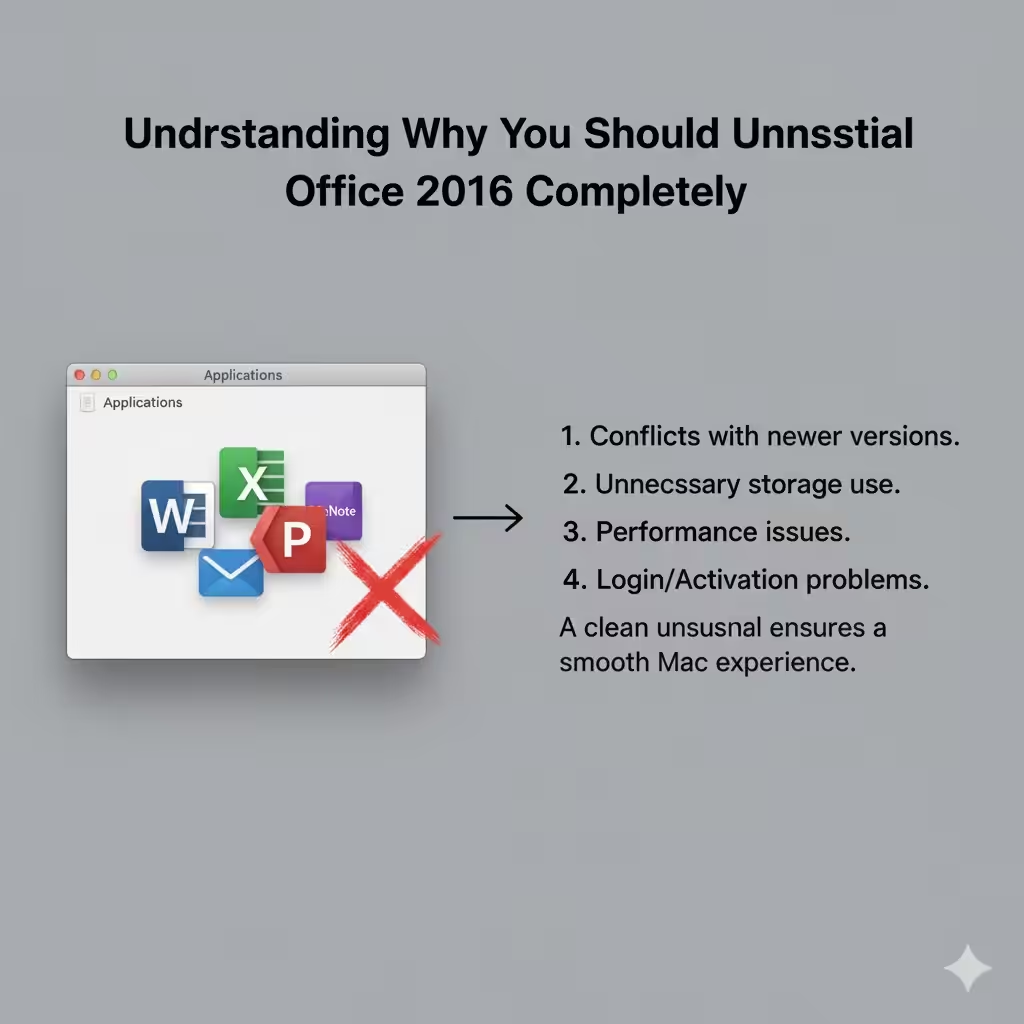
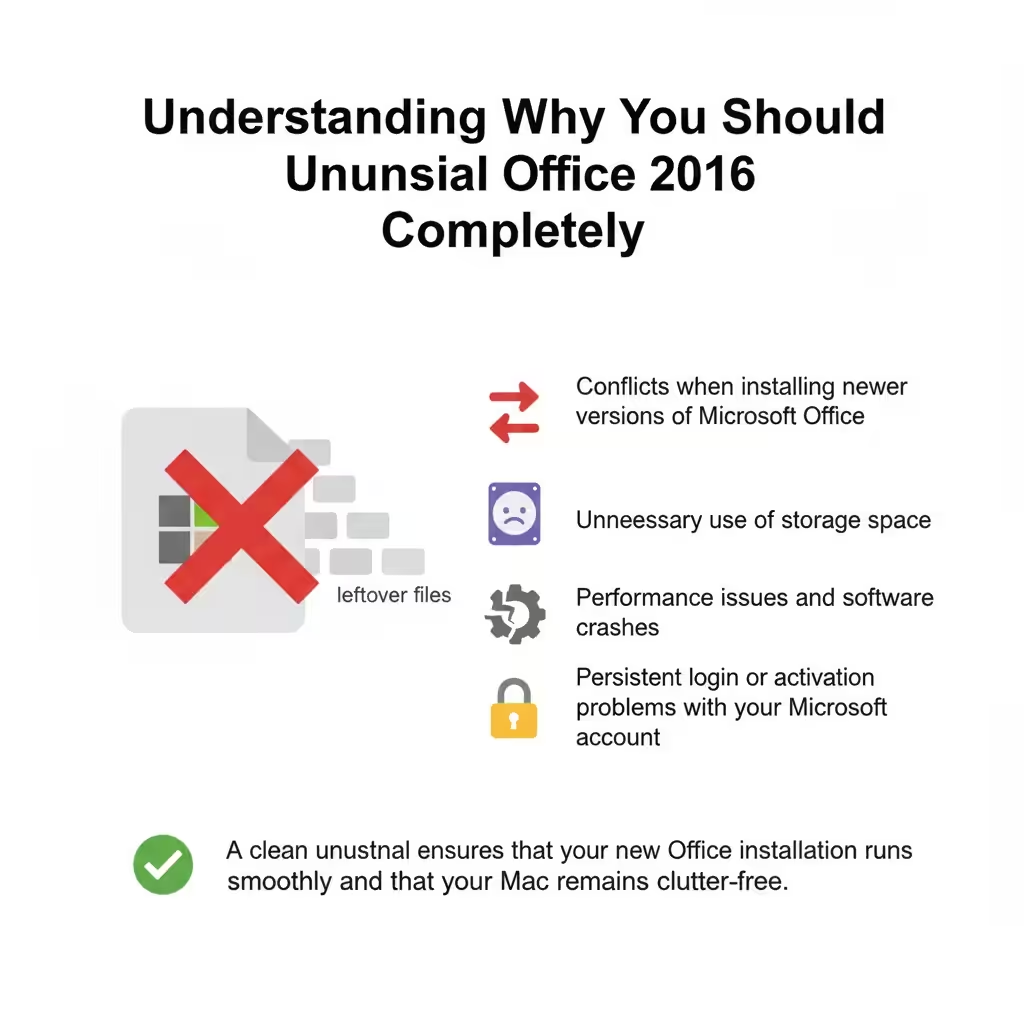
Office 2016 for Mac includes multiple components: Word, Excel, PowerPoint, Outlook, and OneNote. Each application installs its own library files and configuration data. If these aren’t properly deleted, they can cause:
-
Conflicts when installing newer versions of Microsoft Office.
-
Unnecessary use of storage space.
-
Performance issues and software crashes.
-
Persistent login or activation problems with your Microsoft account.
A clean uninstall ensures that your new Office installation runs smoothly and that your Mac remains clutter-free.
Step 1: Quit All Microsoft Office Applications
Before you start removing files, make sure all Office programs are completely closed.
-
Open the Apple Menu at the top-left corner of your screen.
-
Choose Force Quit if any Office app is still running.
-
Select any open Microsoft applications (Word, Excel, PowerPoint, Outlook, or OneNote) and click Force Quit.
This step ensures no background processes interfere with the uninstallation.
Step 2: Remove Microsoft Office Applications
Now, let’s delete the main Office apps from the Applications folder.
-
Open Finder.
-
In the sidebar, click Applications.
-
Locate the following apps:
-
Microsoft Word
-
Microsoft Excel
-
Microsoft PowerPoint
-
Microsoft Outlook
-
Microsoft OneNote
-
-
Drag each app to the Trash, or right-click and choose Move to Trash.
Afterward, you can empty the Trash by right-clicking the Trash icon in the Dock and selecting Empty Trash.
Step 3: Remove Office 2016 Support Files
Deleting the applications doesn’t remove all their associated files. Microsoft Office stores data in several hidden Library folders on your Mac. You’ll need to remove these manually.
To access the Library folder:
-
Open Finder.
-
In the menu bar, click Go > Go to Folder.
-
Type:
-
Click Go.
Now, remove the following items if they exist:
-
~/Library/Preferences/com.microsoft.office.plist
-
~/Library/Preferences/com.microsoft.Word.plist
-
~/Library/Preferences/com.microsoft.Excel.plist
-
~/Library/Preferences/com.microsoft.Powerpoint.plist
-
~/Library/Preferences/com.microsoft.Outlook.plist
-
~/Library/Application Support/Microsoft
-
~/Library/Containers/com.microsoft.Word
-
~/Library/Containers/com.microsoft.Excel
-
~/Library/Containers/com.microsoft.Powerpoint
-
~/Library/Containers/com.microsoft.Outlook
-
~/Library/Group Containers/UBF8T346G9.Office
-
~/Library/Group Containers/UBF8T346G9.ms
-
~/Library/Group Containers/UBF8T346G9.OfficeOsfWebHost
To delete each one, right-click and choose Move to Trash.
Step 4: Remove Outlook Data (If You Use Outlook)
If you use Microsoft Outlook, it stores local copies of your email and calendar data. If you want a complete removal, delete these as well.
-
Open Finder and navigate to:
-
Delete all contents inside the Outlook folder.
Note: If you may need your Outlook data later, consider backing up this folder before deleting it.
Step 5: Delete Keychain Entries
Microsoft Office sometimes saves activation data or login credentials in the Mac Keychain. To remove them:
-
Open the Keychain Access app (found in Applications > Utilities).
-
In the search bar, type “Microsoft.”
-
Delete all related items, such as:
-
Microsoft Office Identities
-
Microsoft AutoUpdate
-
Office 2016 activation keys
-
This ensures that Office 2016 won’t retain any stored credentials or activation remnants.
Step 6: Remove Microsoft AutoUpdate
Microsoft AutoUpdate (MAU) is a background service that checks for Office updates. To uninstall it:
-
In Finder, open Applications > Microsoft AutoUpdate (if available).
-
Drag it to the Trash.
-
You can also remove its support files by going to:
-
Delete the MAU folder.
This prevents unnecessary update checks for software you no longer have.
Step 7: Remove Login Items and Launch Agents
Microsoft Office may install background processes that launch when your Mac starts. You can remove them to improve startup speed.
-
Go to System Settings > General > Login Items.
-
Check if any Microsoft-related items are listed and remove them.
-
Then, open Finder and navigate to:
-
Delete any files with “microsoft” or “office” in their name.
Step 8: Empty the Trash and Restart Your Mac
After deleting all the files and folders, right-click the Trash icon in the Dock and select Empty Trash.
Then, restart your Mac to ensure all changes take effect.
This refreshes the system and clears any temporary files still linked to Office 2016.
Step 9: Verify That Office 2016 Is Completely Removed
Once your Mac restarts, you can check if any traces of Microsoft Office remain:
-
Open Finder and search for “Microsoft” or “Office.”
-
If no relevant files or folders appear, the uninstallation is complete.
You can also try reinstalling a new version of Microsoft Office to confirm that no conflicts or residual files remain.
Step 10: Optional – Use a Third-Party Uninstaller
If you’re not comfortable manually deleting files, you can use reputable third-party tools to help with the process. Apps like AppCleaner or CleanMyMac X can detect and remove all associated Office 2016 files automatically.
These apps can save time by scanning for residual files across your system. However, always make sure to download them from trusted sources.
Conclusion
Uninstalling Microsoft Office 2016 for Mac completely requires more than just dragging the apps to the Trash. The suite installs several support files, preferences, and background services that must be manually removed.
By carefully following the steps in this guide — quitting all apps, deleting application files, removing preferences, clearing Keychain entries, and uninstalling AutoUpdate — you’ll ensure that every trace of Office 2016 is gone from your Mac.