


Ways to Remove or Hide the Reading List Feature in Chrome Browser
The Reading List feature in Google Chrome is designed to let users save web pages for later reading. It’s a convenient tool if you frequently come across interesting articles but don’t have time to read them immediately. However, not everyone finds this feature useful. For some users, it can clutter the browser’s interface or appear redundant, especially if they already use bookmarks or other note-taking tools.
If you’re one of those users who prefers a cleaner browsing experience, this guide will show you how to disable or remove the Reading List from Google Chrome on Windows, macOS, or Linux. We’ll also cover some alternate methods in case you want to keep it hidden but accessible.
Understanding the Reading List in Google Chrome
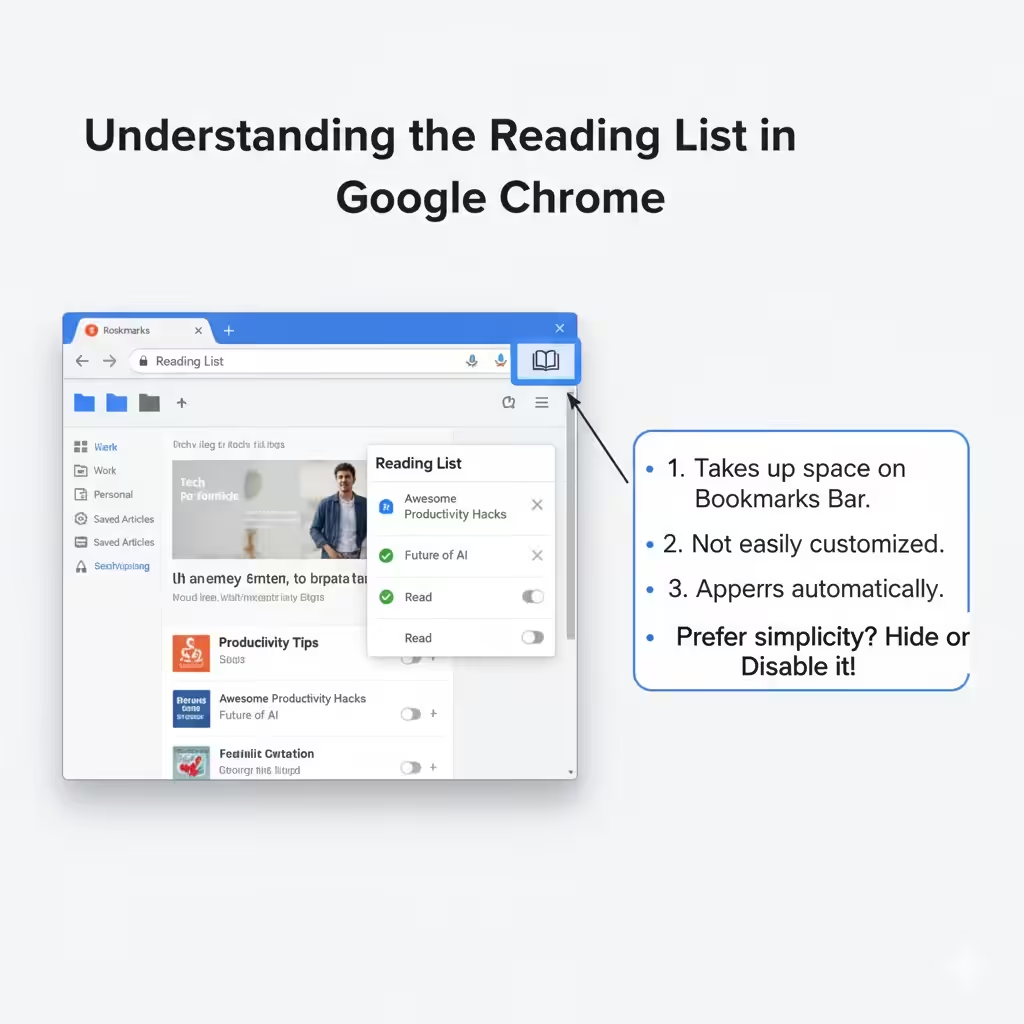
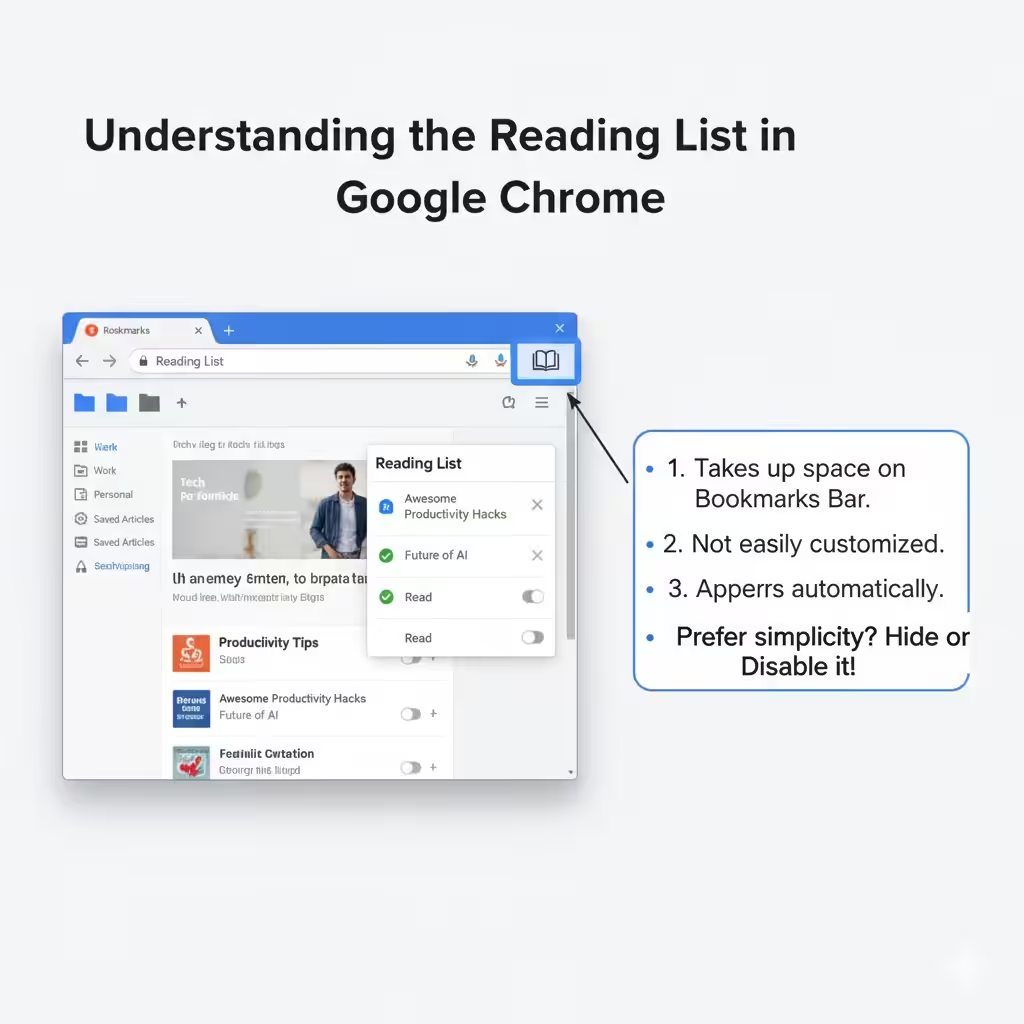
The Reading List is a built-in Chrome feature that allows users to save pages they want to revisit later. It sits conveniently on the Bookmarks Bar and can be accessed with a single click. You can save both read and unread pages, making it similar to a combination of bookmarks and a to-read list.
While useful for some, others find it unnecessary because:
-
It takes up space on the Bookmarks Bar.
-
It can’t be easily customized or organized like regular bookmarks.
-
It sometimes appears automatically after Chrome updates, even if you never enabled it.
If you prefer simplicity, you can easily hide or disable it entirely.
How to Disable Reading List From Google Chrome (New Versions)
As Chrome evolves, Google frequently changes the way features like the Reading List are handled. In the latest versions of Chrome (version 100 and later), the option to toggle the Reading List directly from the browser settings has been removed. However, there are still effective ways to hide or remove it.
Step 1: Hide the Reading List from the Bookmarks Bar
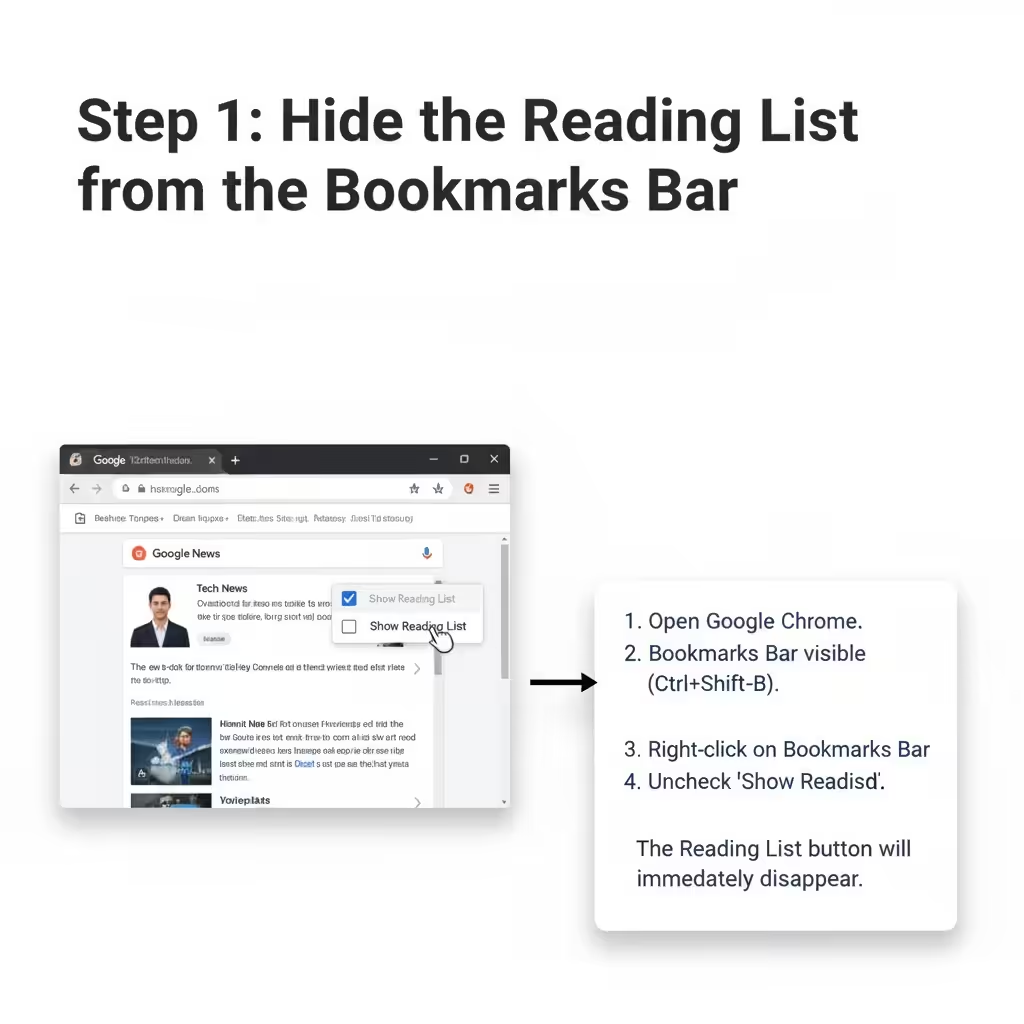
If you simply want to remove it from view without disabling it completely, you can hide it through a simple right-click option.
-
Open Google Chrome.
-
Make sure your Bookmarks Bar is visible. If it’s not, press Ctrl + Shift + B (Windows/Linux) or Command + Shift + B (Mac).
-
Right-click anywhere on the Bookmarks Bar.
-
Uncheck Show Reading List from the dropdown menu.
The Reading List will immediately disappear from your bookmarks area. This method is quick, reversible, and doesn’t affect saved items.
How to Disable the Reading List Using Chrome Flags
In earlier versions of Chrome, you could disable the Reading List via experimental settings known as Chrome Flags. However, depending on your current version, this method may or may not be available.
If your version of Chrome still supports it, follow these steps:
-
Open Chrome and type the following in the address bar:
-
In the search box at the top, type Reading List.
-
Locate the option named Reading List or Side Panel Reading List.
-
Click the dropdown menu next to it and select Disabled.
-
Restart Chrome by clicking Relaunch at the bottom of the page.
Once Chrome restarts, the Reading List feature should be completely disabled and won’t appear on your bookmarks bar anymore.
How to Disable the Side Panel Reading List in New Chrome Versions
In recent versions of Chrome, Google introduced a Side Panel that combines bookmarks, reading list, and other features in one place. While this is convenient for multitasking, it can be distracting or unnecessary if you don’t use it.
Here’s how to disable or hide the Reading List from the Side Panel:
-
Open Chrome.
-
Click on the Side Panel icon (a square with a diagonal line) next to your profile picture.
-
If Reading List is visible, click the Bookmarks tab instead, or close the panel entirely.
-
You can also disable the Side Panel button:
-
Right-click the Side Panel icon.
-
Select Hide side panel button.
-
This removes the Side Panel from the toolbar, keeping your Chrome interface clean and distraction-free.
How to Remove Reading List by Editing Chrome’s Preferences File
If you’re an advanced user and prefer a deeper method, you can manually remove the Reading List by editing Chrome’s configuration file. This method requires caution because you’ll be modifying Chrome’s settings directly.
Steps:
-
Close Google Chrome completely.
-
Press Windows + R to open the Run dialog.
-
Type the following path and hit Enter:
-
Look for a file named Preferences and open it with Notepad.
-
Search for the term reading_list.
-
Delete or modify any section related to it (make sure you don’t remove other lines).
-
Save the file and restart Chrome.
After restarting, the Reading List should be removed. However, proceed carefully — modifying system files can cause Chrome to reset or behave unexpectedly if done incorrectly.
Using Chrome Extensions to Hide Reading List
If the manual or built-in methods don’t work, you can use third-party extensions to customize your Chrome interface.
Extensions like Stylus or Custom Chrome UI let you add CSS rules that hide specific UI elements — including the Reading List or Side Panel.
For example, you can add this CSS rule using a styling extension:
This ensures that the Reading List icon and menu are completely invisible, even if Chrome updates.
How to Re-enable the Reading List
If you ever decide to bring the Reading List back, it’s easy to restore it:
-
If you hid it using the Bookmarks Bar:
Right-click the Bookmarks Bar again and check Show Reading List. -
If you disabled it using Flags:
Return tochrome://flags, search for “Reading List,” and set it to Enabled, then relaunch Chrome. -
If you used extensions or edits:
Revert the changes or disable the custom CSS rule you applied.
Why You Might Want to Keep the Reading List
Although many users prefer to disable it, the Reading List does have some advantages:
-
It syncs with your Google Account, so you can access saved pages across devices.
-
It’s faster than bookmarking if you just want to revisit an article once.
-
It allows offline reading for saved pages in some Chrome versions.
So, instead of removing it entirely, you might just choose to hide it temporarily if you prefer a cleaner workspace.
Troubleshooting Tips
If the Reading List reappears after a Chrome update:
-
Try disabling it again through the right-click menu.
-
Clear your browser cache or restart Chrome.
-
Check if your Chrome profile is synced — some settings can automatically restore after sync.
If nothing works, uninstalling and reinstalling Chrome may reset the UI to default settings.
Conclusion
The Reading List in Google Chrome can be helpful for some users, but if you value a clean, minimal interface, it can become more of an annoyance than an aid. Whether you choose to hide, disable, or remove it entirely, there are several effective ways to manage this feature on Windows 11 or Windows 10.
You can simply right-click and uncheck the “Show Reading List” option, disable it using Chrome Flags, or edit Chrome’s preferences file for a deeper solution. If you prefer flexibility, extensions can help hide it permanently.