


Ways to Open ASPX File Format on Windows 11 or Windows 10
If you have ever downloaded a file from a website and noticed that it ends with the extension .aspx, you might be confused about how to open it. Unlike common file types such as .docx or .pdf, .aspx files are not meant to be opened directly like a regular document. Instead, they are web server files used by Microsoft’s ASP.NET framework to generate web pages dynamically.
However, there are situations where you might need to open or view an .aspx file on your computer, especially if you’ve downloaded one by accident or are working on web development projects. This article will explain what .aspx files are, how to open them on Windows 11 or Windows 10, and how to convert them into more readable formats if necessary.
What Is an .ASPX File?
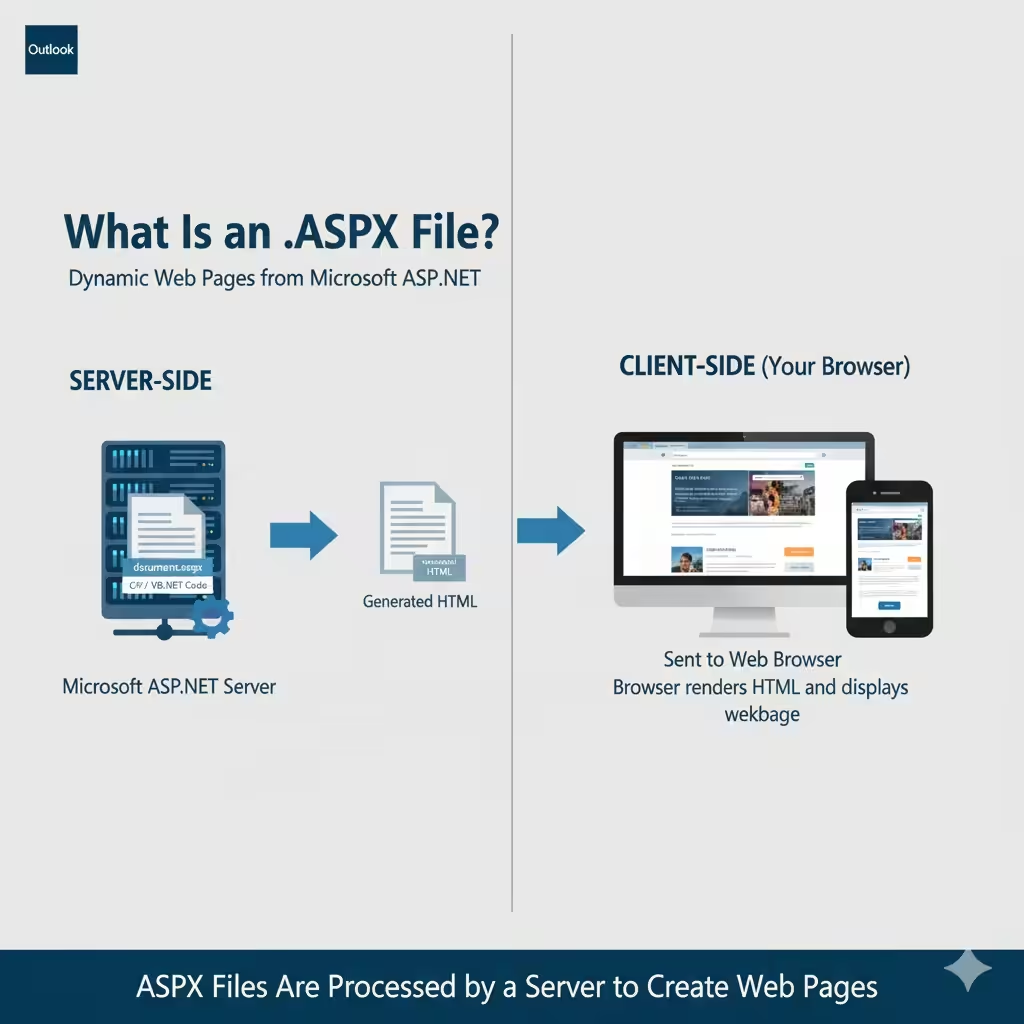
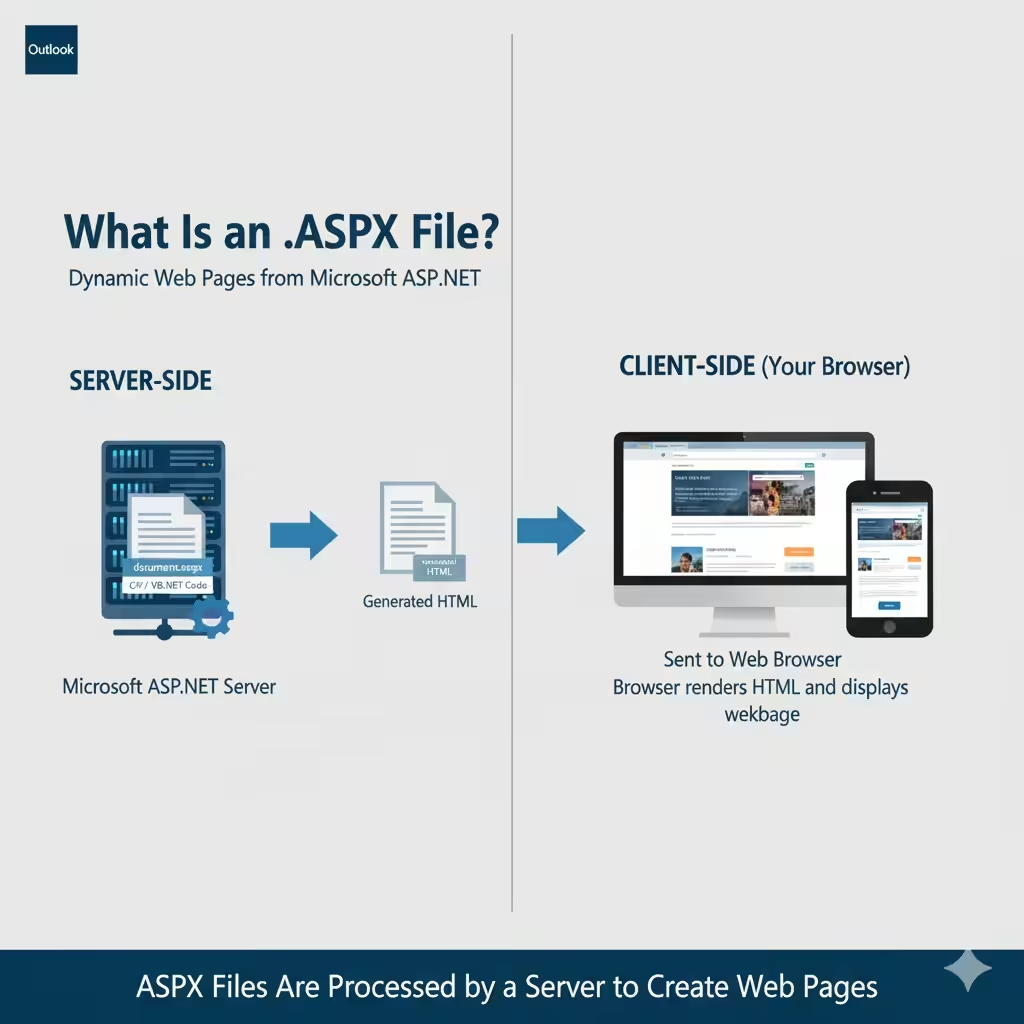
An ASPX file (short for Active Server Page Extended) is a web page file generated by a Microsoft ASP.NET server. These files are usually written in languages like C# or VB.NET and contain server-side scripts that generate HTML code when a user accesses the page through a browser.
When you visit a website that uses ASP.NET, the server processes the .aspx file and then sends the resulting HTML page to your browser. This means the .aspx file itself is not meant to be opened locally because it depends on a server to run the code and display the correct content.
Still, you can view or open the file to read its source code or understand its structure.
Why You Might Encounter .ASPX Files
You may come across an .aspx file in several scenarios, such as:
-
Downloading a file from a website, but instead of a PDF or DOC file, you get something like “document.aspx”.
-
Working with web development projects that use Microsoft’s ASP.NET framework.
-
Receiving an .aspx file as an email attachment from a developer or IT department.
If you simply wanted a readable document but got an .aspx file instead, it may have been downloaded incorrectly or mislabeled.
How to Open .ASPX Files in Windows 11/10
Depending on what you need to do — whether you just want to read the content, view the code, or convert the file — there are several ways to open .aspx files.
1. Open .ASPX Files Using a Web Browser
The easiest and quickest way to open an .aspx file is by using your web browser. All modern browsers like Google Chrome, Microsoft Edge, Mozilla Firefox, or Opera can display the content of an .aspx file if it contains HTML or text.
Steps:
-
Locate the .aspx file on your computer.
-
Right-click the file.
-
Select Open with → choose a browser such as Chrome or Edge.
If the .aspx file contains plain HTML or text-based content, it will open normally in your browser, and you’ll be able to view its structure. However, if it contains only server-side code or was designed to run on a web server, the browser may show only raw text or unreadable symbols.
2. Open .ASPX Files Using a Text Editor
If you want to view or edit the code inside an .aspx file, you should open it using a text editor or code editor.
Some recommended editors include:
-
Notepad (built-in Windows tool)
-
Notepad++
-
Visual Studio Code
-
Sublime Text
Steps:
-
Right-click on the .aspx file.
-
Choose Open with → Notepad or another text editor.
-
You’ll now see the source code, which may include HTML, C#, or VB.NET.
This method is ideal if you are a web developer or simply want to inspect what the .aspx file contains.
3. Rename and Convert .ASPX Files to Another Format
Sometimes, .aspx files are downloaded incorrectly from websites. For instance, if you wanted a PDF or Word document and ended up with a .aspx file, you can try renaming it.
Steps:
-
Right-click the downloaded .aspx file.
-
Select Rename.
-
Change the file extension from .aspx to .pdf or .docx.
-
Press Enter and confirm the change.
-
Try opening the file again with the appropriate application.
This method doesn’t always work, but it’s useful if the file was misnamed during download. Many times, the content you were trying to download (like a bank statement or invoice) is actually a PDF file served through an .aspx link.
4. Open .ASPX Files Using Microsoft Visual Studio
If you’re a developer or IT professional, Microsoft Visual Studio is the most comprehensive tool for working with .aspx files.
Visual Studio allows you to:
-
Edit ASP.NET web pages.
-
Run and test .aspx files using a local development server.
-
Debug and deploy ASP.NET web applications.
Steps:
-
Install Microsoft Visual Studio (Community Edition is free).
-
Open the program and go to File → Open → File.
-
Browse to your .aspx file and select it.
-
You can now view the file’s code and design.
This option is the best choice if you’re developing or maintaining an ASP.NET web application.
5. Convert .ASPX Files to PDF Online
If you received an .aspx file but need a readable document, you can use an online conversion tool to turn it into a PDF.
Websites like:
-
Zamzar (www.zamzar.com)
-
Online2PDF (www.online2pdf.com)
-
Convertio (www.convertio.co)
These allow you to upload your .aspx file and convert it into PDF format easily.
Steps:
-
Visit any online converter website.
-
Upload your .aspx file.
-
Choose PDF as the output format.
-
Click Convert and download your new file.
This is especially helpful if you accidentally downloaded an .aspx file that’s actually a document or form from a website.
Common Problems When Opening .ASPX Files
You may face certain issues while trying to open or view .aspx files. Here are some common problems and solutions:
Problem: The file opens as unreadable text or symbols.
Solution: The file likely contains server-side code meant for ASP.NET. Open it in Visual Studio or a code editor.
Problem: The file doesn’t open in your browser.
Solution: Check the file extension or try renaming it to a supported format like .html or .pdf.
Problem: The file doesn’t convert properly online.
Solution: The file may not actually be a downloadable document. In this case, re-download it from the source website correctly.
Tips for Working with .ASPX Files
-
Always download files from trusted websites to avoid corrupted or mislabeled .aspx files.
-
If the file was supposed to be a PDF, try downloading it again using the website’s “Download” or “Save As” option.
-
Developers should use Visual Studio or Visual Studio Code for better control and debugging of .aspx files.
-
Avoid changing file extensions unless you are sure about the original file type.
Conclusion
Learning how to open .aspx files on Windows 11 or Windows 10 depends on what you need to do with the file. For casual users, simply opening the file in a web browser or renaming it to the correct extension may be enough. For developers, using a text editor or Microsoft Visual Studio offers deeper access to the underlying code.
If you accidentally downloaded an .aspx file instead of a PDF or DOC, try re-downloading it from the original website or using an online converter.